This article covers the steps to open a Cintoo project.
TABLE OF CONTENTS
- Open a Project from the Last Visited Session
- Open a Project on Data Tab
- Open a Project in 3D View
- Focus a Project on the Map
- Browser Tab Title

Go to My Projects. My Projects page loads with settings from when the logged user last visited.
Open a Project from the Last Visited Session
- Click project thumbnail image or click Last Visited from Map, List or Tile view.

The project will open to the same work zone and tab as when the logged user last visited this project on the same device and browser.
Open a Project in Data Tab
- Click Data View icon to open the project directly to Data tab at the root project folder.


Open a Project in 3D View
There are 3 ways to access the default 3D View of a Cintoo project:
- Click Visualize in 3D view icon from the project tab either in List view or Tile view.
- In Map view, select the project pin to open the project pop-up and click Visualize in 3D view.
- In Show details window, click Visualize in 3D view to open the project directly to 3D View.
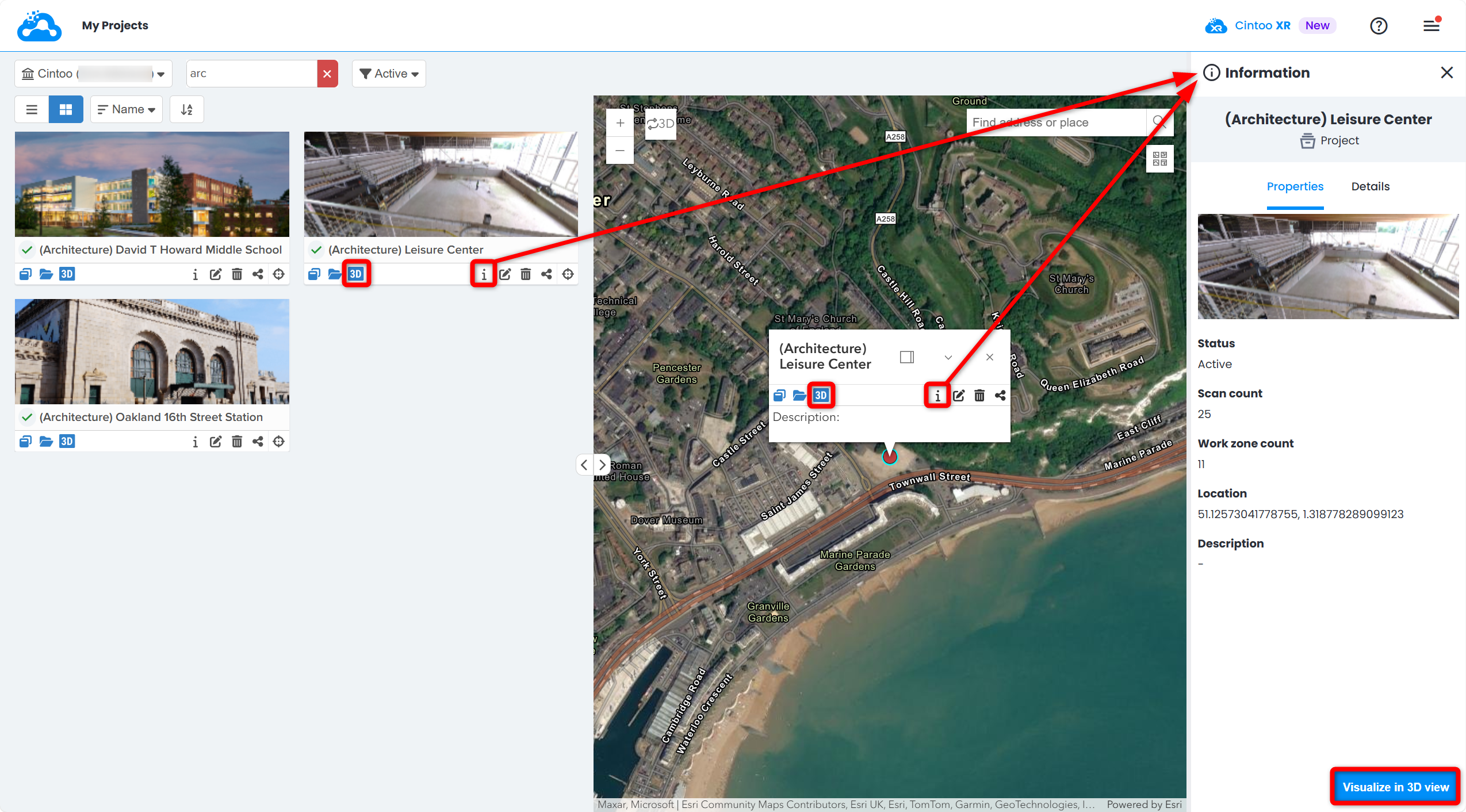
The project will open directly in 3D View at the first scan position in the first work zone folder containing scan files.

Focus a Project on the Map
- Click Focus On Map to zoom to the project location in Map view.

- Click on the map pin to open project pop-up.

Browser Tab Title
When a project is open, browser tab shows work zone name followed by project name, e.g. "Unit 3 - Refinery". This helps find right tab when several work zones or projects are open, and browser bookmarks and history keep same title.
- Title stays same when switching between project tabs, and updates when opening another work zone or renaming current one.
- When work zone and project have same name, name appears only once.
- Pages outside a project, such as My Projects, show page name followed by Cintoo.
Was this article helpful?
That’s Great!
Thank you for your feedback
Sorry! We couldn't be helpful
Thank you for your feedback
Feedback sent
We appreciate your effort and will try to fix the article