This article describes the interface and functionality of 3D View.
Watch tutorial video here: 3D View
Permissions: users with roles including View Reality Data permission can use 3D View.
- 3D View tab is located in the main toolbar.

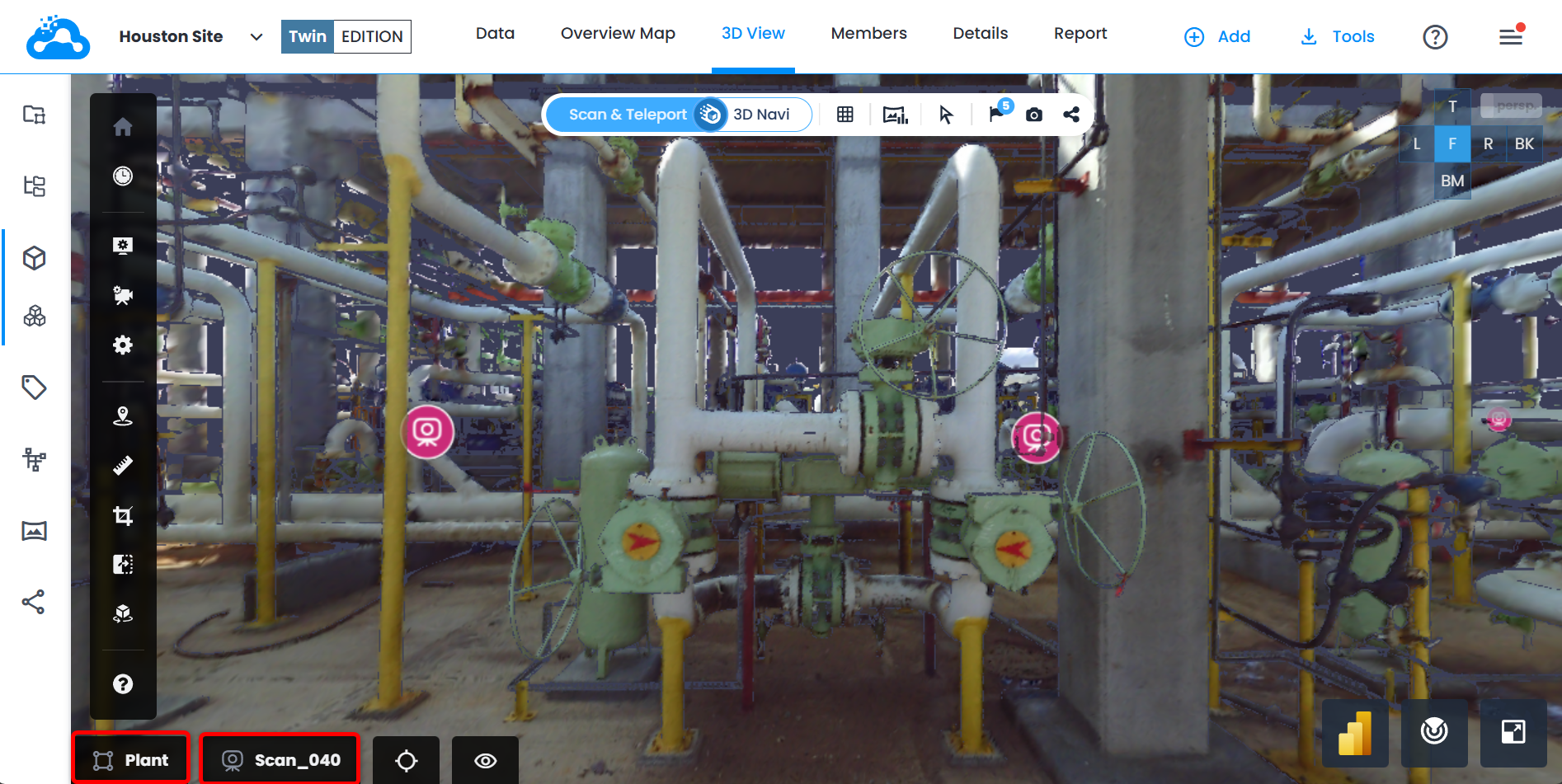
- In 3D View the following functions are available.

- The sidebar has the following buttons: Recenter Camera, Display Settings, Camera Settings, Options, Annotations, Measurements, Crop Tool, Comparison Tool, Manual Alignment Tools and Show Help.

- The center toolbar has the following buttons: Scan & Teleport Mode, 3D Navigation mode, Display Modes, Inspection Data, Pick Models, Show Icons, Take Snapshot, and Share.

- Bottom-left corner of 3D View shows where you are navigating. Long names are shortened - hover over a name to see it in full.
- work zone name - always visible, updates when active work zone changes
- current position name with its resource type icon - visible only while camera is on a position in Scan & Teleport mode: a scan, a 360 image or a 360 video frame.
Was this article helpful?
That’s Great!
Thank you for your feedback
Sorry! We couldn't be helpful
Thank you for your feedback
Feedback sent
We appreciate your effort and will try to fix the article