Cet article décrit les différents paramètres et modes d'affichage disponibles dans la Vue 3D et leur effet sur la scène visuelle.
Regardez la vidéo tutorielle : Display Settings
TABLE DES MATIÈRES
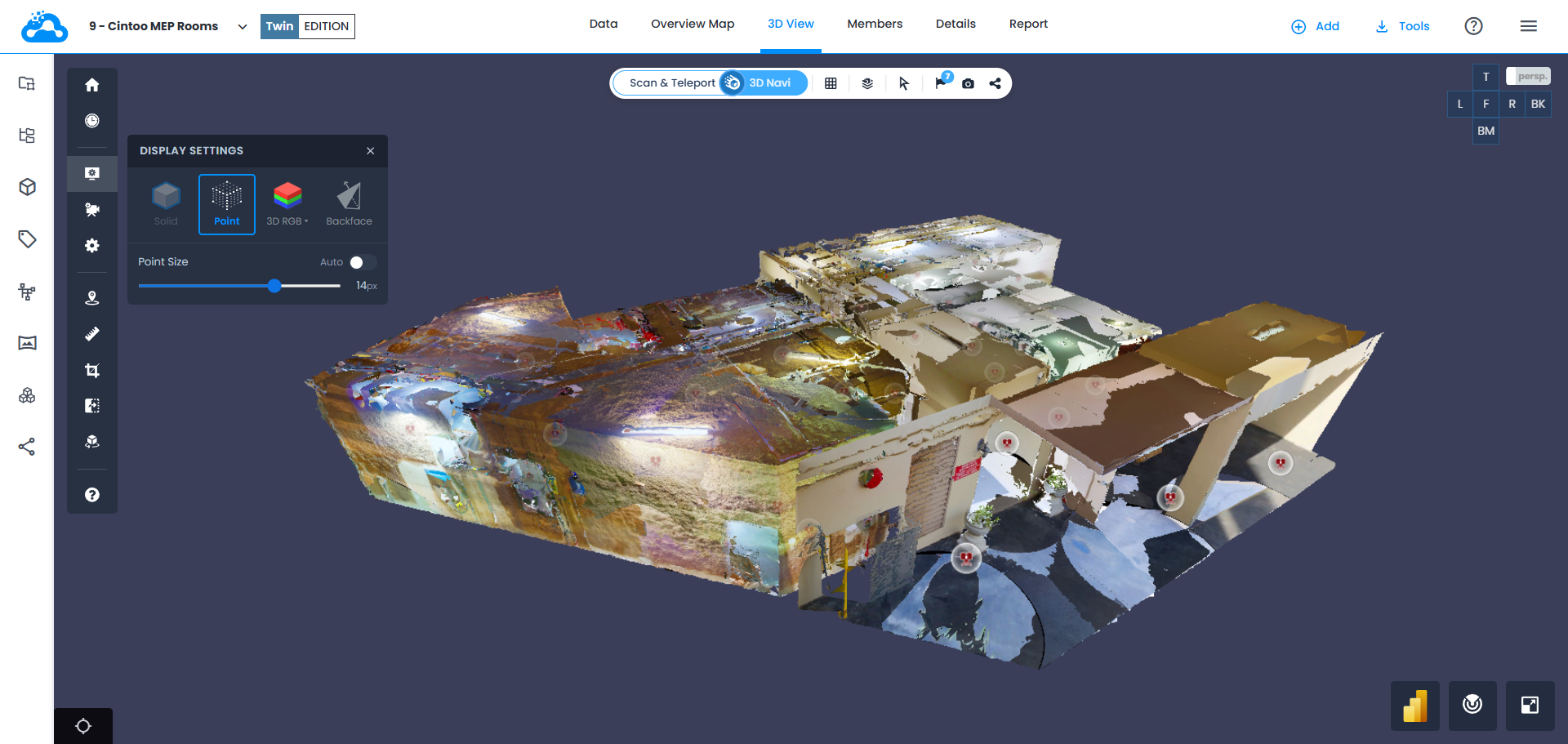
Retrouvez les Paramètres d'affichage dans la barre latérale  . Les options des Paramètres d'affichage comprennent Solide, Point, Mode et Face arrière.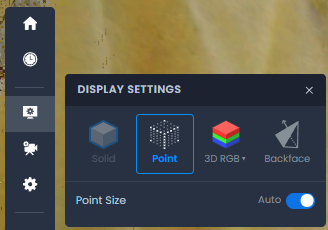
Solide
Disponible uniquement avec le type de caméra Mode Scan. Solide affiche les données de scan 3D sous la forme d'un maillage à surface pleine.
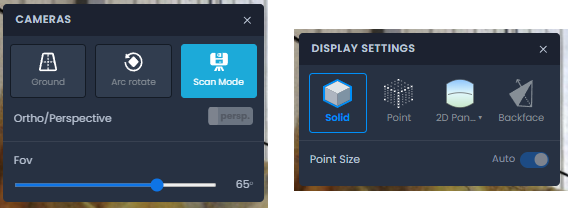
Point
Peut être utilisé avec n'importe quel type de caméra et affiche les données de scan 3D sous la forme de sommets de maillage. Utilisez soit le réglage Auto fixé à 2 px, soit passez en mode manuel et choisissez la taille des points.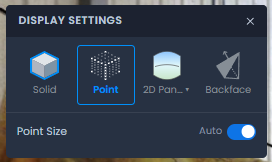
Mode
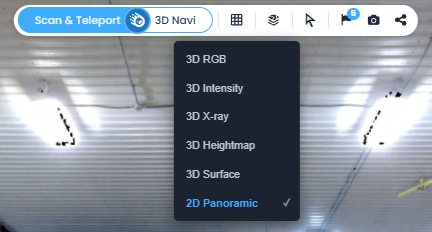
Permet de basculer entre différents modes d'affichage : RVB, Intensité, Rayon X, Carte altimétrique, Surface et Affichage Panorama 2D (mode Scan uniquement).
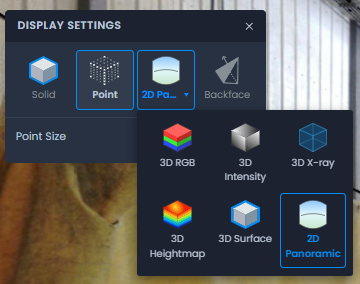
Les modes d'affichage peuvent également être changés dans la Vue 3D depuis la barre supérieure, en cliquant sur l'icône de grille.
RVB
Affiche les données de scan 3D sous la forme d'un maillage colorisé. Sa visualisation est considérablement améliorée par la projection des informations de couleur des images panoramiques, afin d'offrir une meilleure qualité.
Repli sur le mode d'affichage Surface si aucune information RVB n'est trouvée.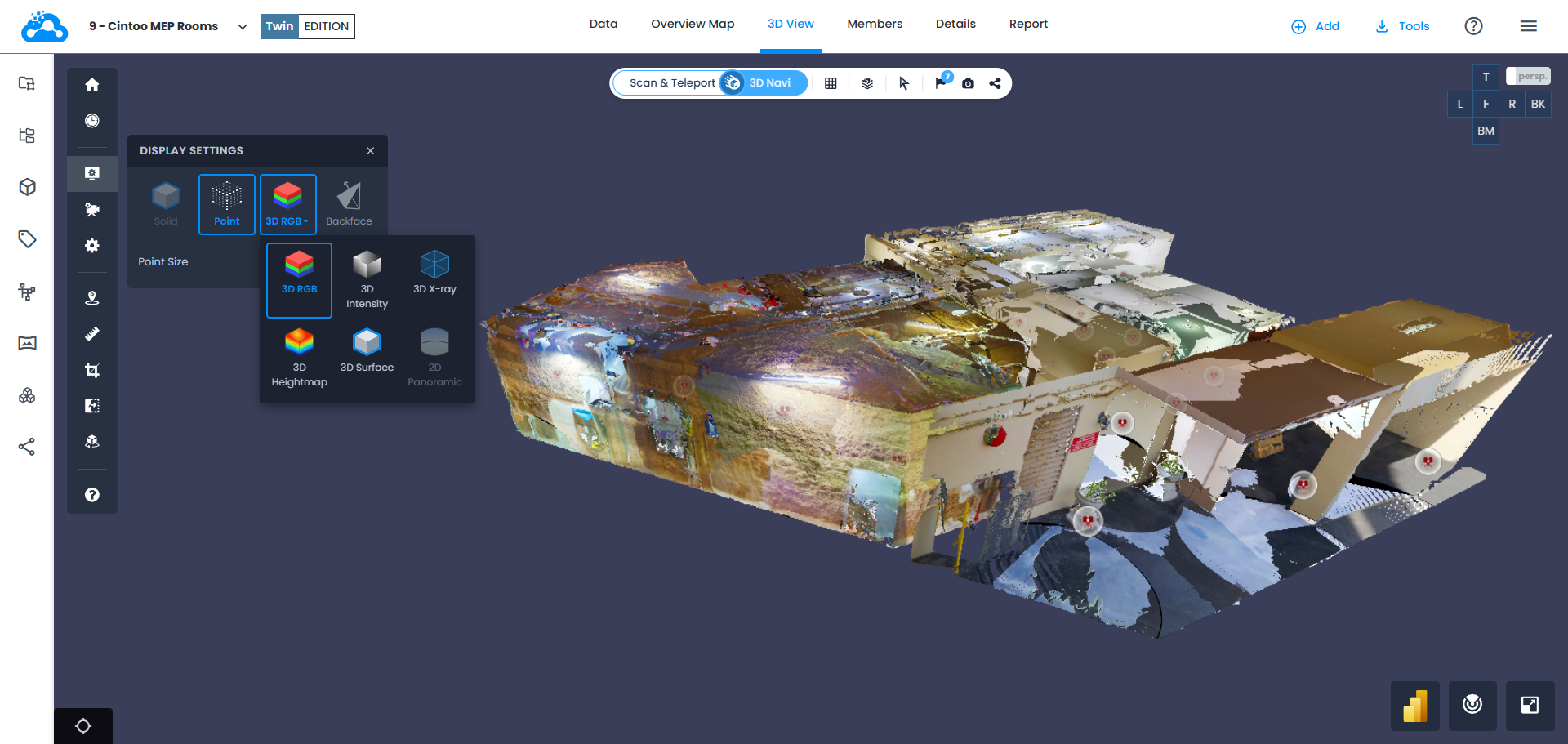
Intensité
Affiche l'intensité des données de scan 3D.
Repli sur le mode d'affichage Surface si aucune information RVB n'est trouvée.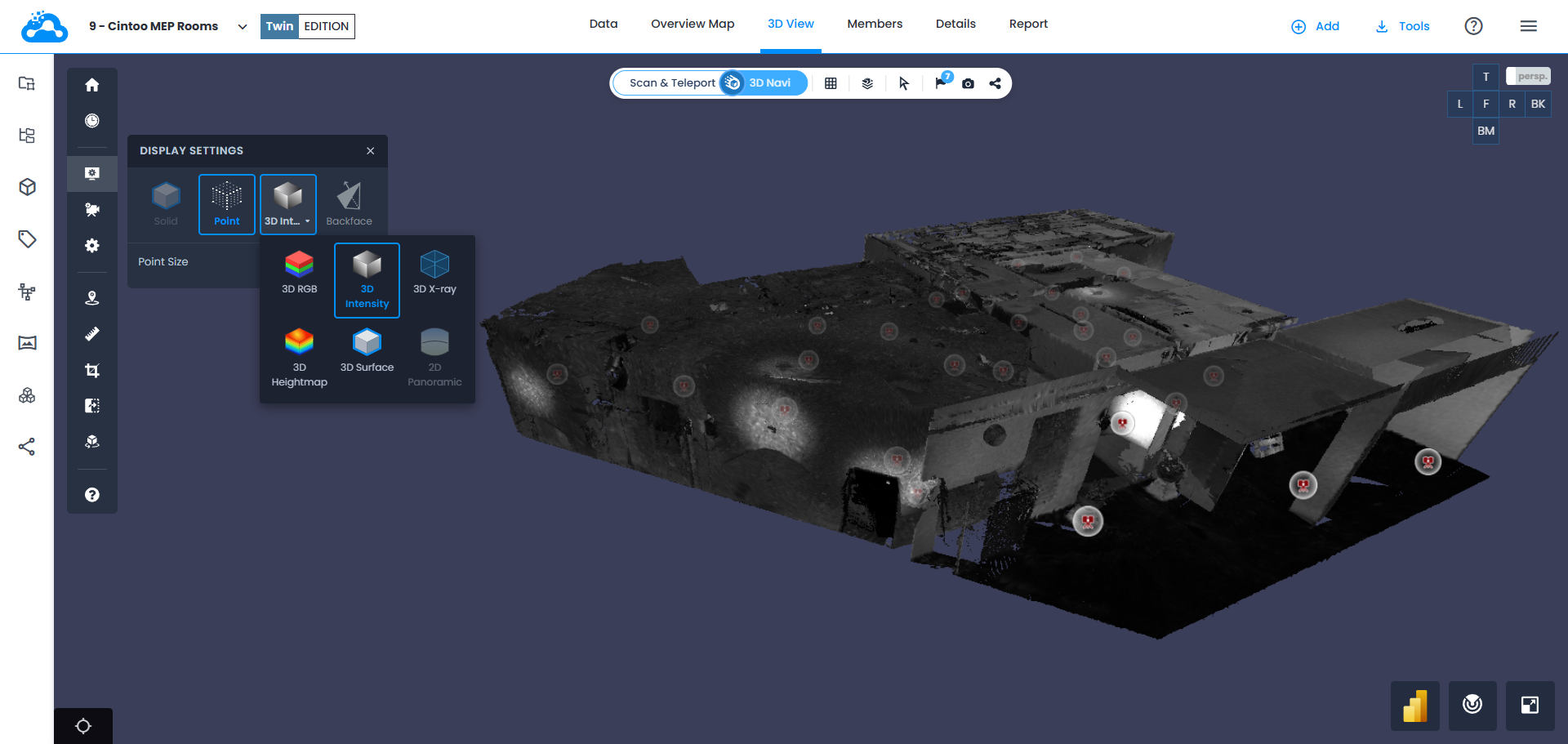
Rayon X
Affiche les données de scan 3D en transparence.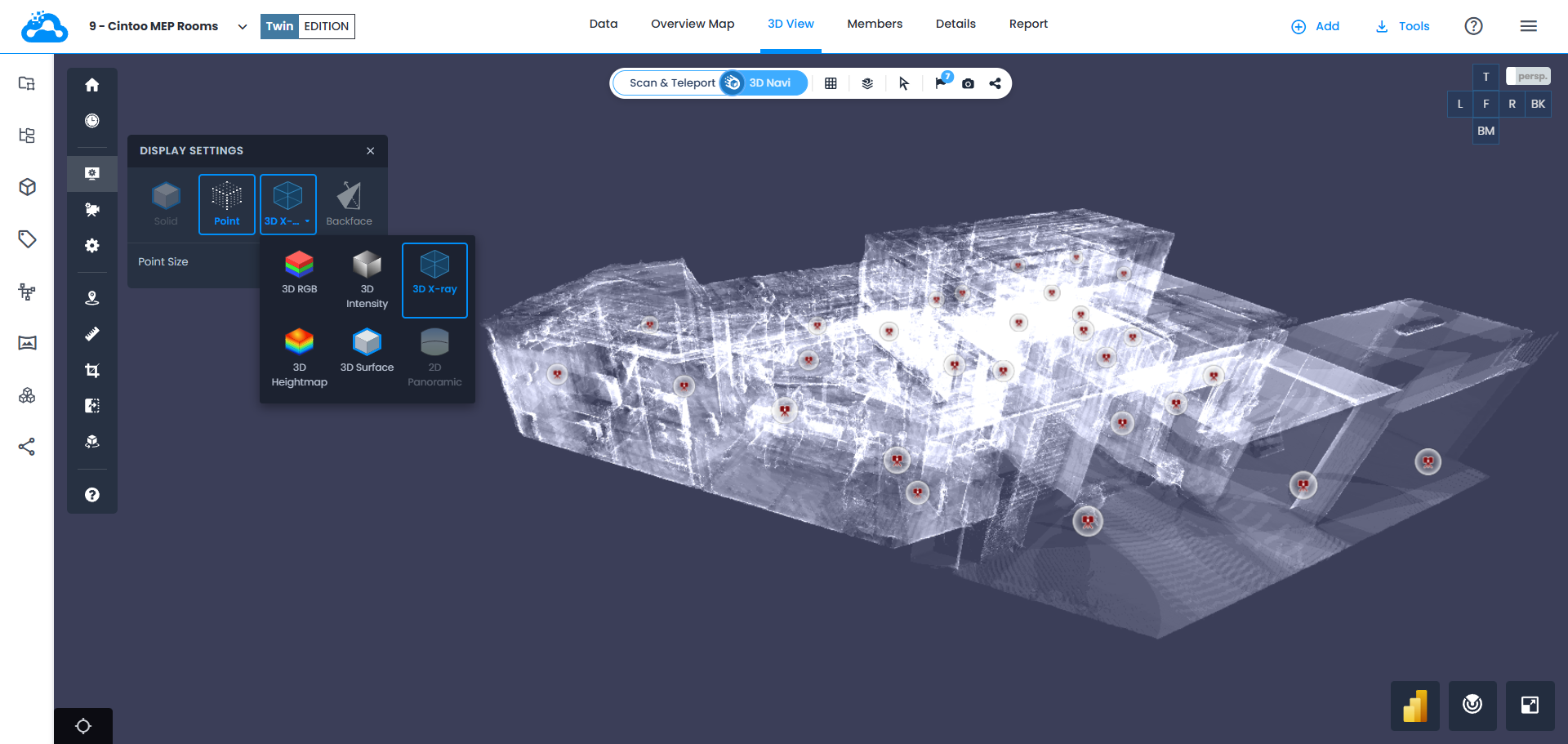
Carte altimétrique
Crée des données de scan 3D avec des informations de hauteur RVB, affichant l'écart de hauteur par rapport au niveau de référence défini.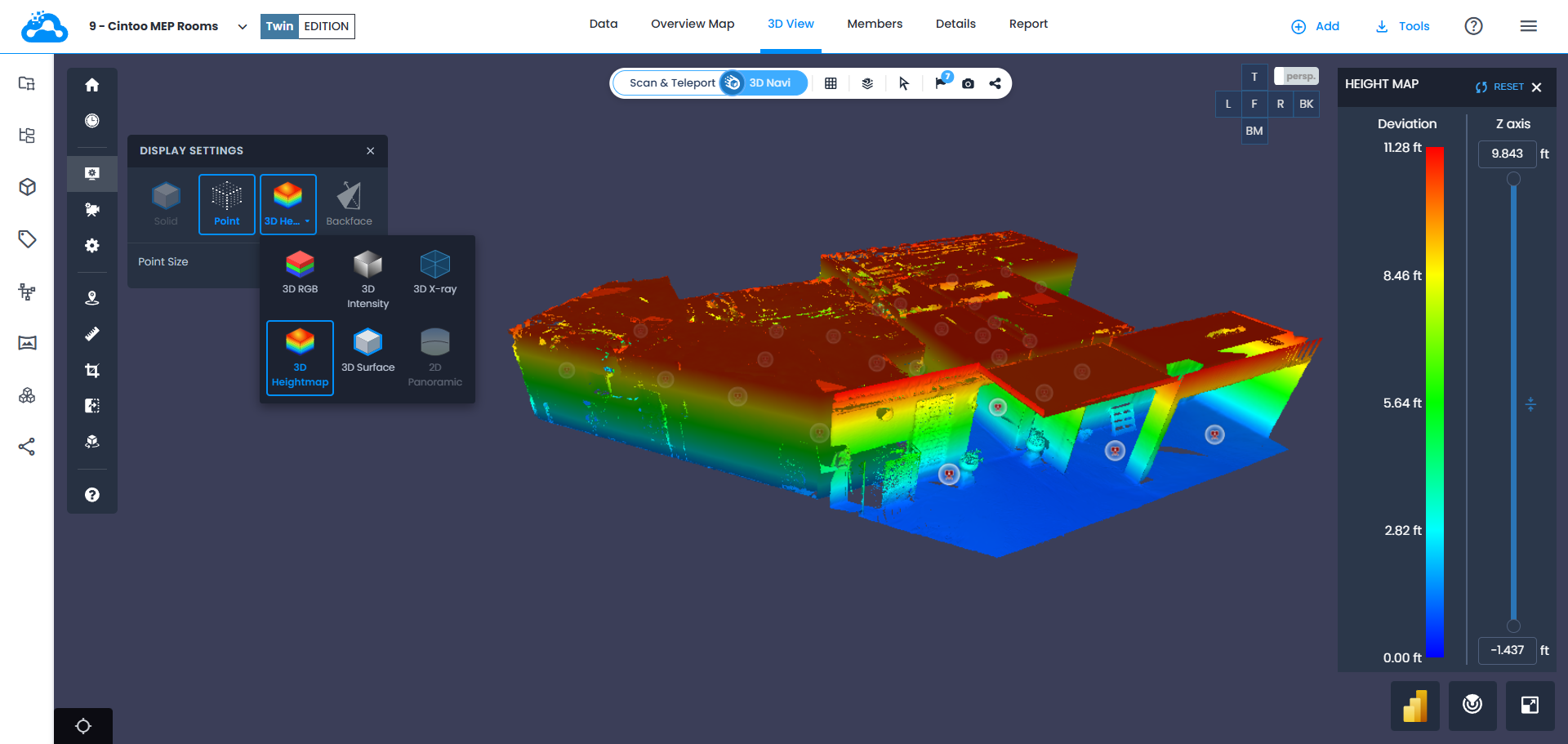
Surface
Affiche le maillage généré à partir des données de scan lors de leur import dans Cintoo sans information de couleur. En utilisant Turbomesh pour exploiter les contributions de différentes positions de scan dans la scène. Le maillage est dynamique en fonction du zoom, le niveau de détail augmentant par exemple lorsque l'on zoome. 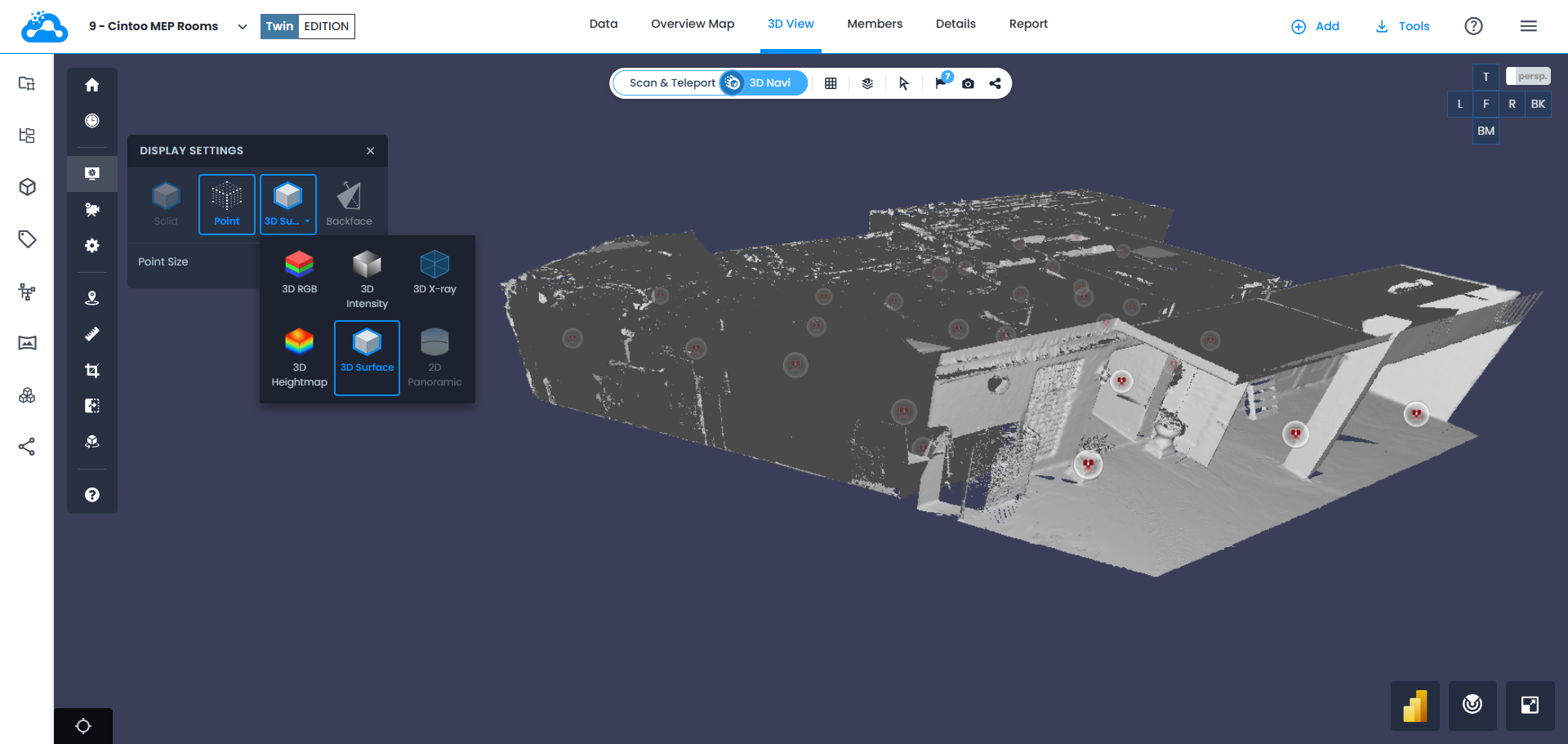
Panorama 2D (mode Scan uniquement)
Affiche l'image panoramique de chaque position de scan capturée par un scanner laser. Si des scans sans images panoramiques, des données de scanners mobiles ou des données non structurées ont été importés dans Cintoo, une image panoramique ne sera pas recréée et les données de scan seront affichées à la place.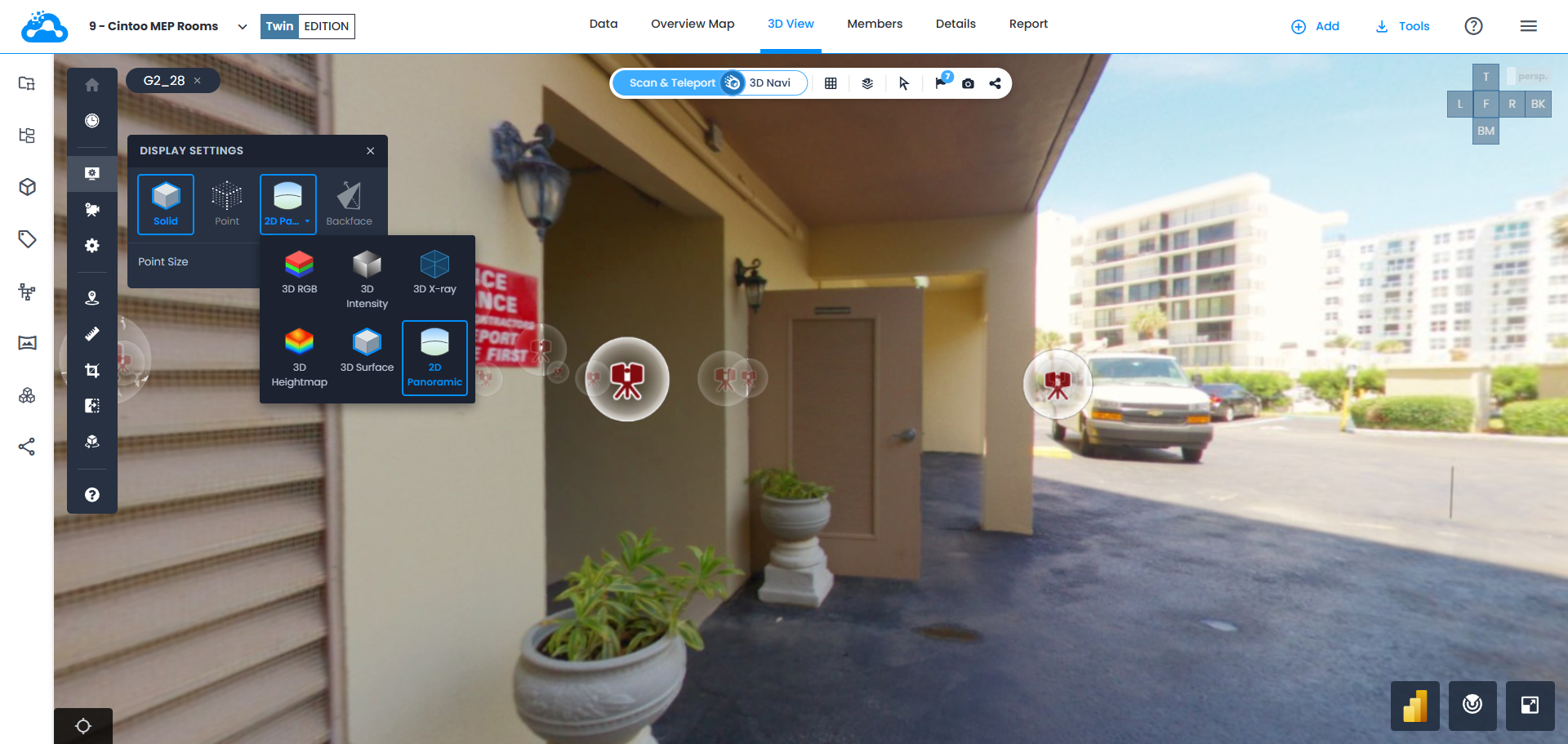
Face arrière
Permet de masquer les faces arrière des surfaces de maillage 3D afin de pouvoir voir l'intérieur des bâtiments depuis l'extérieur et de nettoyer la scène des morceaux de maillage inutiles.
Paramètre Face arrière activé = faces arrière masquées
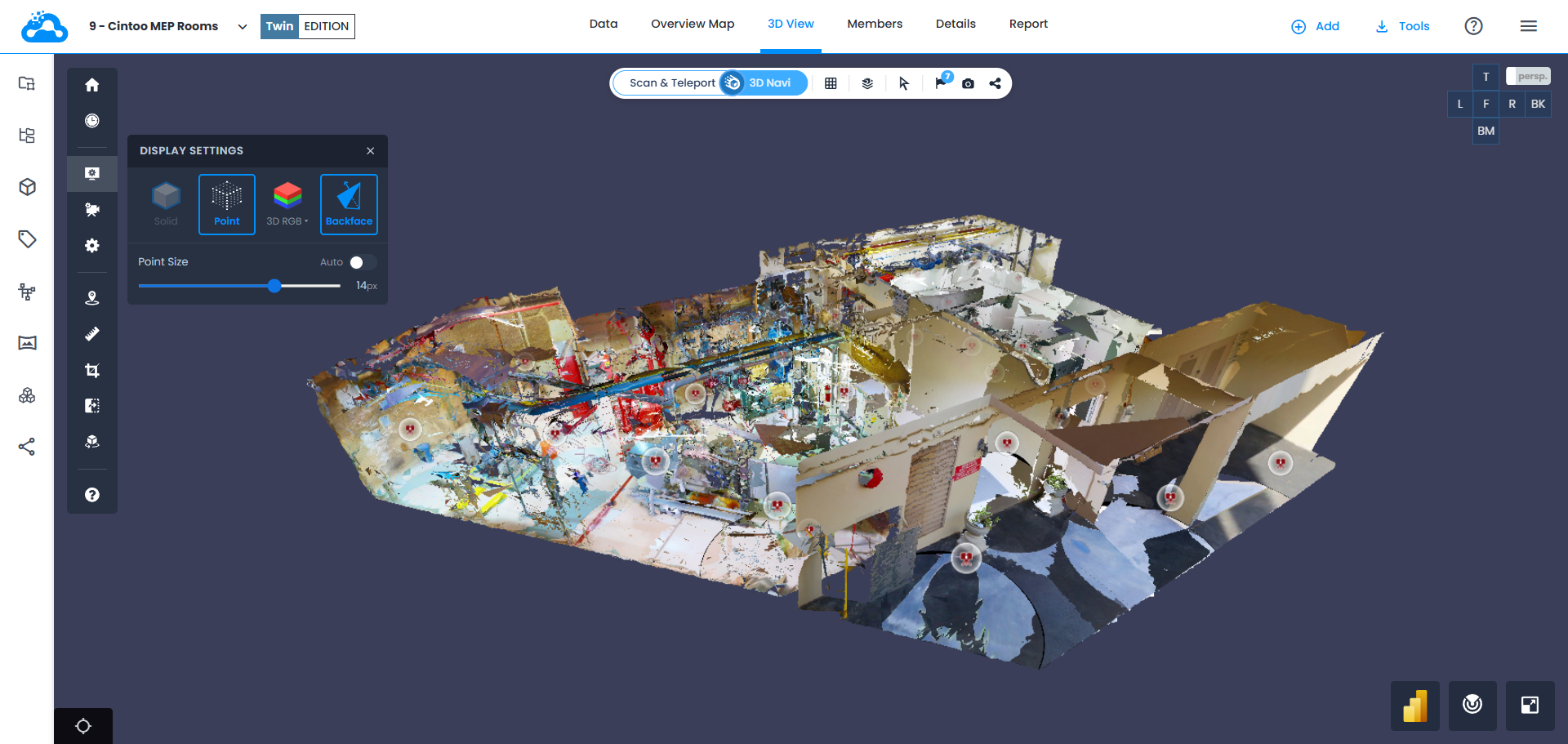
Paramètre Face arrière désactivé = faces arrière affichées
Cet article a-t-il été utile ?
C'est super !
Merci pour votre commentaire
Désolé ! Nous n'avons pas pu vous être utile
Merci pour votre commentaire
Commentaires envoyés
Nous apprécions vos efforts et nous allons corriger l'article