This article describes different display settings and modes available in 3D View and how they affect visual scene.
Watch tutorial video: Display Settings
TABLE OF CONTENTS
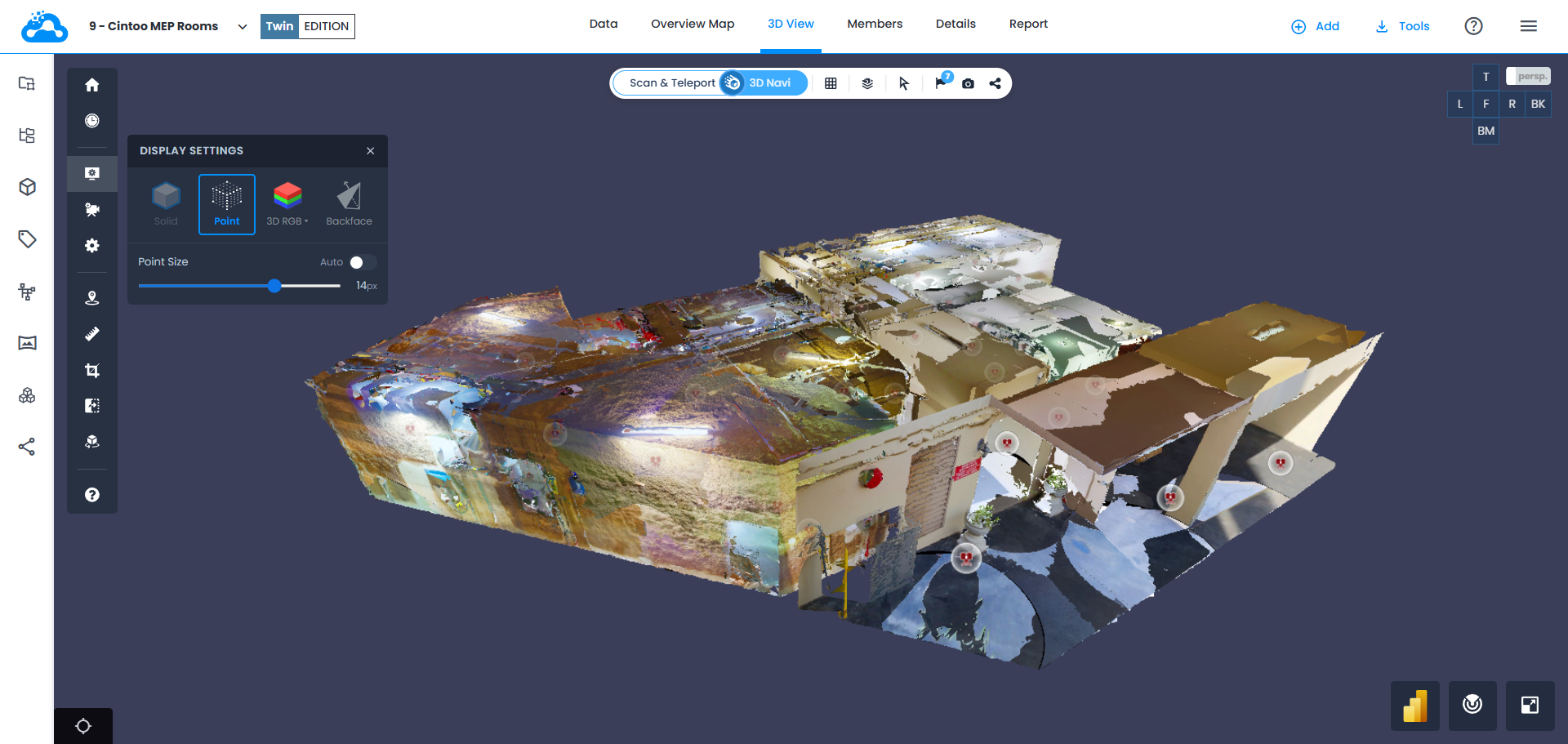
Find Display Settings on the sidebar  . Display Settings options include Solid, Point, Mode, and Backface.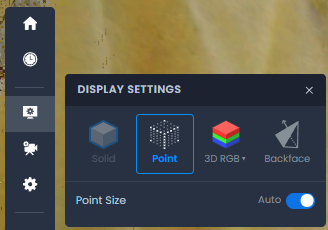
Solid
Is only available with Scan Mode camera type. Solid displays 3D scan data as a solid-surface mesh.
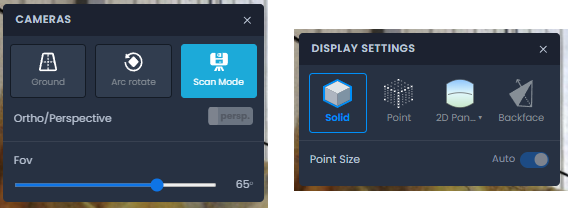
Point
Can be used in any camera type and displays 3D scan data as mesh vertices. Use either Auto setting set to 2px, or pass onto manual mode and choose the points size.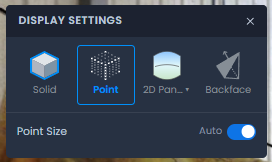
Mode
Allows to toggle between various display modes: RGB, Intensity, X-Ray, Heightmap, Surface, and 2D Panoramic Display (Scan mode only).
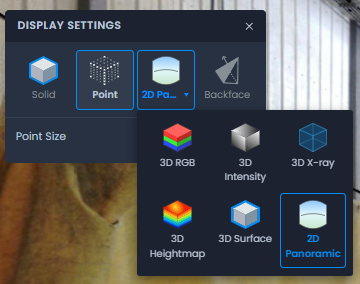
Display modes could also be switched in 3D view from the top bar by clicking on grid icon.
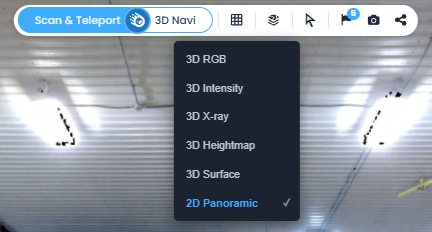
RGB
Displays 3D scan data in a form of a colorized mesh. It's visualization is greatly improved by projecting color information from the panoramic images to deliver higher quality.
Fallback on Surface display mode if no RGB information is found.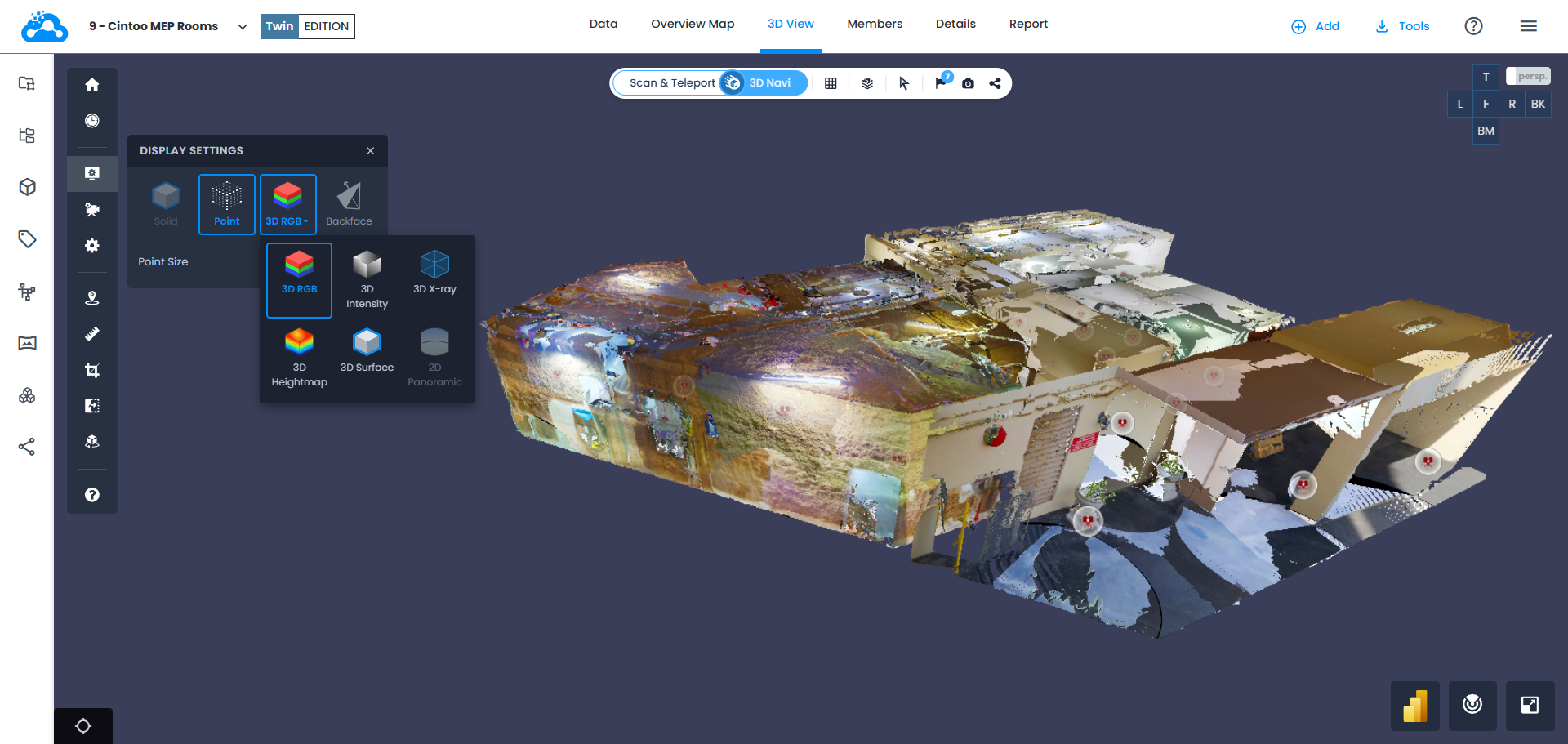
Intensity
Displays intensity of 3D scan data.
Fallback on Surface display mode if no RGB information is found.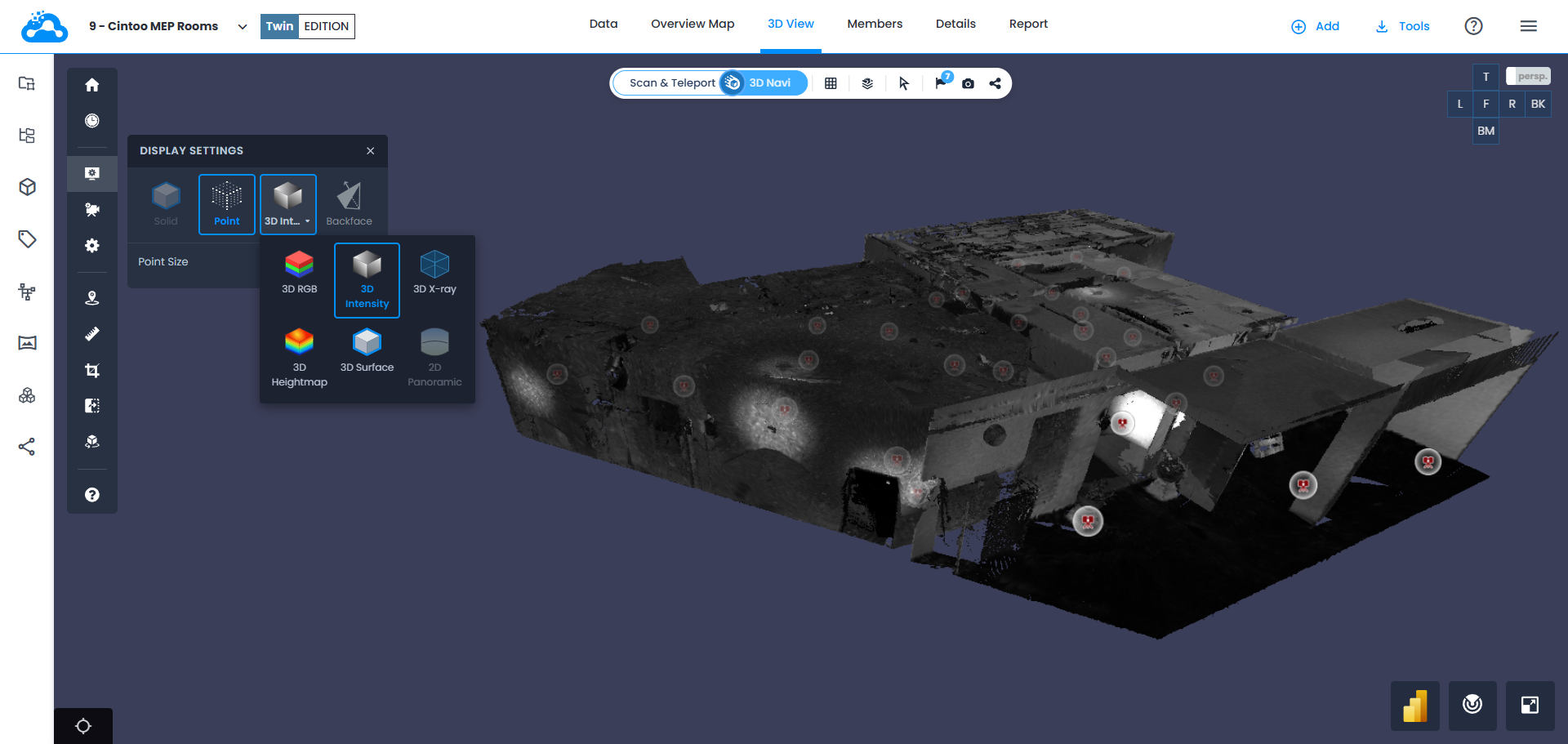
X-Ray
Displays 3D scan data as see-through.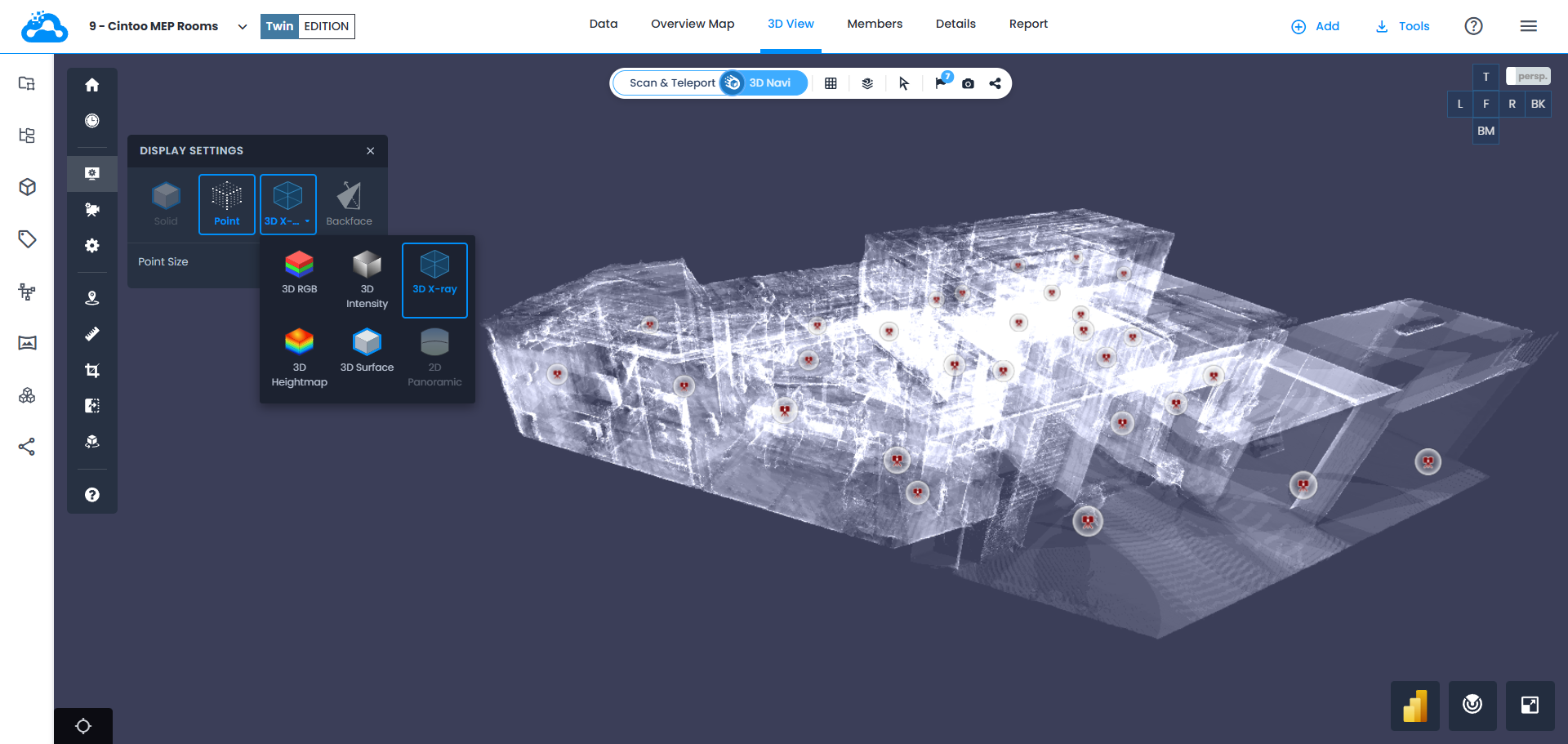
Heightmap
Creates 3D scan data with RGB height information displaying height deviation from the set baseline.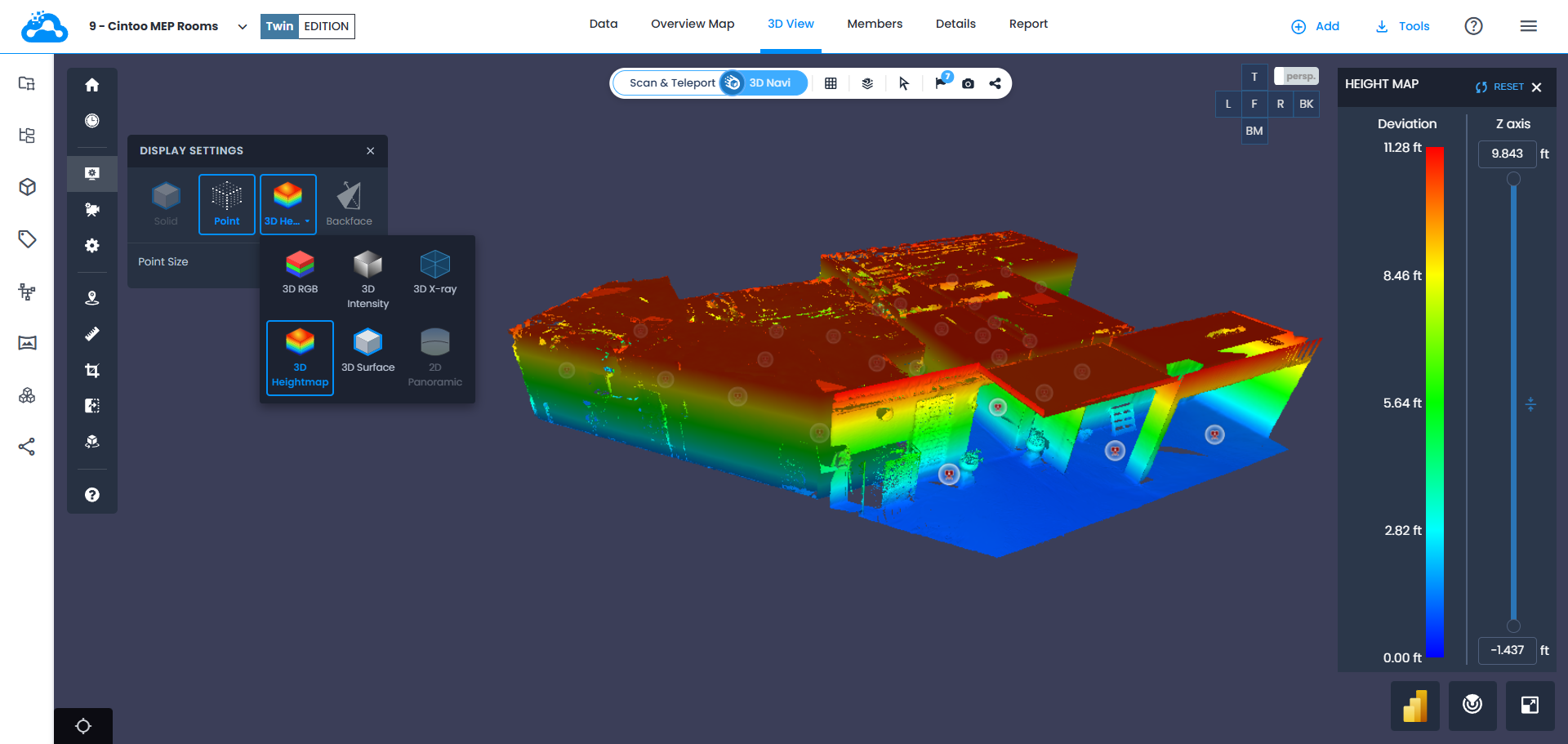
Surface
Displays mesh generated from scan data when it is imported into Cintoo with no color information. Using Turbomesh to use contributions of different scan positions to the scene. Mesh is dynamic depending on the zoom, increasing the level of details when zoomed in for example. 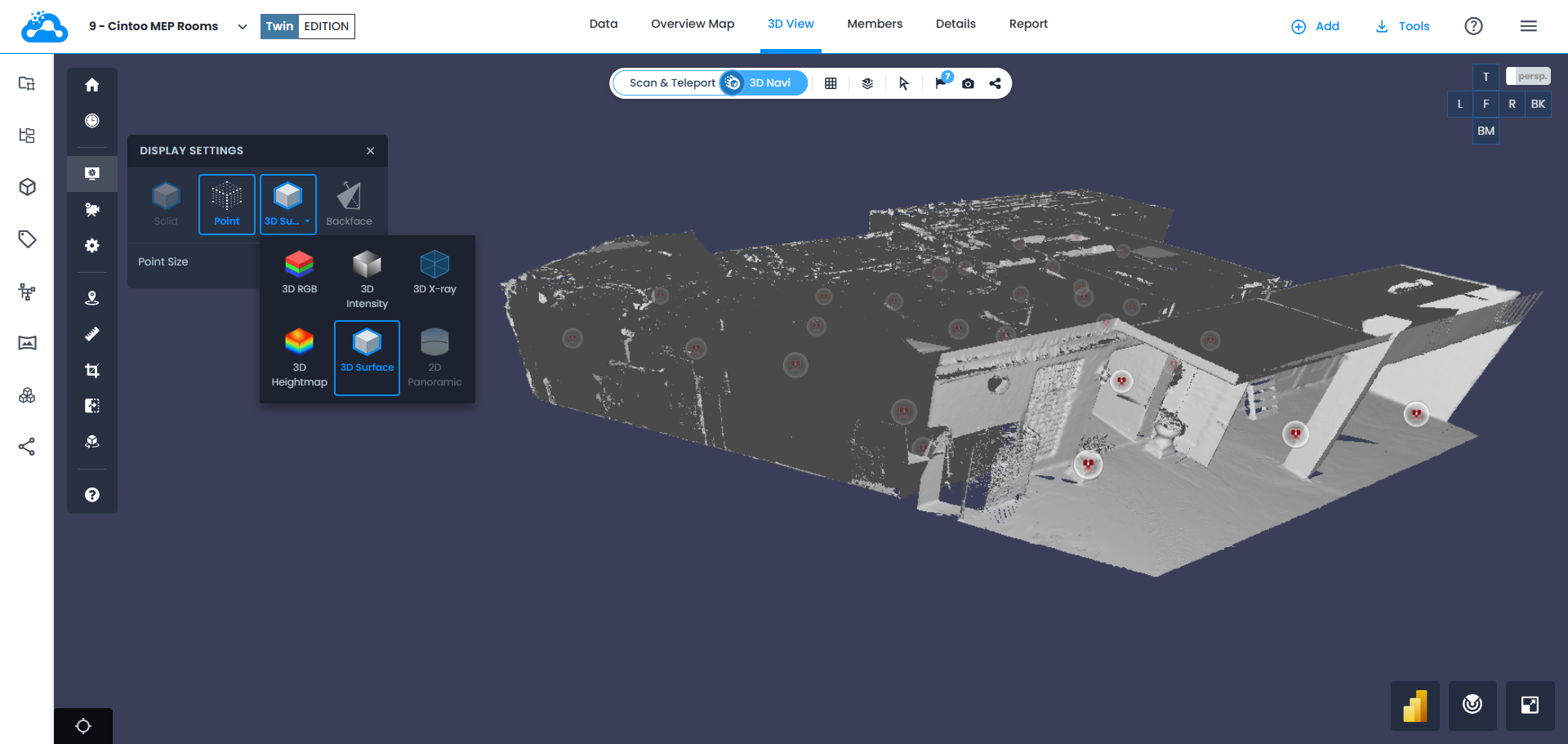
2D Panoramic (Scan mode only)
Displays panoramic image at each scan position captured by a laser scanner. If scans without panoramic images, mobile scanners data, or unstructured data were imported into Cintoo, this will not recreate a panoramic image and will display scan data instead.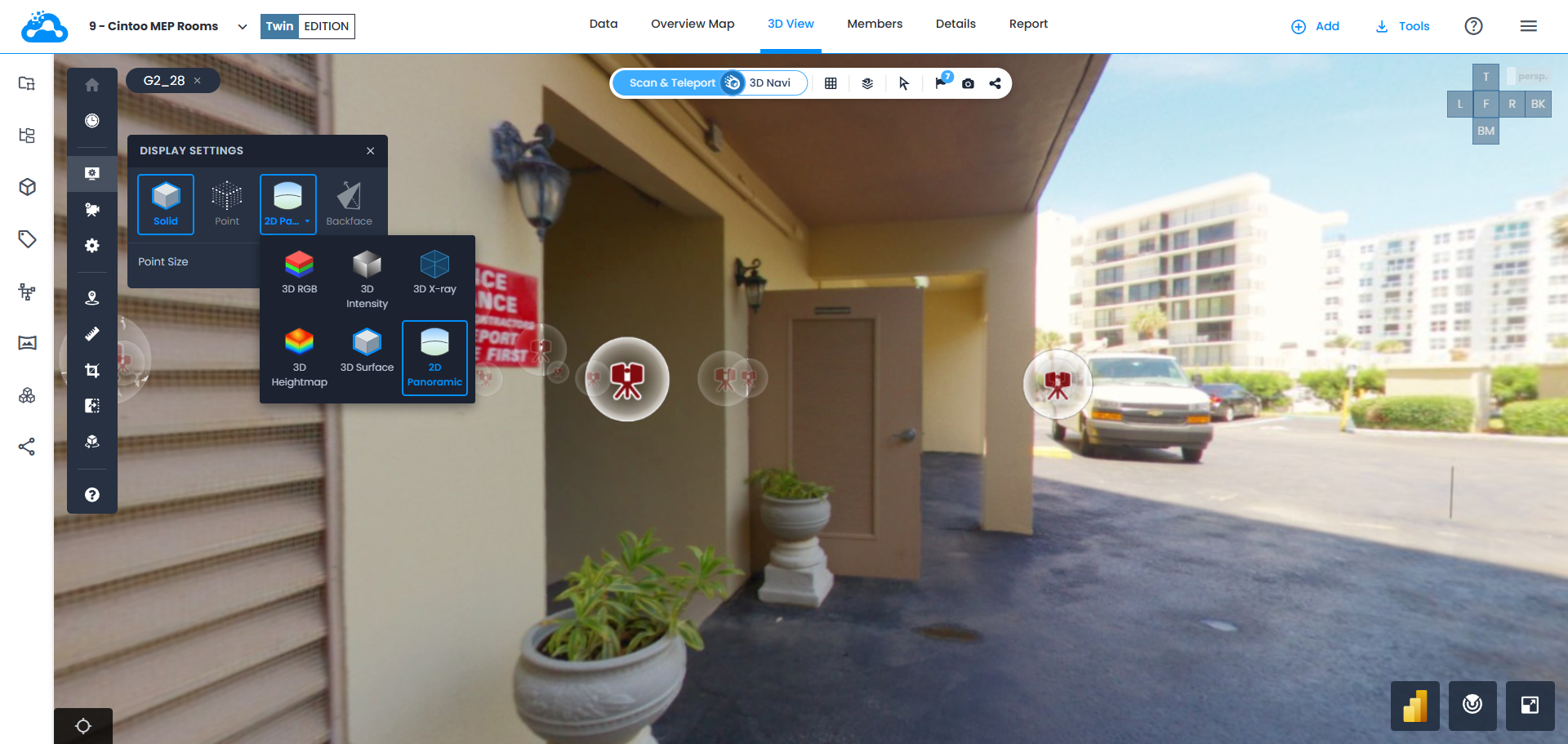
Backface
Allows to hide backfaces of 3D mesh surfaces to be able to see inside of buildings from outside and to clean up the scene from unnecessary mesh pieces.
Backface setting enabled = hide backface surfaces
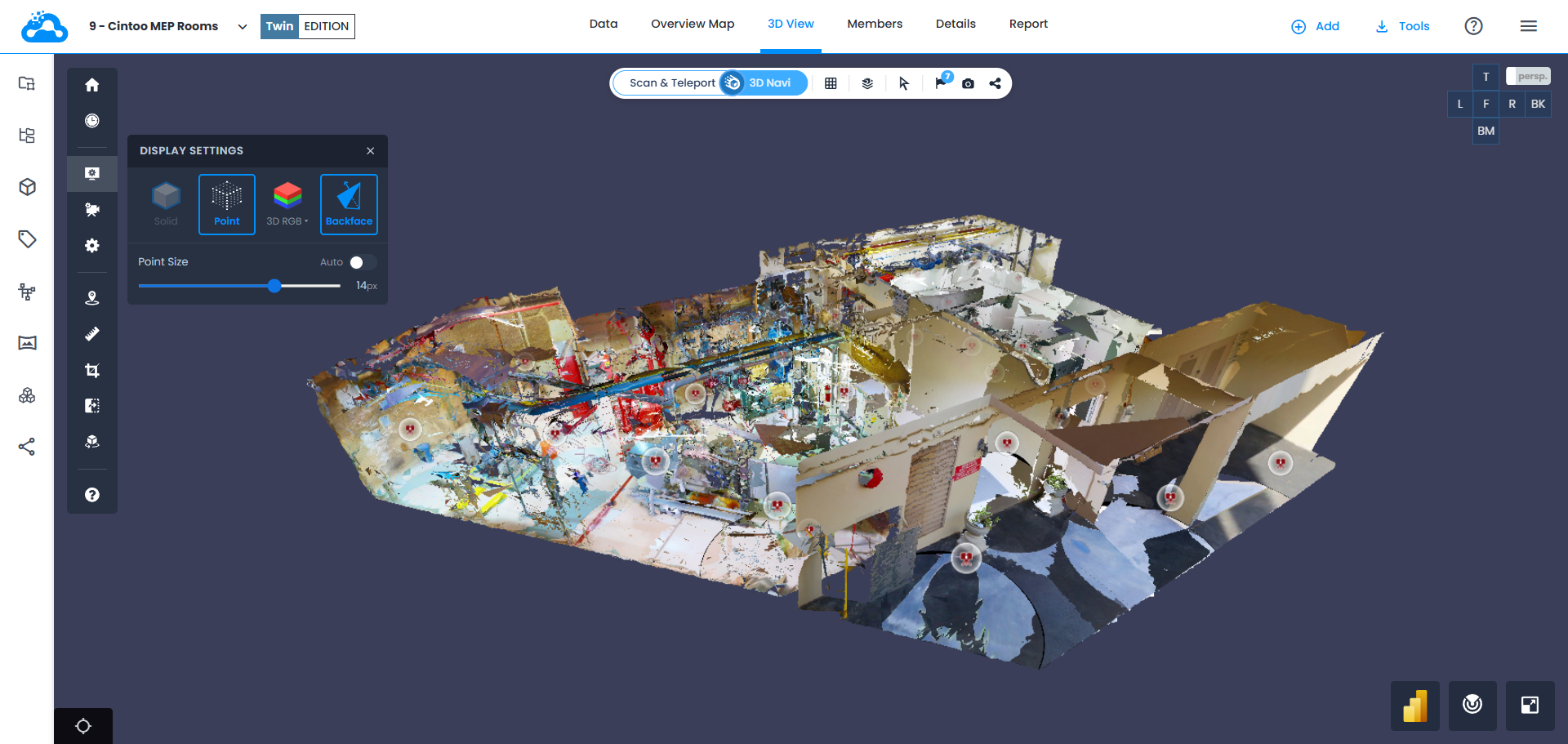
Backface setting disabled = show backface surfaces
Was this article helpful?
That’s Great!
Thank you for your feedback
Sorry! We couldn't be helpful
Thank you for your feedback
Feedback sent
We appreciate your effort and will try to fix the article