This article covers group creation workflow for Cintoo account.
TABLE OF CONTENTS
- Creating a Group
- Managing Group Members
- Adding a Group to a Project
- How Group and Individual Invitations Combine
Creating a Group
In Users & Permissions, it's possible to create a specific group of users. Add or delete users from groups at any time, which will directly impact those users' access to projects to which they have been invited to.
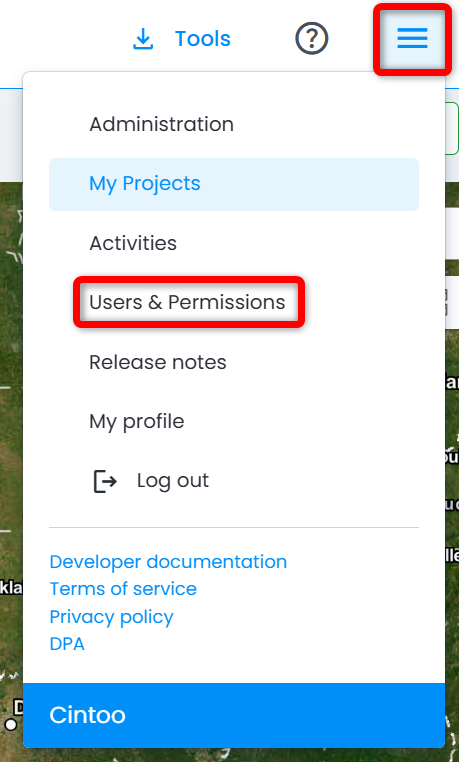
- From burger menu at the top right corner select Users & Permissions.
- Select Groups tab and click Add group.

- In Add group pop-up window enter Name, choose Color and Description.

- Click Create, then add members to the group by picking in Users directory, or by providing a list of emails separated by a comma.

Once users have been added, they appear in the directory for this specific group.

At this stage, it's still possible to add users, delete users, duplicate the group or delete it. Each user can individually be removed by clicking on Trash button at the right of the list.
Managing Group Members
From the list of actions, it's possible to view group details with the list of members, to search for any individual to adjust the level of access to the project and to remove group from the account.

Group composition itself stays managed in Groups tab of Users & Permissions, where members can be added or removed at any time for every project the group belongs to.
Adding a Group to a Project
Groups created here are added to a project from An existing group tab of Add member(s) window, where a chosen role, work zones and optional expiration date apply to all members of the group at once.
Group then appears in Members tab as a single entity - switch list to Groups to see it.
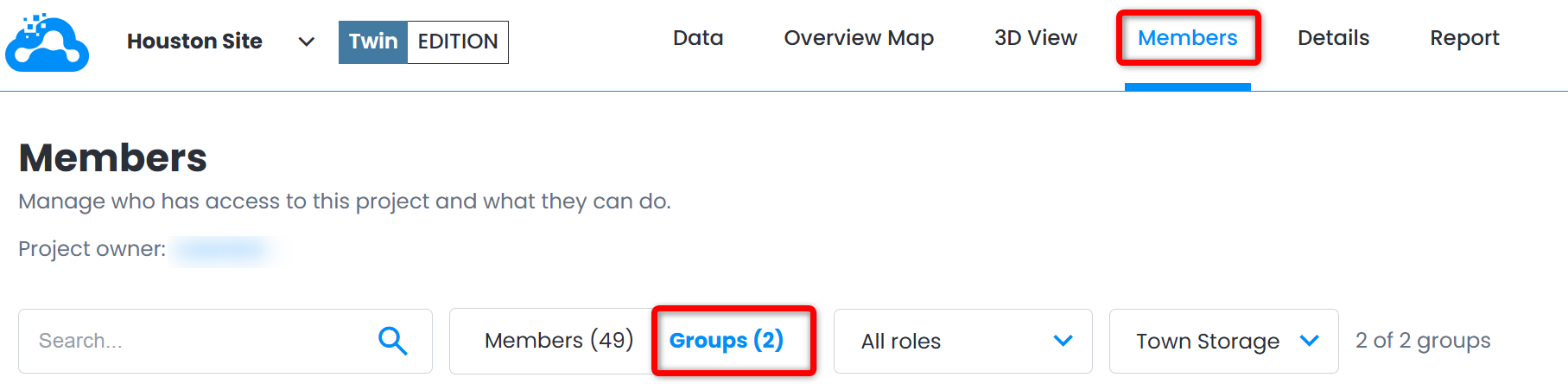
Click group name to open group details panel: change role, work zones access or expiration date of the group, see its members, or remove group from the project.
How Group and Individual Invitations Combine
- If a user is added or deleted from a group, its access to this project will be updated accordingly and automatically.
- If a user in one group has been invited to the same project individually or as part of another group, its permissions on this project will be the cumulated permissions provided by these invitations. No role takes precedence: user gets every permission included in at least one of the roles, and role with fewer permissions doesn't restrict them. For example:
- Invited as part of a group, a user can be assigned the role of a simple Viewer.
- Invited individually or as part of another group, a user can be assigned the role of an Engineer.
- User's role on this project will be the cumulated permissions of the Viewer + Engineer - no permission of either role is lost.
- Changing user's individual role doesn't change role given through a group - change role of group or remove user from group to reduce its permissions.
- A group gives one role to all its members. To give different roles to different users, create separate groups and add each one to project with its own role.
Roles a member gets through groups show as "+N" next to their role in Members list.
Was this article helpful?
That’s Great!
Thank you for your feedback
Sorry! We couldn't be helpful
Thank you for your feedback
Feedback sent
We appreciate your effort and will try to fix the article