This article describes how to connect a Cintoo account to Microsoft Entra ID (formerly Azure Active Directory), so that users and groups are created, updated and removed in Cintoo automatically, following company directory.
TABLE OF CONTENTS
- How Directory Sync Works
- Set Up Microsoft Entra
- Manage Token
- What Gets Synced
- Synced Users and Groups in Cintoo
How Directory Sync Works
Microsoft Entra pushes changes to Cintoo through SCIM 2.0 protocol - Cintoo never reads the directory itself. Once connected:
- users assigned to Cintoo application in Microsoft Entra are added to Cintoo account, and removed when they are disabled, deleted or unassigned
- groups assigned to Cintoo application are created in Cintoo with their members, and follow every change made in Microsoft Entra
- roles and project access are never synced - they stay managed in Cintoo, as described in Adding Members to a Project
Synced users and groups are marked Microsoft Entra in Users & Permissions. Synced users can't be removed and synced groups can't be edited or deleted in Cintoo.
Set Up Microsoft Entra
Microsoft Entra needs two values from Cintoo: a SCIM URL and a secret token. Get them in Cintoo first, then enter them in Microsoft Entra.
Get URL and Token in Cintoo
- Open Administration from burger menu on top right and select Directory sync tab.
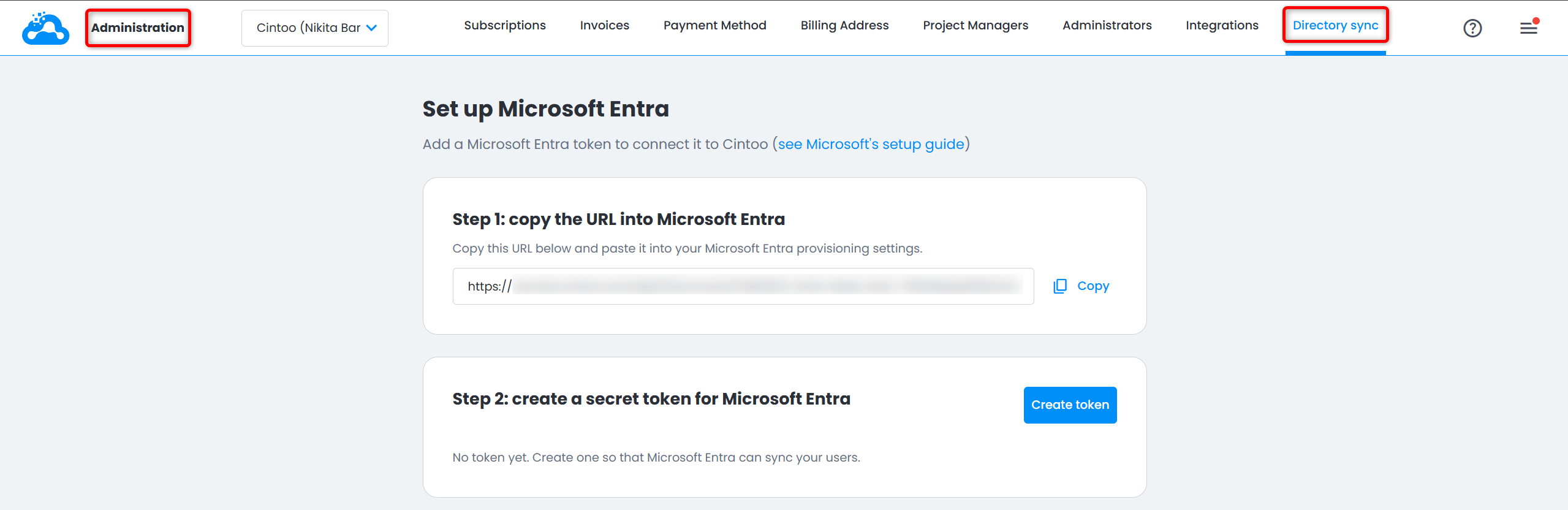
- In Step 1: copy the URL into Microsoft Entra, copy URL.
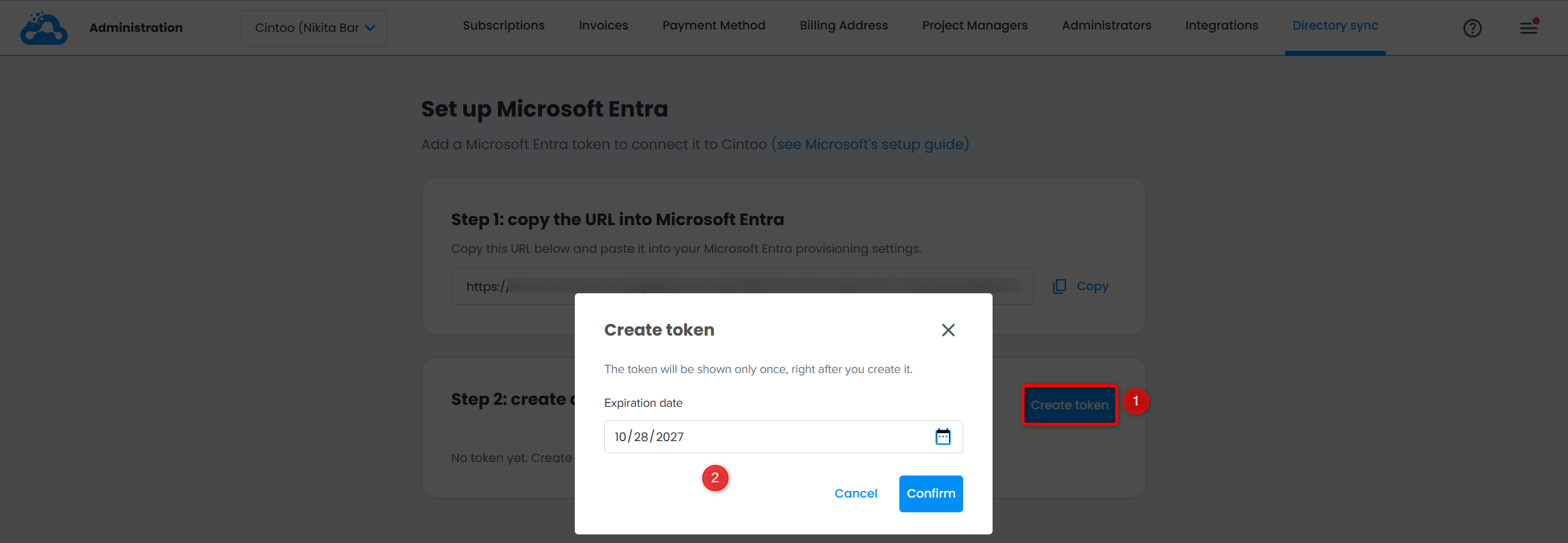
- In Step 2: create a secret token for Microsoft Entra, click Create token.
- In Create token window set Expiration date - one year from today by default, starting from 30 days - and click Confirm.
- Copy your token window shows token, hidden by default. Click eye icon to display it or Copy to copy it, then click Done.
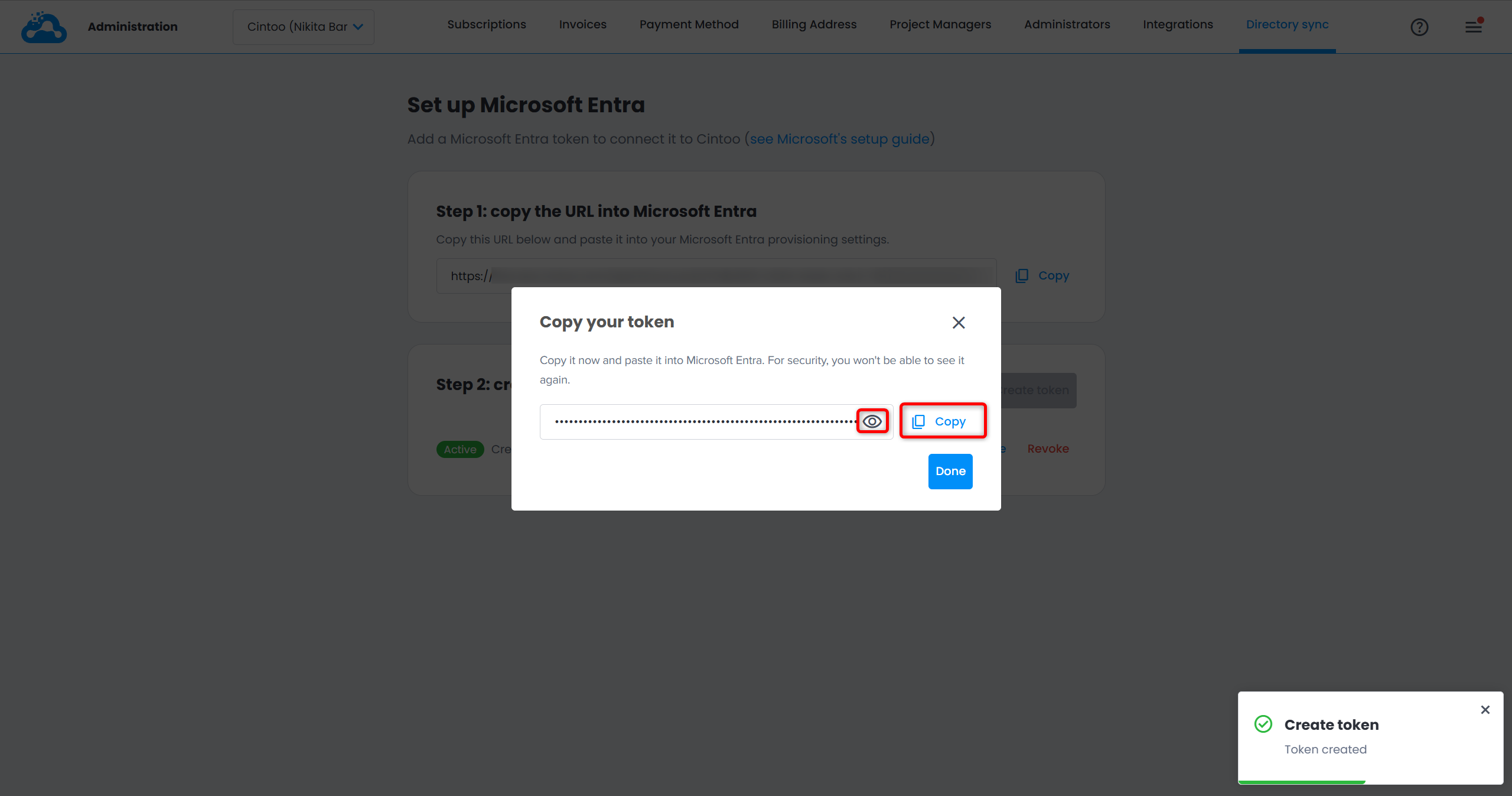 Warning: token is shown only once - after clicking Done it can no longer be displayed. Paste it into Microsoft Entra right away. If it is lost, rotate it to get a new one.
Connect Cintoo in Microsoft Entra
Setup in Microsoft Entra requires at least Cloud Application Administrator role in Microsoft Entra.
- In Microsoft Entra admin center, browse to Entra ID > Enterprise apps and select New application > Create your own application.
- Enter a name for Cintoo application, choose Integrate any other application you don't find in the gallery and create application.
- In Cintoo application, select Provisioning > New configuration.
- Set Authentication method to Bearer authentication.
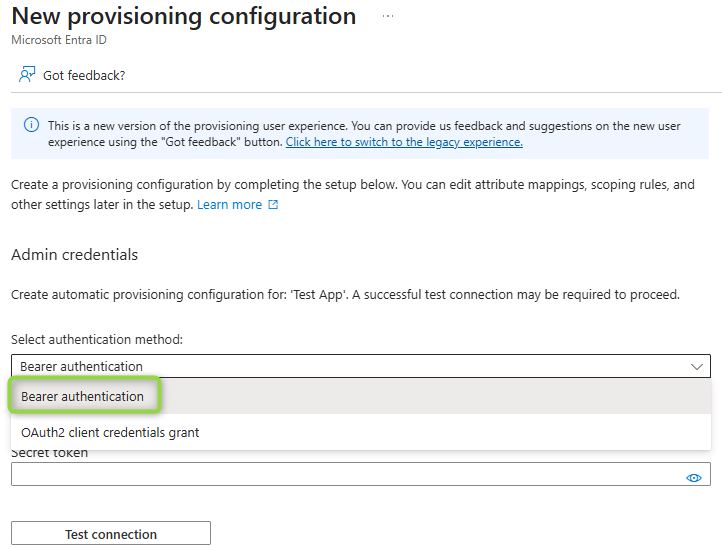 Warning: Cintoo supports Bearer authentication only - OAuth2 client credentials grant is not supported.
- Paste URL copied from Cintoo into Tenant URL and token into Secret token.
- Click Test connection, then Create.
- If your UPNs are not real email addresses, map userName to mail as described in Which Email Cintoo Uses.
- In Users and groups, assign users and groups to sync to Cintoo.
- In Provisioning, click Start provisioning.
Microsoft Entra then syncs assigned users and groups about every 40 minutes. To sync a single user right away, use Provision on demand. Results and errors appear in Provisioning logs of Cintoo application.
Note: only direct members of an assigned group are synced - members of nested groups are not.
Which Email Cintoo Uses
Cintoo identifies each synced user by their email address, read from SCIM userName attribute sent by Microsoft Entra.
By default, Microsoft Entra fills userName with user's User Principal Name (UPN), not with their mail attribute. This works as long as UPNs are users' real email addresses (e.g., jane.doe@company.com).
If UPNs are not real mailboxes (e.g., jdoe@company.onmicrosoft.com or an employee ID):
- Cintoo invitations are sent to an address that does not receive email
- members already invited in Cintoo with their real email are not recognized, and a duplicate user is created
In that case, map userName to mail before starting provisioning:
- In Microsoft Entra admin center, browse to Entra ID > Enterprise apps and select your Cintoo application.
- Go to Provisioning > Attribute mapping and select Provision Microsoft Entra ID Users.
- Click userName row.
- Set Source attribute to mail, then click OK and Save.
- Make sure every user assigned to the application has mail attribute filled in.
Changing the email Microsoft Entra sends for a user (UPN by default, or mail if remapped) is treated as an email change in Cintoo.
Warning: set this mapping before first sync. Changing it after users are synced makes Microsoft Entra send a new email for every user at next cycle.
Manage Token
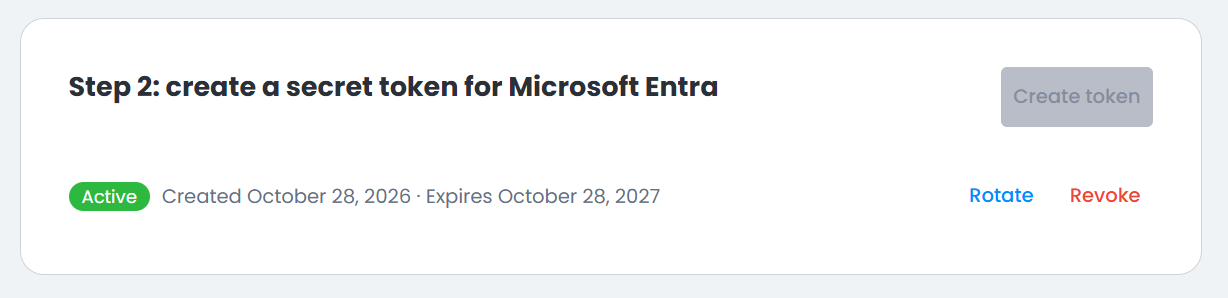
Once a token exists, Step 2 shows its status - Active or Expired - with creation and expiration dates, and Rotate and Revoke actions.
Rotate Token
Rotate replaces token with a new one, valid for same length of time as previous one.
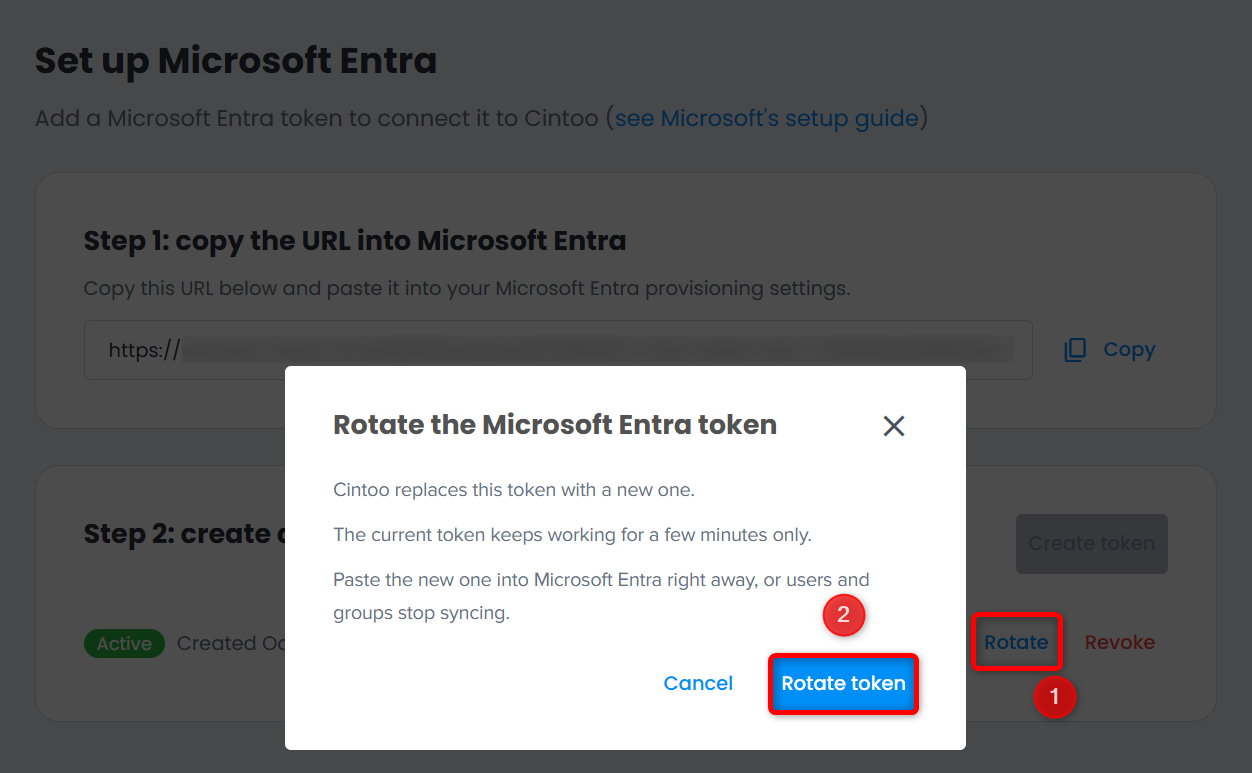
- Click Rotate.
- In Rotate the Microsoft Entra token window click Rotate token.
- Copy new token and paste it into Microsoft Entra right away, then click Done.Warning: previous token keeps working for a few minutes only. After that, users and groups stop syncing until new token is set in Microsoft Entra.
Revoke Token
Revoke disconnects Microsoft Entra from Cintoo account.
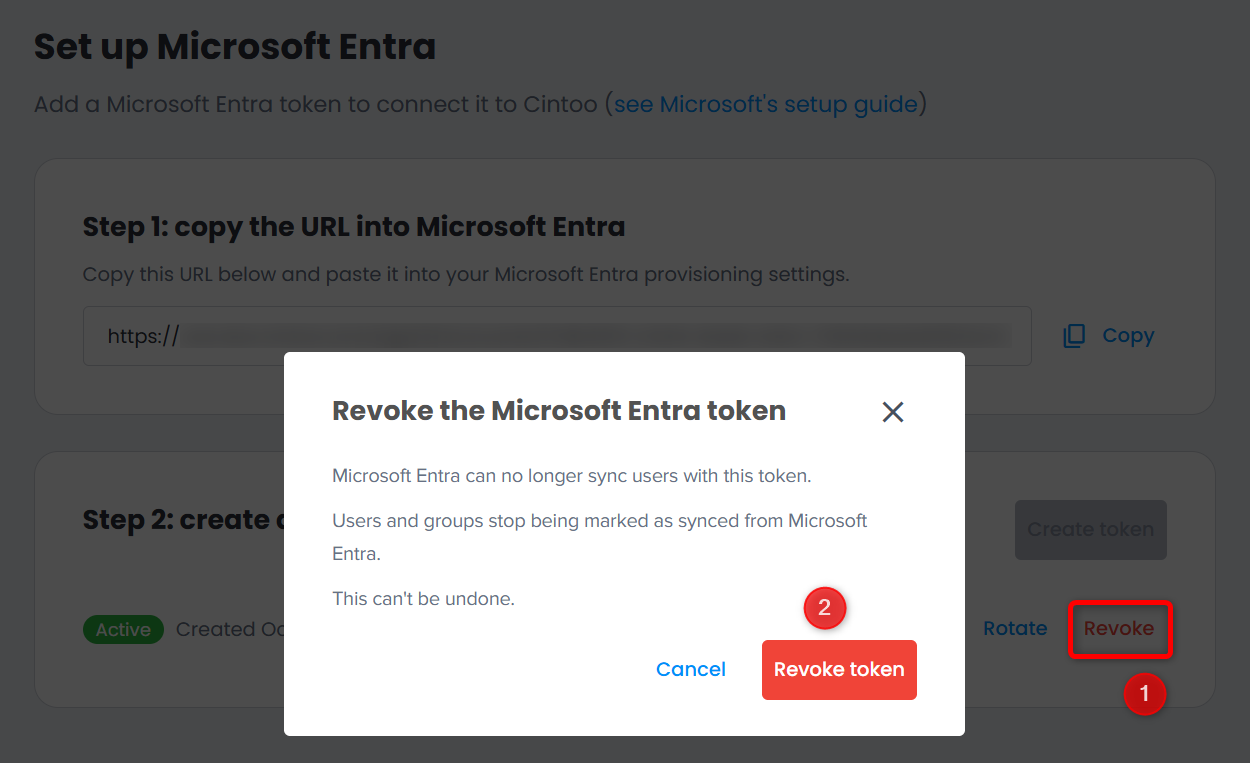
- Click Revoke.
- In Revoke the Microsoft Entra token window click Revoke token.
Microsoft Entra can no longer sync users with this token. All users and groups stop being marked as synced: they stay in account and become regular users and groups, which can be removed and edited in Cintoo again. Groups keep their members.
As nothing is synced anymore, Source column no longer appears in Users and Groups tabs.Warning: revoking a token can't be undone. To connect Microsoft Entra again, create a new token and set it in Microsoft Entra. At next sync, existing users are matched again by email and keep their roles. Previously synced groups are recognized by their Microsoft Entra ID, even if they were renamed or edited in Cintoo after revoke - their name and members are replaced by those from Microsoft Entra. Same-name rule described in Groups only applies to groups that were never synced.
Expired Token
When token expires, its status changes to Expired and Microsoft Entra can no longer sync. Rotate is no longer available, Revoke stays available.
Click Create token to create a new token, then set it in Microsoft Entra. Synced users and groups stay synced while token is expired and after new token is set.
What Gets Synced
Users
- User assigned to Cintoo application in Microsoft Entra appears in Users tab with Microsoft Entra source. They receive usual invitation email, unless their email domain uses SSO, and have no role until an administrator assigns one.
- Member already invited manually with same email is matched at first sync instead of duplicated: they keep their roles and receive no new email.
- Roles and project access are never synced: assign them in Cintoo, as for any other user.
Email Changes
When user email (userName) changes in Microsoft Entra:
- user who belongs to this Cintoo account only, and whose new email is not used by another Cintoo user, keeps same Cintoo user with new email - their issues, annotations, roles, project access and groups are kept
- in other cases - user also belongs to other Cintoo accounts, or new email is already used by another Cintoo user - user with new email is invited to this account without any role, and previous one is removed from this account only and stays unchanged in other accounts
Disabled, Deleted or Unassigned Users
When a user is disabled, deleted or unassigned from Cintoo application in Microsoft Entra:
- they are removed from account exactly as with manual removal: they lose access, account roles, project access and group memberships, and disappear from Users tab
- projects they own are transferred to Account Owner, who becomes their Project Owner and gets Project Manager role if they did not have it
Cintoo shows no suspended status: disabled and deleted users both disappear from Users tab. Check Microsoft Entra to know which one applies.
When a disabled user is enabled again, they come back as same person, without duplicate, receive an invitation email and have no role until an administrator assigns one. They get synced group memberships back once Microsoft Entra sends group again.
Groups
- Groups assigned to Cintoo application are created in Groups tab with their members and Microsoft Entra source.
- Renaming a group or adding and removing its members in Microsoft Entra applies same change in Cintoo.
- When a group is deleted in Microsoft Entra or unassigned from Cintoo application, group is deleted in Cintoo and its members lose project access they had through this group. Members assigned to Cintoo application only through this group are also removed from account, as with manual removal. Other members stay in account.
- If a manual group with same name already exists in Cintoo, Microsoft Entra group is not synced: manual group stays unchanged and conflict is reported only in Microsoft Entra provisioning logs.
Synced Users and Groups in Cintoo
Once at least one user or group is synced, Users and Groups tabs of Users & Permissions show a Source column: Microsoft Entra with its logo for synced items, Manual for others.
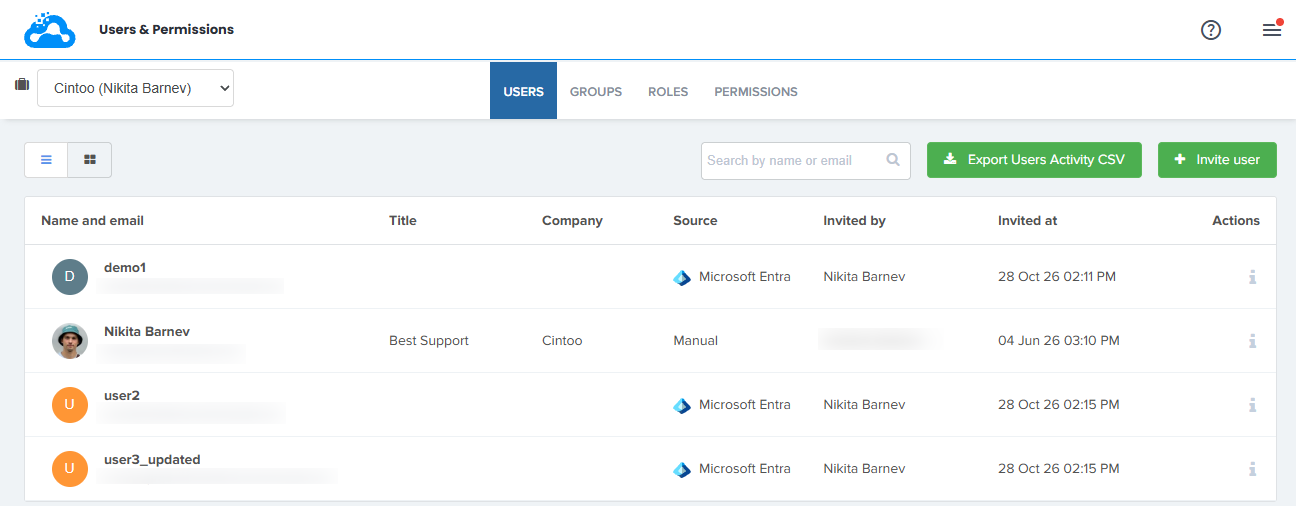
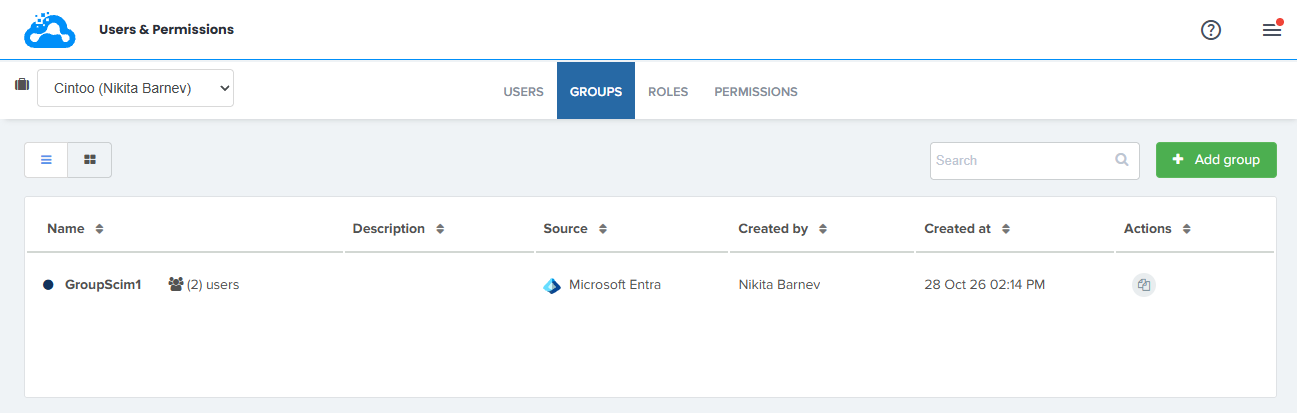
Microsoft Entra manages synced items, so some actions are not available in Cintoo:
- synced user can't be removed - disable, delete or unassign them in Microsoft Entra instead
- synced group can't be edited or deleted - its name, description and members are read-only
- synced group can be duplicated - copy is a manual group that can be fully edited, original stays synced
- synced users can be added to manual groups and removed from them
Roles and project access of synced users are managed in Cintoo, as for any other user.
Was this article helpful?
That’s Great!
Thank you for your feedback
Sorry! We couldn't be helpful
Thank you for your feedback
Feedback sent
We appreciate your effort and will try to fix the article