This article describes how to export Xgrid Lixel L2 Pro mobile scan data from Lixel Studio and import it into Cintoo. Lixel L2 Pro is supported in Cintoo Connect 2.18 and above.
More about Xgrid Lixel L2 Pro here: Xgrid Lixel
TABLE OF CONTENTS
Step 1 - Export from Lixel Studio
Before importing into Cintoo, export processed data as an E57 file with embedded panoramic images from Lixel Studio.
In Lixel Studio, go to Tools and click Las to E57.
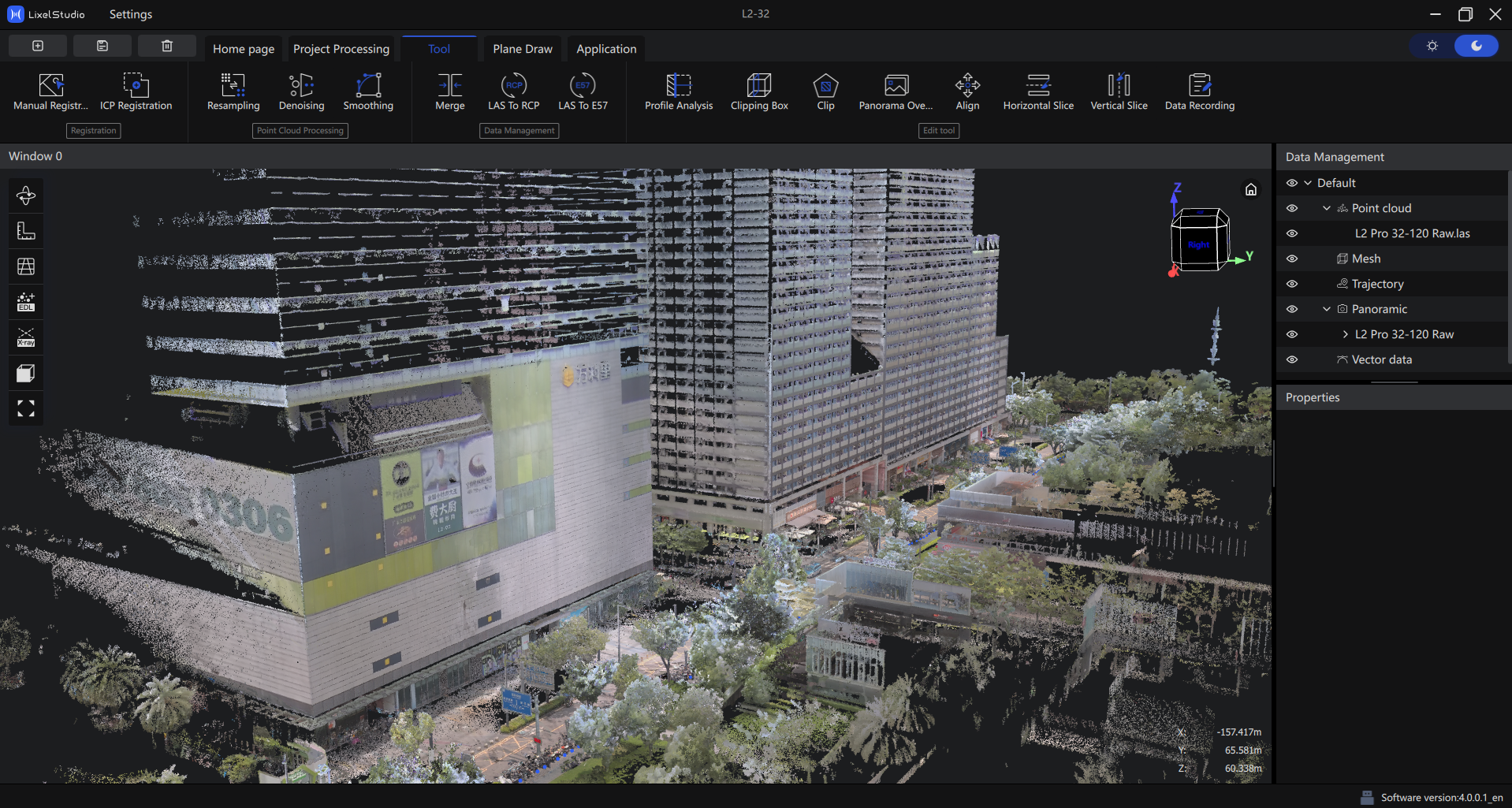
In the right panel, select the point cloud and panoramic images to export, then click Las to E57.
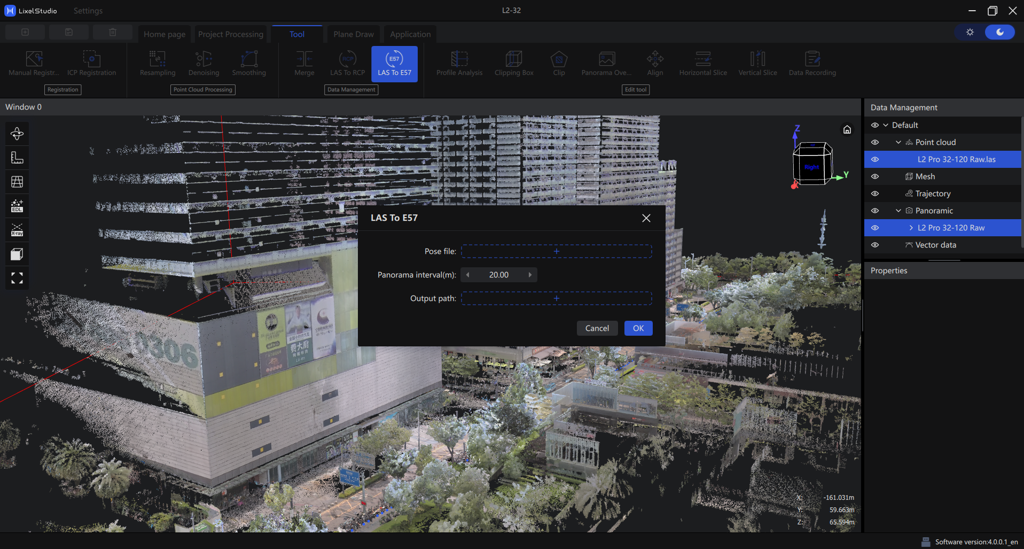
A configuration popup appears. Complete following settings:
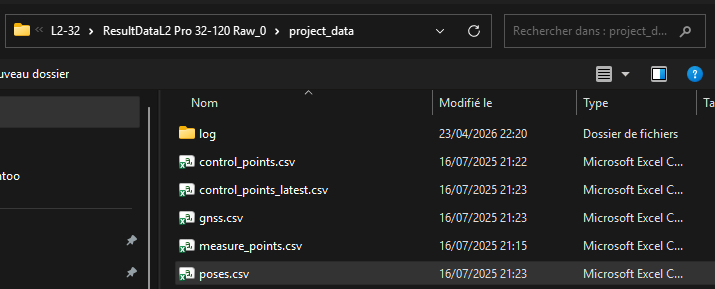
Select poses file
Browse to the processed project_data folder and select scan pose files. Lixel Studio stores position data generated during processing here.
Set panoramic image interval
Choose the distance interval between exported panoramic positions. Lixel L2 Pro captures images continuously while moving, so exporting every image would result in a very large file with redundant data.
Panoramic interval set in Lixel Studio and decimation applied in Cintoo are cumulative. Example with a 5 m export interval:
| Decimation in Cintoo | Effective spacing |
|---|---|
| 1 of 1 (no decimation) | 5 m |
| 1 of 2 | 10 m |
| 1 of 3 | 15 m |
Starting at 5 m gives the flexibility to reduce further using Cintoo's decimation option. Going coarser upfront (10 m, 20 m) permanently locks into that density.
Choose output location
Select the folder where the E57 file will be saved. Note this path - it is required when starting the import in Cintoo Connect.
Step 2 - Import with Cintoo Connect
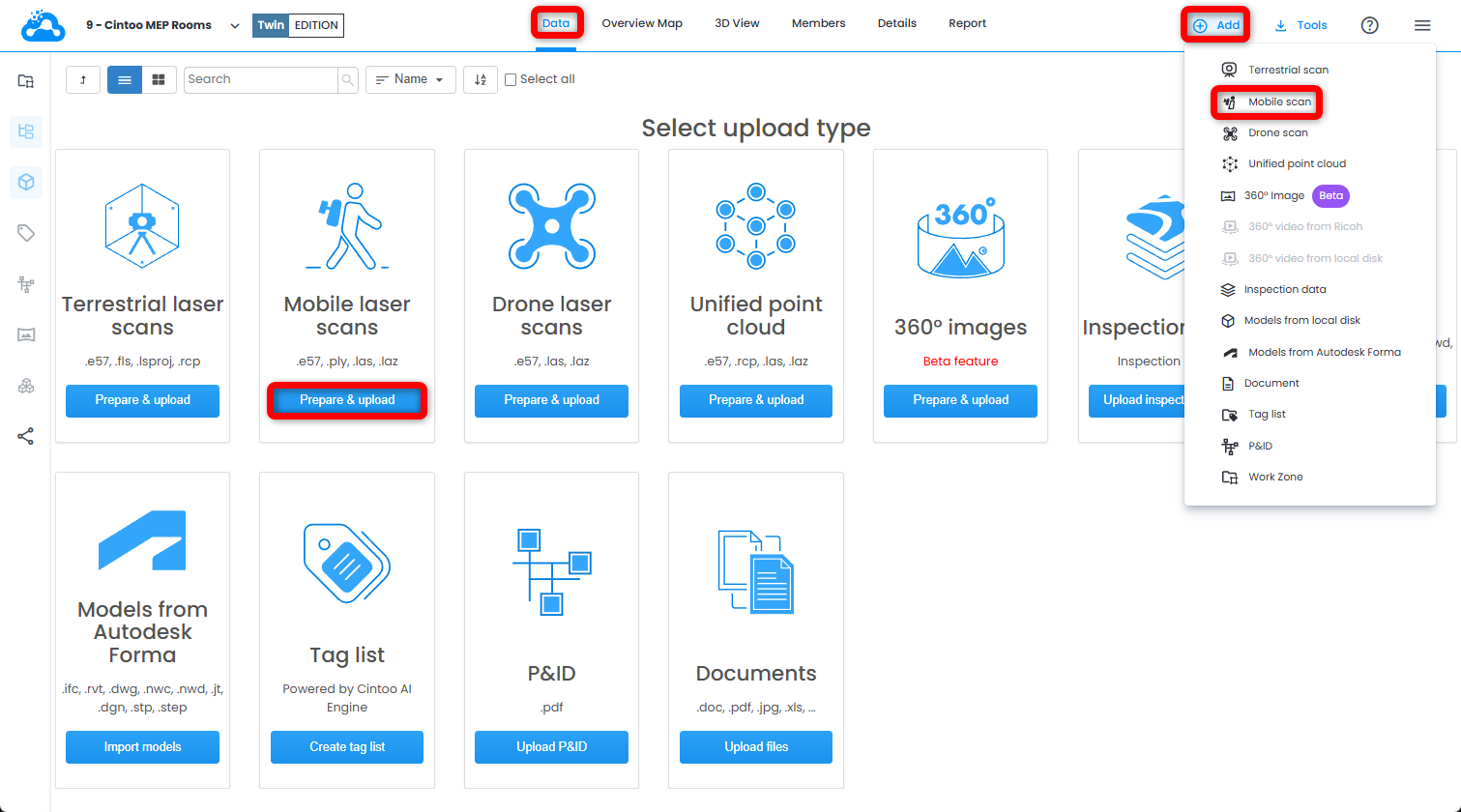
- Open Data tab and click Prepare & upload on Mobile laser scans tile or click Mobile scan from Add drop-down menu on the top right. Cintoo Connect will launch.
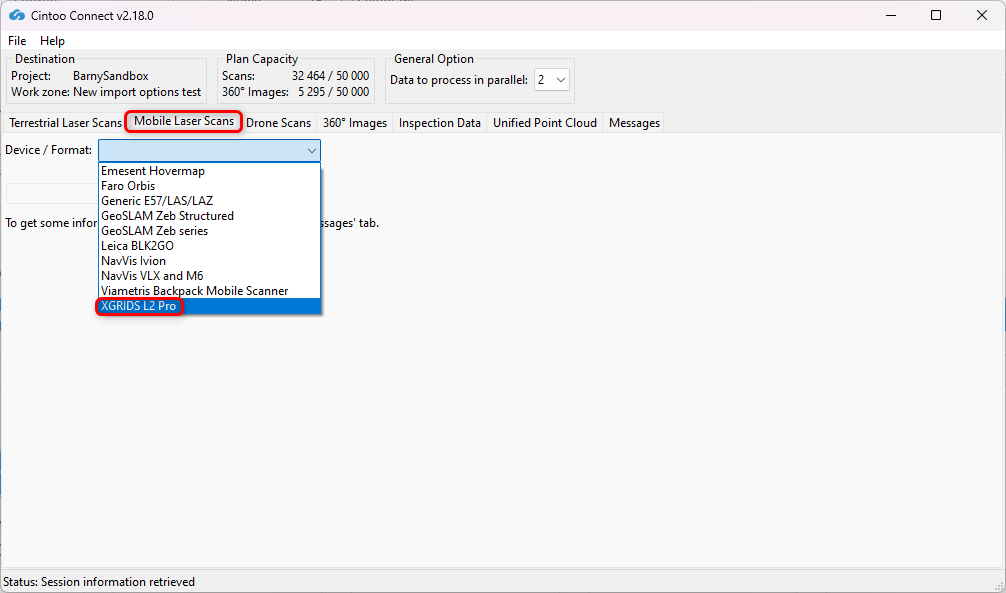
- In Mobile Laser Scans tab in Cintoo Connect, select XGRIDS L2 Pro as source Device/Format.
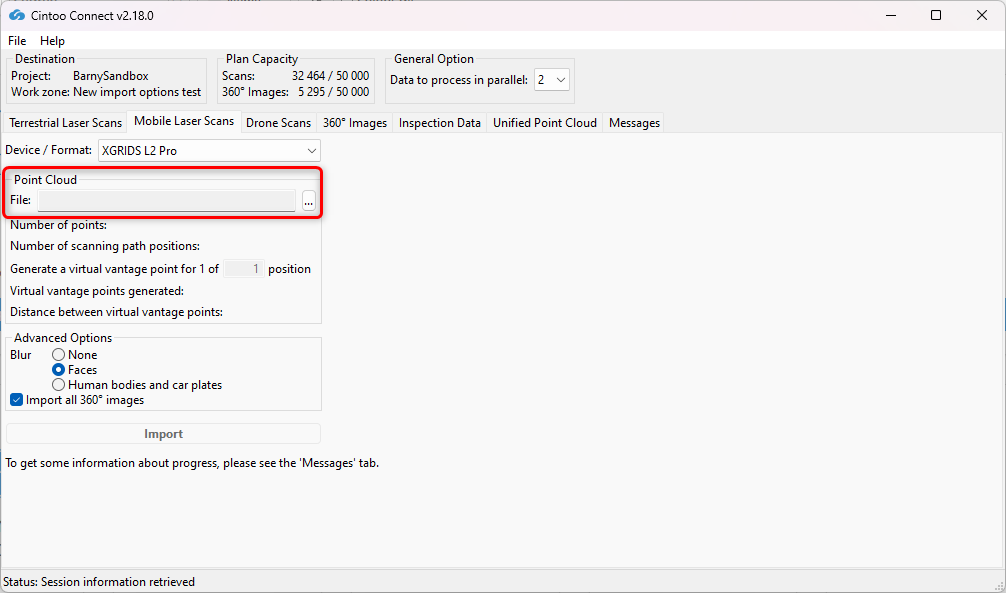
- Select E57 file exported from Lixel Studio as Point Cloud.
- Modify Positions sampling (decimation) as needed:
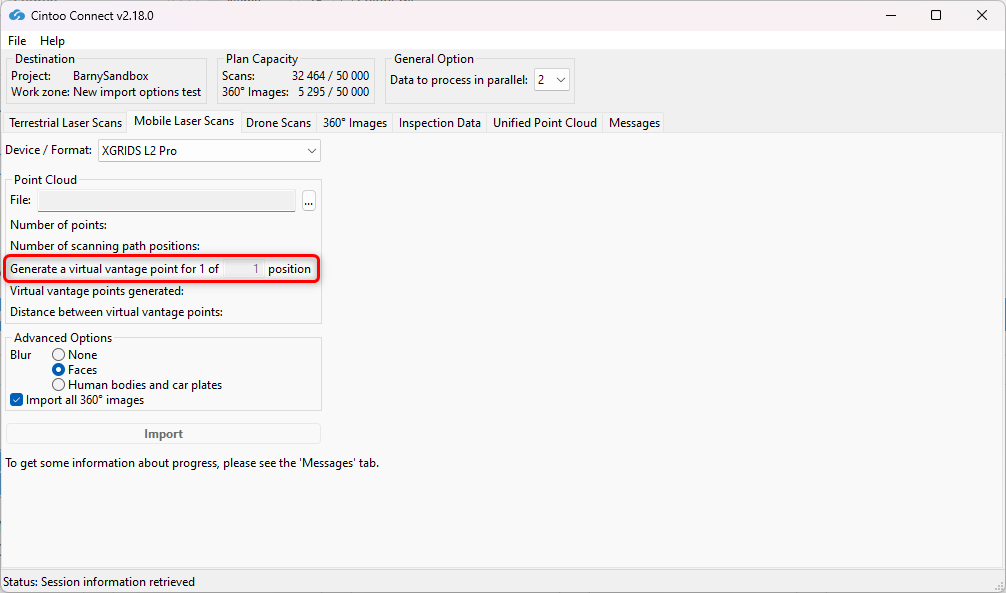
- 1 of 1 - all scan positions are imported (full density)
- 1 of 2 - every other position is imported, doubling effective spacing
- Higher values reduce VVP count further, with proportional reduction in detail
- Enable or disable Blur - Faces:
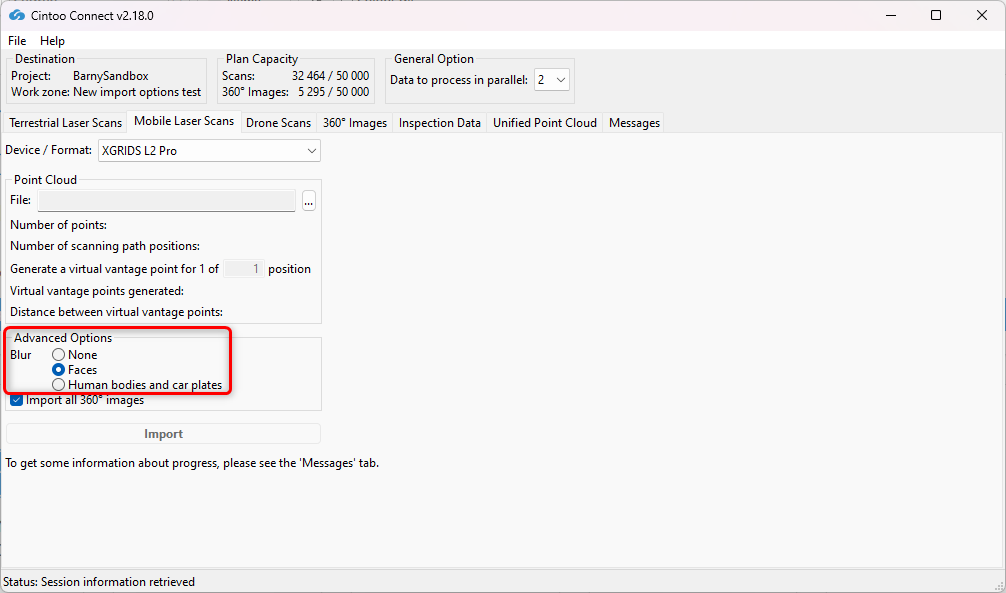
- This option is enabled by default, choose option None to not apply any blurring.
- This option automatically blurs faces captured in any panoramic images included in scans being uploaded to Cintoo.
- Blurring cannot be undone in Cintoo after scans have been uploaded.
- Any files uploaded without Blur Faces option enabled must be deleted from Cintoo project and re-uploaded with option checked to apply automatic face blurring.
- Enable or disable Blur - Human bodies and car plates:
- This option is disabled by default, option Faces is chosen.
- Enable this option to automatically blur human bodies including faces and car plates captured on any panoramic images included in scans being uploaded to Cintoo.
- Blurring cannot be undone in Cintoo after scans have been uploaded.
- Any files uploaded without Blur Human bodies and car plates option enabled must be deleted from Cintoo project and re-uploaded with option checked to apply automatic blurring.
- Enable or disable Import all 360 Images.
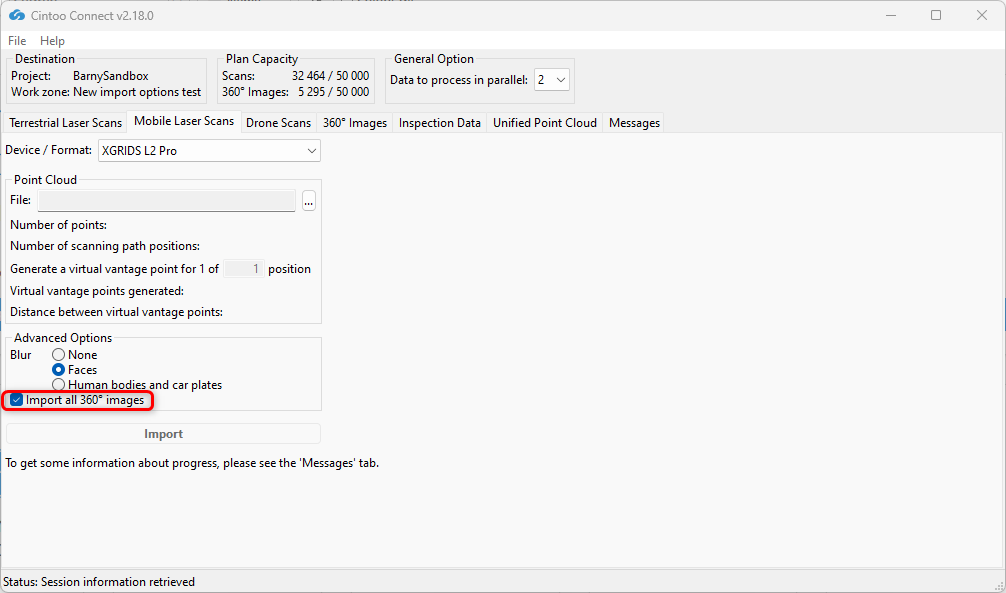
- This option is checked by default, enabling import of all 360 images included in scans, even if using a position sampling value other than 1 of 1 position.
- Uncheck this option to prevent automatic import of all 360 images included in scans.
- 360 images uploaded with this option will count in 360 Images capacity of Cintoo account, not Scan capacity.
- 360 images uploaded with this option will not contain any 3D data. Only panoramic image will be displayed, so 3D display settings, Measurements, and Annotations cannot be used at these positions.
- This option is useful when broad visual coverage is needed while managing project size.
- Modify Data to process in parallel value as needed and according to available PC cores. With a multi-core PC it is possible to process more than 2 scans (default setting) in parallel.
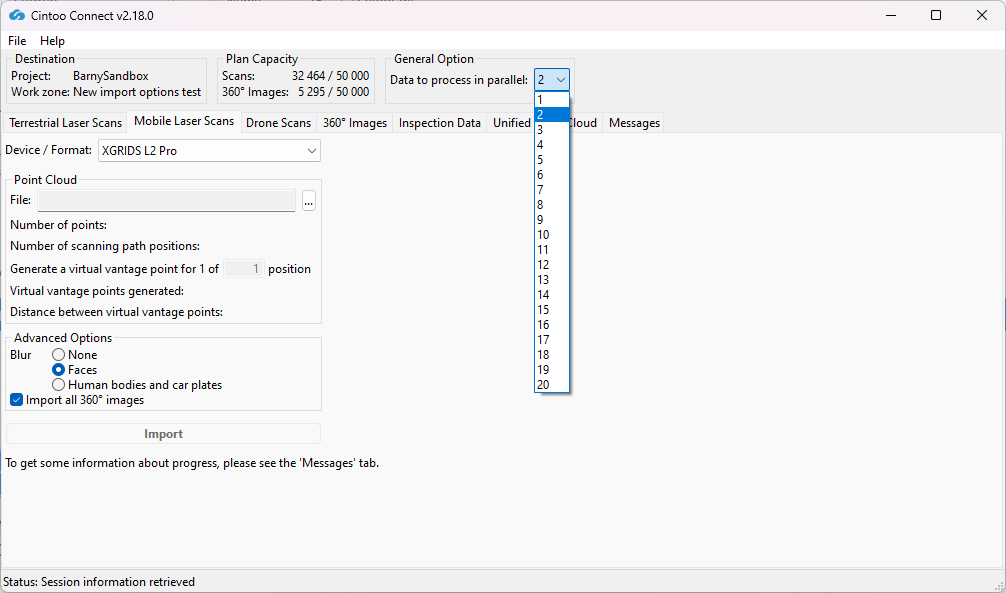
On average, at least 400 MB of RAM per 10 million pixels is needed to process. For example:
- 8 GB of RAM will allow to process 5 scans of 40 million pixels each in parallel.
- 64 GB of RAM will be needed to process 5 scans of 160 million pixels each in parallel.
- Click Import.
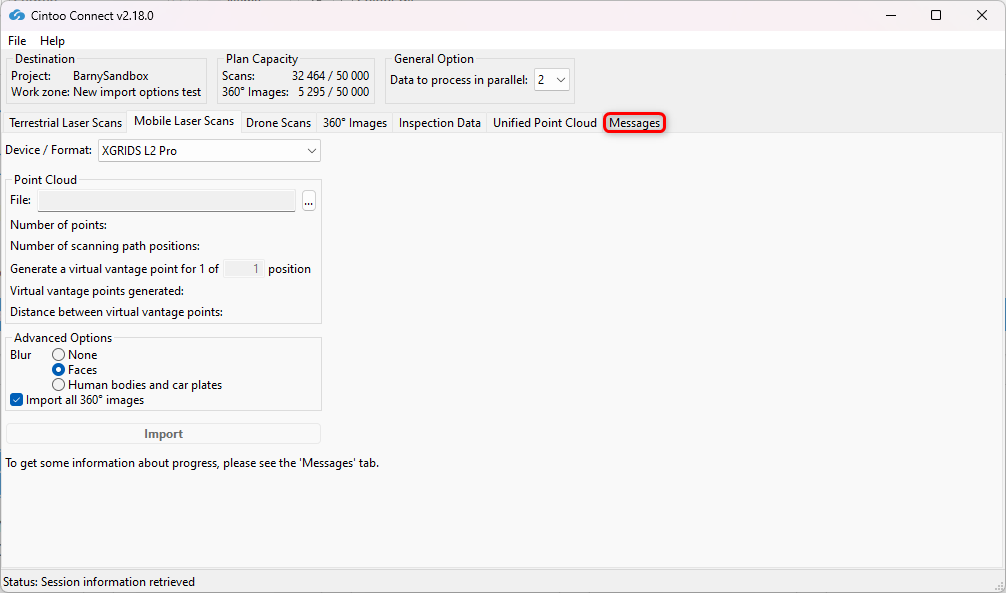
- Check Messages tab from time to time to see if the process is running smoothly.
- New 3D scans appear one by one in Cintoo project.
Was this article helpful?
That’s Great!
Thank you for your feedback
Sorry! We couldn't be helpful
Thank you for your feedback
Feedback sent
We appreciate your effort and will try to fix the article