Dieser Artikel beschreibt die verschiedenen Anzeigeeinstellungen und Anzeigemodi, die in der 3D-Ansicht verfügbar sind, und wie sie sich auf die visuelle Szene auswirken.
Tutorialvideo ansehen: Display Settings
INHALTSVERZEICHNIS
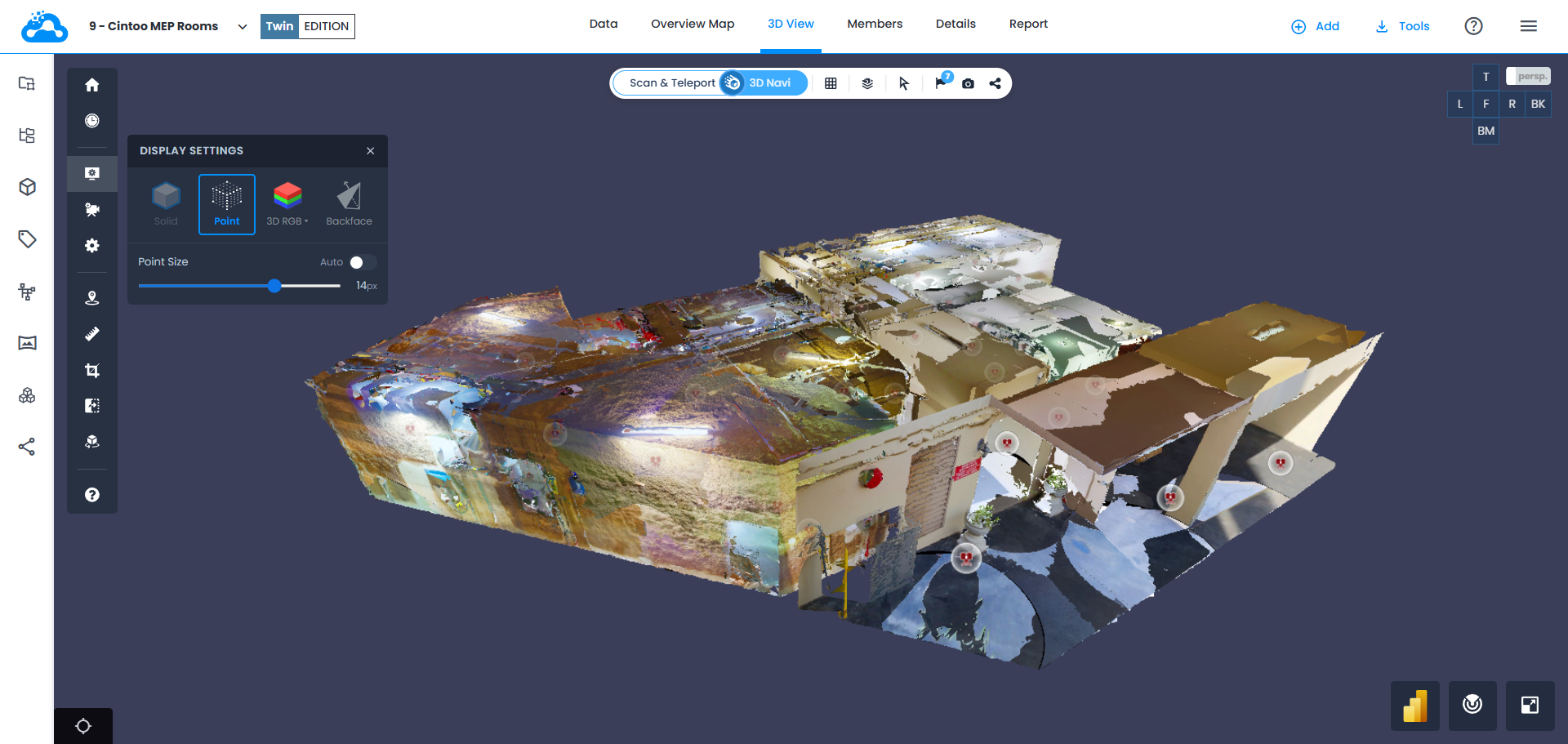
Die Anzeigeeinstellungen finden Sie in der Seitenleiste  . Zu den Optionen der Anzeigeeinstellungen gehören Solide, Punkt, Modus und Rückansicht.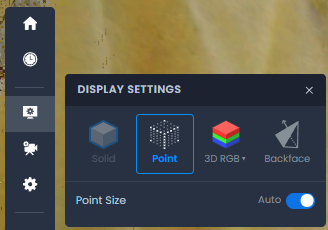
Solide
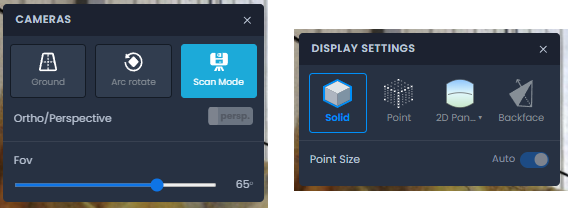
Nur beim Kameratyp Scan-Modus verfügbar. Solide stellt 3D-Scandaten als Mesh mit geschlossener Oberfläche dar.
Punkt
Kann bei jedem Kameratyp verwendet werden und stellt 3D-Scandaten als Mesh-Eckpunkte dar. Verwenden Sie entweder die Einstellung Auto mit 2 px oder wechseln Sie in den manuellen Modus und wählen Sie die Punktgröße.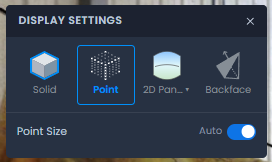
Modus
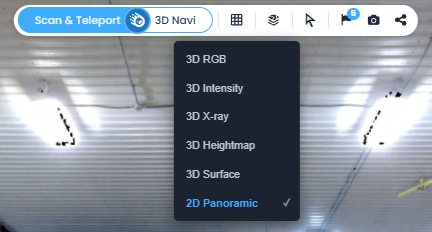
Ermöglicht das Umschalten zwischen verschiedenen Anzeigemodi: RGB, Intensität, Röntgen, Heightmap, Oberfläche und 2D-Panorama-Anzeige (nur im Scan-Modus).
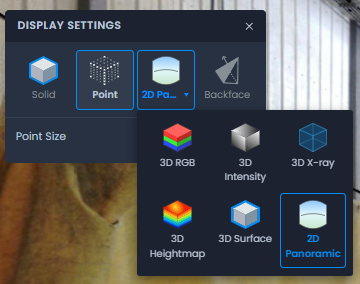
Die Anzeigemodi können auch in der 3D-Ansicht über die obere Leiste umgeschaltet werden, indem Sie auf das Rastersymbol klicken.
RGB
Stellt 3D-Scandaten in Form eines farbigen Meshes dar. Die Visualisierung wird deutlich verbessert, indem Farbinformationen aus den Panoramabildern projiziert werden, um eine höhere Qualität zu erzielen.
Als Fallback dient der Anzeigemodus Oberfläche, wenn keine RGB-Informationen gefunden werden.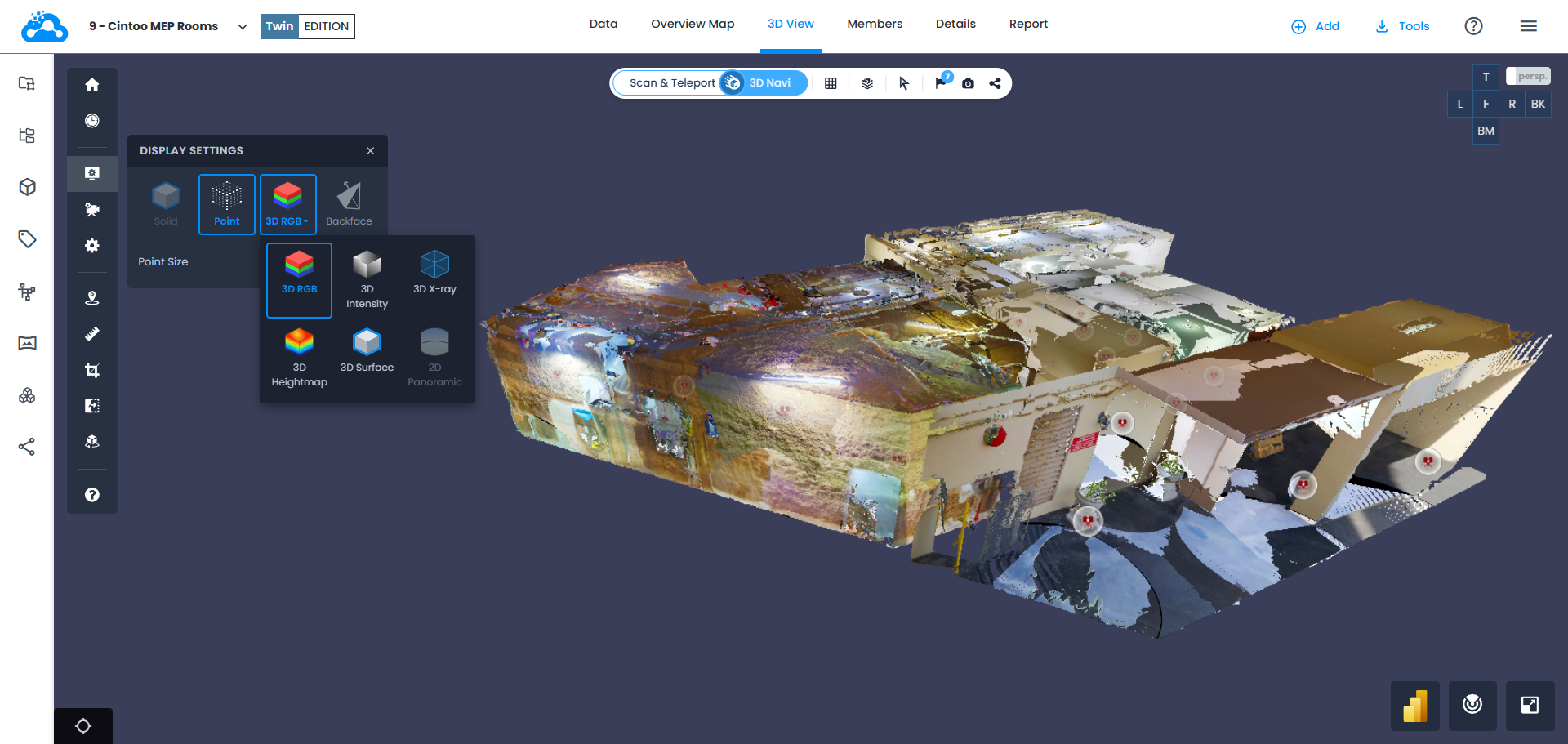
Intensität
Zeigt die Intensität der 3D-Scandaten an.
Als Fallback dient der Anzeigemodus Oberfläche, wenn keine RGB-Informationen gefunden werden.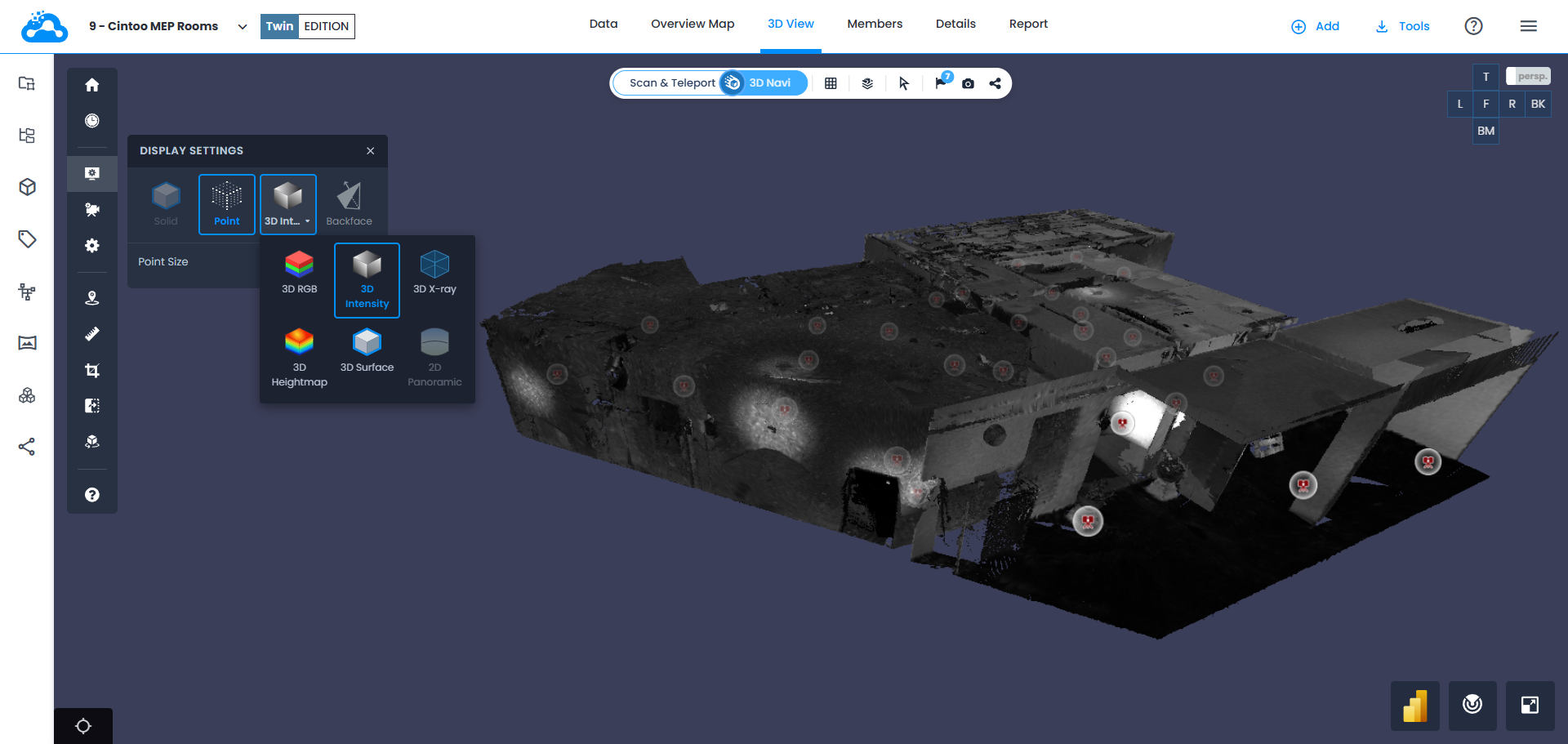
Röntgen
Stellt 3D-Scandaten durchsichtig dar.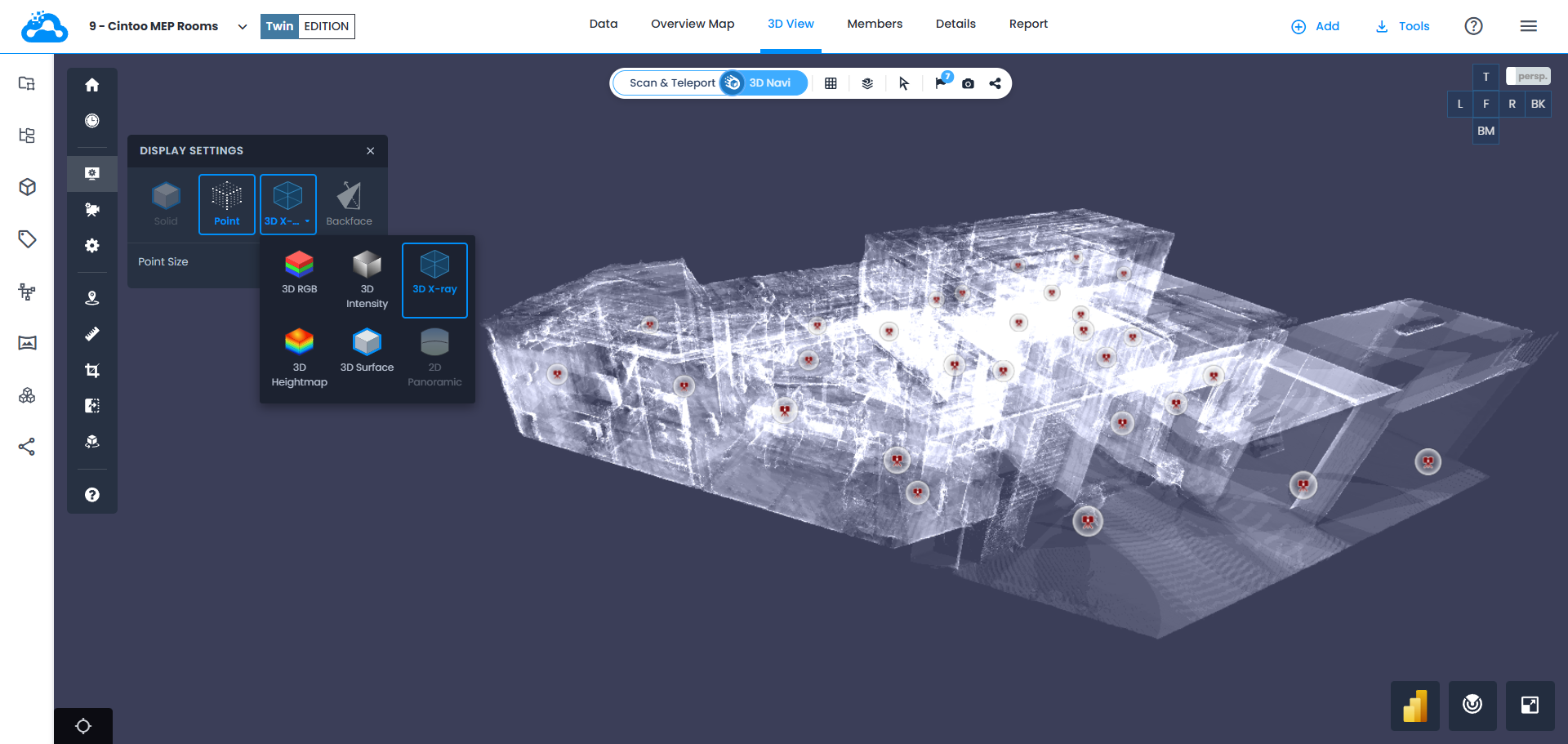
Heightmap
Erzeugt 3D-Scandaten mit RGB-Höheninformationen, die die Höhenabweichung von der festgelegten Basislinie anzeigen.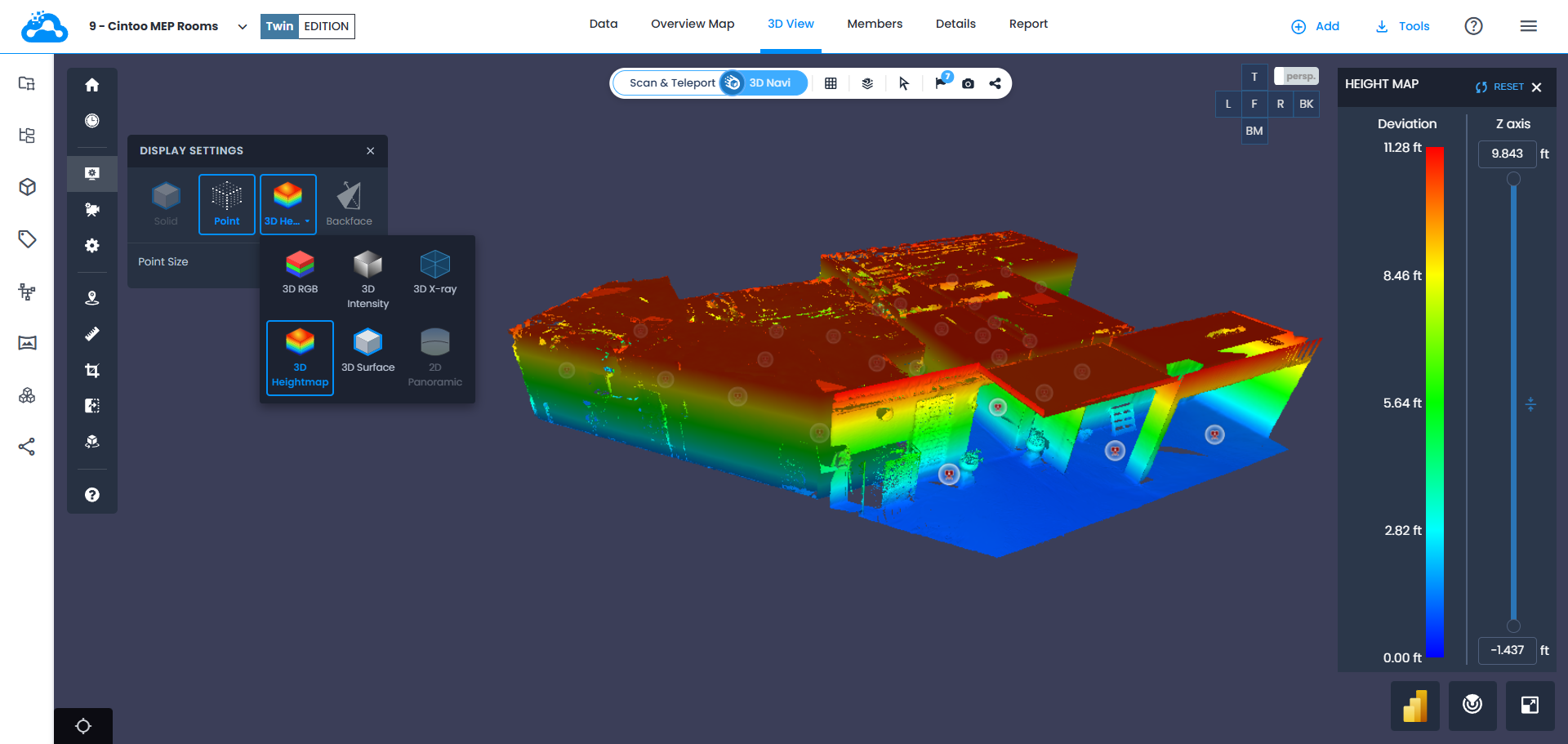
Oberfläche
Zeigt das beim Import in Cintoo aus den Scandaten erzeugte Mesh ohne Farbinformationen an. Dabei wird Turbomesh verwendet, um Beiträge verschiedener Scanpositionen in die Szene einzubeziehen. Das Mesh ist abhängig vom Zoom dynamisch und erhöht beispielsweise beim Hineinzoomen den Detailgrad. 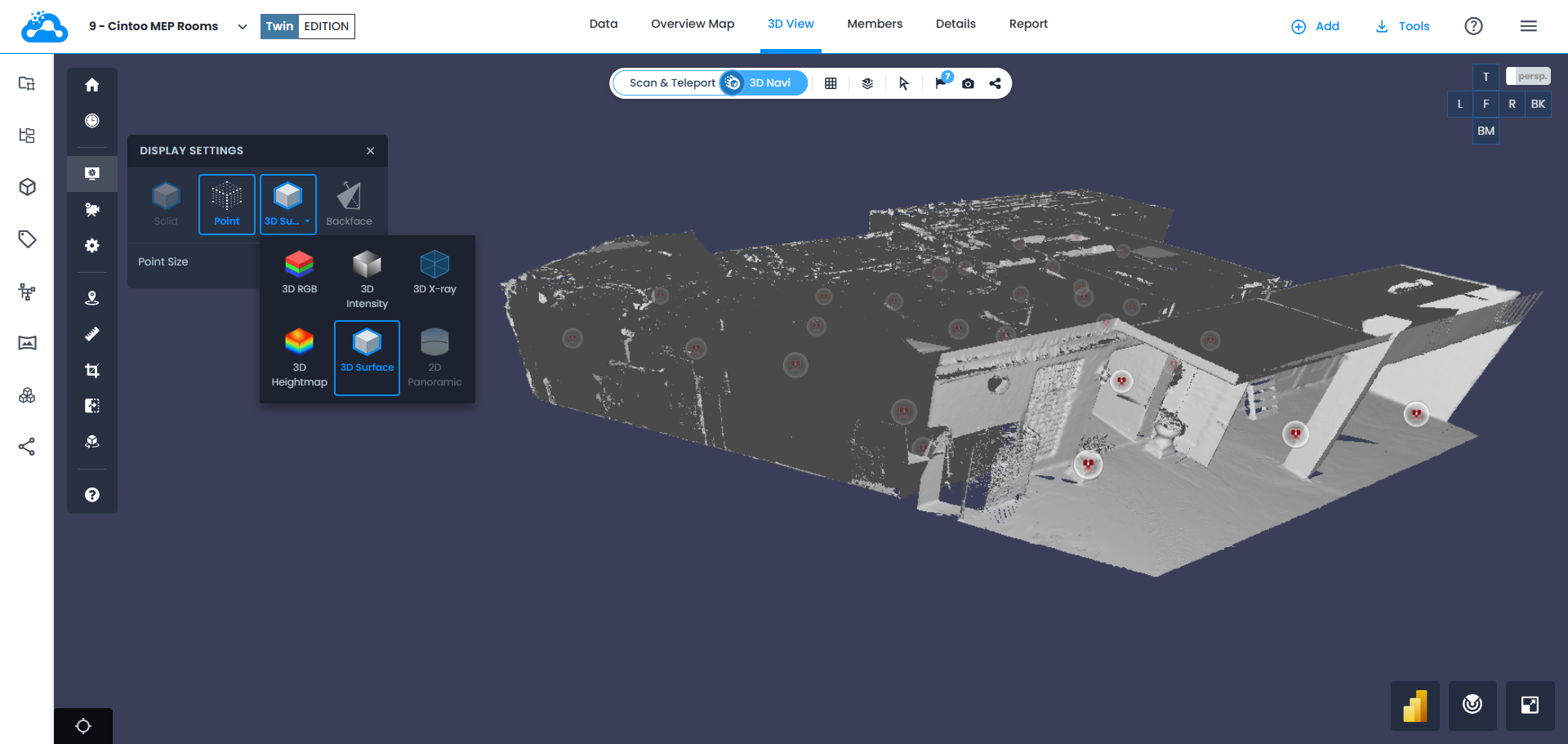
2D-Panorama (nur im Scan-Modus)
Zeigt an jeder Scanposition das vom Laserscanner aufgenommene Panoramabild an. Wenn Scans ohne Panoramabilder, Daten von mobilen Scannern oder unstrukturierte Daten in Cintoo importiert wurden, wird kein Panoramabild neu erzeugt, sondern es werden stattdessen Scandaten angezeigt.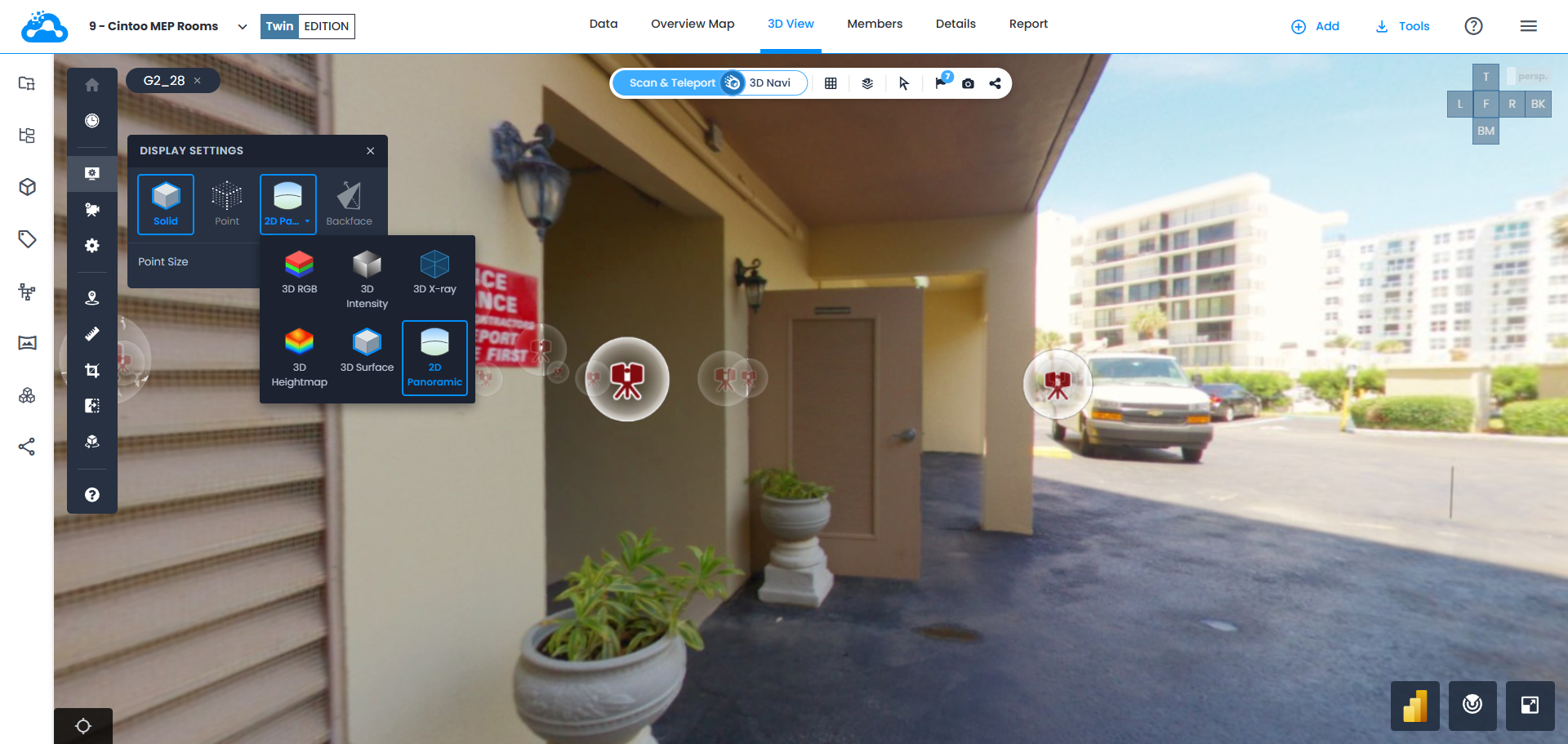
Rückansicht
Ermöglicht es, Rückseiten von 3D-Mesh-Oberflächen auszublenden, um von außen in das Innere von Gebäuden sehen zu können und die Szene von unnötigen Mesh-Teilen zu bereinigen.
Einstellung Rückansicht aktiviert = Rückseiten ausblenden
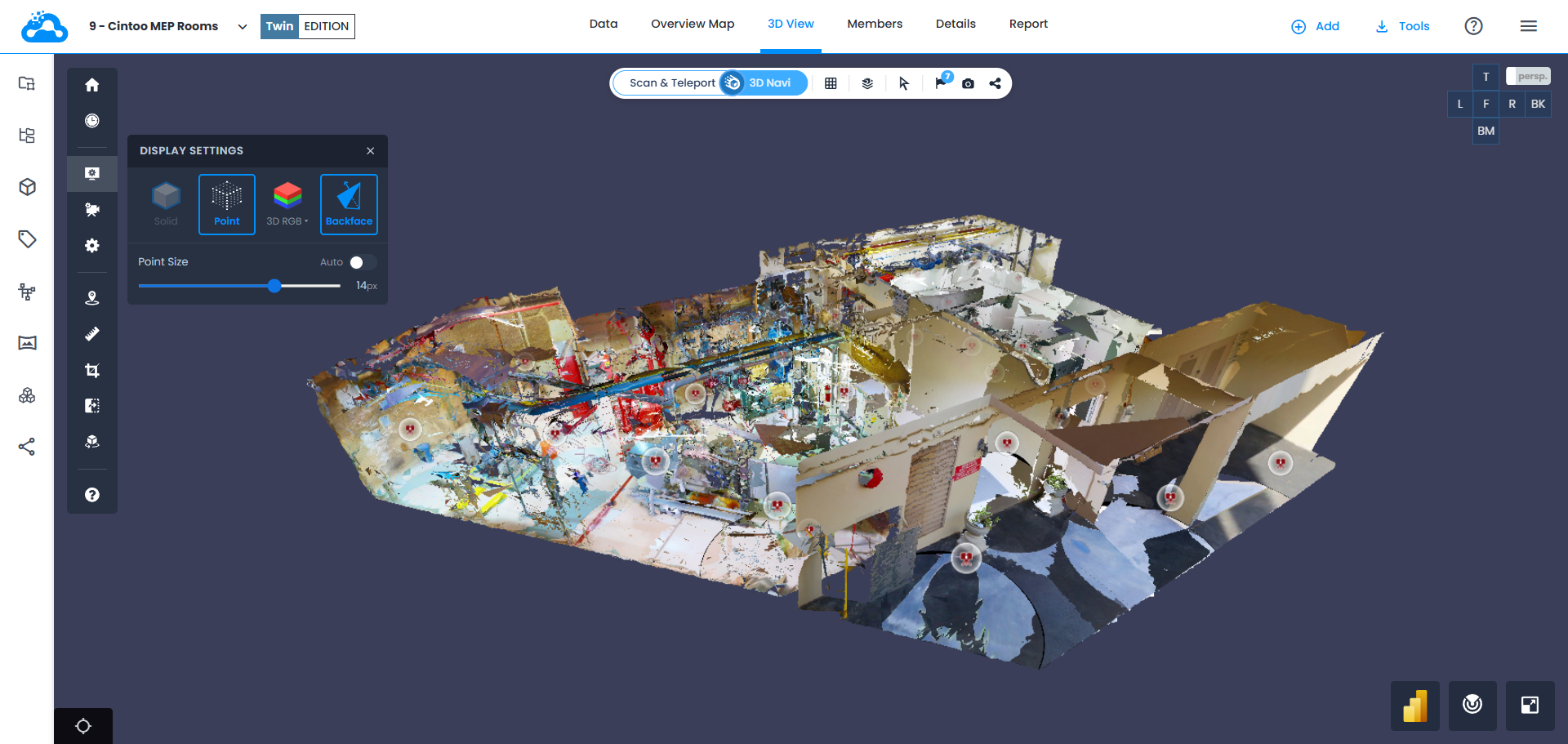
Einstellung Rückansicht deaktiviert = Rückseiten anzeigen
War dieser Artikel hilfreich?
Das ist großartig!
Vielen Dank für das Feedback
Leider konnten wir nicht helfen
Vielen Dank für das Feedback
Feedback gesendet
Wir wissen Ihre Bemühungen zu schätzen und werden versuchen, den Artikel zu korrigieren