This article outlines how to manage Emesent Hovermap data, helping to get to know workflow to import Hovermap point cloud with embedded panoramas into Cintoo.
Permissions: users with roles including Upload or Delete Reality Data permission can import Emesent Hovermap format scans with Cintoo Connect.
More about Emesent Hovermap here: Hovermap - Emesent

Data expected by Cintoo Connect from Emesent Hovermap device and related software is following:
- E57, LAS, or LAZ point cloud
- Frames folder containing panoramic images and frames_cintoo.csv file, linking each panorama to its scan position
Importing Emesent Hovermap data using Cintoo Connect
- Open Data tab and click Prepare & upload on Mobile laser scans tile or click Mobile scan from Add drop-down menu on top right. Cintoo Connect will launch.
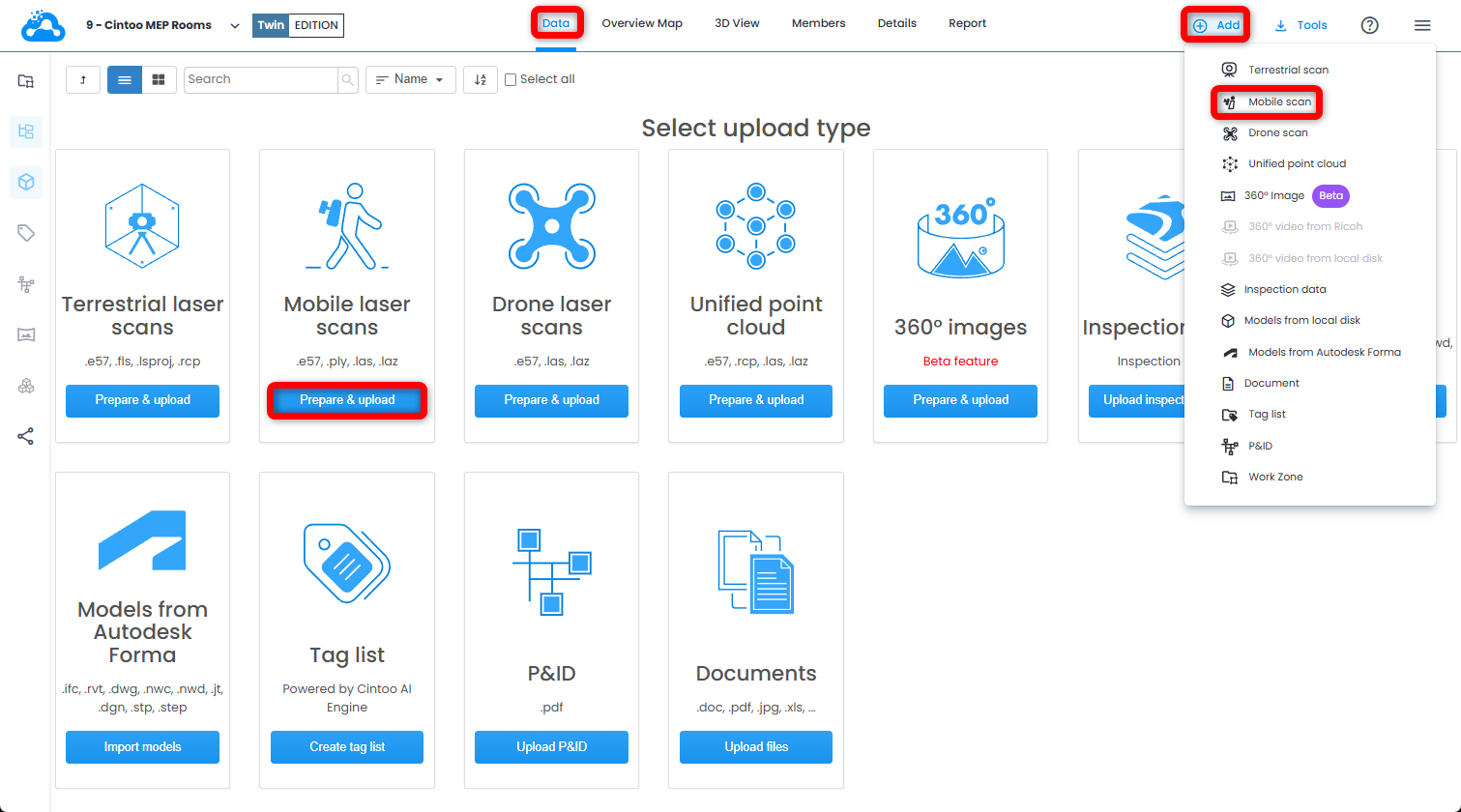
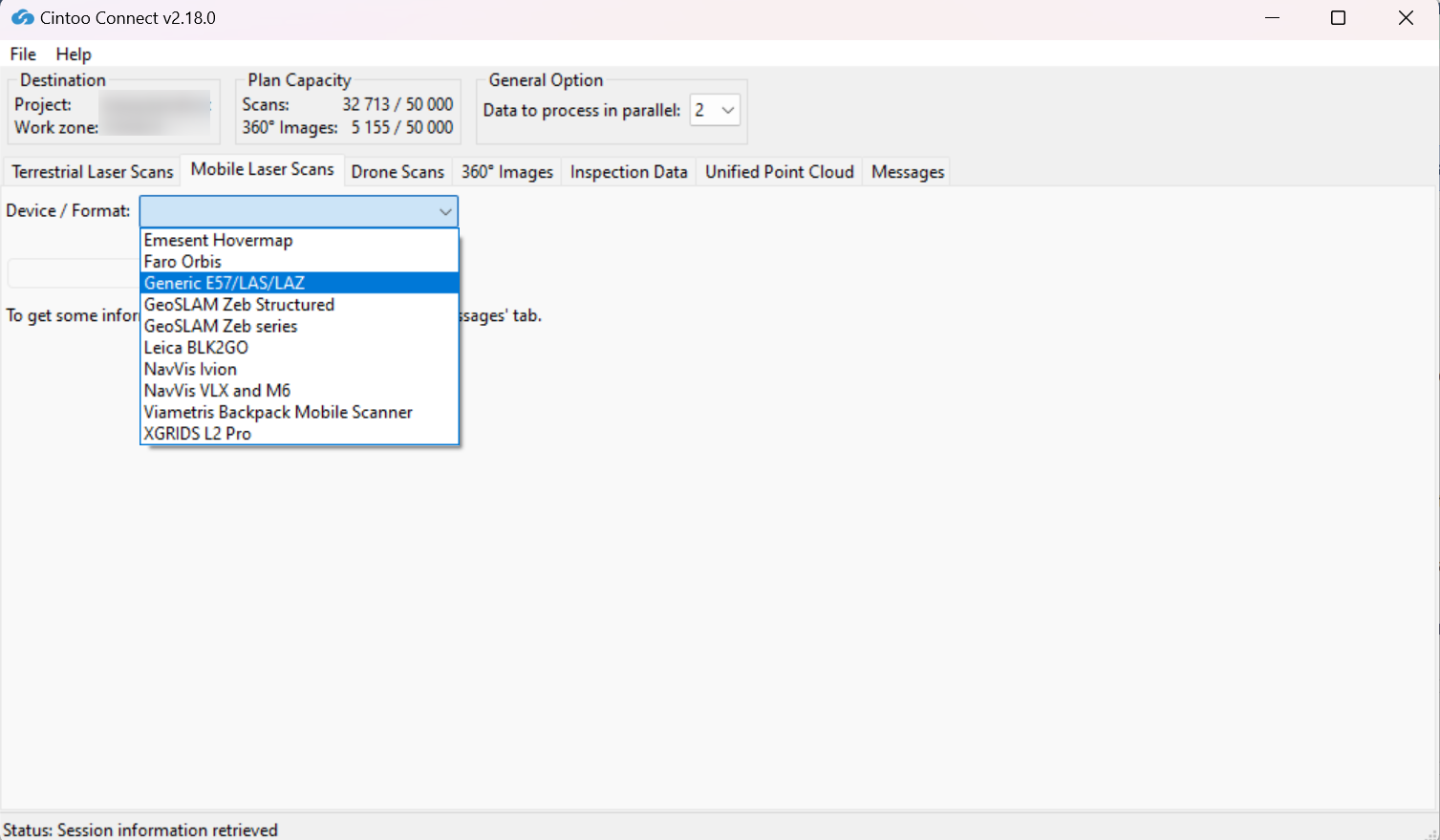
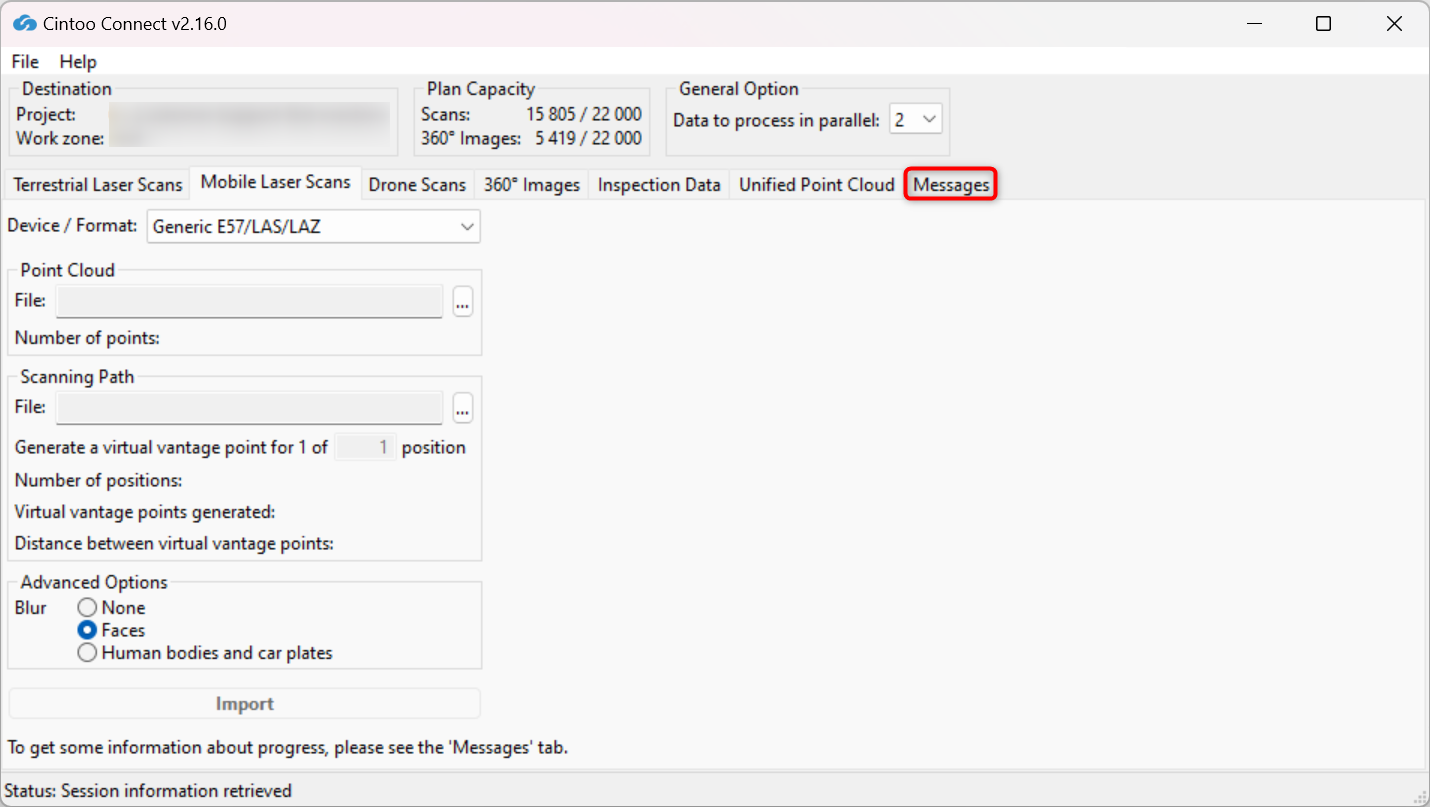
- In Mobile Laser Scans tab in Cintoo Connect select Generic E57/LAS/LAZ as source Device/Format.
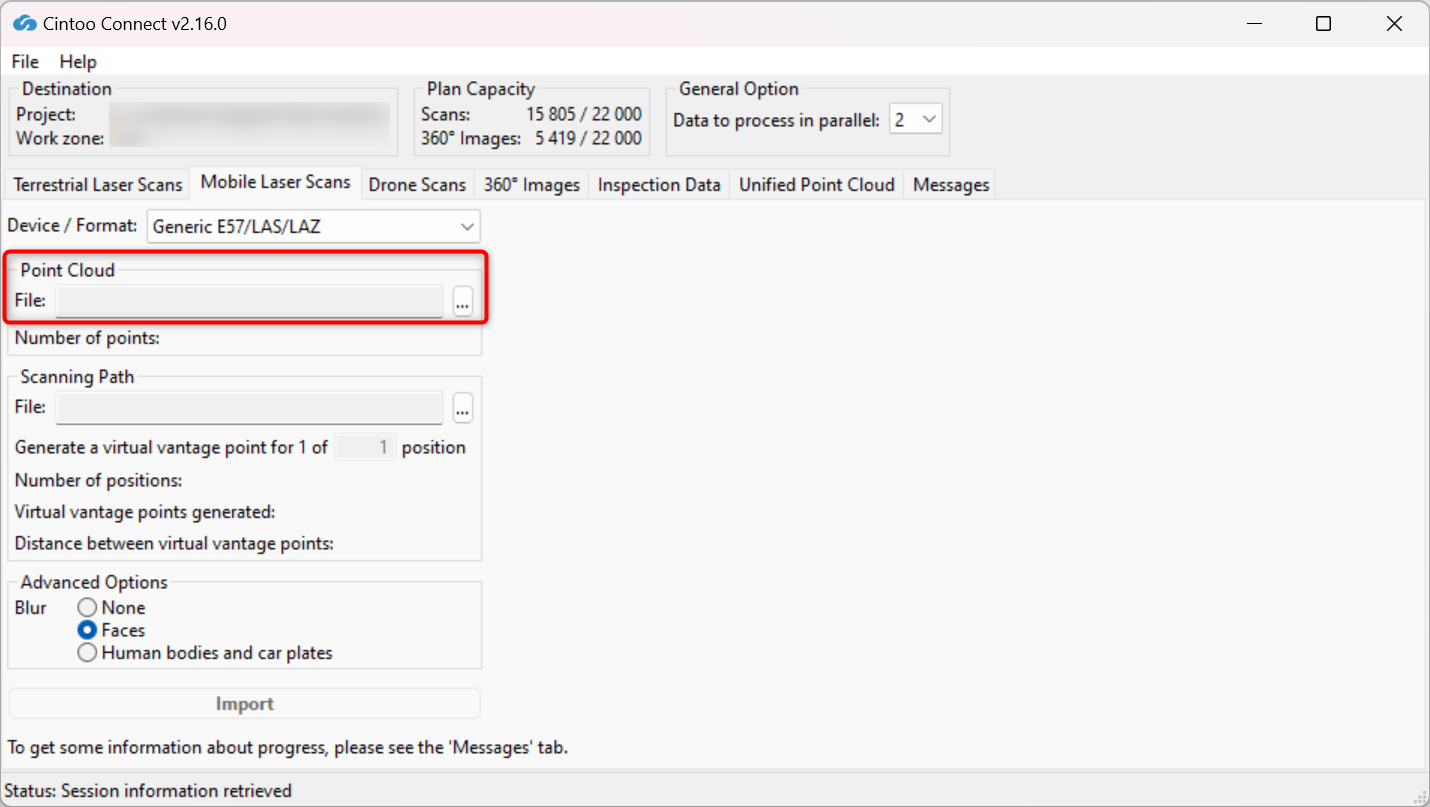
- Select your E57, LAS, or LAZ file as point cloud.
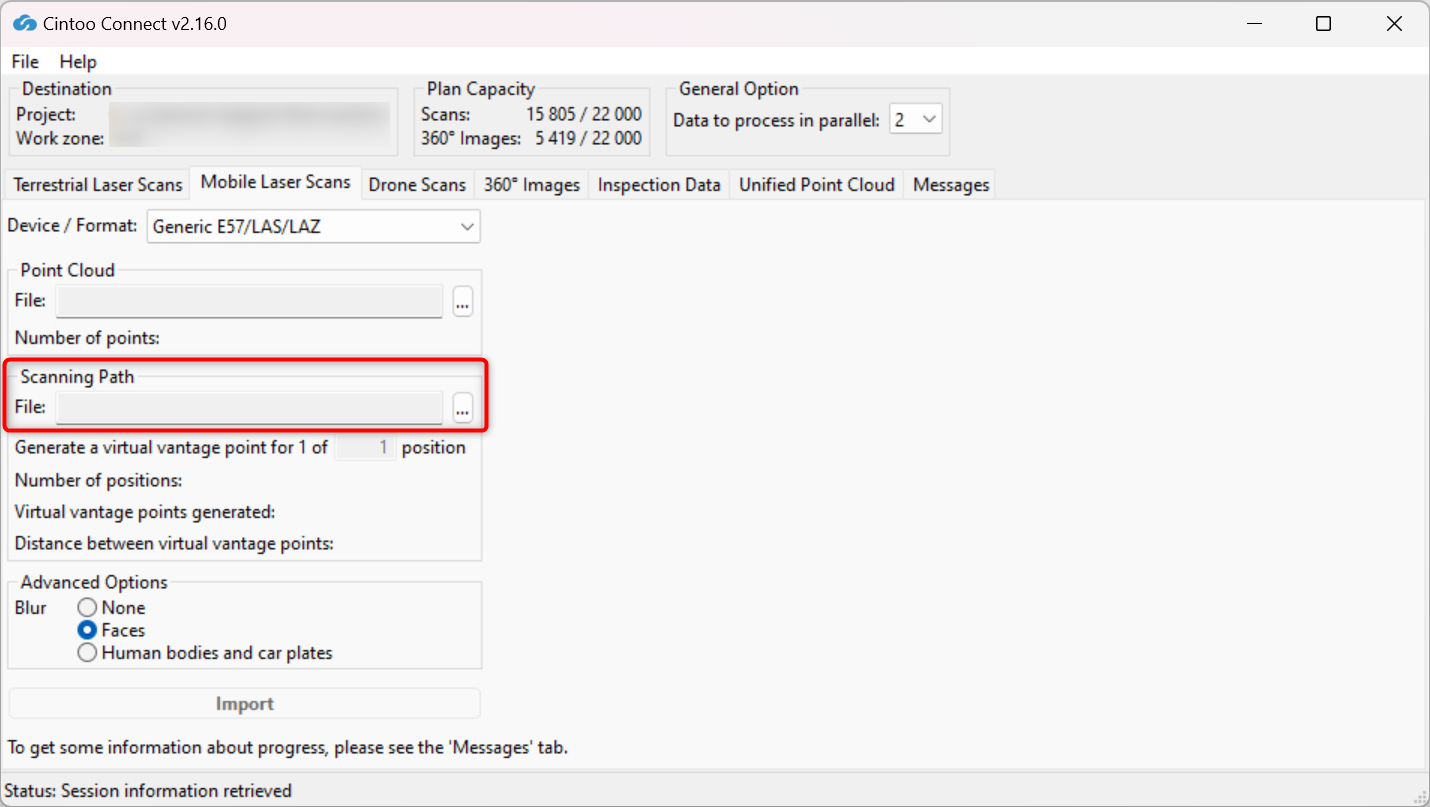
- Select frames_cintoo.csv from Frames folder as scanning path.
- Modify Positions sampling as needed:
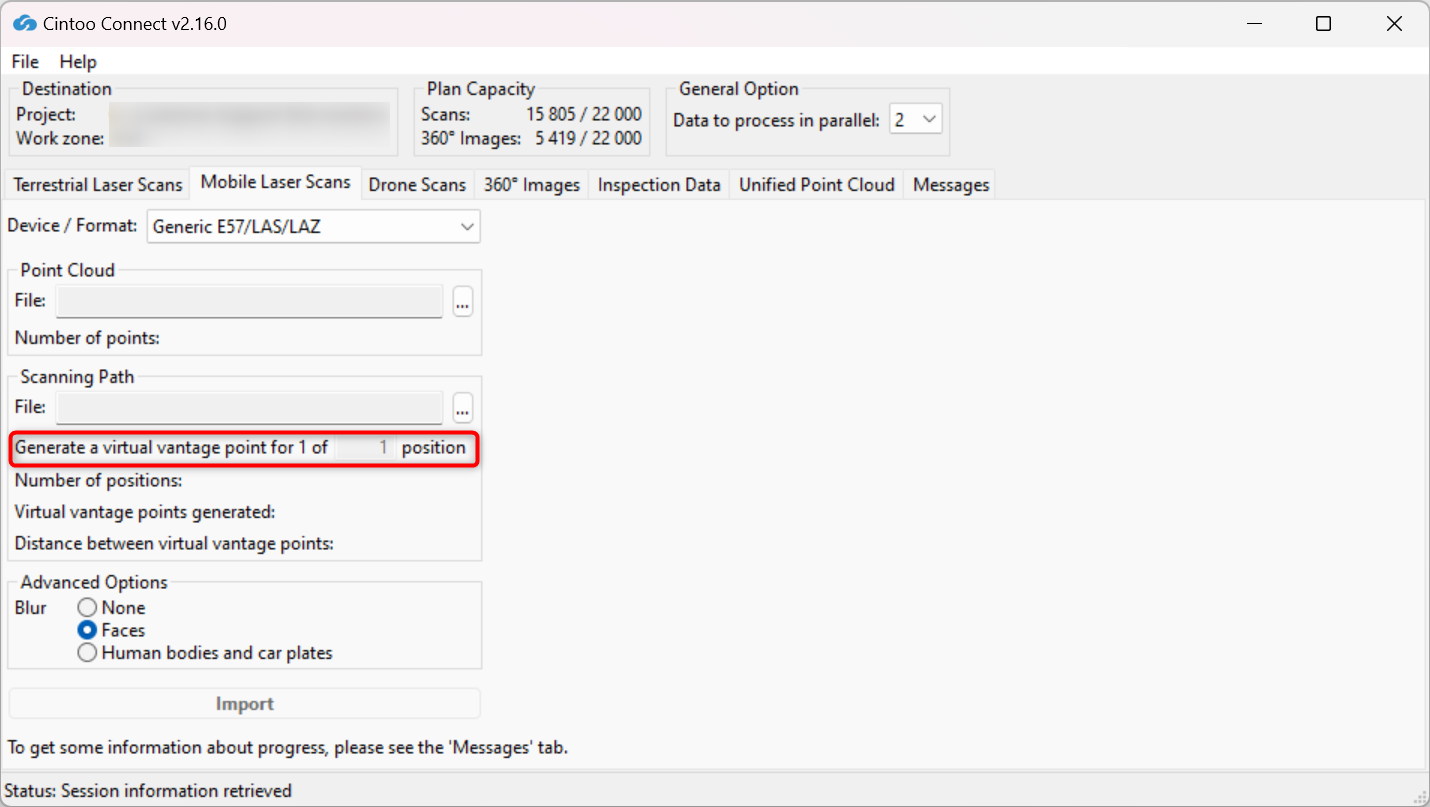
- Value entered sets how many Virtual Vantage Points (VVPs) - spatial positions used to compute mesh from point cloud - are created. For example, 4 will create 1 VVP for every 4 positions included in frames_cintoo.csv.
- Number of VVPs and average distance between each one will be indicated in Cintoo Connect and will be added to scan count.
- Enable or disable Blur - Faces.
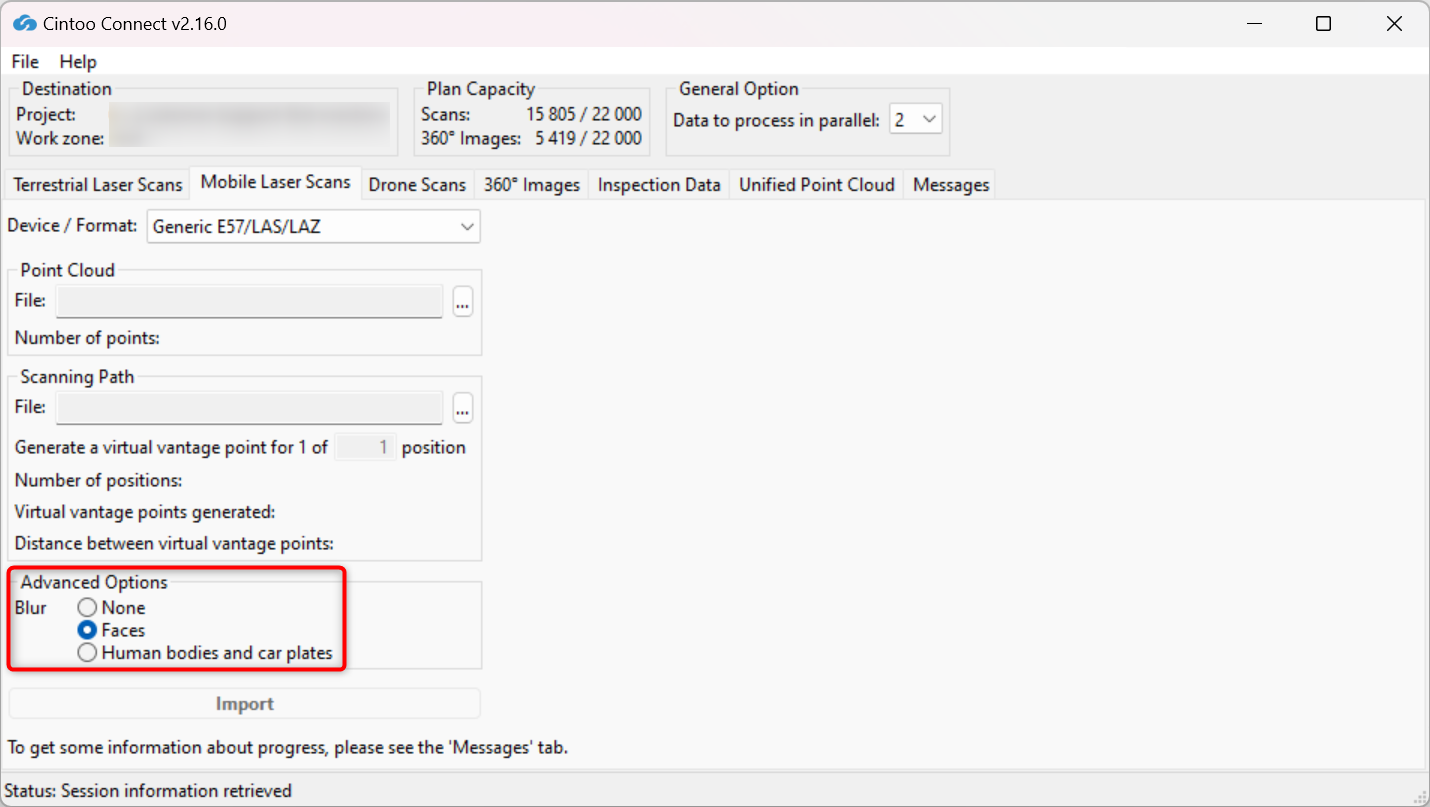
- This option is enabled by default, choose option None to not apply any blurring.
- This option automatically blurs faces captured in any panoramic images included in scans being uploaded to Cintoo.
- Blurring cannot be undone in Cintoo after scans have been uploaded.
- Any files uploaded without Blur Faces option enabled must be deleted from Cintoo project and re-uploaded with option checked to apply automatic face blurring.
- Enable or disable Blur - Human bodies and car plates:
- This option is disabled by default, option Faces is chosen.
- Enable this option to automatically blur human bodies including faces and car plates captured on any panoramic images included in scans being uploaded to Cintoo.
- Blurring cannot be undone in Cintoo after scans have been uploaded.
- Any files uploaded without Blur Human bodies and car plates option enabled must be deleted from Cintoo project and re-uploaded with option checked to apply automatic blurring.
Warning: use carefully only if it is imperative, as scan import time might be doubled with option enabled.
- Modify Data to process in parallel value as needed and according to available PC cores.
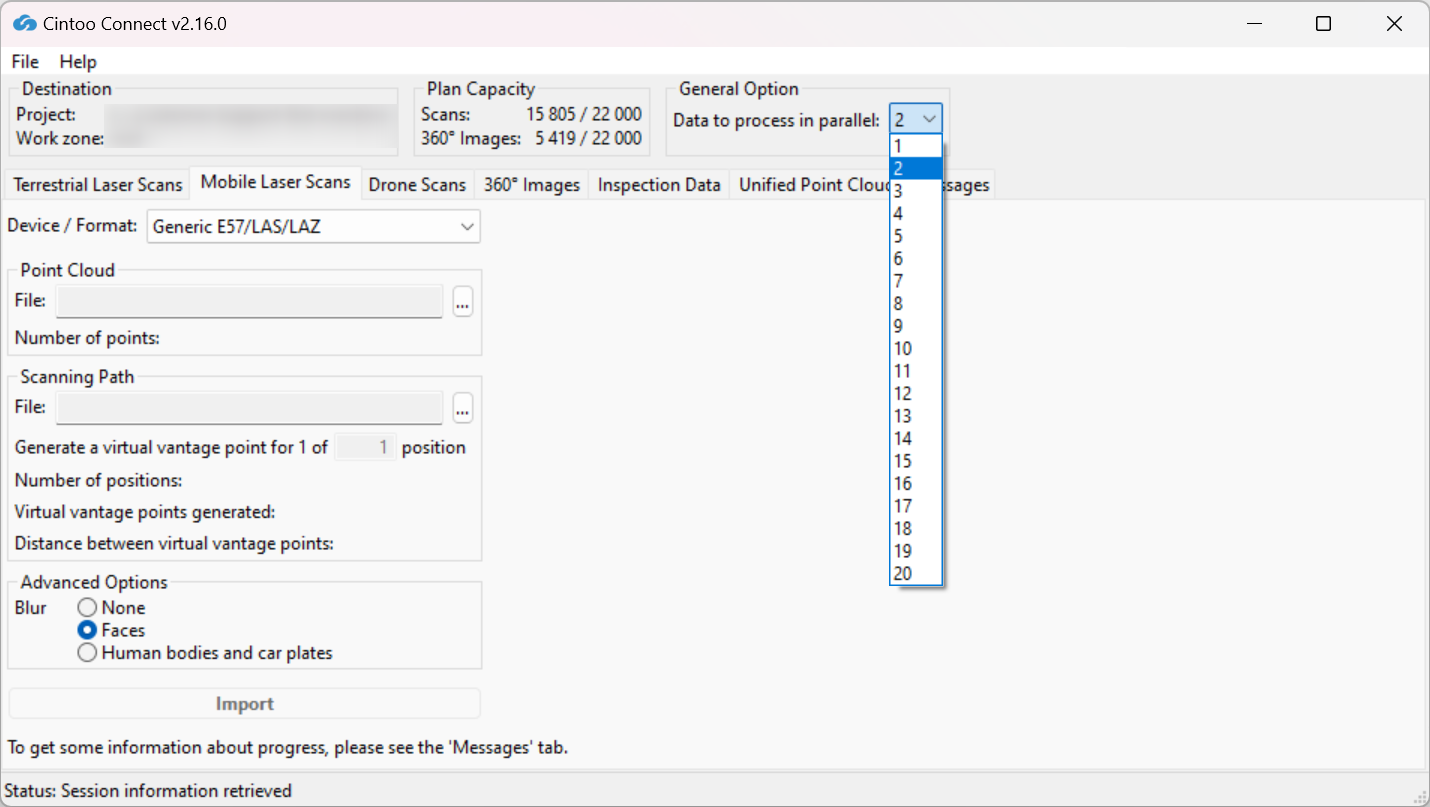
With multi-core PC, it is possible to process more than 2 scans (default setting) in parallel.
On average, at least 400 MB of RAM per 10 million pixels is needed to process. For example:
- 8 GB of RAM will allow to process 5 scans of 40 million pixels each in parallel.
- 64 GB of RAM will be needed to process 5 scans of 160 million pixels each in parallel.
- Click Import.
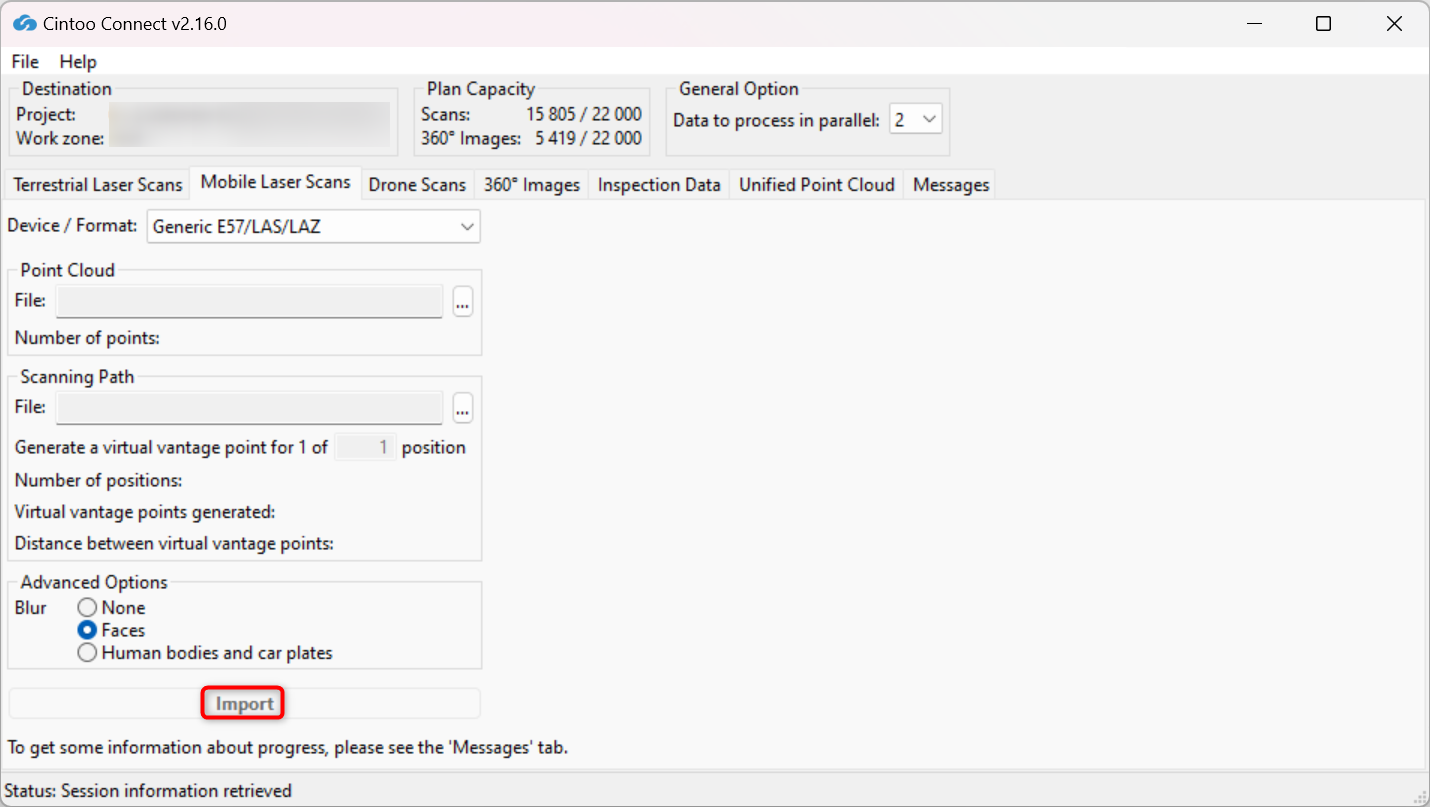
- Check Messages tab from time to time to see if the process is running smoothly
- New 3D scans will appear one by one in Cintoo project
Note: refer to this Emesent article for more details Generating 360 Panoramic Images.
Was this article helpful?
That’s Great!
Thank you for your feedback
Sorry! We couldn't be helpful
Thank you for your feedback
Feedback sent
We appreciate your effort and will try to fix the article