This article outlines navigation in Cintoo Workspace application both in Desktop and VR modes. Helping to get to know better the structure and visualization of data as well as main interface elements and tools available.
TABLE OF CONTENTS
- Desktop Mode
- VR Mode
Desktop Mode
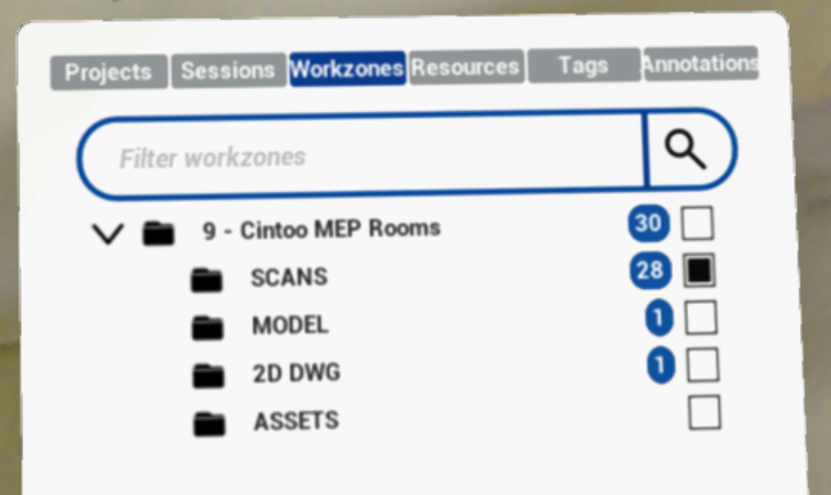
First, click on Projects tab on the left and then choose a project to experience in VR. After the project is opened in Resources and Workzones tabs choose objects to be activated.
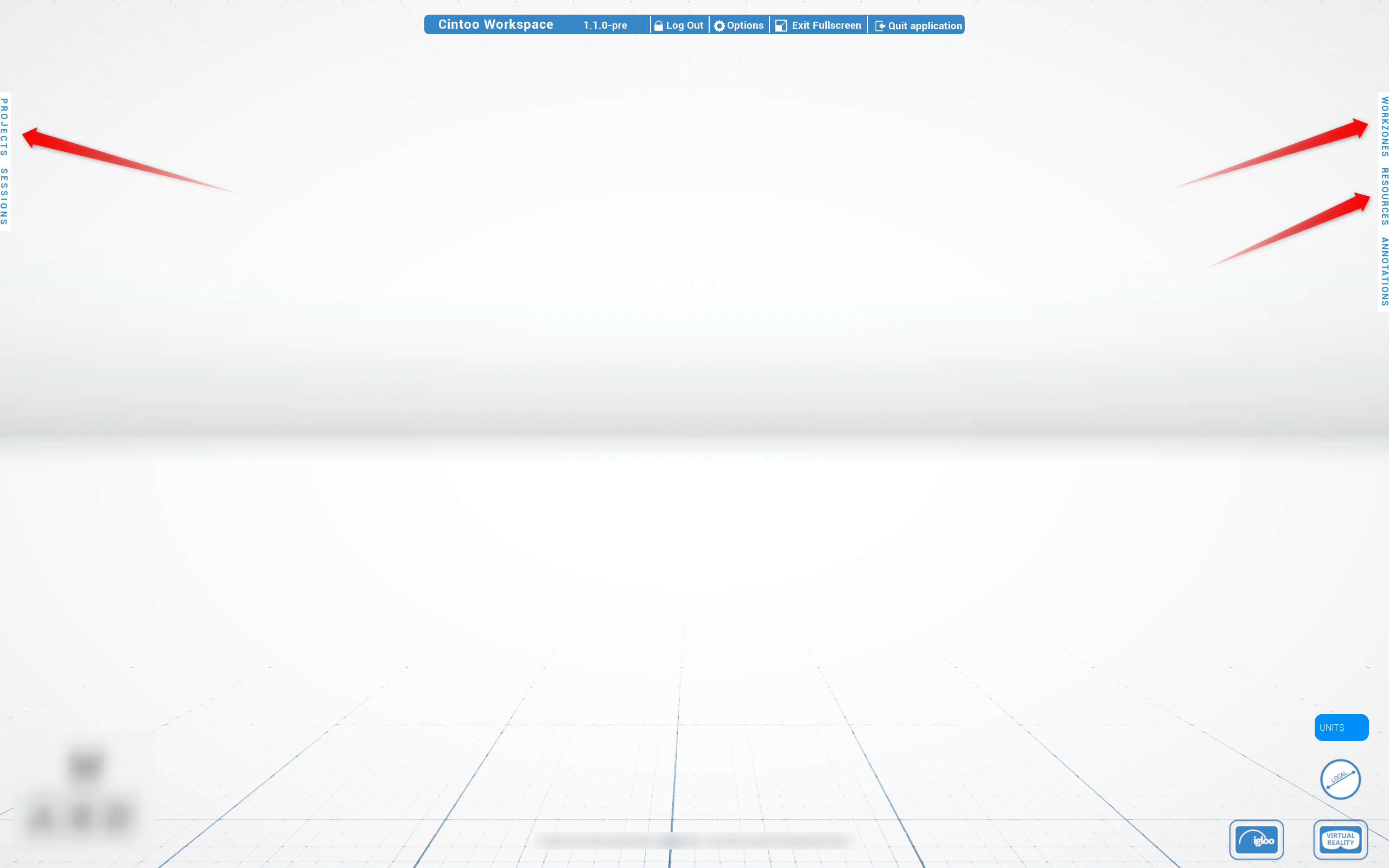
Annotations Explorer on right side of screen lists project annotations and allows to create and edit them without entering VR - more details in Annotations and Measurements.
Measurement units and reference are adjusted from right bottom corner of screen, above Virtual Reality button - more details in Measurements in Cintoo Workspace.
Clicking on Log Out button at the top will redirect back to login menu.
In Desktop mode, ESC does not quit application - use Quit application button at the top. In VR mode, ESC exits VR.
Workzones and Resources
Workzones tab reflects project's work zone structure with number of objects indicators in blue. In a large hierarchy, use search field to find a work zone.
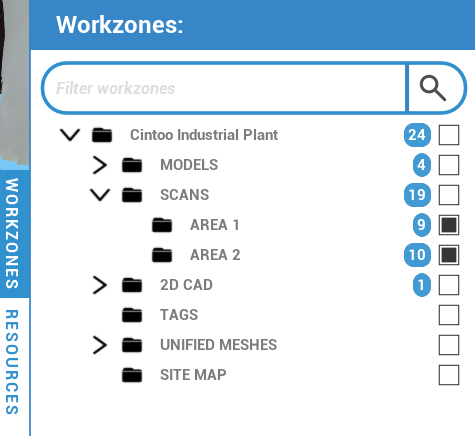
Each work zone has a checkbox that controls its visibility:
- Ticked checkbox means that a work zone is active - it, its sub-work zones and all their scans and models are visible in Resources tab and, if streamed, in 3D scene
- Unticked checkbox means that a work zone is inactive - it, its sub-work zones and all their scans and models are hidden from Resources tab and 3D scene
Activate needed work zones to see their content in Resources tab.
Resources tab contains only active work zones with all scan and model type objects. Inactive items are greyed out - including a parent work zone that is inactive while one of its sub-work zones is active.
To the left of objects in Resources tab there are clickable icons:
 Open eye icon means that an object is active
 Closed eye means that an object is inactive and greyed out. Closing eye of a scan hides its floating scanner icon in 3D scene and stops its streaming
 Target allows to jump to an object directly from Resources tab
Clicking eye next to a folder deactivates, or reactivates, all its scans, models and sub-folders.
Click name of a scan or model to teleport directly to it:
- In Desktop mode, teleport is immediate
- In VR, teleport starts after a 0.5 second delay, shown by a visual indicator
- A greyed-out scan or model becomes active when its name is clicked
- For a scan, user lands on its floating scanner icon. For a model, user lands at origin of its bounding box. From Exocentric view in VR, user switches to Egocentric view facing that origin
Names of all scans currently streamed are highlighted in blue - current scan in single-scan display, and every scan contributing to view in multi-scan display.
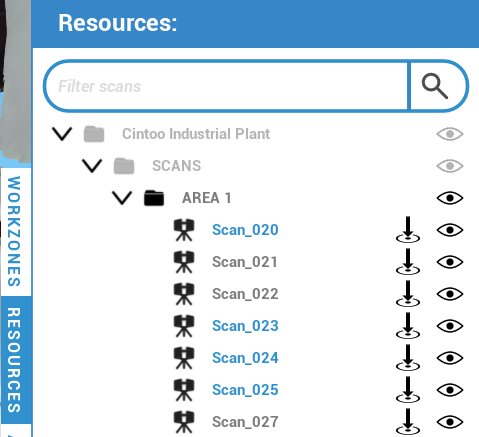
Once finished setting up the right amount of data to be displayed, tabs could be minimized by clicking on Workzones and Resources once again.
Sessions
Sessions tab sits next to Projects and holds multi-user session controls - Create Session, Join Session and Leave Session. Session ID is displayed there and can be shared with other participants. Members list shows everyone in a session.
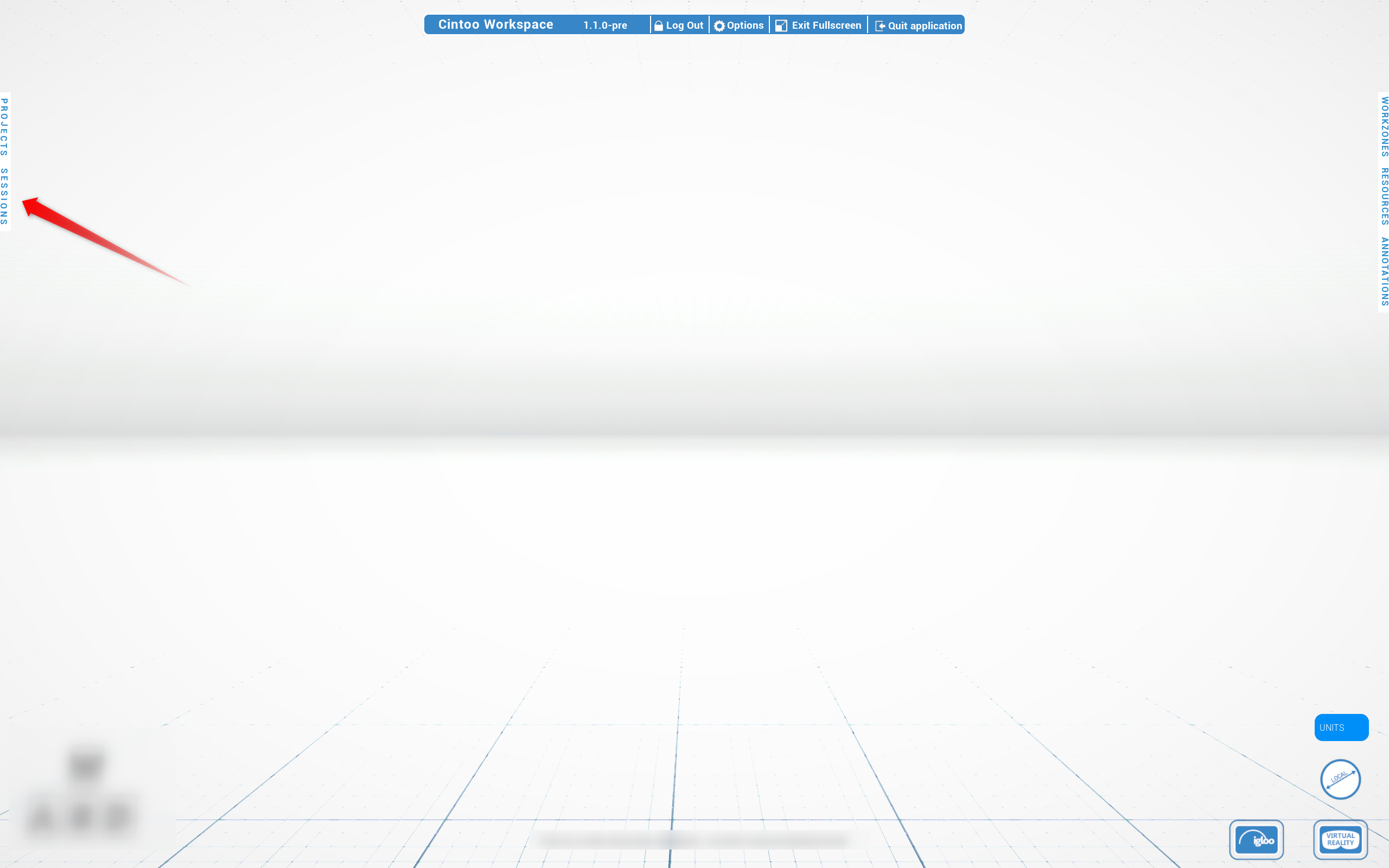
Full workflow, collaboration tools and roles are described in Multi-User Collaboration.
Display Modes Panel
At the top of the screen in the middle Display modes panel that controls visualization is located:

- RGB – colorful image taken from scanner data
- X-ray – transparent mode for comparison of multiple scans
- Surface - mesh generated from scan data
- Indoor – inside buildings mode allowing to darken the environment
- Backface – allows to hide backfaces of 3D mesh surfaces to be able to see inside of buildings from outside and to clean up the scene from unnecessary mesh pieces
Navigation
In Desktop mode of Cintoo Workspace application it is possible to navigate from scan to scan or in fly mode freely in 3D space. Click on floating scanner icons or on a scan name in Resources tab, or move freely by holding any mouse button and moving the mouse, use Shift to turn camera.
Options
On the top panel open Options menu to change visualization parameters inside the application.
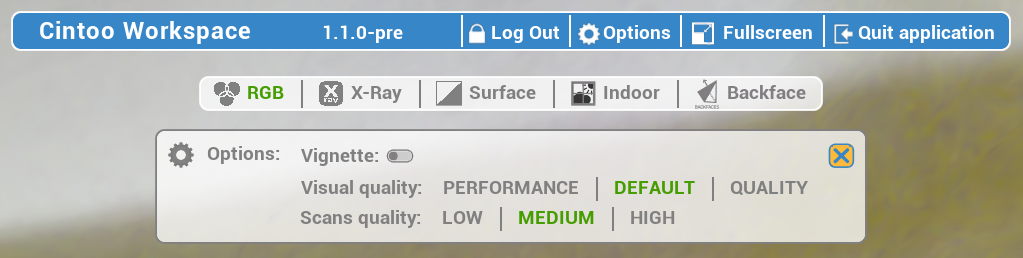
- Vignette - narrows field of view during movement to make it smoother. Could also be activated from VR Tools menu. More details in Vignette
- Visual quality - same setting as on the login page described in details in Discover the Application
- Scans quality - same setting as on the login page described in details in Discover the Application
These settings, together with units and VR height, are kept between sessions and restored at next launch.
Annotations and Measurements
Annotations and measurements can be created and reviewed in Desktop mode, without entering VR.
- Annotations Explorer, on right side of screen - fetch, create, edit and push annotations. Aim at target location with placement laser, extend laser with J or Up arrow key and shrink it with K or Down arrow key, and press Enter to confirm position. An annotation started in Desktop mode can be continued in VR without fetching again. More details in Annotations in Cintoo Workspace
- Measurement tool, at right bottom corner of screen - button shows current measurement type, Simple Distance by default - Simple Distance, Local Reference, World Reference, Horizontal Measure and Vertical Measure. Aim with placement laser, extend it with J or Up and shrink it with K or Down, and press Enter to place each point and to validate measurement. More details in Measurements in Cintoo Workspace
VR Mode
Connection
- for Meta devices - after that establish connection with Meta Quest Link from the device by navigating to Settings, choosing Link, and clicking Launch. Or choose Link in Quick Settings menu.
More detailed instruction from Meta: Set up your Meta Quest with the Meta Quest Link - for other devices - establish connection with PC.
To switch to VR mode and start streaming to headset click on Virtual Reality in the low right corner.

Controllers
Main controller chosen when starting the application is called Navigation controller. Right-handed setting would have A and B buttons and is used to navigate in a project.
Second controller is called Tools controller. It has X and Y buttons, in the right-hand setting, and its use is functional. Interface for navigating projects and data could be visualized by pressing B button. Navigation and visualization controls are the same as in Desktop mode.
Navigation Methods
Cintoo Workspace supports multiple navigation methods depending on your hardware setup. Each method below shows which platforms support it - use legend to find what works on your device, and check controls column for hardware-specific inputs.
Platform legend
| Icon | Platform |
|---|---|
 | VR - headset (Meta Quest, etc.) |
 | Desktop - PC with mouse & keyboard |
 | Igloo - large-format immersive display |
 | Web - browser-based viewer (standard Cintoo web experience) |
VR: Navigation controller projects a dynamic parabola that follows hand movement and adjusts in length - used as the primary targeting mechanism for scan selection, teleportation, and switching to Fly mode.
Igloo: interaction uses one laser with a parabola switch. In main panel, Session, Annotations and Tags tabs are greyed out, as these features are not available in Igloo.
Core Locomotion
Methods for physically moving and orienting yourself within a scene - turning, walking, flying, and repositioning the view.
Look Around
Rotate the camera to look in any direction around you.
| Platform | Controls |
|---|---|
 VR VR | Physically turn your head |
 Desktop Desktop | Click and hold mouse wheel button, then move the mouse; hold Shift to turn camera |
 Igloo Igloo | Physically look and move around within tracked space |
 Web Web | Right-click + left-click drag (3D navigation look around) |
Walk Around
Move freely through physical space mapped onto the scene.
| Platform | Controls |
|---|---|
 VR VR | Walk naturally within the area around you |
 Igloo Igloo | Walk within Igloo tracking space |
Quick Turns
Snap-rotate view in 90-degree increments - useful when physically turning is limited.
| Platform | Controls |
|---|---|
 VR VR | Press Navigation controller joystick left or right |
 Igloo Igloo | Use 90-degree turn input on controller |
Pan
Shift viewpoint along an axis without rotating - useful for fine positional adjustments or aligning view.
| Platform | Controls |
|---|---|
 VR VR | Hold Tools controller grip to enter Pan mode, then move controller in desired direction. Works in both Egocentric and Exocentric scale. |
 Desktop Desktop | Vertical pan: hold right mouse button + drag. Horizontal pan: hold left mouse button + drag. Field of view: scroll mouse wheel. |
 Web Web | Vertical pan: right-click drag. Horizontal pan: left-click drag. Field of view: scroll wheel (3D navigation). |
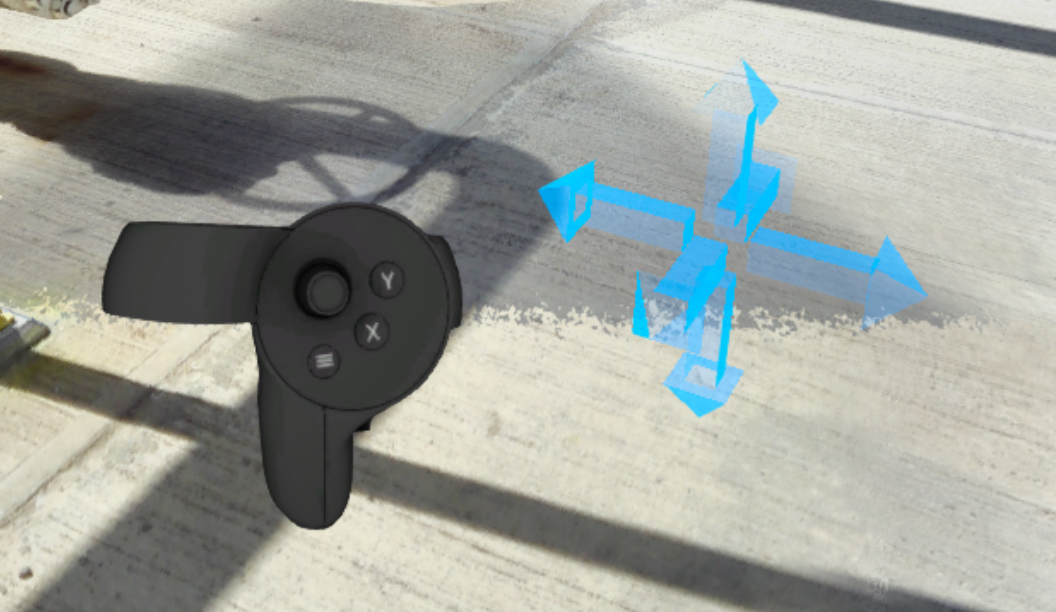
Find more details in Control tips menu in Desktop mode or in the dedicated section Pan Mode.
Fly Mode
Move freely in all directions through 3D space, imitating flight.
Works in both Egocentric and Exocentric scale.
| Platform | Controls |
|---|---|
 VR VR | Click Navigation controller joystick to activate Fly mode, then navigate with joysticks. Vertical movement: Tools controller joystick. Horizontal movement: Navigation controller joystick. |
Orbit
Rotate entire scene in parallel to the ground while your position stays fixed - useful for inspecting from multiple angles.
| Platform | Controls |
|---|---|
 VR VR | Hold both controller grips simultaneously. Move hands in opposite directions - one forward, one backward - as if rotating a large object. A line appears between controllers to confirm two-handed mode. |
 Web Web | Use 3D navigation Orbit control. |
Find more details in Control tips menu in Desktop mode or in the dedicated section Orbit.
Jump Around
Methods for jumping directly to a specific location or scan without continuous movement.
Scan to Scan
Jump directly to viewpoint of a specific scan by selecting it in scene or in Resources panel.
| Platform | Controls |
|---|---|
 VR VR | Point Navigation controller at a scan icon - parabola becomes a straight line and icon highlights. Press trigger to go there. |
 Desktop Desktop | Click any floating scanner icon in 3D view, or click scan name in Resources tab. |
 Igloo Igloo | Point controller at a scan icon until it highlights, then press trigger. |
 Web Web | Click scan icon in scene. |
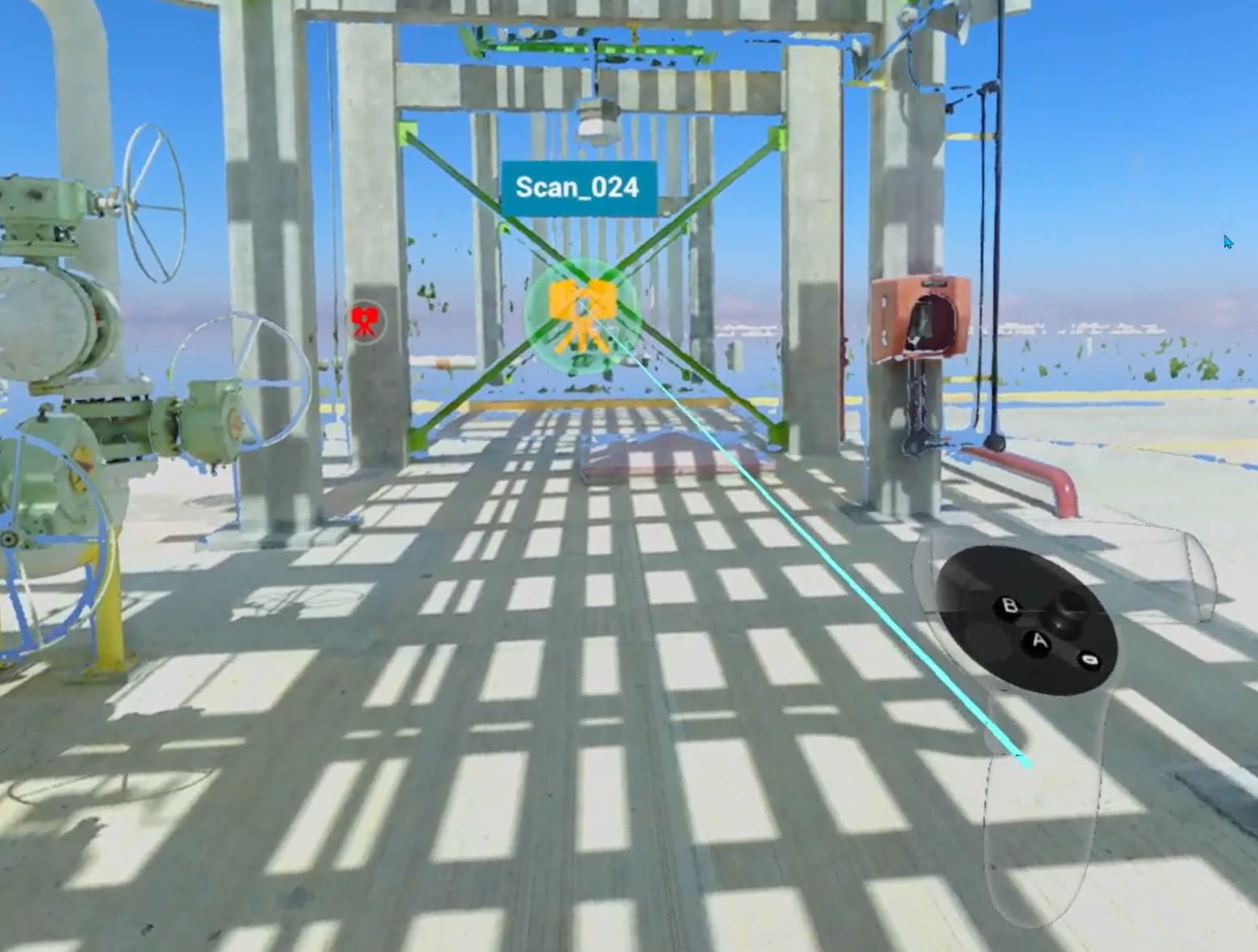
VR: selection laser passes through virtual floor to reach scan icons below it, while teleport parabola stops at floor.
Teleport
Free teleportation to any floor-level position in scene.
| Platform | Controls |
|---|---|
 VR VR | Aim single blue parabola - a red/blue floor grid and a target marker appear. Push or pull Navigation controller joystick to adjust parabola length. When both targets merge, landing spot is locked. Press Navigation controller trigger to jump there. To set view height before teleporting: press X on Tools controller, then adjust with Navigation controller joystick up/down. Height is kept across teleports, projects and sessions, including after restarting application. |
 Igloo Igloo | Aim controller at desired floor location and press trigger. |
 Web Web | Hold Shift and click target location. |
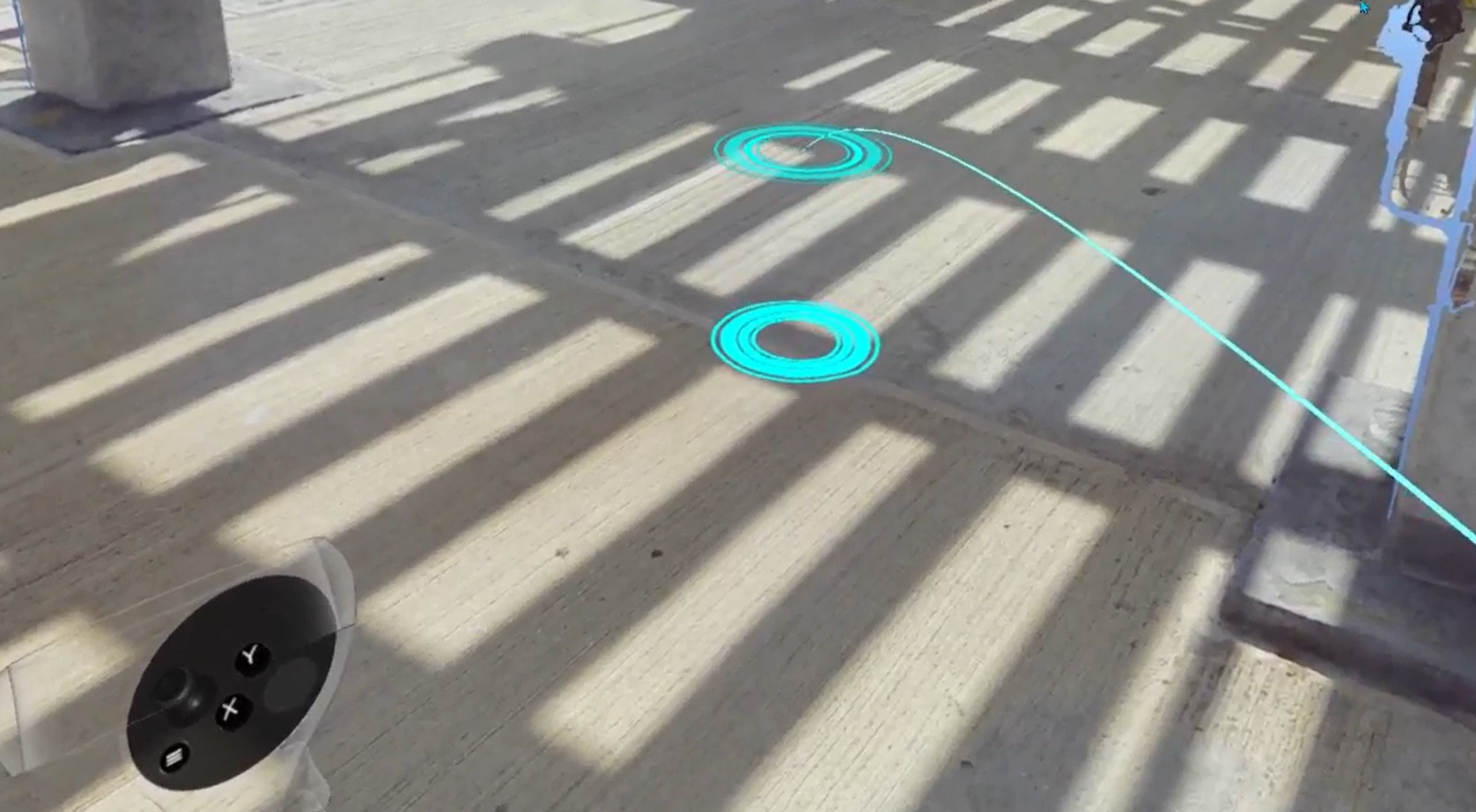
To move instantly, without movement transition, switch on Teleport option.
See also: Change Teleportation Height and Exo/Ego switch.
Scaling
Methods for changing your perspective scale - from 1:1 ground-level exploration to a full site overview and anywhere in between.
Exo / Egocentric Scale
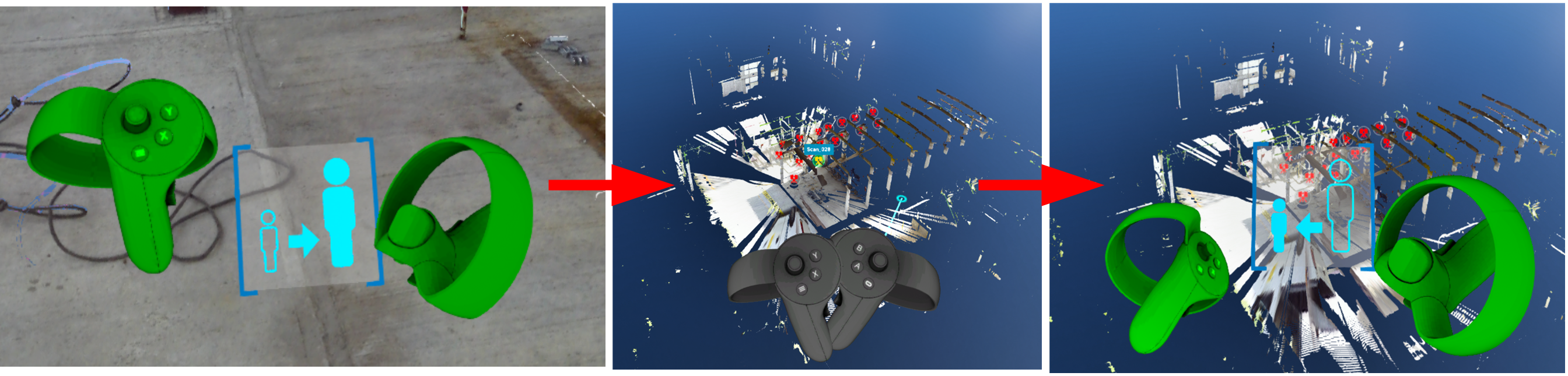
Switch between 1:1 human-scale exploration (Egocentric) and a miniature overhead view of the full site (Exocentric). Exocentric mode enables full-site observation, architectural walkthrough evaluation, spatial relationship assessment, and measurement of distances beyond 1:1 scale.
| Platform | Controls |
|---|---|
 VR VR | Enter Exocentric: point Navigation controller toward the sky - a special indicator appears - then press trigger. Return to Egocentric: repeat same upward gesture (reverse indicator shown), or use teleport to jump back to ground level. Exo/Ego |
 Web Web | Click home / recenter camera button in 3D navigation controls. |
Dynamic Scaling
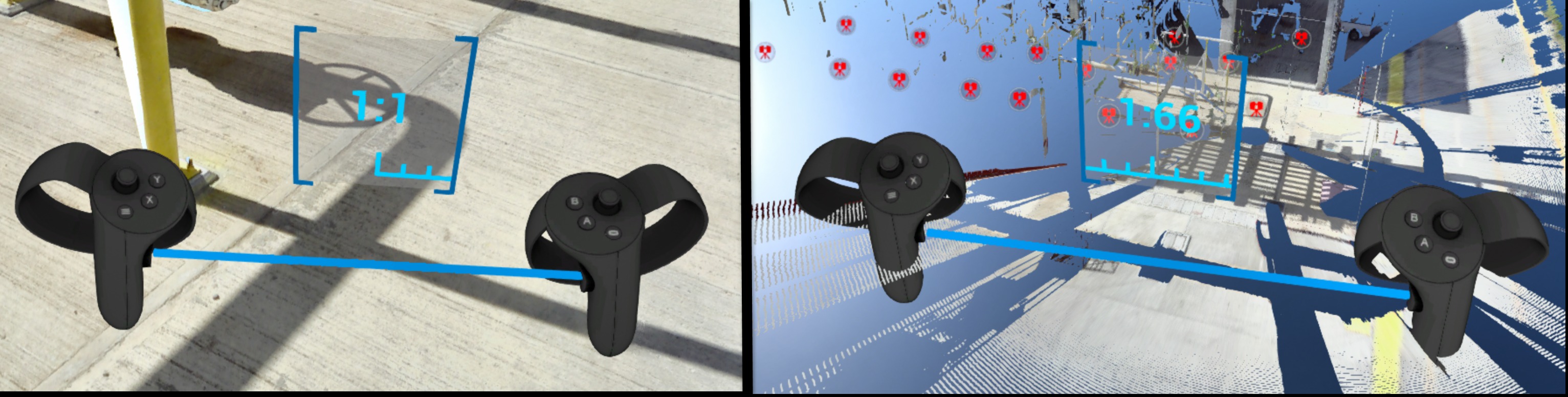
Continuously zoom scene between 1:1 and 1:250 scale - useful for navigating between site-wide overview and detail inspection without leaving your position.
| Platform | Controls |
|---|---|
 VR VR | Hold both controller grips simultaneously. Spread hands apart to zoom in (toward 1:1). Bring hands together to zoom out (toward 1:250). A scale indicator appears between controllers showing current ratio. |
 Web Web | Scroll mouse wheel, or use 3D navigation Dynamic Scaling control. |
Find more details in Control tips menu in Desktop mode or in the dedicated section Dynamic Scaling.
Navigation Aids
Settings and modes that assist navigation, reduce motion discomfort, or control how the scene environment is displayed.
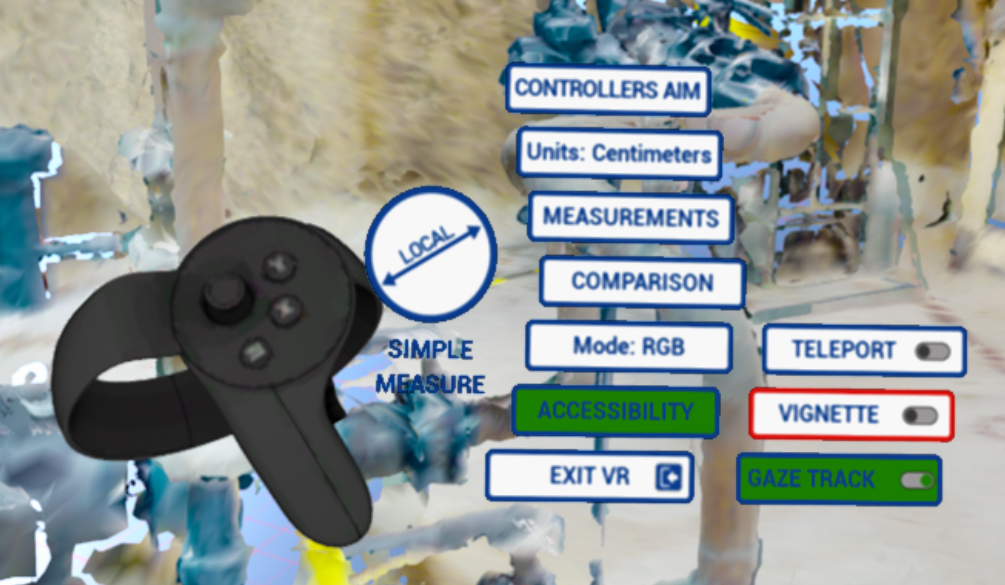
Teleport, Vignette and Gaze Track options are in Accessibility of VR Tools Menu. Teleport and Vignette are off by default, Gaze Track is on by default. All three are saved between sessions.
Teleport Option
Switches off movement transition when moving between scans, switching between Egocentric and Exocentric scale and in free teleportation - user is moved instantly. Off by default. While it is on, Vignette does not apply.
| Platform | Controls |
|---|---|
| VR | Switch on Teleport in Accessibility of VR Tools Menu. |
Vignette
Reduces motion sickness by narrowing peripheral field of view during movement - teleport to a scan, pan, fly mode, orbit, zoom in/out and switching between Exocentric and Egocentric scale. It applies a single vignette effect and is off by default. Vignette does not apply while Teleport option is on.
| Platform | Controls |
|---|---|
 VR VR | Enable Vignette from Options menu (top panel in Desktop mode before entering VR) or from Accessibility in VR Tools Menu once in headset. |
Vision (Gaze) Control
Navigate using head gaze alone - no active controller input required. Useful when you want hands-free movement.
Gaze tracking is on by default and can be switched off with Gaze Track in Accessibility of VR Tools menu - when off, it never activates, whatever hand position or gaze. Gaze tracking is also disabled while a measurement is being taken, so it does not interfere with probe placement.
| Platform | Controls |
|---|---|
 VR VR | Let your arms hang at your sides - controllers disappear from view. Orient your gaze toward a scan icon. Once icon highlights, press Navigation controller trigger to go there. |
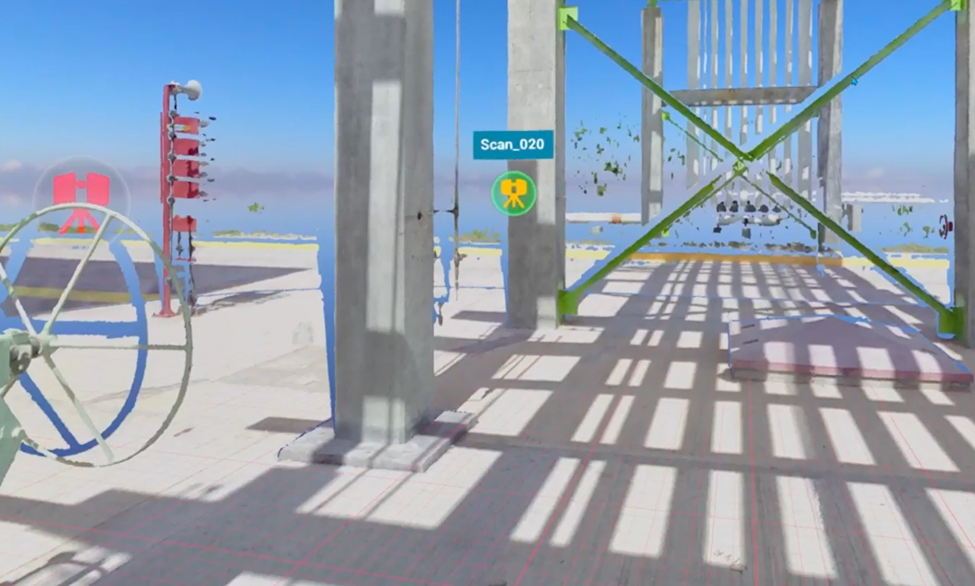
Display Modes
Switch how point cloud data is rendered. Available modes vary by platform.
- RGB - colorful image taken from scanner data
- X-ray - transparent mode for comparison of multiple scans
- Surface - mesh generated from scan data
- Heightmap - scene colored according to object heights (VR and Igloo only)
| Platform | Available modes |
|---|---|
 VR VR | All modes except Intensity and 2D panoramic. Switch from VR Tools Menu. |
 Desktop Desktop | All modes except Heightmap, Intensity and 2D panoramic. Available in Display Modes panel at top of screen. |
 Igloo Igloo | All modes except Intensity and 2D panoramic |
 Web Web | All display modes |

Heightmap (VR)
Displays scene colored according to object heights. Clicking Heightmap button changes display mode and shows a color legend. Move window by grabbing title of legend with Navigation controller trigger.
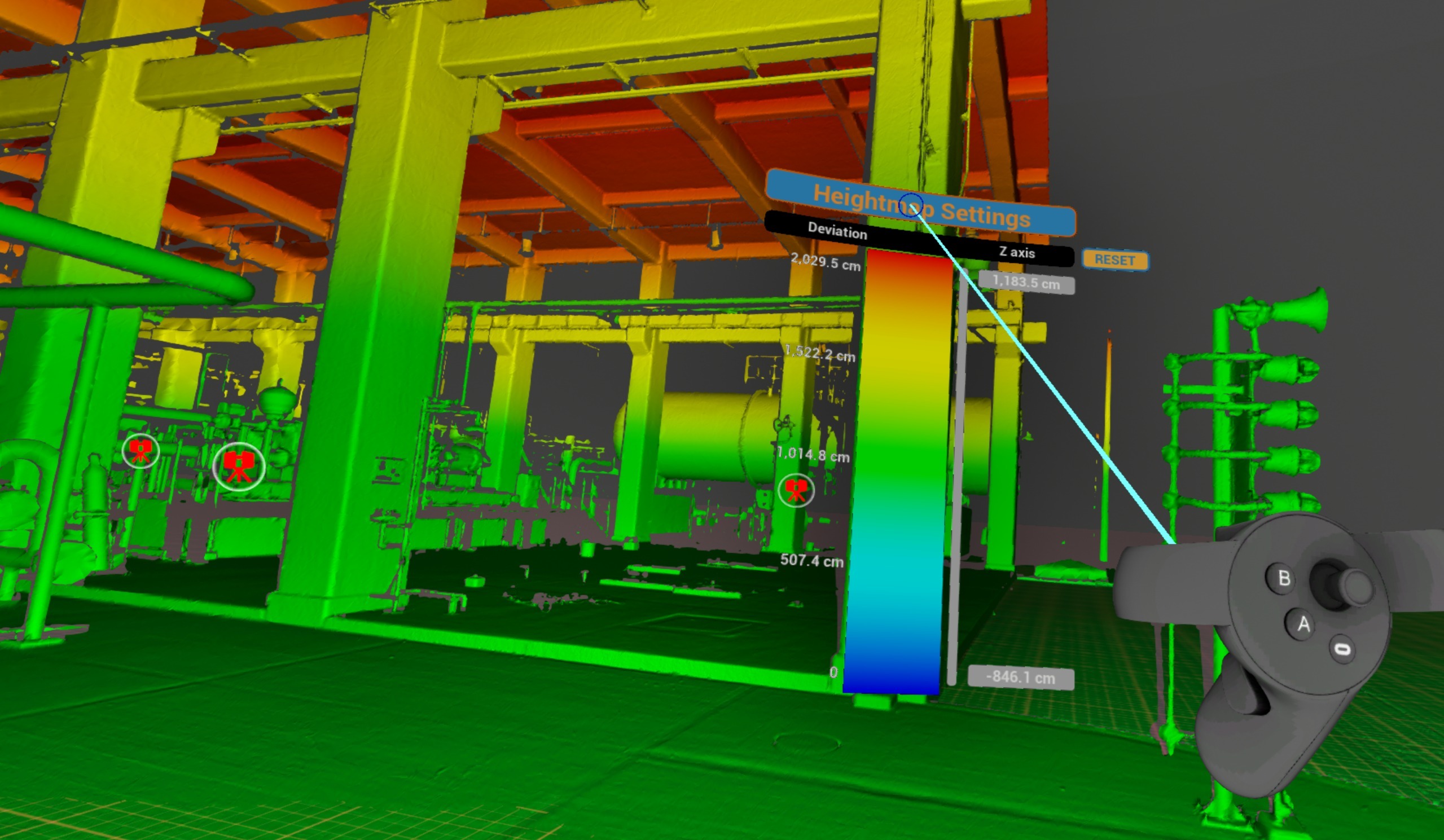
To adjust height limits point at a number and pull or push Navigation controller joystick.
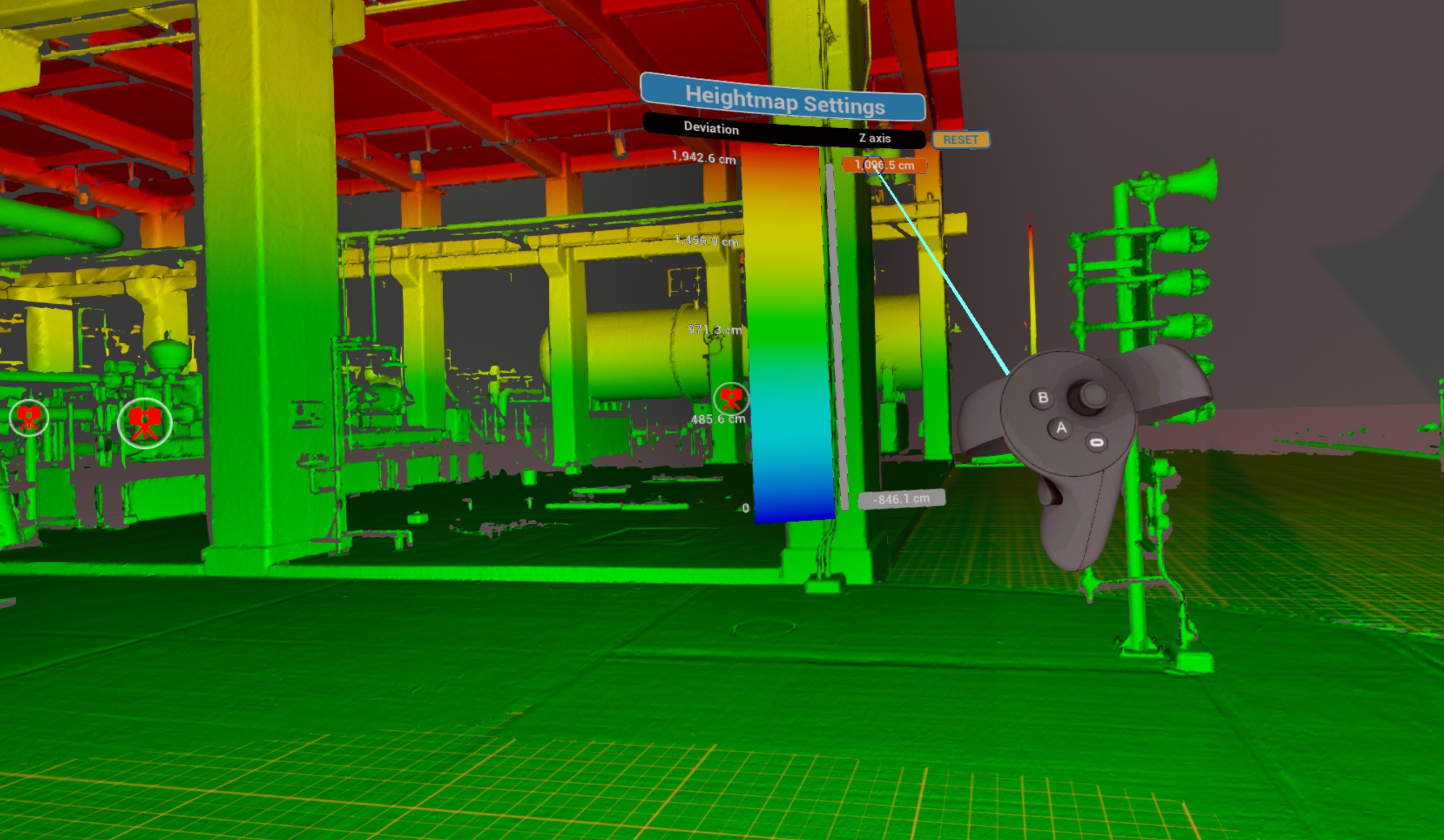
Slide grey bar up and down to offset range set.
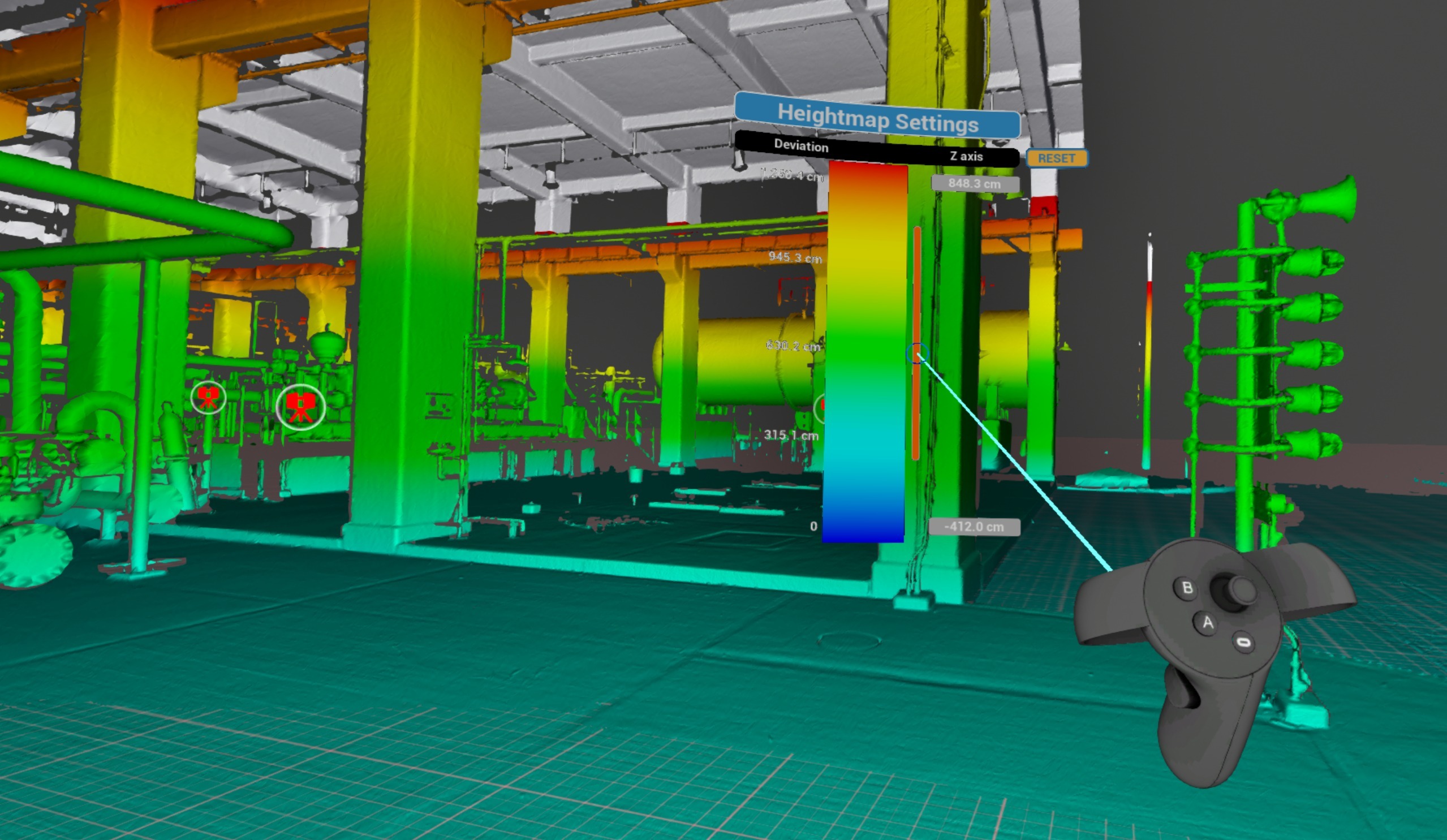
Click Reset to return to default settings.
Indoor / Outdoor
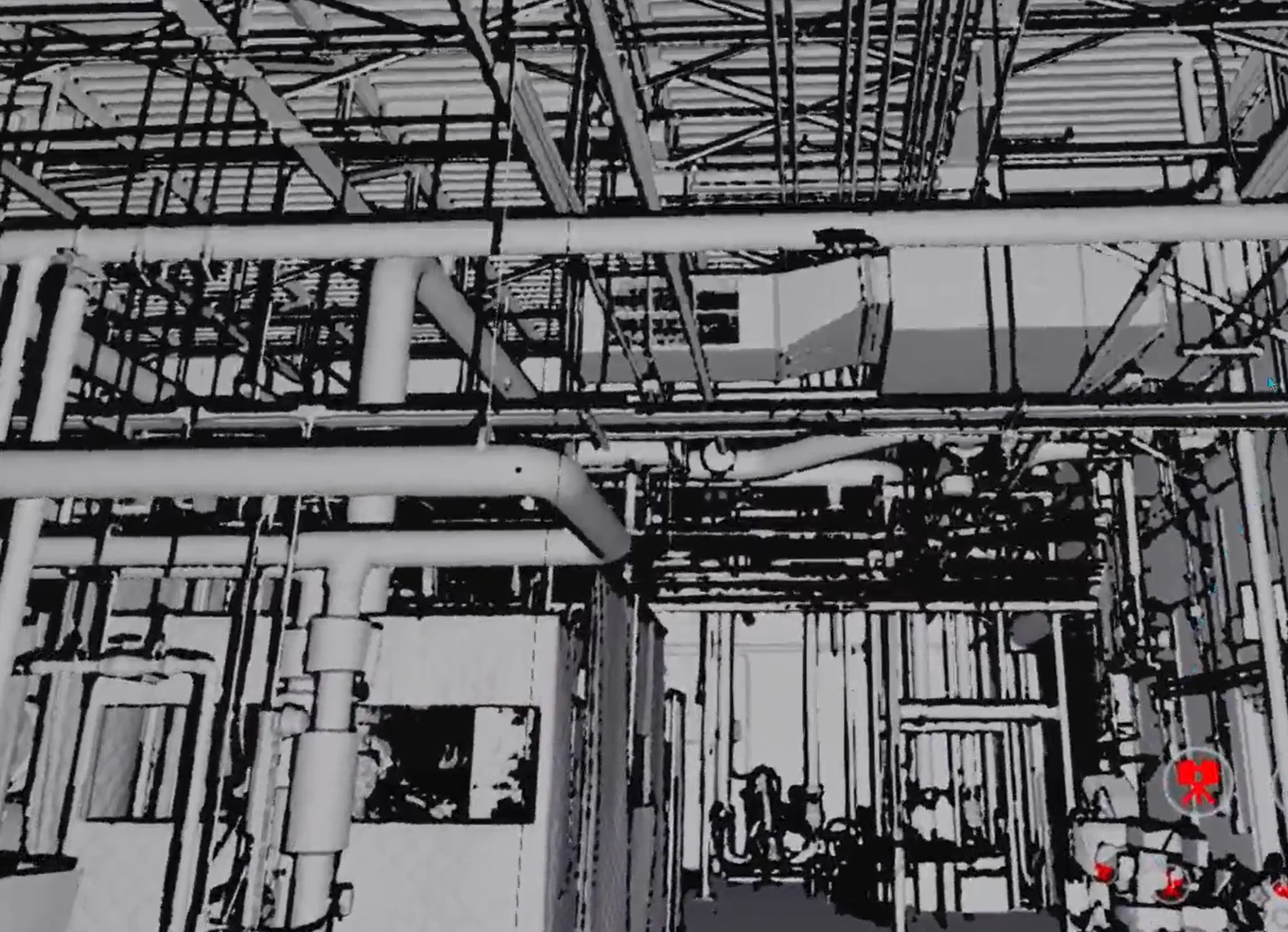
Replace sky background with a black one for indoor scenes. Can be used alongside other display modes (RGB, X-ray, Surface).
| Platform | Controls |
|---|---|
 VR VR | Switch from VR Tools Menu |
 Desktop Desktop | Available in Display Modes panel at top of screen |
 Web Web | Background color/image control |
Virtual Floor Grid
Display a reference grid on floor plane to aid spatial orientation.
| Platform | Controls |
|---|---|
 VR VR | Available |
 Igloo Igloo | Available |
Performance Options
Settings that affect rendering quality and visual output of point cloud data and 3D geometry.
Backfaces
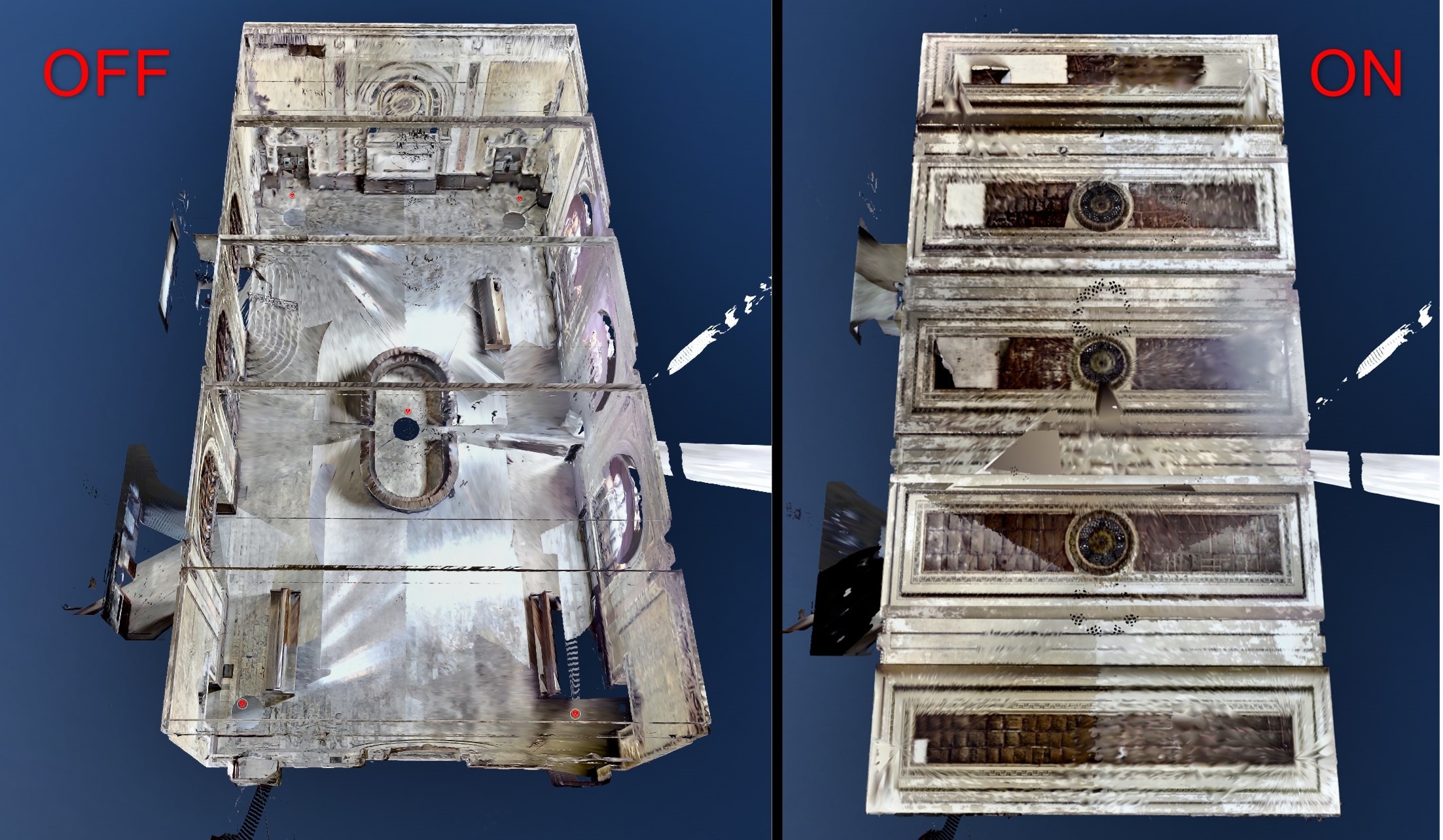
Show or hide back-facing surfaces of 3D mesh - useful for seeing inside buildings from outside and cleaning up the scene from unnecessary mesh pieces. Can be used alongside other display modes (RGB, X-ray, Surface).
| Platform | Controls |
|---|---|
 VR VR | Switch from VR Tools Menu. |
 Desktop Desktop | Available in Display Modes panel at top of screen. |
 Igloo Igloo | Available |
 Web Web | Available |
Visual / Scan Quality
Adjust rendering quality level for point cloud scans and 3D visuals.
| Platform | Controls |
|---|---|
 VR VR | Available |
 Desktop Desktop | Available |
 Igloo Igloo | Available |
VR Tools Menu
This menu serves as the main control for enabling/disabling modes and accessing features.
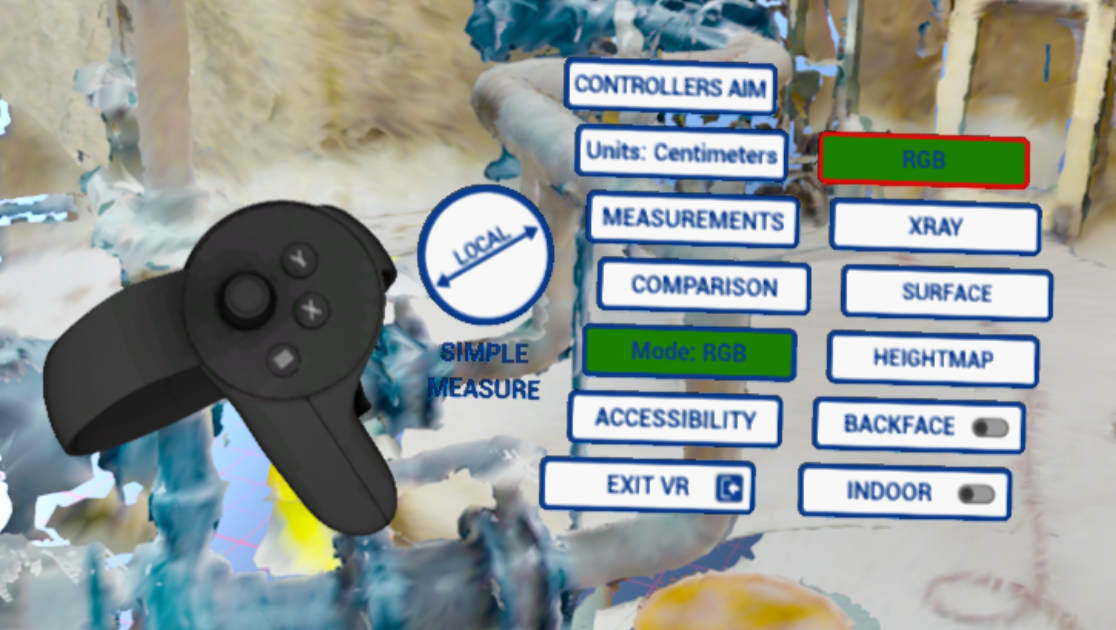
To open VR Tools menu press Y on Tools controller. Select an entry by clicking it with Navigation controller, or move through entries with Tools controller thumbstick - left controller in right-handed setting - and select with Tools controller trigger. Selected entry is highlighted.
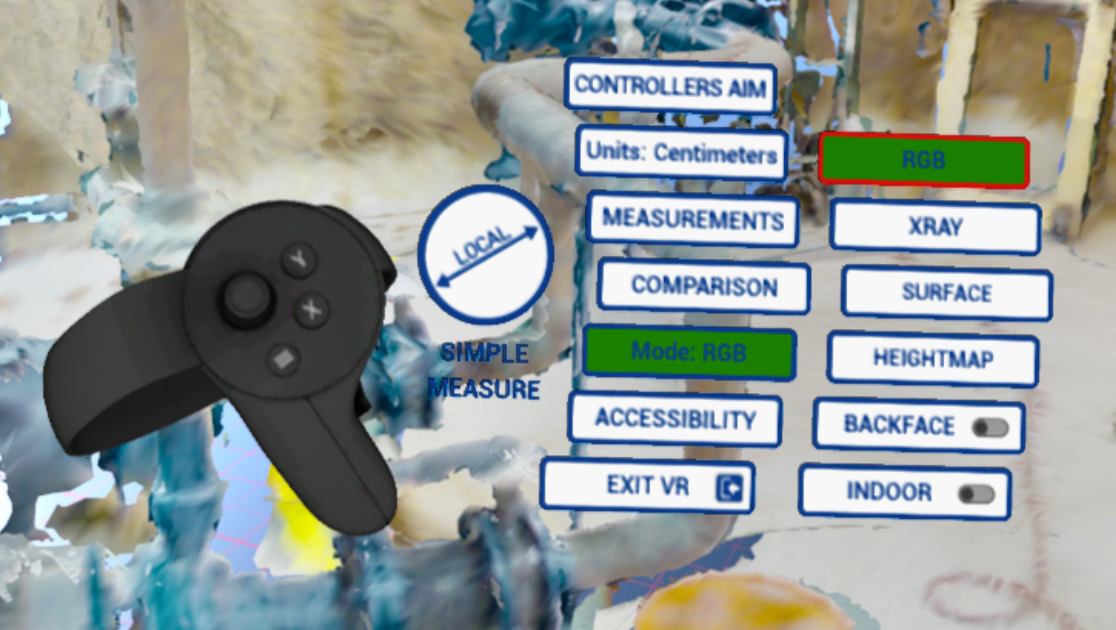
- Set up Controllers Aim (more info Controller Aim)
- Change Units that would be used in measurements and heightmap
- Obtain different Measurements (Measurements in Cintoo Workspace)
- Use Comparison tools (VR actions Comparison). Only Visual Check is available.
- Switch Display mode including Heightmap, Backfaces and Indoor / Outdoor
- Accessibility - Teleport and Vignette (off by default) and Gaze Track (on by default) options, saved between sessions. More details in Teleport Option, Vignette and Vision (Gaze) Control
- Exit VR mode – exit to Desktop mode
Watch
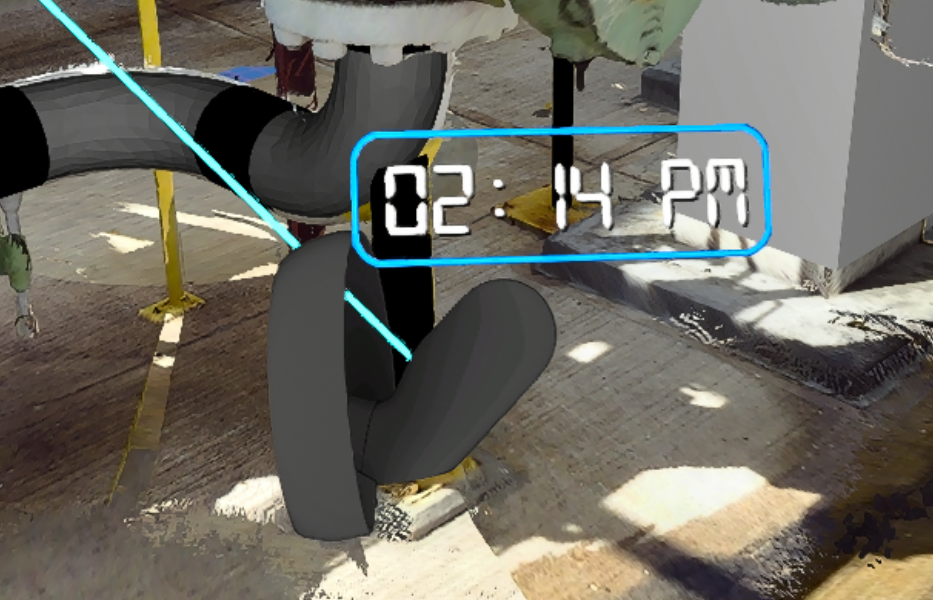
Rotate wrist holding Navigation controller towards yourself to show a digital watch with current time, based on Windows time settings.
Was this article helpful?
That’s Great!
Thank you for your feedback
Sorry! We couldn't be helpful
Thank you for your feedback
Feedback sent
We appreciate your effort and will try to fix the article