Proper preparation work and capture technique are essential to obtaining high-quality 360° videos that align accurately and provide clear visual documentation. This article explains how to operate the 360 camera, best practices for field capture, preparation and quality checks to perform before leaving the site.
Watch educational VIDEOS in 360 Edition section
TABLE OF CONTENTS
- How to Hold and Operate 360 Camera
- Protecting Camera Equipment
- Capture Rules and Best Practices
- Recommended Capture Workflow: Simple Capture
- Important Operating Considerations
- Privacy Considerations During Capture
- Quality Checklist Before Leaving the Site
- When to Re-capture
- Field Capture Checklist Summary
- Where to Get Help
How to Hold and Operate 360 Camera
Starting Hardware Kit
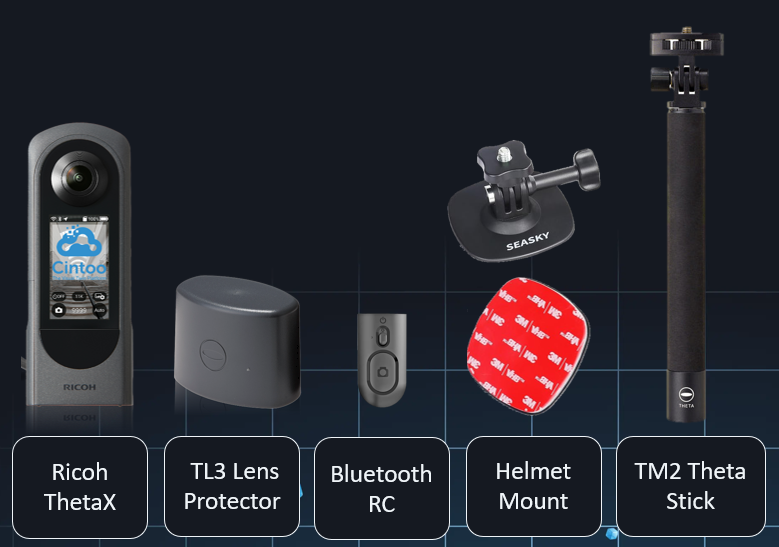
360 Edition subscription includes the following hardware kit:
- Ricoh THETA X camera
- TL-3 Lens Protector
- Bluetooth Remote Control
- Helmet Mount
- TM-2 Theta Stick (monopod)
Recommended Mounting Methods
Monopod/Stick mount (TM-2 Theta Stick) - recommended for most situations
- Attach Ricoh THETA X to TM-2 monopod
- Extend monopod to position the camera above operator's head height
- Hold monopod vertically with the camera upright
- Walk at a steady, moderate pace while keeping the camera stable
Helmet mount - recommended for industrial environments with elevated safety measures
- Attach the camera to the helmet mount
- Ensure the mount is secure and the camera is centered
- Keep your head upright and avoid rapid head movements
- Walk naturally with smooth, controlled movements
Camera Orientation
- Recommended to keep the camera vertical (upright)
- Do not significantly tilt the camera sideways or upside down (slight tilt acceptable)
- Avoid touching or adjusting the camera during recording
- Do not block camera lenses with hands or equipment
Using Bluetooth Remote Control
Setup and Operation
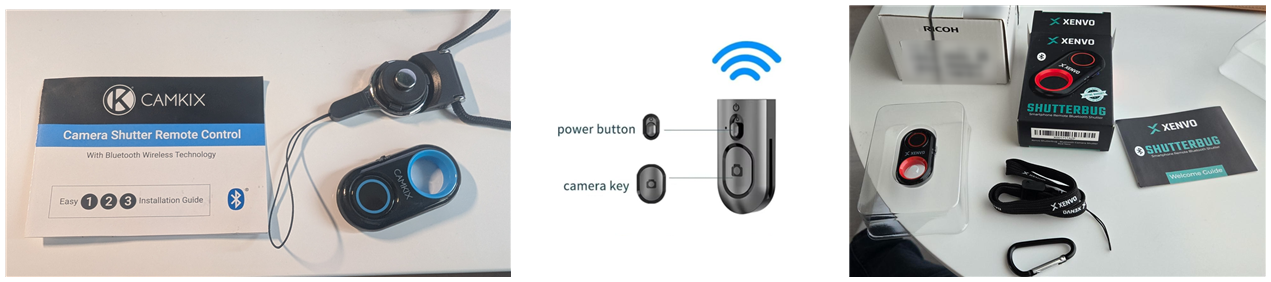
- Use the included Bluetooth remote control to start and stop recording without touching the camera
- Light flashes until it connects to the THETA X once Bluetooth remote control is turned on
- A simple press will start the recording
- A second press will stop it
- An audible signal from the camera confirms the start and stop of recording
Remote control model can look differently which doesn't change it's functionality.
Connect Ricoh Theta X to Wi-Fi
- After connecting, network information is saved (up to 5 networks)
- It auto-connects when near the router
- Registered networks remain stored, even after power off
Connect to a Nearby Network
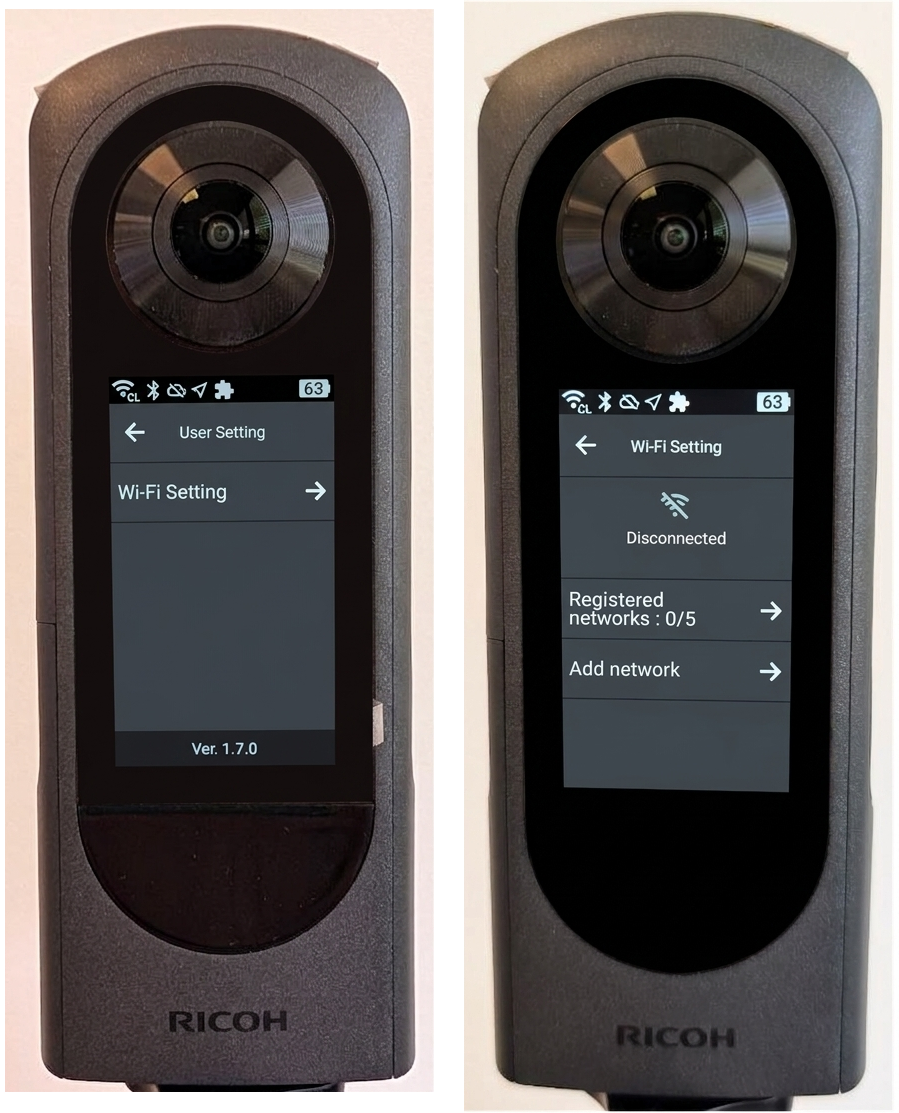
- On the camera click on Settings icon
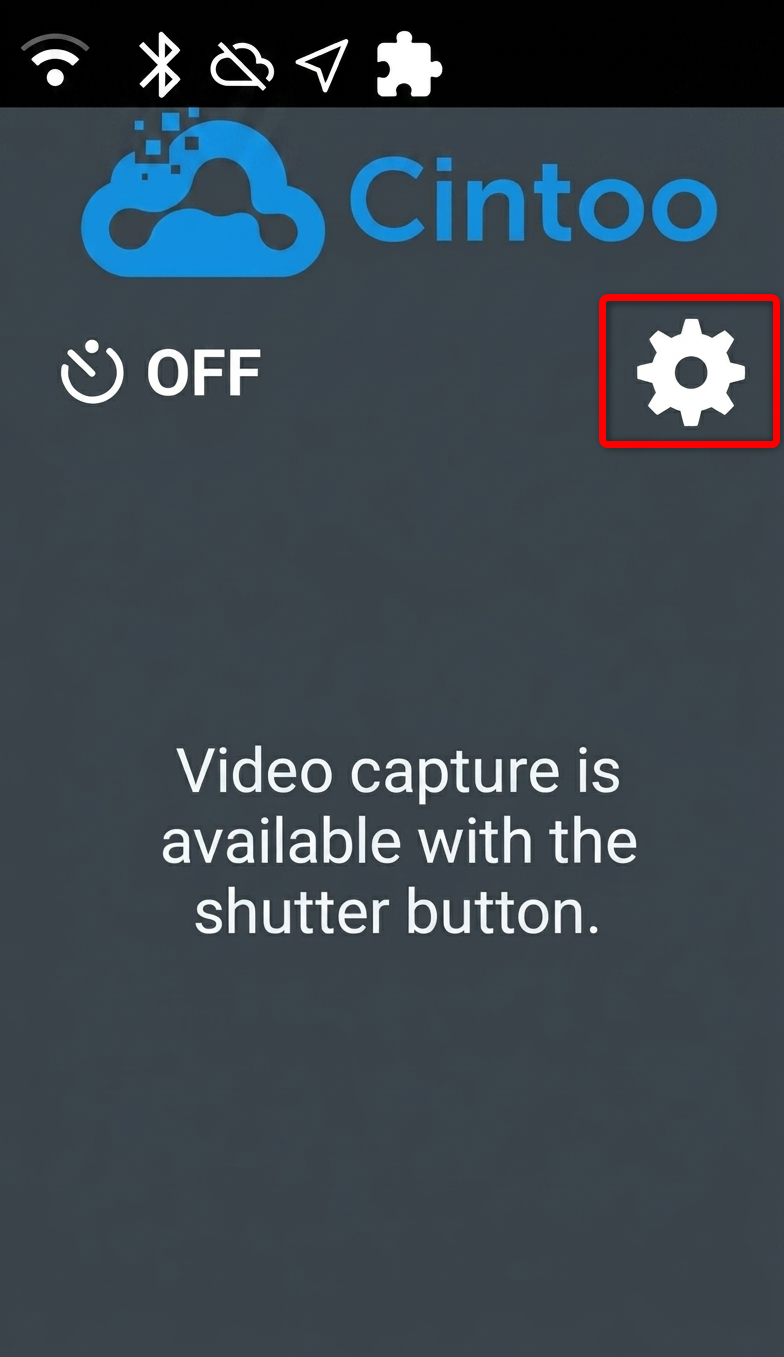
- Click Wi-Fi Setting, see Registered networks and click Add network
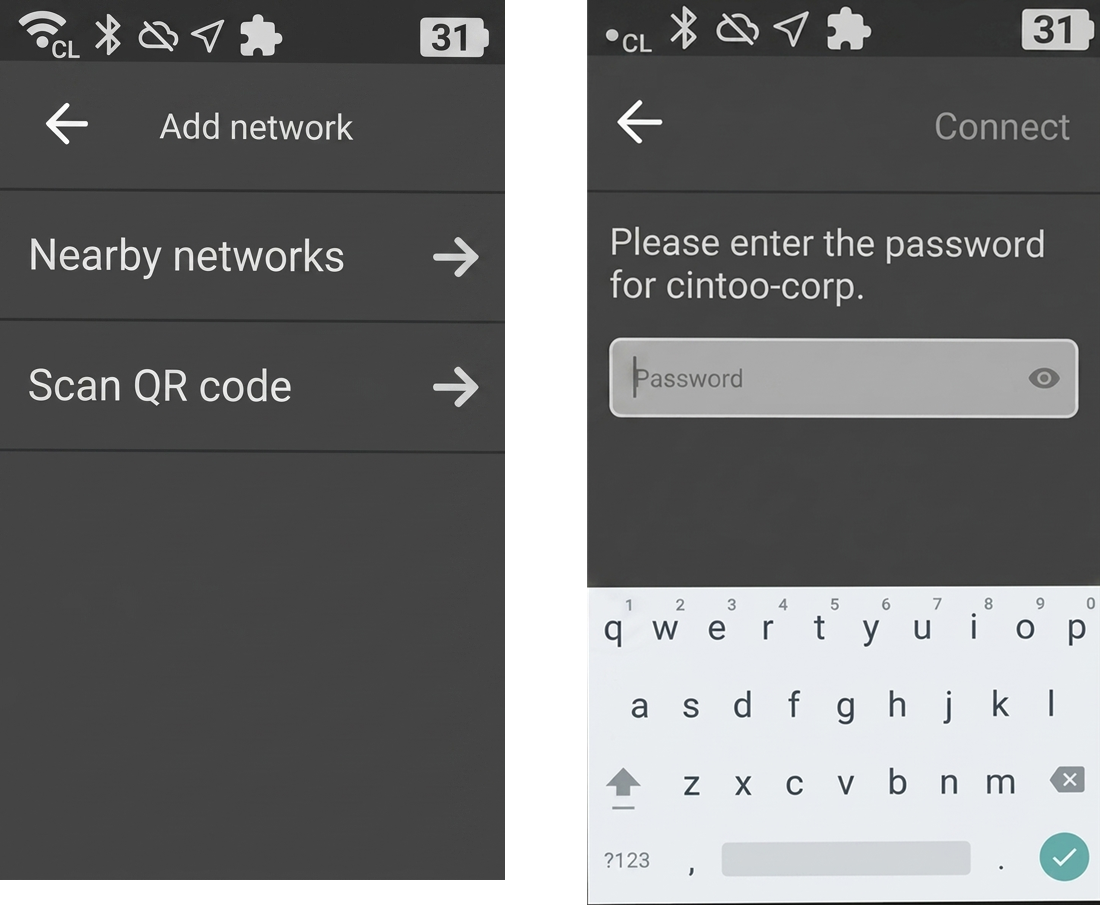
- Camera shows nearby and previously used Wi-Fi networks - select yours from the list and type password with on-screen keyboard (a stylus can make input easier)
Scan QR Code
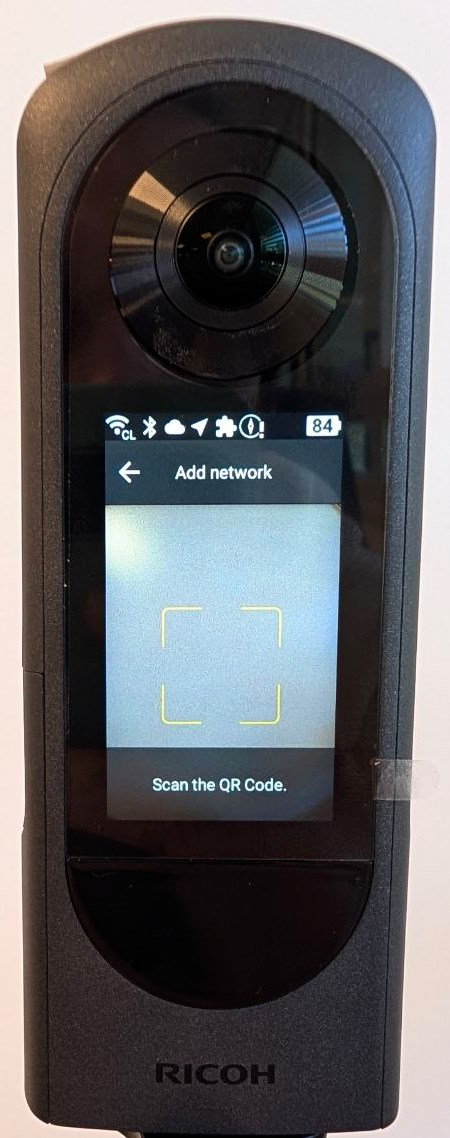
Alternatively, click Scan QR code to connect a Wi-Fi network with a generated QR-code.
Share Wi-fi from a Mobile Device
Connect to Wi-fi from a mobile device (if not done yet). If the phone is already connected to a Wi-fi use QR code on the device by following this instruction (for Apple and Android devices):
How to share home network info with QR code
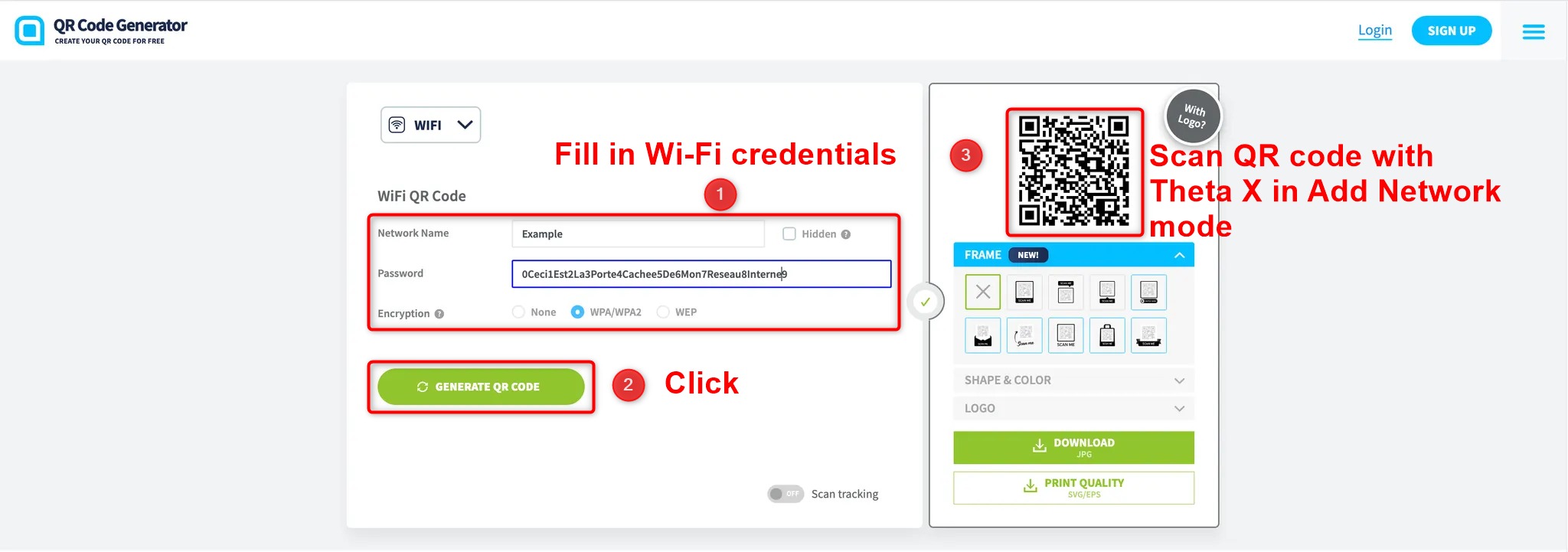
Share Wi-fi from a PC
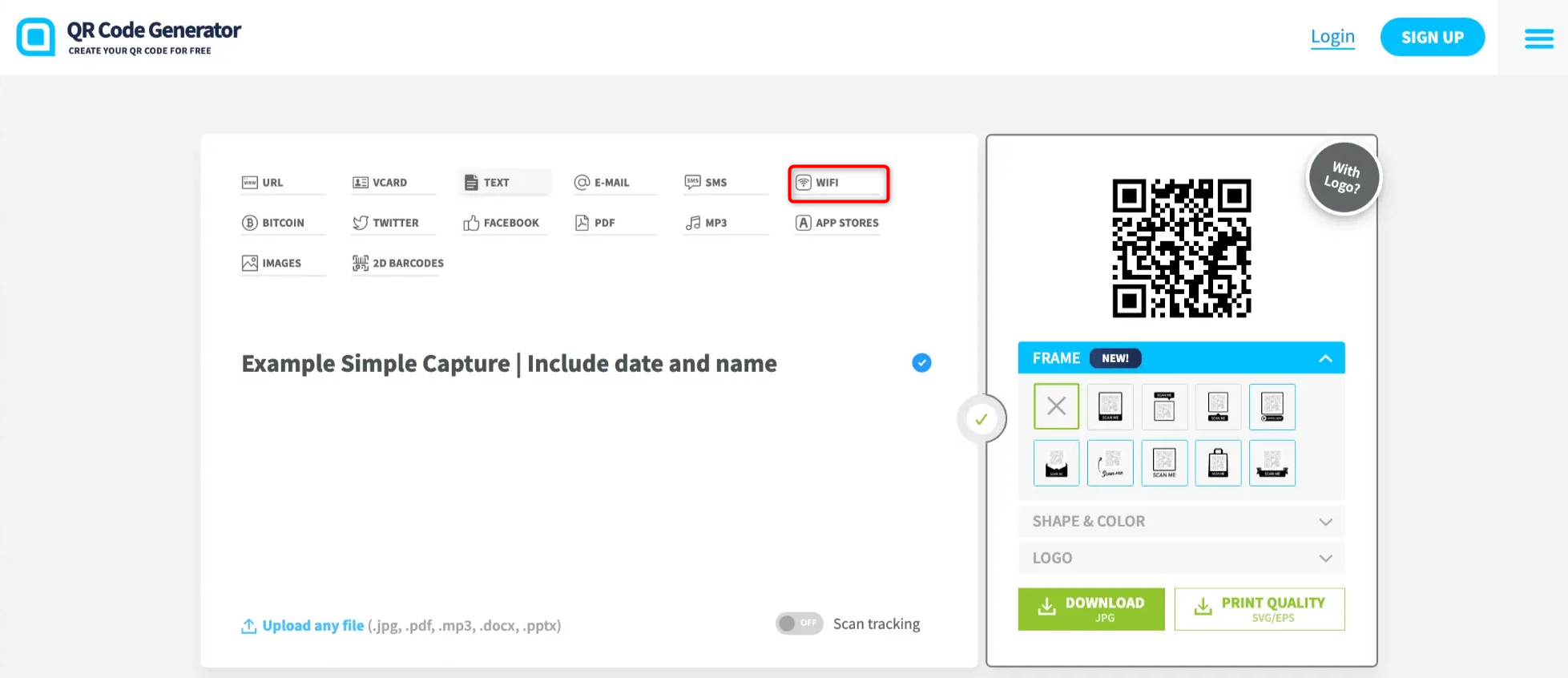
Use this tool Generate a QR Code (WiFi) to share Wi-fi where PC is already connected.
Protecting Camera Equipment
Lens Protection
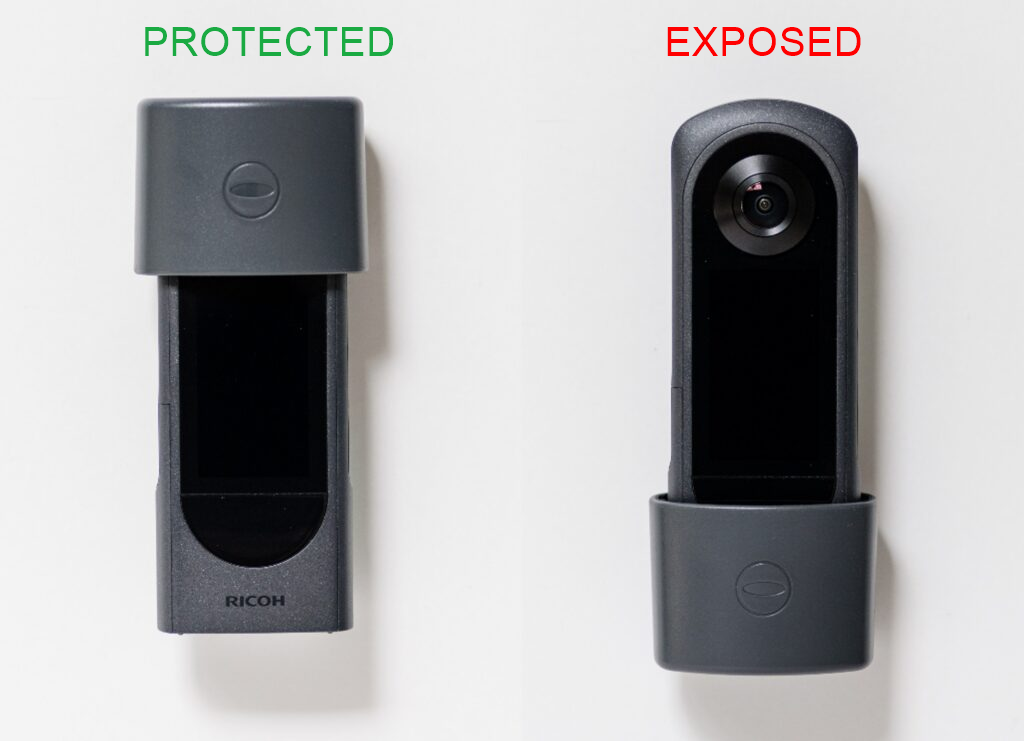
TL-3 Lens Protector is essential as THETA X lenses scratch very easily. Therefore the camera should always be protected, especially when placed on a desk or during transport with TL-3 lens protector (included in the kit) at all times. Alternatively or additionally, use the protective case supplied with the camera.
Best Practices:
- Always attach the lens protector when not actively recording
- Inspect lenses before each use for dirt, dust, or damage
- Clean lens protector (not the lenses directly) with a soft, lint-free cloth
- Store the camera in its protective case when transporting
Capture Rules and Best Practices
Planning Capture Route
It is essential to plan capture routes in advance as it allows to avoid unnecessary head movements and duplicative passages.
Before starting break the site into logical capture zones, such as:
- Individual rooms
- Hallways or corridors
- Floors or levels
- Wings or sections
- Equipment areas or process units
Capture floors independently. Each zone can group different rooms or sections on the same floor.
Movement and Positioning
Walking speed is one of the most critical criteria that creates a distinct high quality visual result because it ensures a sufficient overlap between consecutive 360 captures, reduces motion blur and alignment errors improving visual SLAM stability in indoor or low-feature areas.
- Maintain a slow and steady pace: approximately half your normal walking
speed (2-3 km/h or 1–2 mph) - Slower is always better than faster
- Avoid sudden accelerations, decelerations, or stops (for longer than several seconds)
- Start recording and walk normally
Camera stability is the second pillar of high quality visual result in 360 capture.
To ensure camera stability:
- Hold the monopod firmly without excessive movement
- If using a helmet mount, avoid rapid head turns
- Maintain smooth, continuous motion
- Minimize sharp turns or zig-zag patterns
Camera positioning when using stick mount follow simple rules:
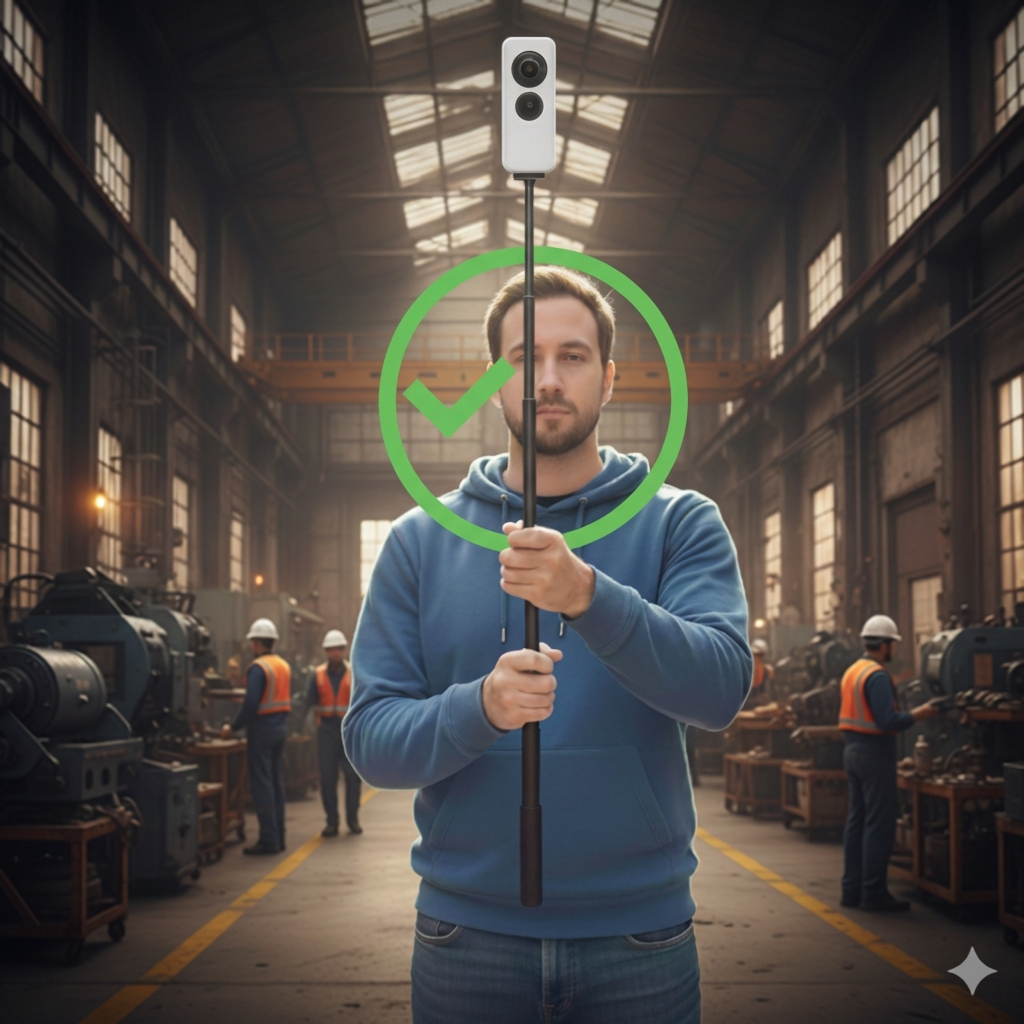
- Place the camera above operator's head (up to 2 meters above the ground), adjust height according to ceiling and equipment clearances
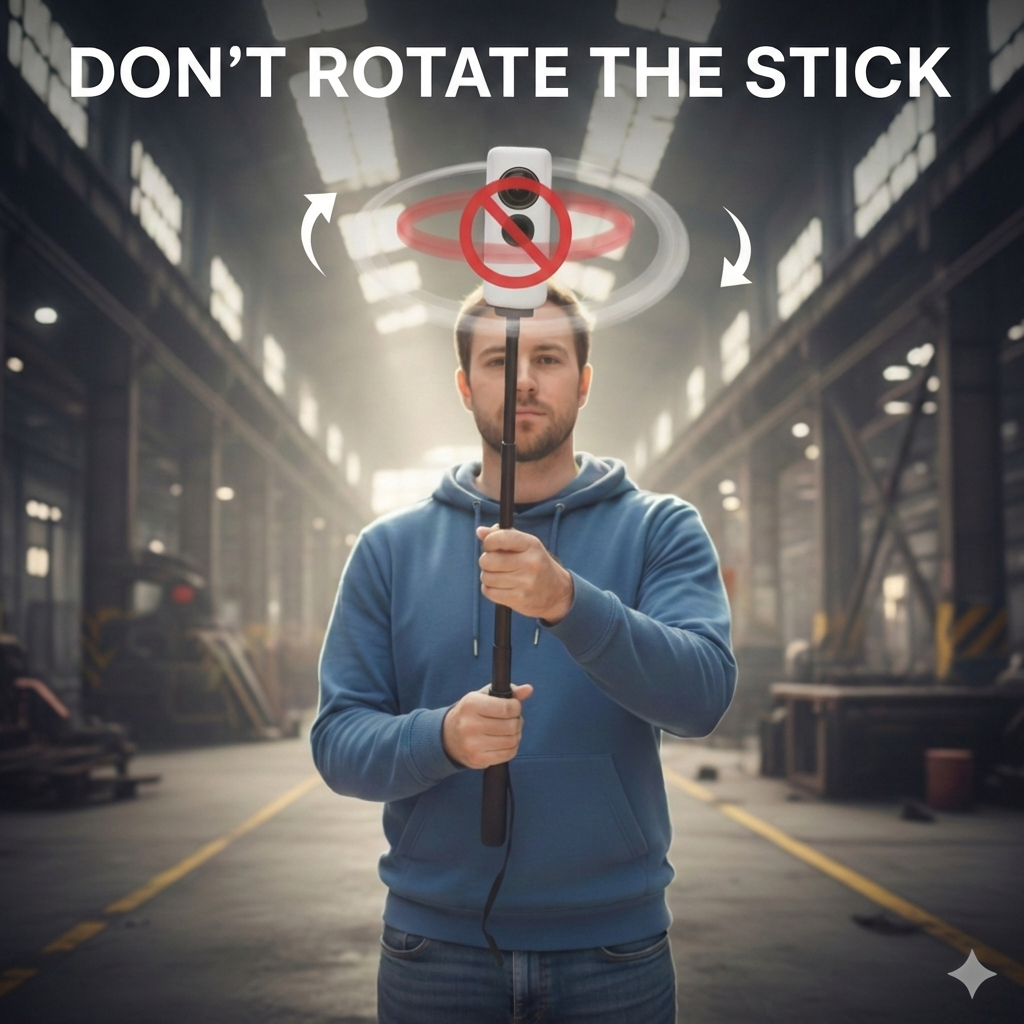
- Do not rotate the stick to avoid blurred, warped footage
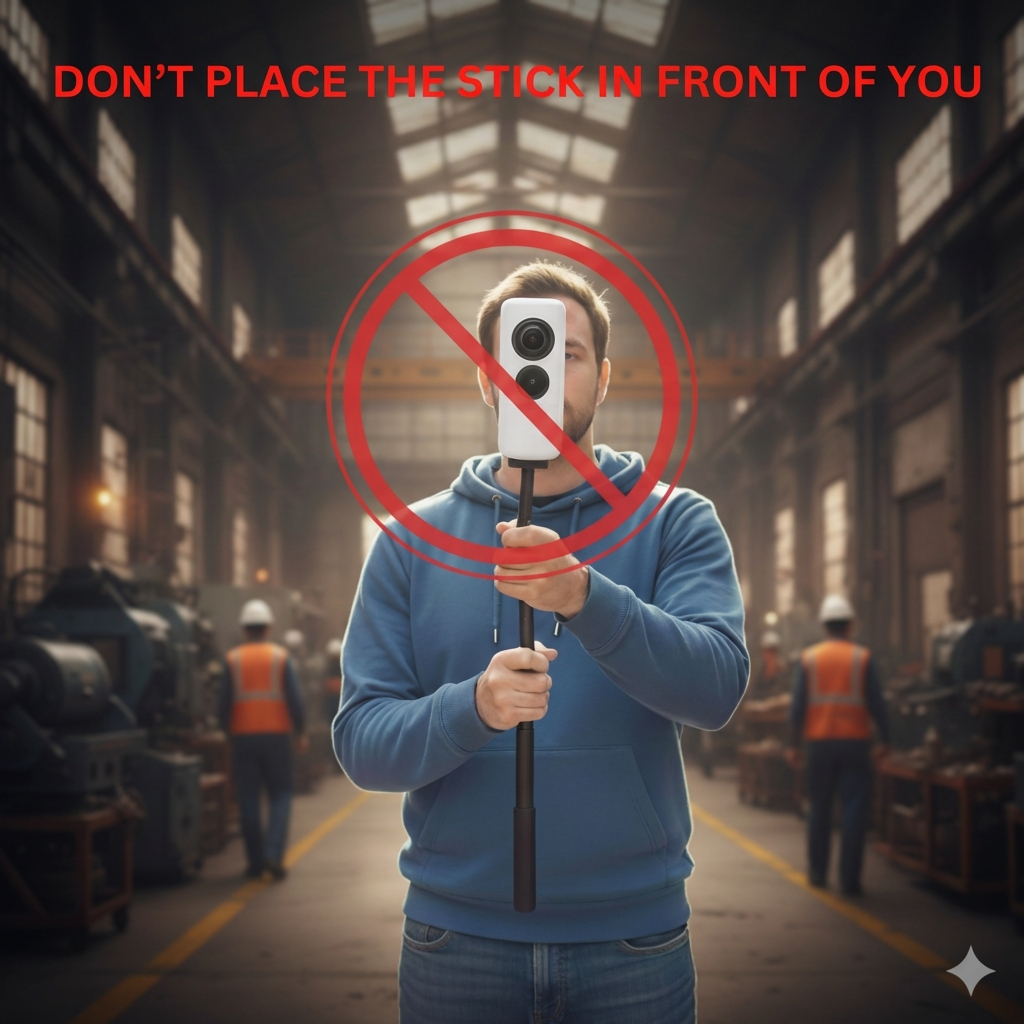
- Do not place the camera before operator's head - appearance of the operator in the middle of the image poses a risk of tracking losing and therefore localization process failing
Coverage Best Practices
Ensure adequate coverage:
- Every surface should be seen from multiple angles
- Avoid long straight paths without lateral movement
- Record multiple short videos (between 10 seconds and 9 minutes each) rather than one long capture
- Organize videos by logical zones for easier management
Include visual context:
- Capture recognizable features that match laser scans or models
- Include structural elements (walls, columns, equipment) for alignment reference
- Include equipment nameplates, labels, or unique identifiers when possible
- Document surrounding context, not just isolated equipment
- Capture edges, corners, texture, and distinct objects (critical for alignment)
Corners & Intersections:
- Slow down at corners and intersections
- Rotate naturally so the camera captures full geometry
Vertical Movement (Stairs & Elevation Changes):
- Slow down significantly on stairs
- Capture:
- Bottom landing
- Entire staircase (don't skip steps)
- Top landing
- Avoid rushing vertical transitions
Environmental Factors
Be aware of challenging conditions:
- Direct sunlight pointing into the lenses (creates lens flares and overexposure)
- Extreme lighting contrasts (bright lights in dark areas, harsh shadows)
- Reflective surfaces directly in front of lenses (glass walls, polished floors, metal surfaces)
- Rain, fog, or steam obscuring lenses
- Dust or dirt on the lens protector
Feature-Poor Environments (Require Extra Care):
- Long white corridors
- Glass walls or floor-to-ceiling windows
- Large empty rooms with minimal features
- Industrial spaces with repetitive geometry (identical equipment, pipes, structural elements)
Mitigation Strategies for Challenging Environments:
- Walk closer to walls or objects to increase visual features
- Add gentle curves instead of straight lines
- Reduce walking speed in feature-poor areas
- Capture additional passes if needed
- Use tighter spacing between capture points
Coverage Issues
Common mistakes:
- Recording only featureless areas (blank walls, empty corridors without context)
- Missing connecting pathways between zones
- Skipping small rooms or transition spaces
Recommended Capture Workflow: Simple Capture
Understanding Simple Capture
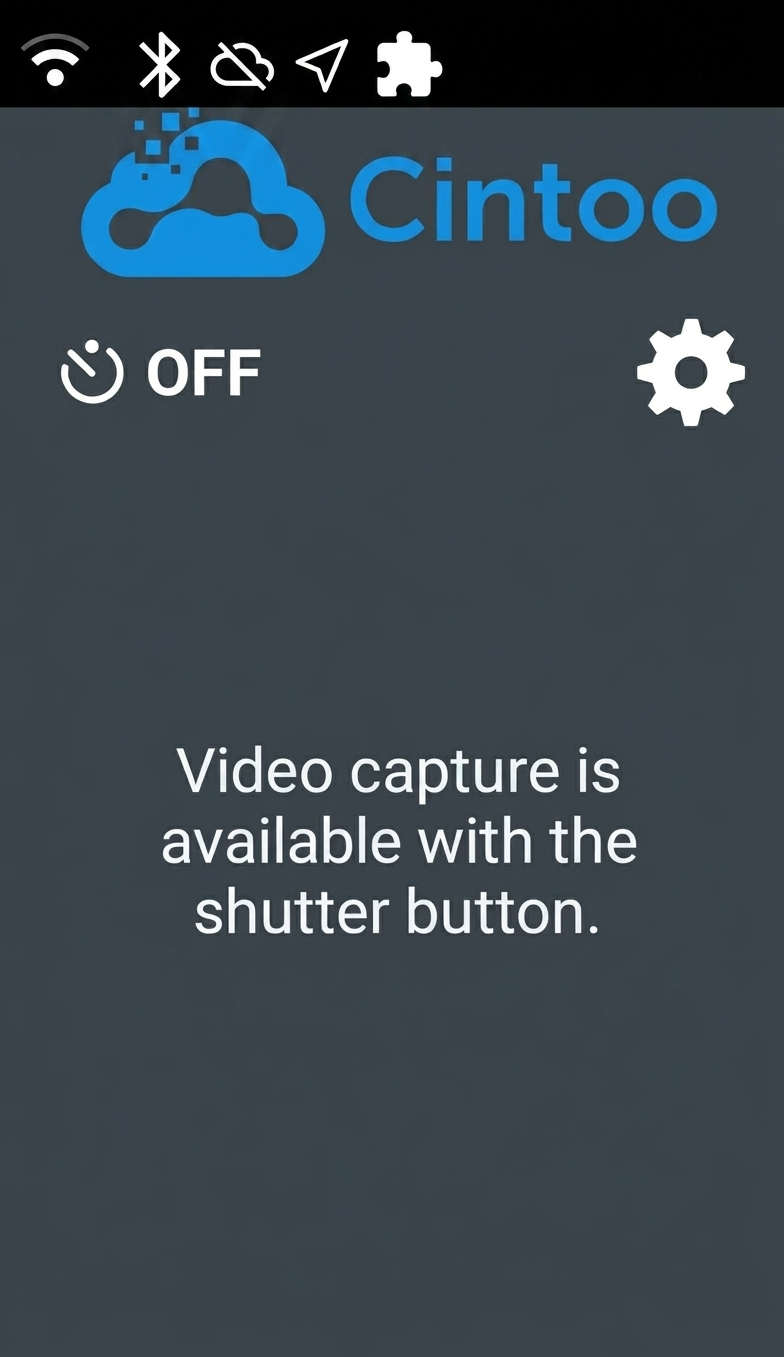
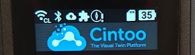
Simple Capture is a plugin that automatically loads when you turn on the camera, it provides Cintoo branding and sets the correct recording parameters.
Default Simple Capture Settings
These settings are automatically configured and should not be modified:
- Resolution: 5.7K
- Frame rate: 10 FPS
- Bitrate: 60 Mbps
- Top/Bottom correction: Enabled
- Maximum duration: 9 minutes per video
Why these settings?
- The 9-minute limit ensures files stay under the 5 GB maximum file size for upload
- These parameters are fixed to ensure:
- Consistent visual quality for alignment with 3D data
- Reliable upload from Ricoh360 to Cintoo
- Optimal performance for navigation and Gaussian Splats creation in the Cintoo platform
Step-by-Step Capture Process
Step 1: Prepare the camera
- Ensure the camera is fully charged
- Verify the TL-3 lens protector is clean and properly attached
- Attach the camera to the monopod or helmet mount
- Power on the camera - Simple Capture will automatically load
Step 2: Start recording
- Position yourself at the starting point of your capture route
- If using scale markers, make sure there is a sheet placed at the starting point
- Press the record button on the camera or use Bluetooth remote control
- An audible signal confirms recording has started
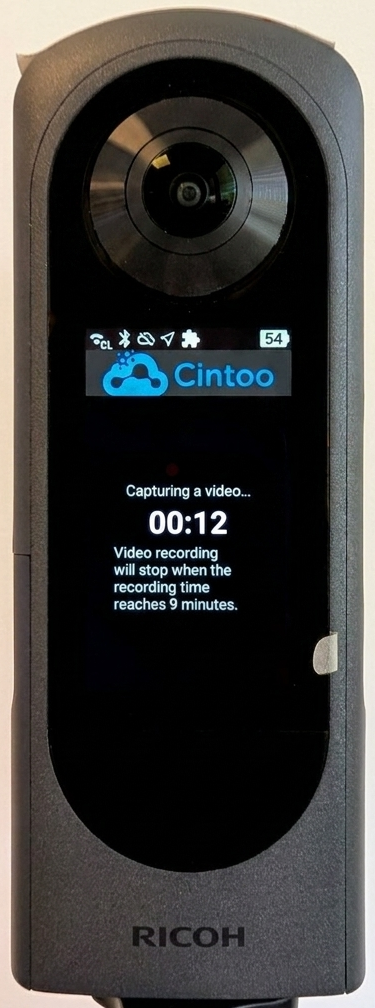
- Wait 2-3 seconds before starting to walk
Step 3: Execute the capture
- Walk at a slow, steady pace approximately half your normal walking speed (2-3 km/h or 1–2 mph)
- Keep the camera stable and upright
- Maintain consistent movement throughout the process
- Don't stop for more than several (2-3) seconds.
- Avoid placing yourself in the camera's field of view
- Follow your planned route with loop closures when possible
- If using scale markers, make sure to pass not further than 5m or 15ft from markers to detect them
Step 4: End recording
- Walk 2-3 seconds past your intended endpoint
- Stop walking and press the stop button (camera or remote)
- An audible signal confirms recording has stopped
- Review preview of the capture and click Save to camera to keep it - this step is mandatory, no new recording can start until current one is saved. To remove the video directly click on cross and confirm Discard.
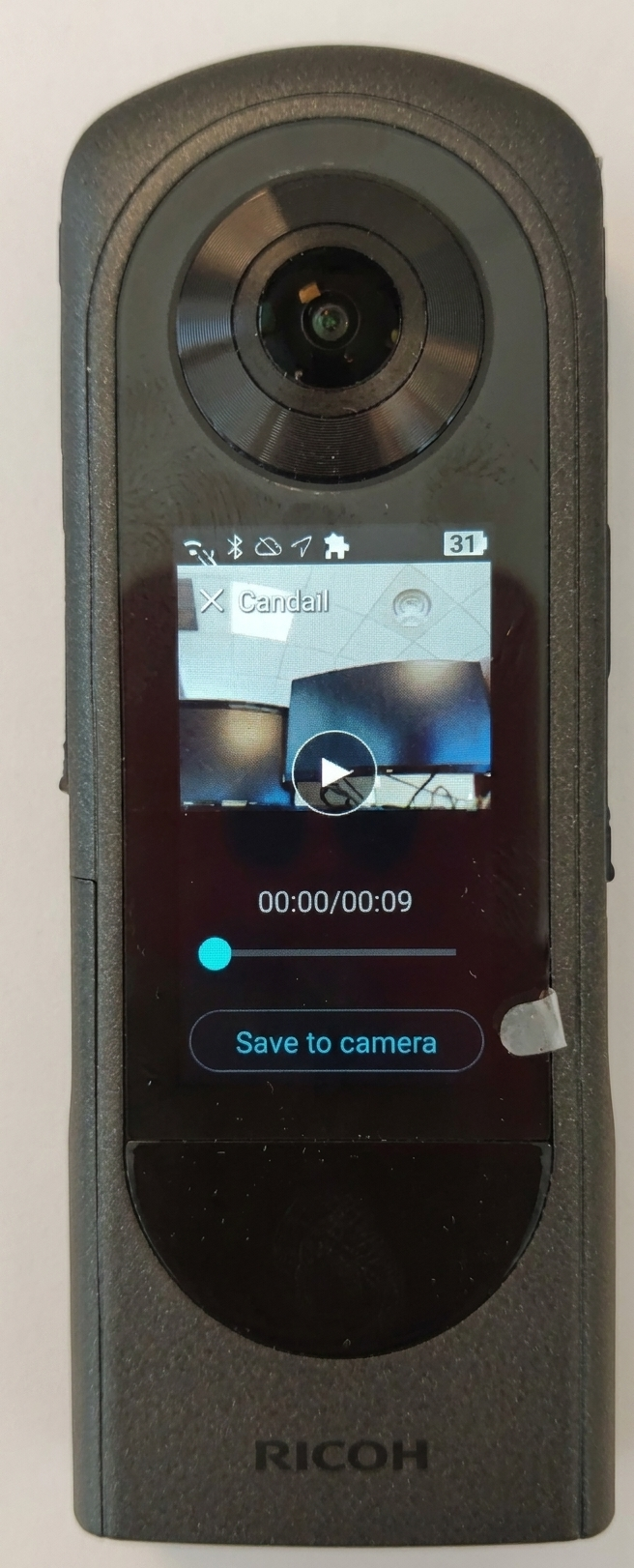 Warning: until you confirm, video is not saved on the device. If the camera turns off before that - manually or from an empty battery - capture is lost.
 - If you need to confirm the video later on please do the following: exit Simple Capture mode by pressing and holding Mode button on the right side and confirm exit. Swipe to the right to see all captures.
- Don't forget to go back to Simple Capture mode by pressing and holding Mode button until Cintoo logo appears before every capture session.
Step 5: Repeat as needed
- Move to the next zone
- Start a new recording for each logical area
- Ensure visual overlap between adjacent capture zones
Time and Storage Guidelines
- Average capture duration: 3-7 minutes per zone
- Minimum recording duration: 10 seconds - shorter clips are excluded from import panel
- Maximum recording duration: 9 minutes (automatically stops)
- Files per battery charge: Approximately 50-60 minutes of total recording time
Important Operating Considerations
Thermal Management
Best Practices:
- Allow the camera to cool between extended recording sessions
- Avoid using the camera in direct sunlight for prolonged periods
- Turn off the screen when not needed
- Process uploads while charging only with screen off (push Power button to turn the screen off)
Upload and Connectivity Behavior
How Uploads Work:
Once captures are complete:
- Connect the camera to Wi-Fi
- Videos will automatically upload to Ricoh360 Cloud once connected
- If internet is not available on-site, uploads will begin once the camera reconnects to the internet
- When download is in progress an upward arrow appears on the cloud icon on the top bar of the camera screen
- The gallery shows the status of each shot
- Upload takes a lot of battery charge (20-50% per 10 min video)
- Videos then sync automatically from Ricoh360 to your Cintoo subscription
- There is an automatic video deletion in place removing videos from the camera once they were uploaded to the server.
Privacy Considerations During Capture
Understanding Privacy Requirements
Under GDPR and other privacy regulations, 360 videos may capture personal data:
- Faces of individuals on site
- License plates of vehicles
- Computer screens with sensitive information
- Personal belongings or identifiable information
- Confidential or proprietary industrial information
Your Responsibilities:
- Be aware of what is captured in 360 videos
- Comply with local privacy laws and regulations (GDPR, CCPA, etc.)
- Inform site personnel when capturing 360 imagery
- Apply anonymization when required by law or contract
- Implement your own privacy policies as needed
Current Limitations:
- Automatic face blurring is applied by default
- More blurring options will be released later
- You are responsible for enabling anonymization when needed
Privacy Contact:
For privacy questions or concerns, contact Cintoo Data Protection Officer: privacy@cintoo.com
Quality Checklist Before Leaving the Site
Before departing, verify the following:
Coverage Verification
- ☐ All planned zones have been captured
- ☐ No major gaps in coverage exist
- ☐ Connecting pathways between zones are documented
- ☐ Critical equipment and areas are visible in the footage
- ☐ Zones have visual overlap for alignment
- ☐ Loop closures were completed where planned
Technical Verification
- ☐ All recordings were successfully saved to the camera
- ☐ No "recording failed" errors occurred
- ☐ Lens protector is clean and undamaged
- ☐ No capture is shorter than 10 seconds
Movement and Capture Quality Check
- ☐ Maintained slow, steady walking speed ( 2-3 km/h or 1–2 mph )
- ☐ No rapid movements or sudden stops
- ☐ Camera held vertically throughout the process
- ☐ Operator did not appear in center of frame
Visual Quality Check
Review 1-2 sample videos on the camera display:
- ☐ Image is clear and properly exposed
- ☐ No excessive motion blur
- ☐ Camera was held upright (not tilted)
- ☐ Lenses were not obstructed
Documentation
- ☐ Note the date and time of captures
- ☐ Record the specific zones or areas captured
- ☐ Document any issues or challenging conditions encountered
- ☐ Identify which captures correspond to which project areas
- ☐ Note any privacy considerations or sensitive areas captured
When to Re-capture
Consider re-capturing if:
- The camera was held incorrectly (sideways or tilted) throughout the acquisition
- You appear in the center of the image consistently (tracking failure risk)
- Excessive motion blur makes imagery unusable
- Walking speed was too fast (above 2-3 km/h or 1–2 mph consistently)
- There were long (more than 2-3 seconds) stops during capture
- Critical areas are completely obscured or missing
- Clip is shorter than 10 seconds - it will not appear in import panel
- Video files are corrupted or failed to save properly
- Lenses were scratched or damaged (blurry imagery)
- Lenses were dirty or obstructed during capture
- No visual features captured (completely featureless environments)
- Environmental conditions (lighting, weather) made footage unusable
Field Capture Checklist Summary
Before Capture
- ✅ Site divided into logical zones
- ✅ Capture routes planned with loop closures
- ✅ No obstacles on the routes - any doors opened in advance
- ✅ Camera fully charged and lens is clean
- ✅ Simple Capture plugin loaded (Cintoo logo visible on the camera screen)
- ✅ Bluetooth remote control functional
- ✅ Privacy considerations reviewed
- ✅ (Optional) Scale markers placed if dimensional accuracy improvement is needed
- ✅ If using scale markers: markers printed at correct size (18 cm outer square), prepared for placement on site
During Capture
- ✅ Slow, steady walking (2-3 km/h or 1–2 mph)
- ✅ Extra care at transitions and intersections
- ✅ Camera held vertically
- ✅ Camera positioned above the operator
- ✅ Loop closures completed
- ✅ Visual overlap between zones maintained
- ✅ If using scale markers: pass close (5m or 16ft) to markers
After Capture
- ✅ Verify no major gaps
- ✅ Ensure zones connect visually
- ✅ Check all recordings saved successfully
- ✅ Re-capture problematic areas immediately if possible
- ✅ Connect to Wi-Fi for automatic upload
Where to Get Help
If you encounter issues during capture:
- Technical support: support@cintoo.com / Create a new ticket
- Training requests: Ask your Cintoo Customer Success Manager about field training
Was this article helpful?
That’s Great!
Thank you for your feedback
Sorry! We couldn't be helpful
Thank you for your feedback
Feedback sent
We appreciate your effort and will try to fix the article