This article describes how to use 360 Edition Explorer to import, browse, manage, align, and navigate 360 videos and its' content in a Cintoo project.
Users with roles including View Reality Data can browse and navigate imported 360 content.
Watch an educational video
TABLE OF CONTENTS
- Import 360 Video
- Browse Imported 360 Videos
- Navigate Using Video Path
- Align a 360 Video
- Working with Gaussian Splats
- Resource Visibility Panel
- Basic Actions
- 360 Videos with Overview Map
- Manage 360 Images
- Troubleshooting Common Issues
- Tips and Best Practices
- Need Help?
Import 360 Video
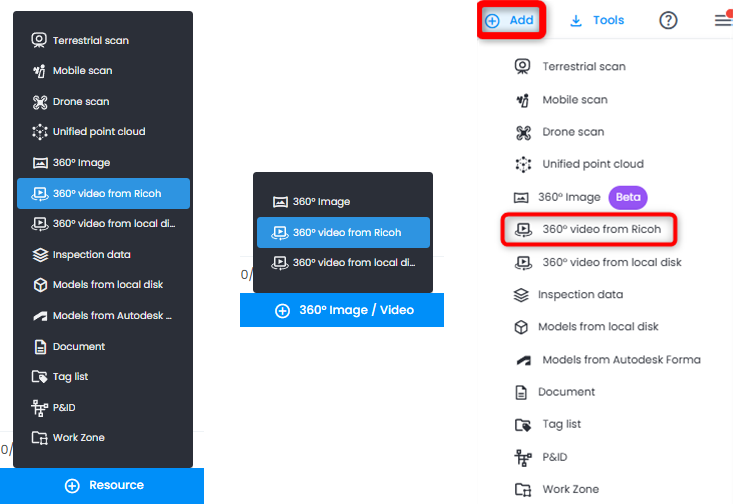
Three options to import 360 video data, each by choosing 360° video from Ricoh: via Resource button in Resource Explorer, via 360° Image / Video button in 360 Edition Explorer or via Add menu on the top right.
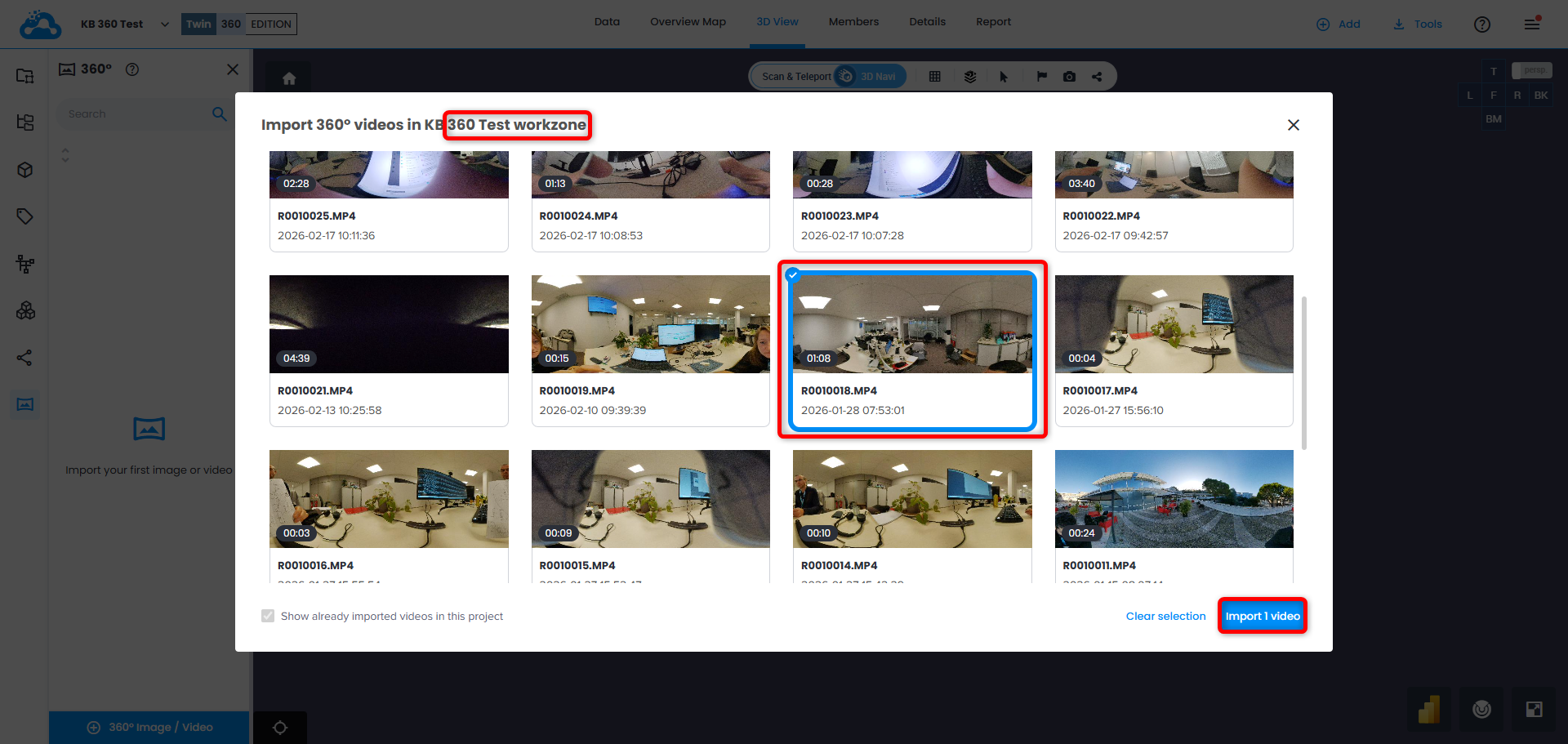
On top of the window name of the work zone where the import happens is indicated.
Choose one or several videos to import and click Import X video(s).
When at least one video is hidden by this rule, an info icon appears next to import panel title. Hover over it to open Duration requirements popover explaining why some videos are missing from the list.
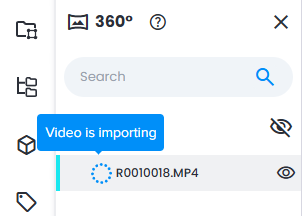
Video(s) appear in 360 Edition Explorer with a corresponding status Video is importing and loading icon.
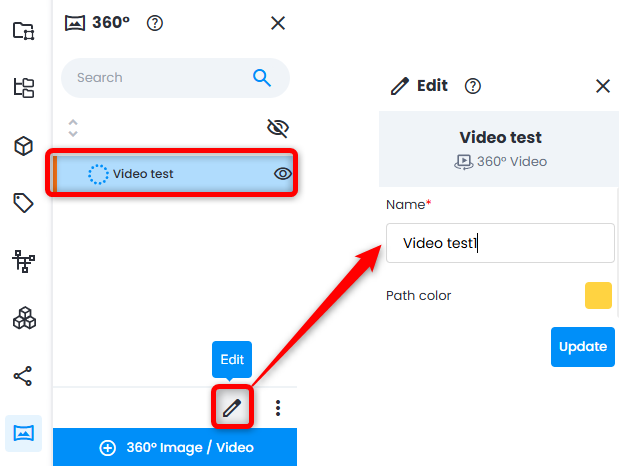
At this step it's possible to change Name and Path color by clicking on the video loading and on Edit on the bottom panel. Click Update to save changes.
Once a video is loaded to the project an email notification is sent. Failed video has a corresponding icon - hover over it to see short message explaining the failure.
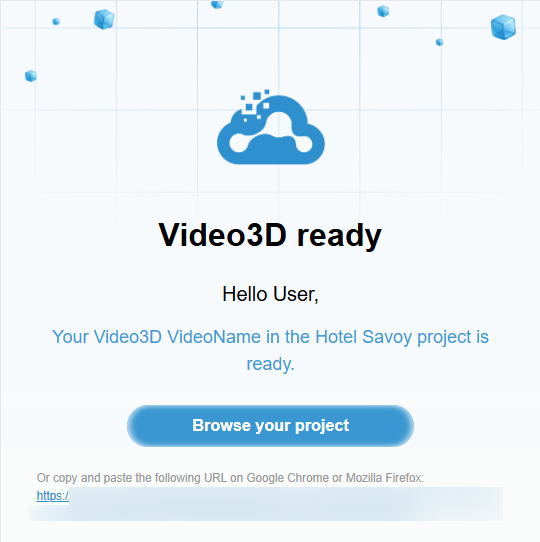
If import fails, an email notification about that is sent. Complete failure message is available in Information panel of the failed video.
Processing Result
At this point the whole structure of a 360 video is downloaded to the project. The system automatically processes the raw video and generates three key components:
- Path - reconstructed trajectory of the camera, built using Structure-from-Motion technology.
- 360 Frames - extracted panoramic images along the path.
- Gaussian Splat - a 3D reconstruction of the scene generated from the video.
These components appear together in 360 Edition Explorer. Every element has it's corresponding icon.
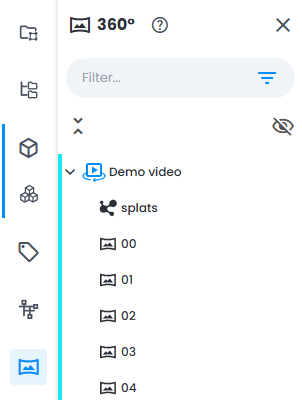
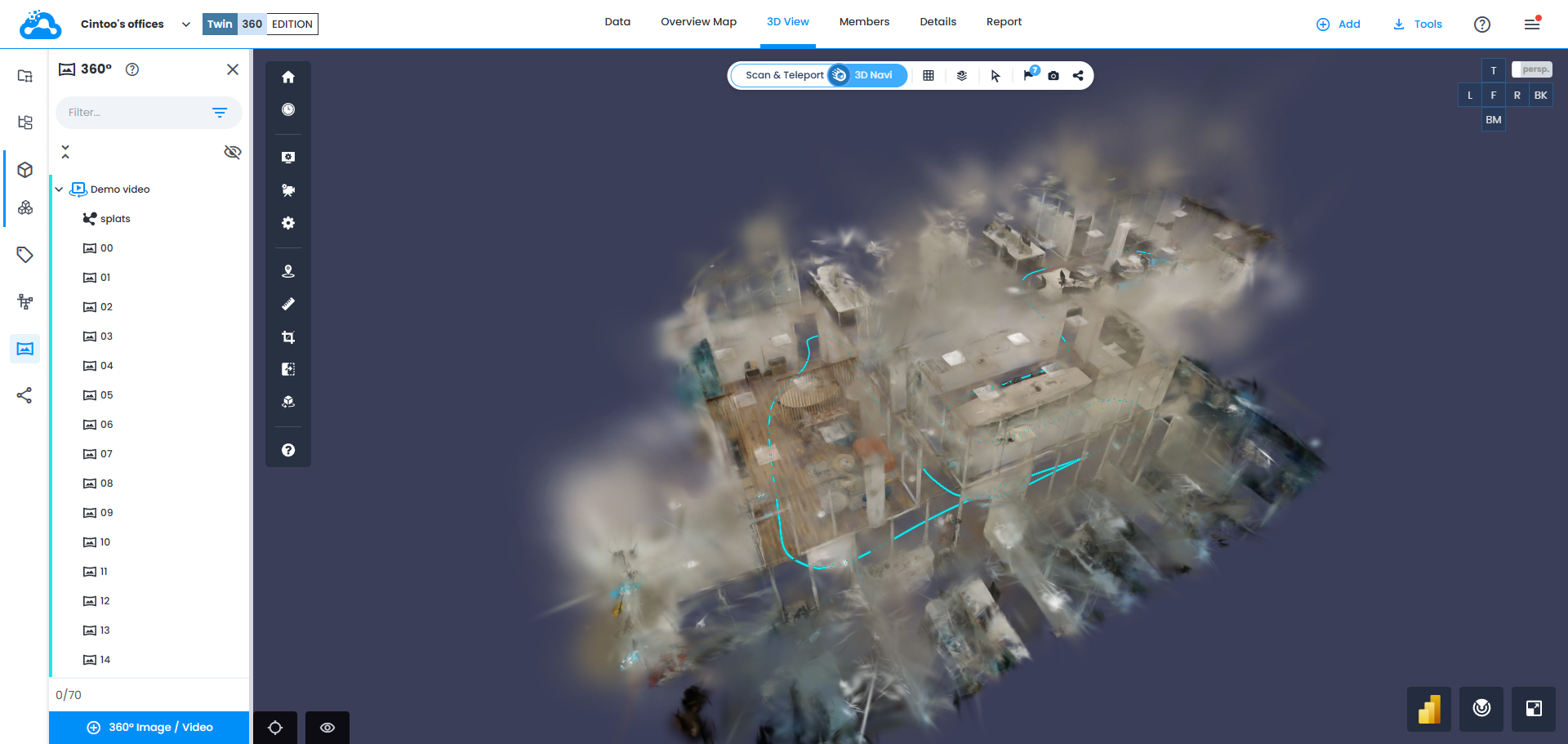
Imported result in 3D View looks the following - colored path, gaussian splat around it and possibility to navigate to separate video frames by clicking on different parts of the path.
Browse Imported 360 Videos
In 360 Edition Explorer:
- View video list - all imported 360 videos appear as top-level items in 360 Edition Explorer tree.
- Expand a video entry - click expand arrow next to a video to reveal its child elements:
- 360 Frames - panoramic key frames (shown as individual image entries)
- Gaussian Splat - 3D reconstruction data associated with the video
- Navigate to individual 360 frames - double-click on a chosen frame or right-click and click Focus in scan mode, to move the camera to 360 content. Bottom left of 3D View then shows frame name, with 360 video icon.
- Search and filter - use search bar at the top of 360 Edition Explorer to filter videos and frames by name. Search is partial and case insensitive
- Import additional content - click 360 image/video at the bottom of 360 Edition Explorer to import new 360 content into the project.Note: 360 Edition Explorer is also available to users of a share link, in view-only mode: they can browse videos and double-click a frame, but no actions or imports are available. If shared scene has no 360 video, 360 Edition Explorer displays "No 360 video in the scene".
Navigate Using Video Path
After selecting a 360 video and viewing it in 3D scene:
- Click on the video path (the trajectory line displayed in 3D view) - the camera will move to the closest visible frame along the path and switch to panoramic mode, displaying a full 360 panoramic image at that position.
- Hover over the path - a preview of the closest frame will appear, helping you identify the location before clicking.
- Look around in panoramic mode - once in 2D Panoramic mode at a frame position, click and drag to look around in 360 panoramic view.Note: navigating using video path also works for users of a share link.
Align a 360 Video
To position a 360 video within your existing 3D environment:
- If 3D data (scans, models) is available in project, enable work zone containing it alongside work zone containing 360 video - check boxes next to both work zones in Work Zone Explorer.Note: scans and models hidden individually stay hidden when their work zone is enabled - check boxes next to ones you want to use for alignment in Resource Explorer.
- In 360 Edition Explorer, select a 360 video to align.
- Open video Alignment tool at the bottom panel. Alignment panel appears. Get familiar with the disclaimer.Note: move alignment panel at your convenience in 3D View grabbing it by the left side.
- Select an alignment method and click Validate:
- Reference points - for each of 3 reference points, pick the same visible feature in two different frames and on scan or model surface. Provides more accurate geo-referencing than Keyframe method when 3D data is available.
- Keyframe - link 360 frames directly to 3D points on scan or model.
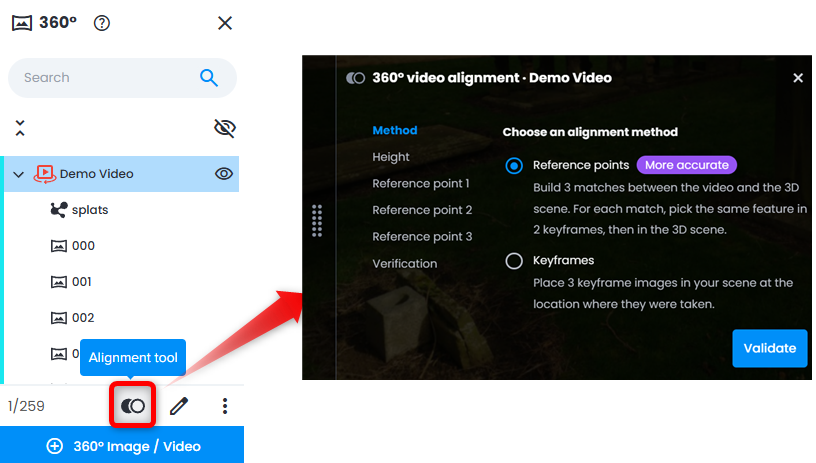
Reference Points Method
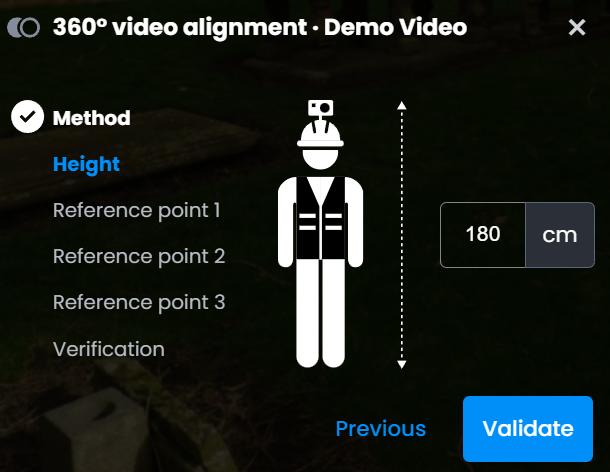
- Height - enter approximate camera height when the video was recorded. This value controls the height of path and doesn't affect the alignment itself. Click Validate.
- Reference points 1, 2, 3 - repeat for each of 3 reference points. Each reference point can be defined in it's own suitable way (manually with coordinates or by picking coordinates). Each step shows three picker inputs:

- Frame A - click on a clearly visible feature in the 360 panoramic view. Scan mode + 2D panoramic is default view.
- Frame B - click the same feature in a different keyframe of the same video (must differ from Keyframe A). Scan mode + 2D panoramic is default view.
- Select the same point on a 3D surface - choose the corresponding location on scan/3D model in 3D navigation view by clicking on Coordinate Picker icon or type coordinates of a point manually with a comma separator
Each picker shows a checkmark when filled. Match points button is activated only once all 3 are filled. Any filled picker can be re-clicked to re-pick. Use Previous to return to earlier steps - values are preserved.
Keyframe Method
- Set approximate camera height and click Validate.
Height units are corresponding to project units.
This value can be adjusted at any time to get a better height alignment.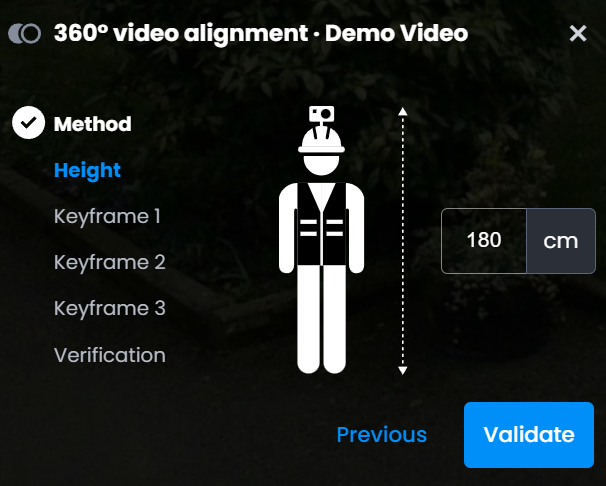
- Link three 360 images to 3D points (scan or model):
- Select a 360 frame from the video by moving along with buttons
- Identify the corresponding point in the 3D scene (feature)
- Click Validate to create an alignment link
- Repeat for three frames to establish a reliable transformation
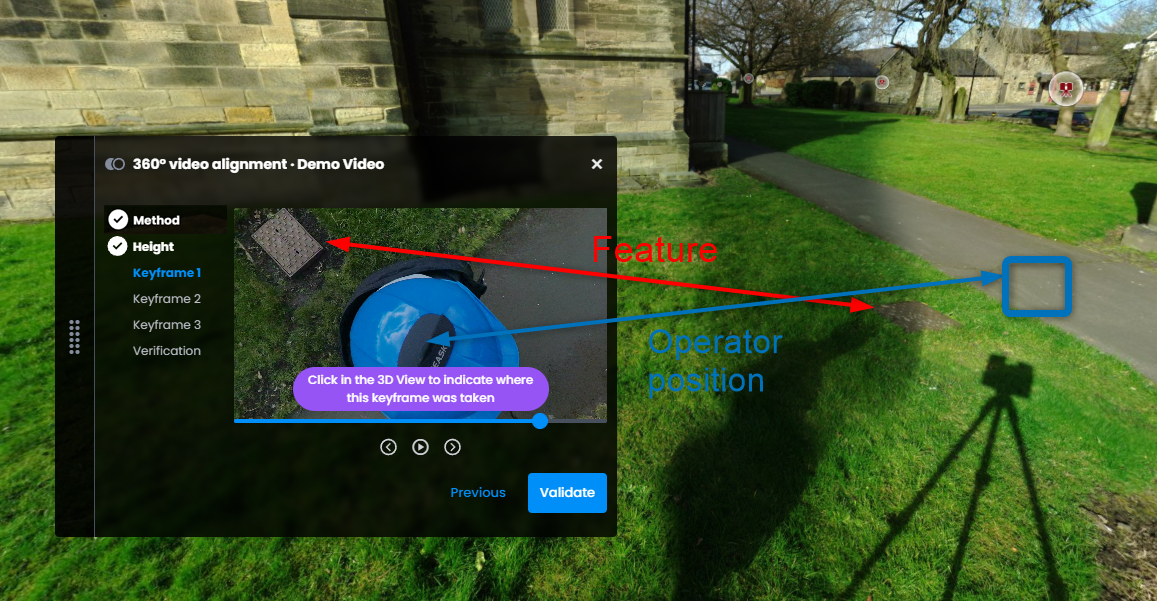
- Transformation matrix (rotation, translation, and scale) is calculated to align 360 video path with 3D scene.
- Verify the alignment at Verification step by adjusting Height and/or Frames positions to get a satisfactory alignment result:
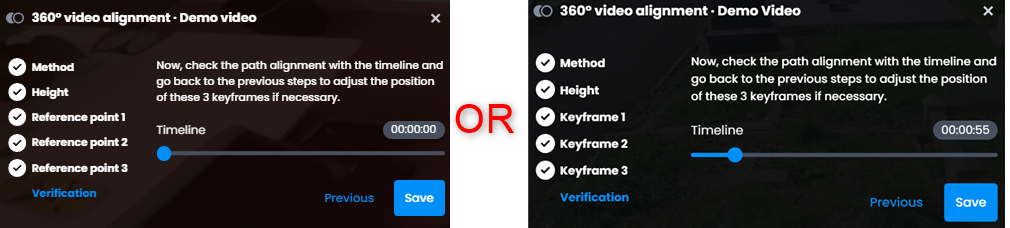
- Use the timeline slider to navigate through frames and visually confirm that 360 images and point cloud/model are properly aligned.
- Navigate back to adjust if necessary.
- Confirm and Save the alignment.
- It's possible to cancel the process at any time and the results will not be saved if the alignment panel is closed. There is a disclaimer to prevent accidental loss of the progress.
Working with Gaussian Splats
Gaussian Splatting is an advanced 3D visualization technology that creates immersive, photorealistic 3D representations from 360 video data. It generates a 3D "splat" of the captured environment, allowing you to navigate through space with realistic depth and perspective.
Key characteristics:
- Creates volumetric 3D representations (not just flat panoramas)
- Provides a sense of depth and spatial understanding
- Allows for smooth transitions between capture points
- Enhances visual context for inspections and reviews
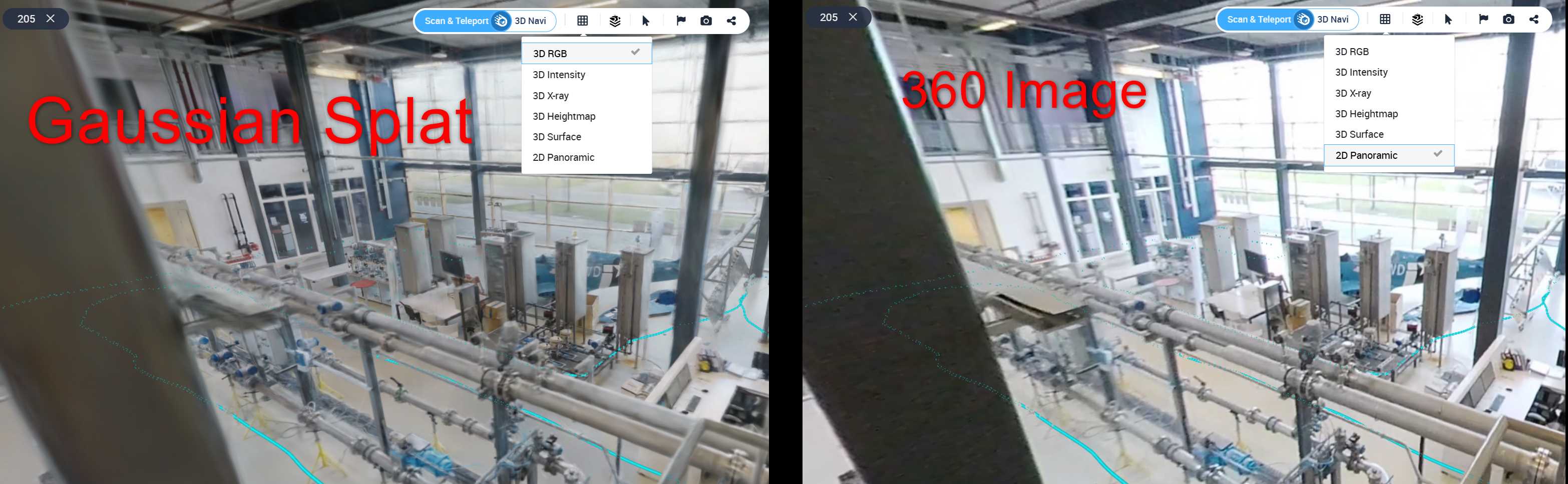
Gaussian Splats provide an immersive 3D reconstruction generated from 360 video:
- In 360 Edition Explorer, expand a video entry to see its Gaussian Splat.
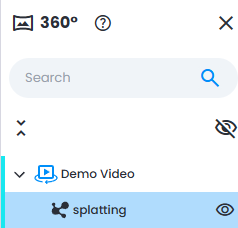
- Toggle visibility - show or hide Gaussian Splat layer in 3D view from 360 Edition Explorer.
By default Gaussian Splat is visualized around the path with 6 meter radius.
Note: path could be visualized without Gaussian Splats, but Gaussian Splats cannot be visualized without a path. - Adjust splat fade distance - use Splat Fade Distance slider in Resource Visibility Panel to control how far Gaussian Splats rendering extends radially from path. This helps manage performance and visual clarity.
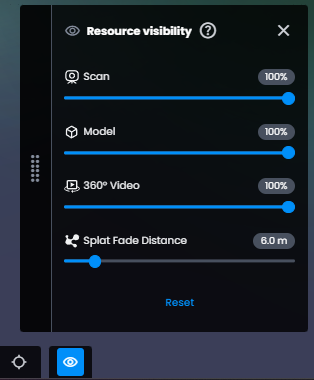 Note: control is hidden when camera switches to orthographic mode (either in 3D View ortho or Overview Map). In ortho, oversized splats are automatically filtered out and distance fading is removed - system handles visual clarity without any manual adjustment needed.
 - Navigate within the splatted 3D scene using standard 3D navigation controls (pan, zoom, orbit).
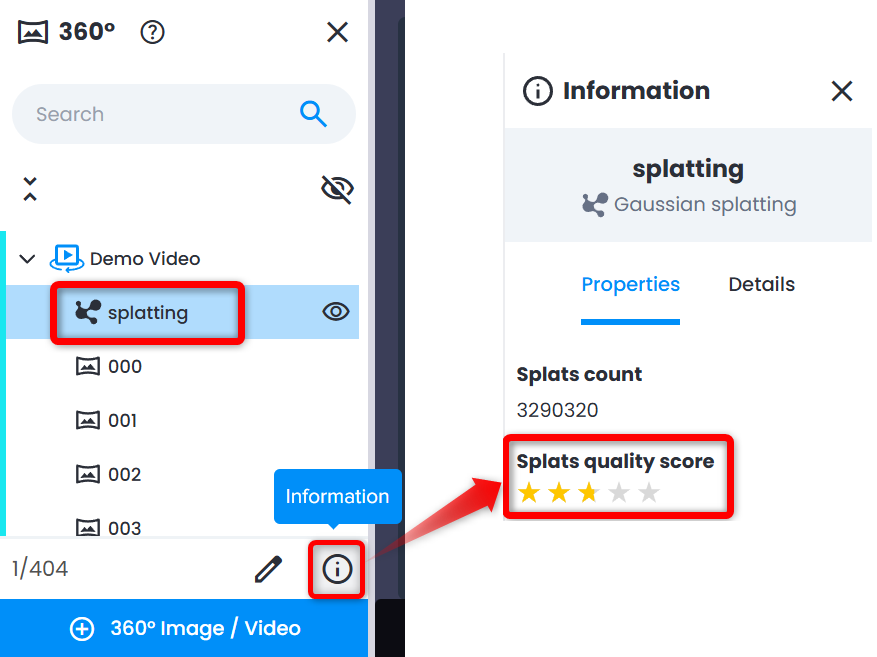
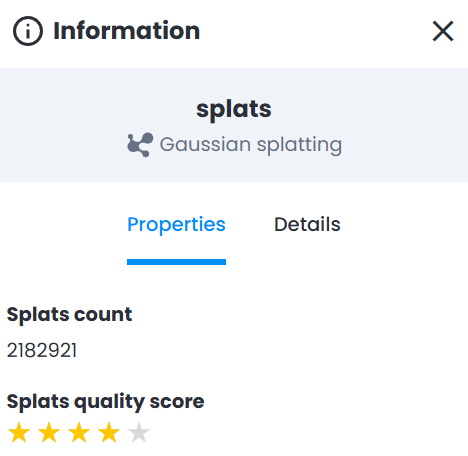
- Check you Splats quality score within Information panel for a splat. Consider recapturing the data if Splats quality score is 2 stars or below.
- It's possible to crop Gaussian Splat using Crop Tool.
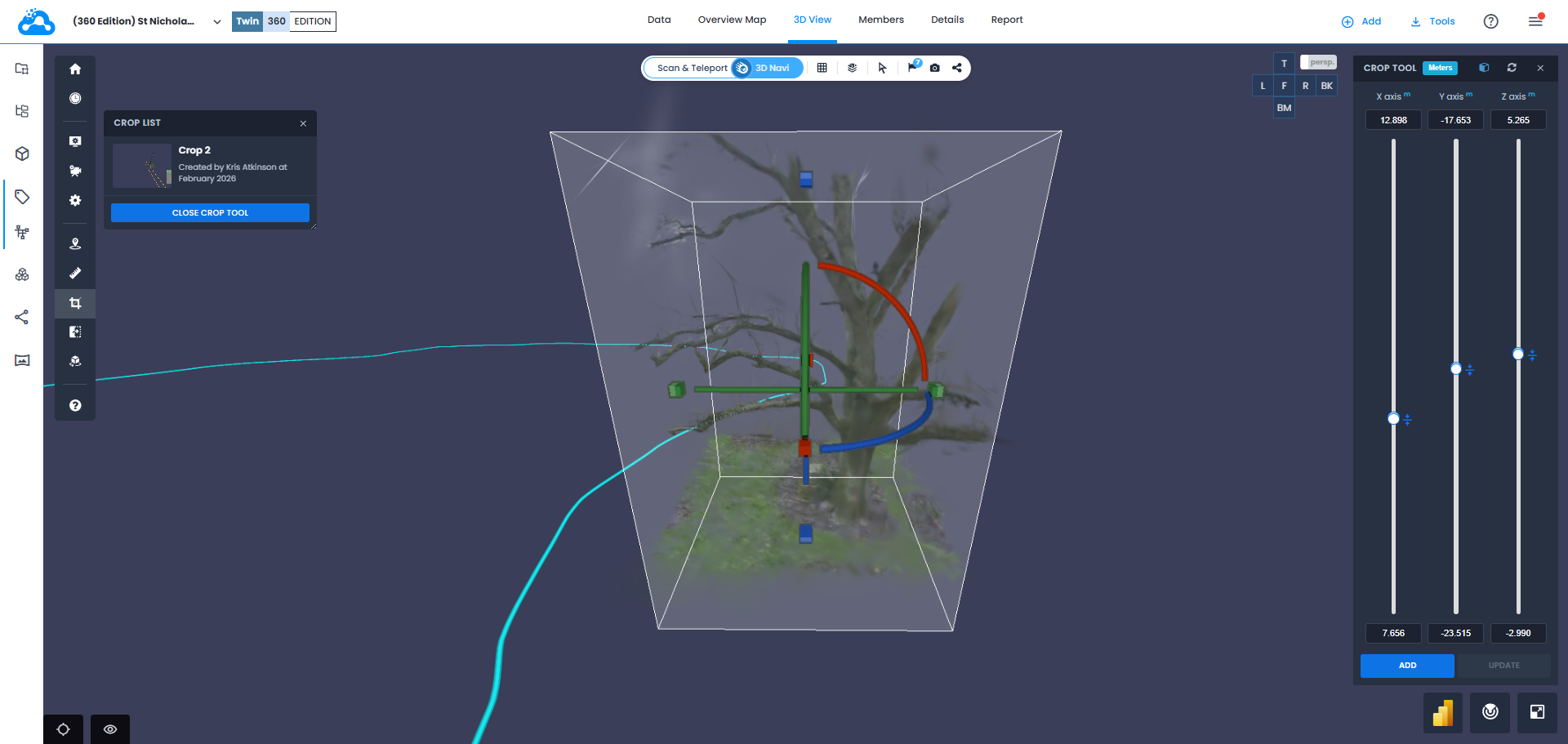
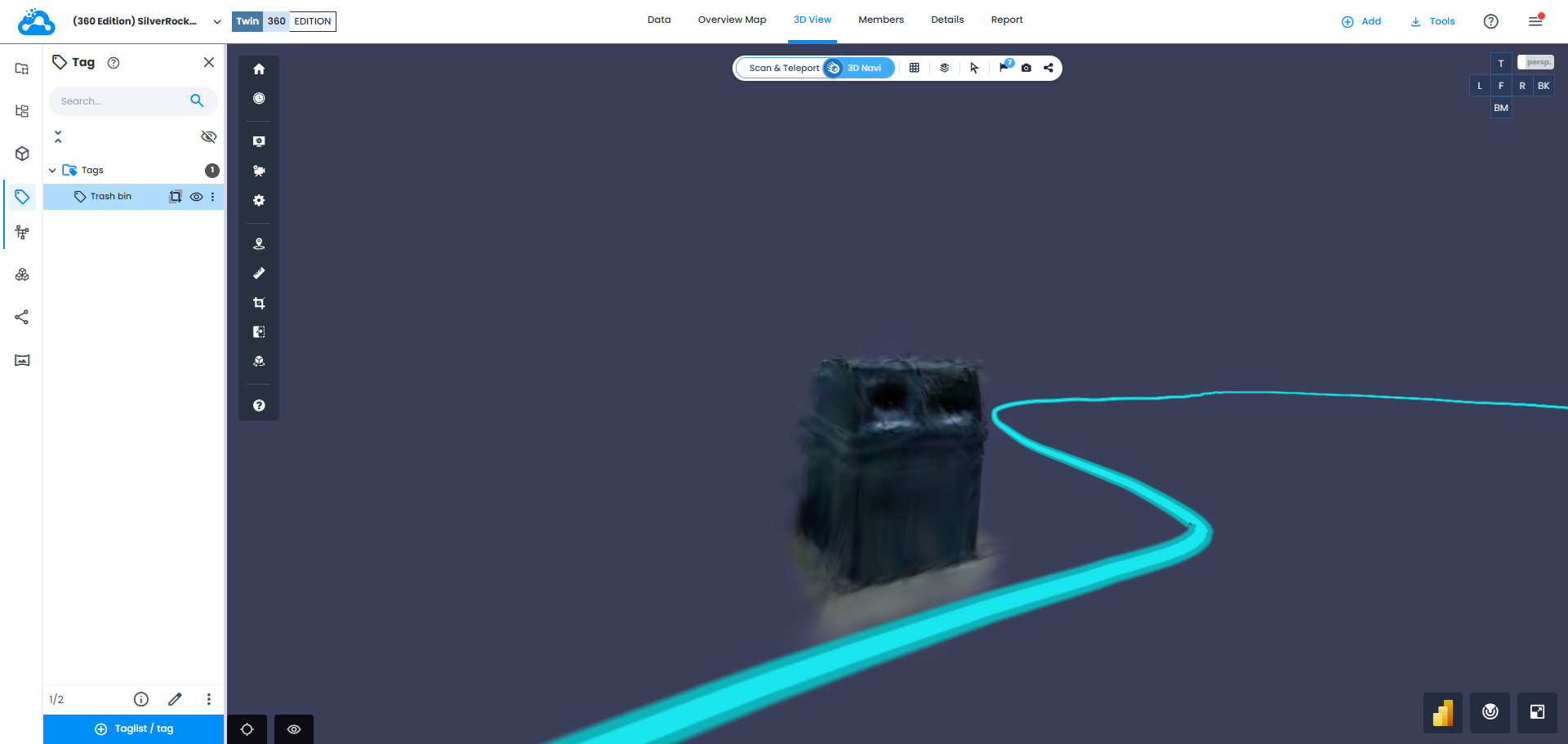
- Crop IN/OUT for tags works with Gaussian Splats either.
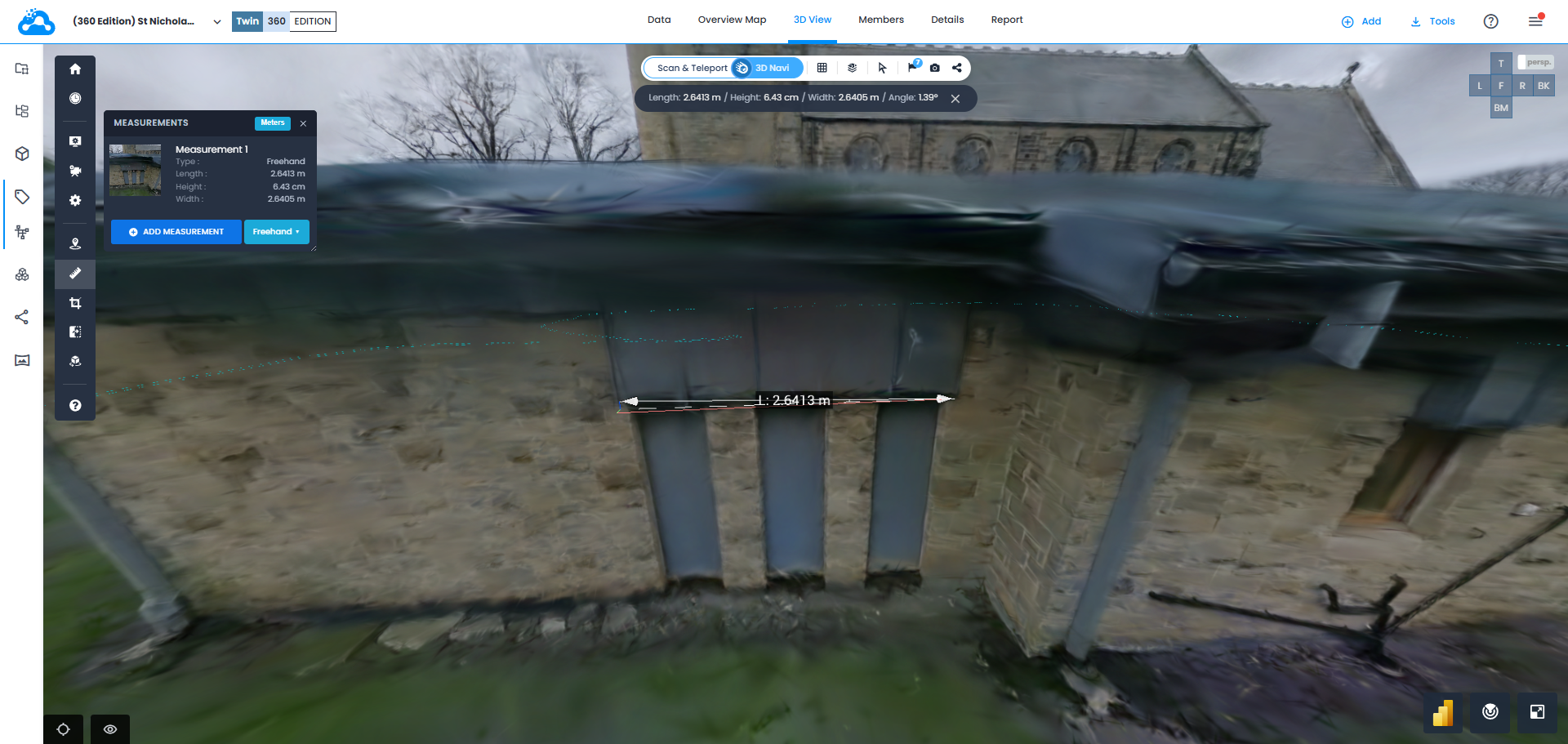
- Annotations and measurements (except Pipe measurements) are supported on Gaussian Splat for 360 videos.Note: coordinate values for annotations and distance values for measurements are more precise when the video is aligned.
- Please be aware that Comparison tool is not compatible with Gaussian Splats.
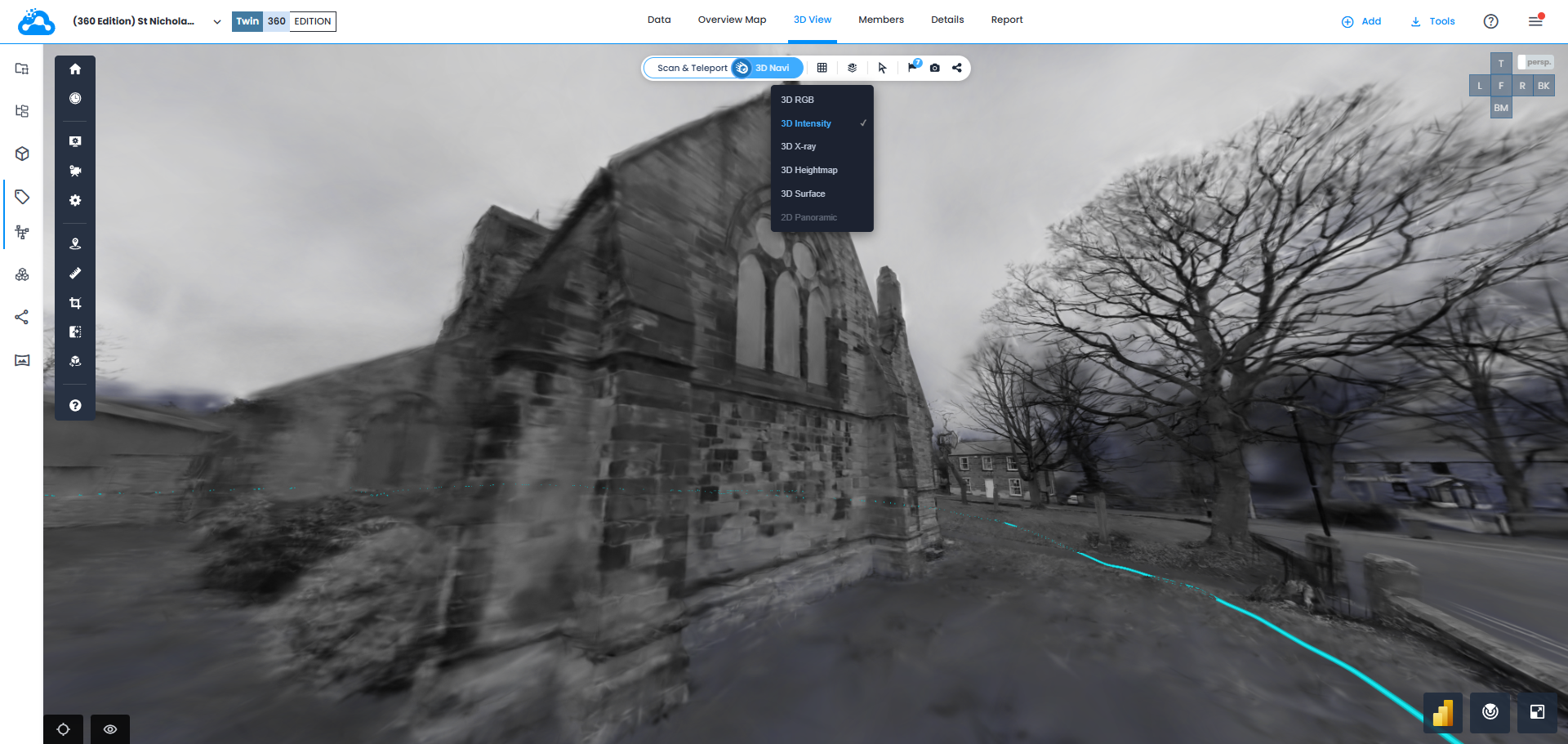
- All Display modes are available to use with Gaussian Splats. Mind that Surface and Intensity are visualized as Greyscale.
Resource Visibility Panel
Resource Visibility Panel is a floating, draggable panel in 3D View that groups rendering controls for scene resources in one place. Open it from its button with eye icon from the left bottom corner in 3D View and move it anywhere by grabbing its header.
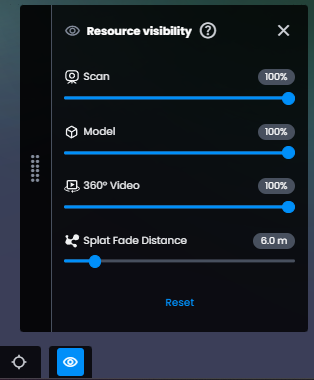
It gathers four controls:
- Scan - slider to fade scan meshes in and out, so you can compare scans, models and 360 videos and focus on relevant elements in scene. Scan sprites remain visible in 3D View whatever slider value is. Slider is disabled when current scene contains no scan, and in 2D Panoramic mode.
- Model - slider to fade model meshes in and out. Slider is disabled when current scene contains no model, and in 2D Panoramic mode when Display models in 2D Panoramic mode option is off.
- 360° Video - slider to fade 360 video frames in and out, so you can compare video acquisitions against other scene content and spot construction changes.
- Splat Fade Distance - slider that sets how far Gaussian Splats rendering extends from path. See Working with Gaussian Splats for how fade distance behaves in perspective and orthographic modes.
Hovering over a disabled Scan or Model slider shows why it is unavailable. Both sliders start at 100% and keep their value while disabled, so meshes return at that opacity when you switch back to 3D View. Scans and models added to scene afterwards are displayed at current slider value.
Basic Actions
360 Videos
- Information - consisting of Properties covering Path color, Status of the video, Error message for a failed video, 360 images count, video Resolution, video Duration, capturing Device including device's serial number. As well as Details covering import date with Created at field, author with Created by and a unique identificator (uuid) with an option to copy a link to a 360 video.
- Edit - change Name or Path color
- Download - for now only Export CSV is available.
- Copy link - allowing to share a direct link to a 360 video.
- Delete - removes 360 video from project
Gaussian Splats
- Information
- Splats count allowing to have an additional quality check (value too low - sign of a poor quality)
- Splats quality score giving an idea on both acquisition parameters (motion speed while capturing, luminosity of the environment, motion blur, absence of long stops) and reconstruction being basically an evaluation on how well the algorithm processed 360 video.
- Details covering import date with Created at field, author with Created by and a unique identificator (uuid) with an option to copy a link to a Gaussian Splats.
- Edit - correct Name
360 Images (Frames)
- Information - Properties covering Resolution, Position and Heading (standard 360 video parameters).
As well as Details covering import date with Created at field, author with Created by and a unique identificator (uuid) with an option to copy a link to a 360 image. - Edit - change Name
- Download - Export CSV and export 360 image
- Copy link - allowing to share a direct link to a 360 image.
- Delete - removes 360 image from project
360 Videos with Overview Map
- Open Overview Map while a 360 video is loaded in the project.
- 360 video path is displayed.
- Click on the path - 3D view opens and focuses on the closest frame at the clicked position, enabling quick spatial navigation from a bird's-eye view to an immersive 360 perspective.
- When Gaussian Splats are loaded, Splat Fade Distance slider is hidden in Overview Map. Oversized splats are automatically filtered and distance fading is removed - ortho view renders a clean, uncluttered representation without requiring any manual adjustment.
Manage 360 Images
Extracted 360 frames from imported videos can be managed independently:
- In 360 Edition Explorer, expand a video to see individual frame entries.
- Each frame shows its position along the path and can be selected for viewing.
- Standalone 360 images (imported separately, not from a video) also appear in 360 Edition Explorer and can be managed alongside video-extracted frames.
- Frame interactions - right-click on a frame:
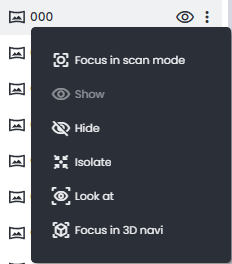
- Focus in scan mode - center camera on a specific frame in 3D View
- Focus in 3D Navi - switch 3D View to 3D Navi mode and move camera close to the frame
- Isolate - hide all other content. Only one single frame can be visualized.
- Look at - rotate the camera to face the frame without moving position
- Hide - remove the frame from the view. Not possible to navigate to this frame via path.
Troubleshooting Common Issues
Video Missing from Import Panel
Possible causes:
- Video is shorter than 10 seconds - such videos are filtered out of import panel
- Video has not finished processing and syncing from Ricoh360 Cloud
- Camera used for capture is not linked to subscription
Solutions:
- Check for info icon next to import panel title - it confirms some videos were excluded because of duration
- Re-capture area with a clip of at least 10 seconds
- Wait for processing to complete, then reopen import panel
- Verify camera is linked to subscription
Videos Stuck in Pending Status
Possible causes:
- Processing is still underway (can take up to 2 hours, sometimes more, depending on video size)
- Server processing queue is busy
Solutions:
- Wait and check back later
- Refresh 360 Edition Explorer
- If pending for very long time, contact support@cintoo.com
Failed Status after Import
A failed video explains what went wrong: hover over its failed icon in Data tab or 360 Edition Explorer to see short message, or open Information panel to read complete message in Error message field.
Possible causes:
- Corrupted video file
- Processing timeout
Solutions:
- Follow guidance from failure message
- Attempt to delete and re-import
- Verify the original video plays correctly on the camera. Exit Simple Capture mode by pressing and holding Mode button on the right side. Swipe to the right to see all captures. Try playing the video.
- Contact support@cintoo.com, if issue persists
Video Path Not Visible in 3D View
Possible causes:
- Video is hidden
- 3D View is zoomed far from path location
- Video has not been aligned
Solutions:
- Verify video is set to Show in 360 Edition Explorer
- Use Focus in 3D Navi action (or double-click) to navigate to video path
- Check if alignment has been completed
Tips and Best Practices
- Wait for processing to complete - after importing a 360 video, the system needs time to extract frames, reconstruct the path, and generate Gaussian Splats. You will receive an email notification when the video is ready to view.
Organization
- Use descriptive names - rename videos to reflect the area or purpose (e.g., "Building A - Level 2 - North Wing")
- Use consistent naming conventions - establish a naming pattern across your organization
- Performance - limit visible videos by hiding videos not currently needed to improve 3D View performance.
- Always align - always align 360 video with your 3D project data whenever 3D data (scan/model) is available, with work zone containing 3D data enabled alongside work zone containing 360 video.
- Use search - in projects with many 360 videos, use search bar in 360 Edition Explorer to quickly locate specific videos or frames.
- Supported camera - currently, only Ricoh THETA X camera is supported for 360 video capture and import via the Ricoh Cloud sync workflow.
Need Help?
Technical questions, video import problems, workflow clarification: support@cintoo.com
Was this article helpful?
That’s Great!
Thank you for your feedback
Sorry! We couldn't be helpful
Thank you for your feedback
Feedback sent
We appreciate your effort and will try to fix the article