This article describes creation of tags directly from 3D model elements - one element at a time, or in bulk from a CSV file.
Contact us via sales@cintoo.com to know more about the upgrade.
Learn more about editions BIM and TWIN.
TABLE OF CONTENTS
Create a Tag from One Model Element
- It is mandatory to create a tag list, follow instructions in Create a tag list.
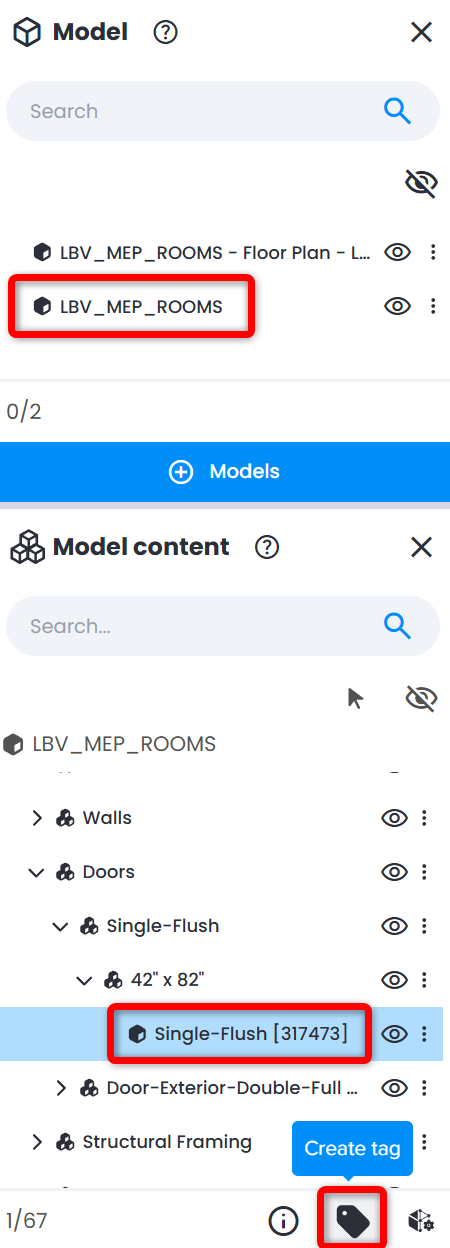
- Navigate to Model Explorer and choose a model.
- In Model Content Explorer and choose the model element to create a tag for. At the bottom of Model Content Explorer choose Create tag.
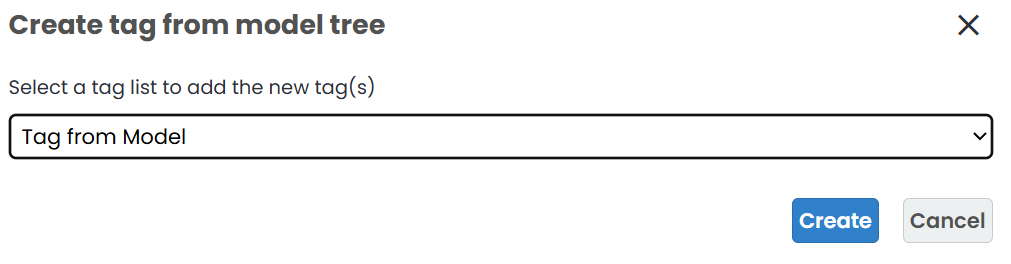
- In pop-up Create tag from model tree window choose a tag list to add the tag to and click Create.
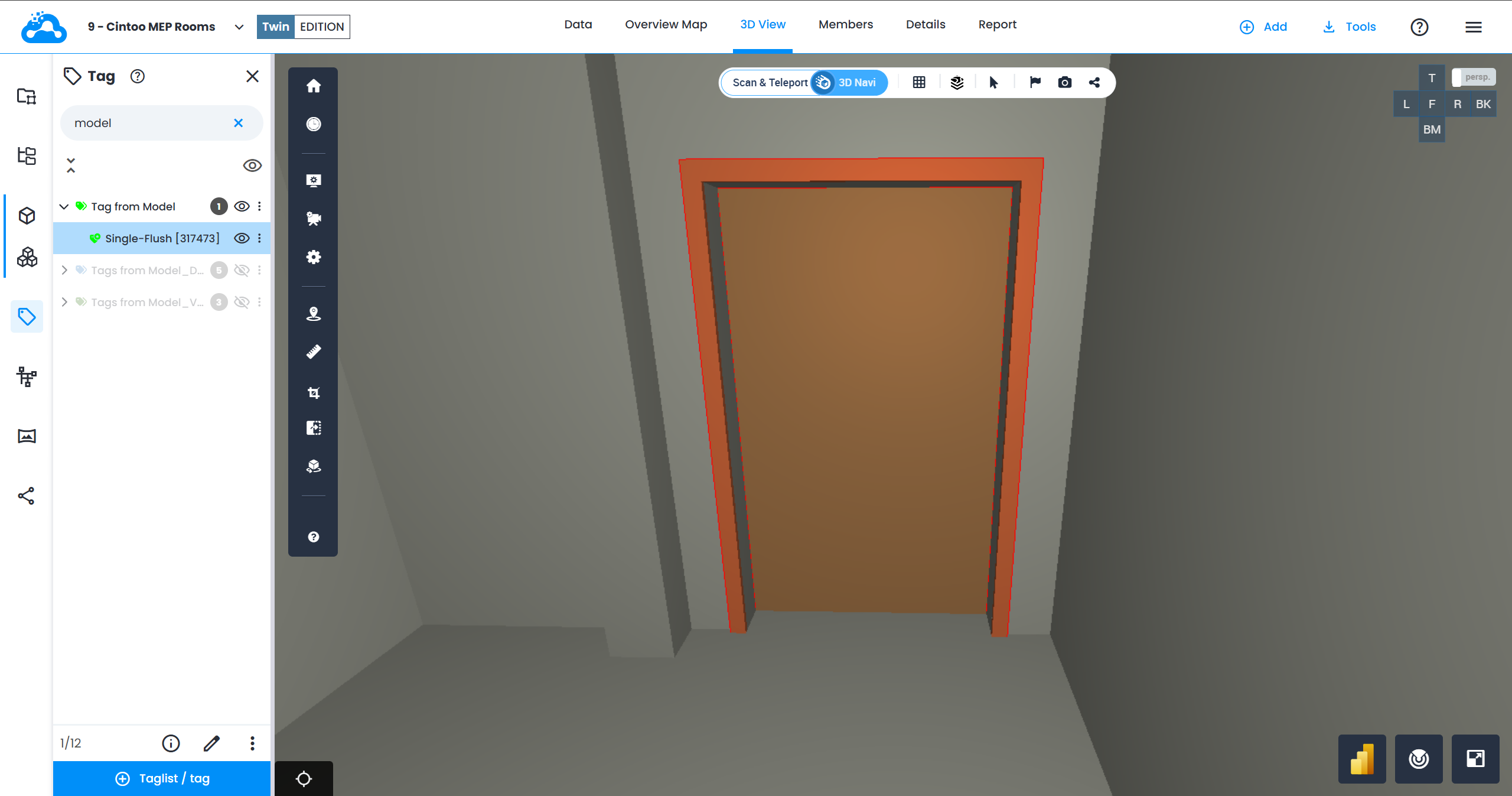
- In Tag Explorer under the tag list chosen, the tag is created.
- If performed on a higher level of the model, for example with columns, like shown below. The resulting complex tag could be exploded to have individual tag objects.
Before Explode tags
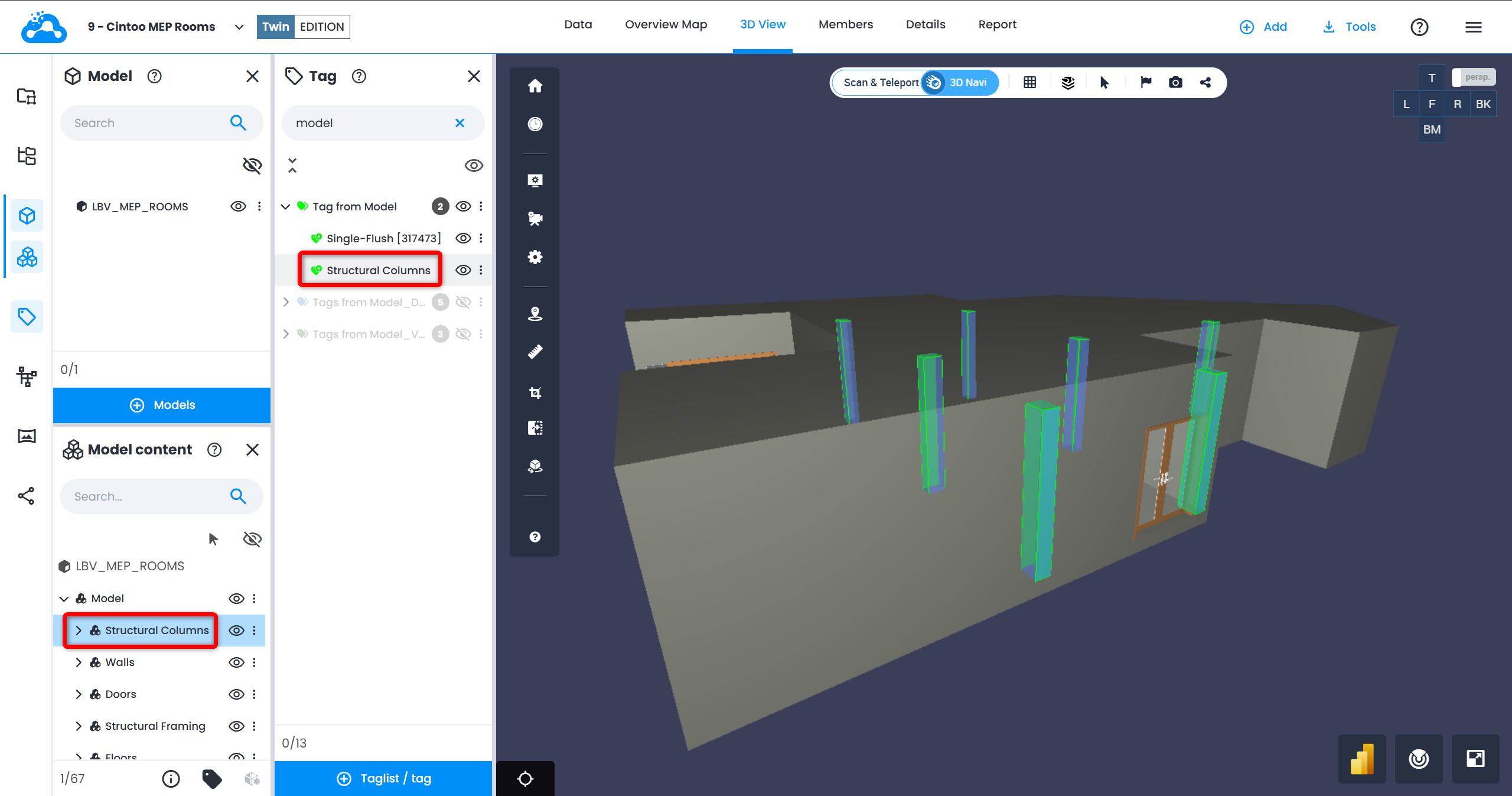
After Explode tags
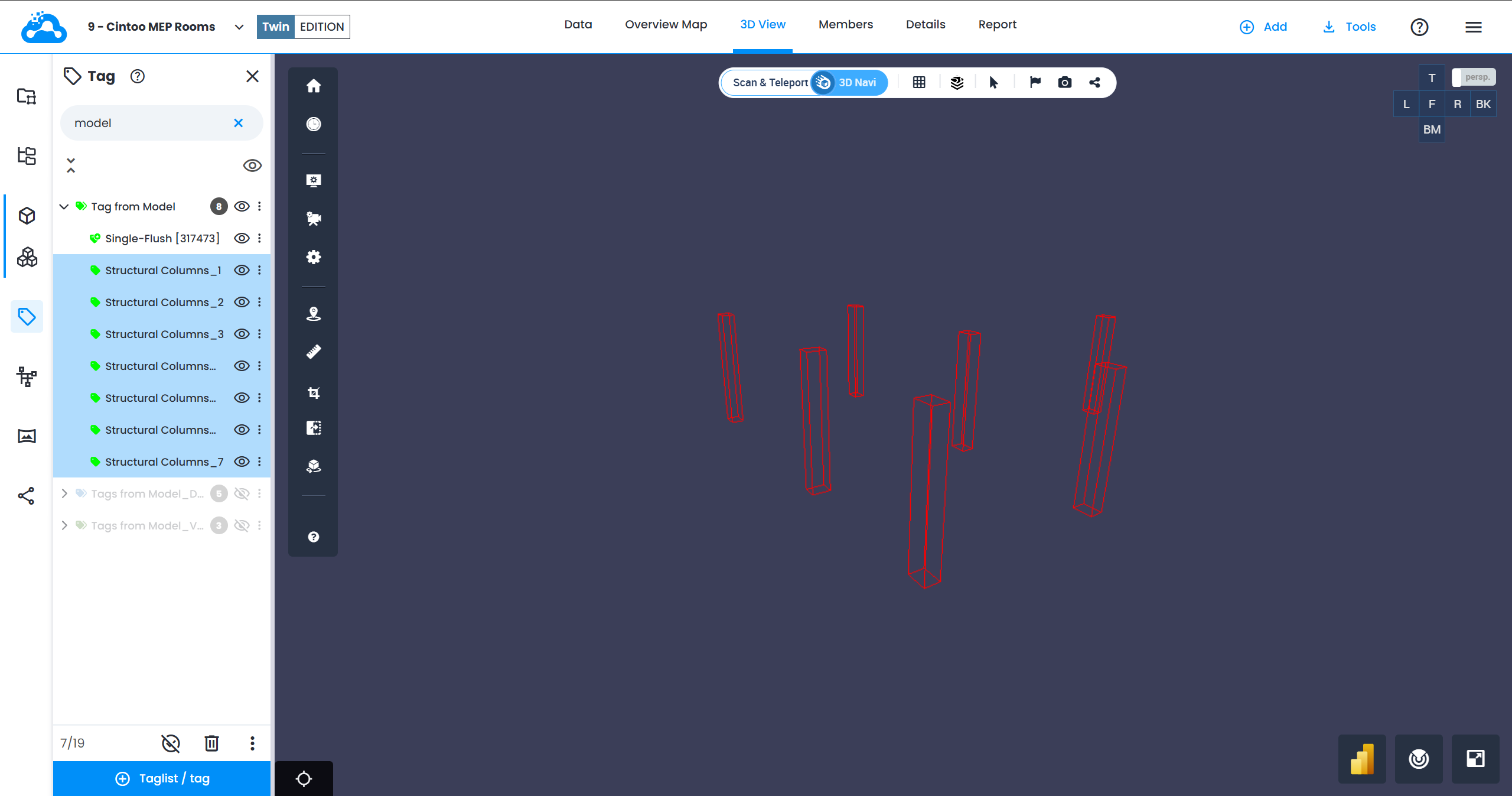
- Use these tags in any tag workflow.
Create Tags from Model Elements in Bulk
Use CSV import instead of selecting elements one by one when hundreds or thousands of elements need tagging, or when target elements sit scattered across separate branches of model hierarchy.
Prerequisites
- Model already imported in project
- Tag list created - see Create a Tag List
- 3D View open with referenced model loaded in scene
CSV File Format
File carries exactly three columns:
| Column | Required | What it holds | If left empty |
|---|---|---|---|
| model_uuid | No | Cintoo UUID of model holding that element | Element name is searched across every model of project |
| model_element_name | Yes | Exact name attribute of element, case sensitive | Row is ignored and creates no tag |
| tag_id | No | Id of tag that will carry element bounding boxes | Element name is used as tag id |
Rules for this type of file:
- Header row is mandatory
- Columns are matched by their header name, which is not case sensitive, so column order is free
- No other column is allowed
"/LINE-200-6""-CS01"
Grouping Elements into One Tag
Several rows sharing same tag_id produce a single complex tag whose bounding box merges bounding boxes of all elements listed against that id:
| model_uuid | model_element_name | tag_id |
|---|---|---|
| 3f2504e0-4f89-11d3-9a0c-0305e82c3301 | Pump-101 | TAG-001 |
| 3f2504e0-4f89-11d3-9a0c-0305e82c3301 | Pump-102 | TAG-001 |
| 7c9e6679-7425-40de-944b-e07fc1f90ae7 | Valve-22 | TAG-002 |
Rows above create two tags - TAG-001 spanning both pumps, and TAG-002 on single valve. Complex tag produced this way could be exploded into individual tag objects afterwards.
Reading Model UUID
model_uuid is Cintoo UUID of model file itself, not its name. Read it through Cintoo API, which lists every model of a project together with its uuid:
GET /api/2/accounts/{accountRef}/projects/{projectRef}/files?category=model
Listing files requires workzone:workzones:read permission in work zones concerned.
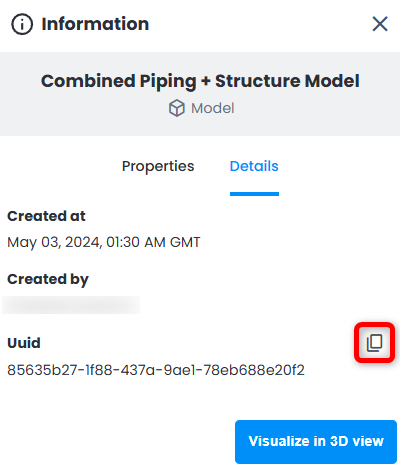
For a single model, UUID is also readable in interface - select model in Model Explorer, click i to open Information panel, then open Details tab and copy Uuid.
Import Procedure
- Navigate to 3D View and load referenced model into scene.
- Select tag list to import into, then import CSV file from actions at bottom of Tag Explorer, same as for any tag list.
- Tags appear in tag list chosen, bounding box of each tag drawn from listed model element(s).
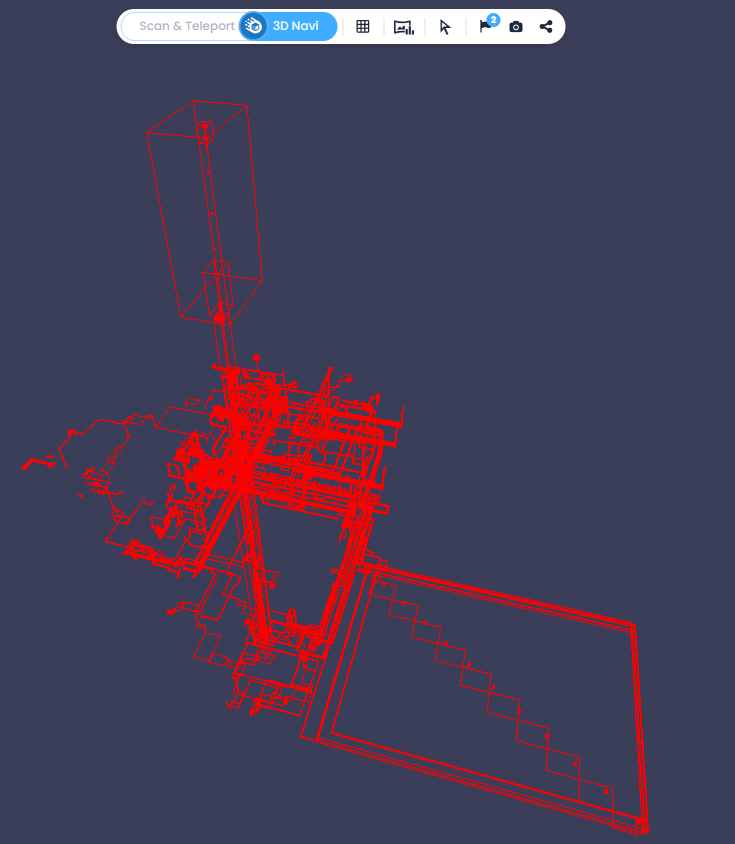 Warning: import runs only from 3D View, with referenced model loaded in scene - bounding boxes of model elements are only known once model is displayed. Attempting it from Data tab, or with model not loaded, displays an error instead.Note: row naming a model or an element that cannot be found creates no tag. Rest of file still imports, with a warning saying that models or element names were not found in scene - warning does not say which rows were skipped. When nothing in file can be matched, same message appears as an error and no tag is created.
Was this article helpful?
That’s Great!
Thank you for your feedback
Sorry! We couldn't be helpful
Thank you for your feedback
Feedback sent
We appreciate your effort and will try to fix the article