This article describes multi-user sessions in Cintoo Workspace - how to create, join and leave a session, which collaboration tools are available inside it, and how guided collaboration with Lead, Gather and Follow works. Desktop and VR users share the same session and see each other in real time.
Joining a session does not require a Collaborative subscription - any signed-in user with a session ID can join.
TABLE OF CONTENTS
- Session Management
- Avatars and Presence
- Session Toolbar
- Laser Pointer
- Lead, Gather & Follow
- Annotations and Measurements in a Session
Session Management
This section covers what to check before starting a session, how to create, join and leave one, and how connection errors are handled.
Prerequisites
Before creating or joining a guided session, confirm every participant already has access to project you plan to use. There is no in-app way to invite a user to a project - invite them from web app first.
Create a Session
- Open Sessions tab on the left side
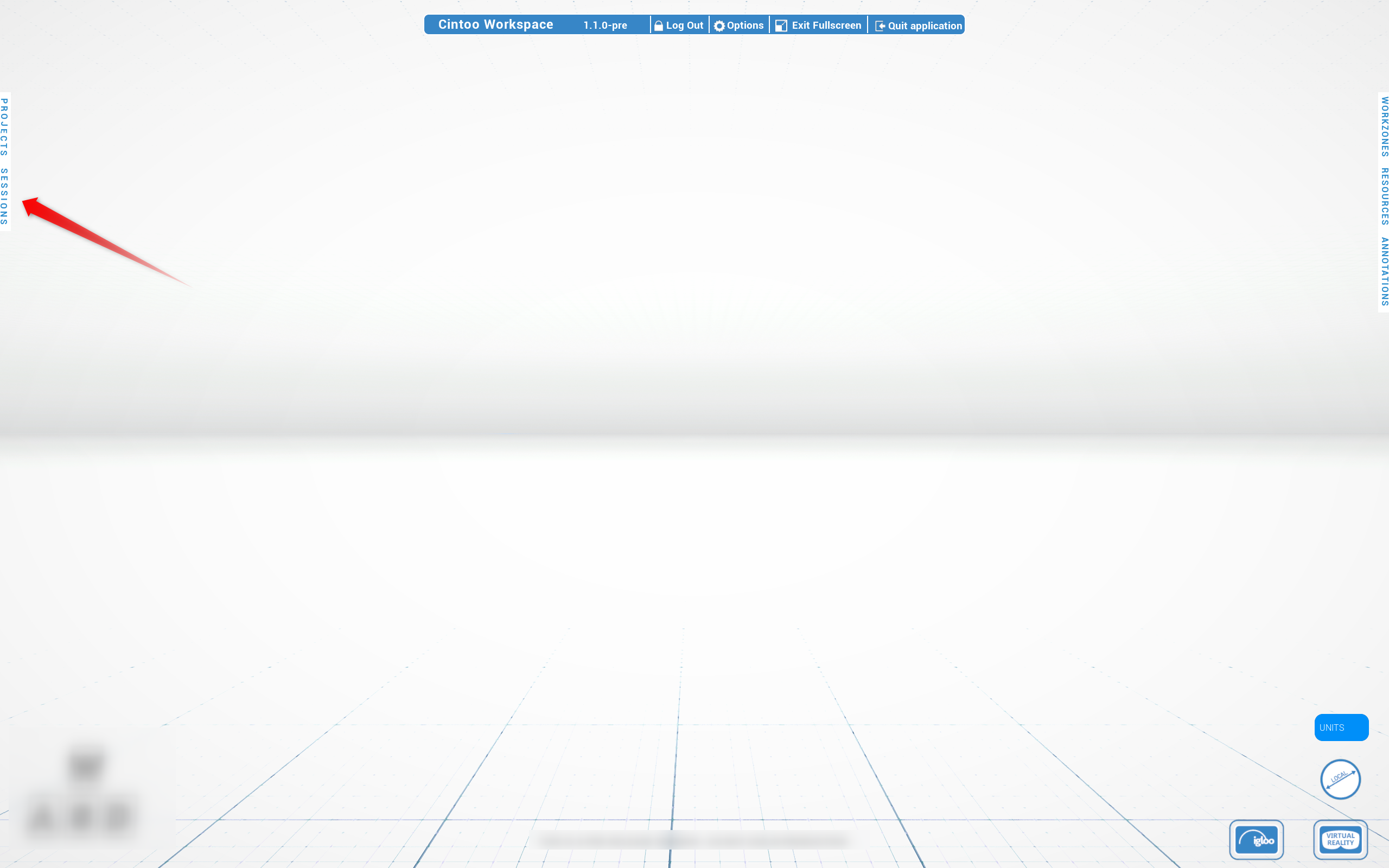
- Enter Username - obligatory step, saved between sessions
- Click Create Session
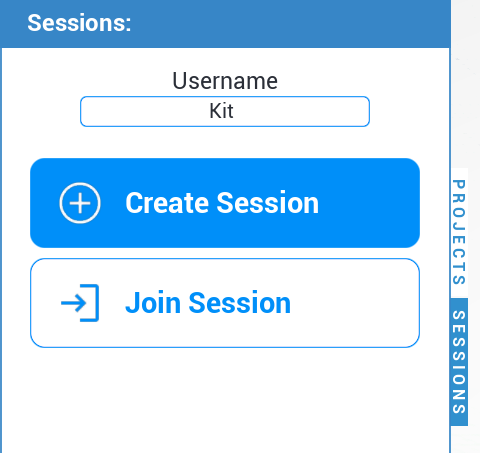
- Wait for creation confirmation. Connection to a new session is automatic.

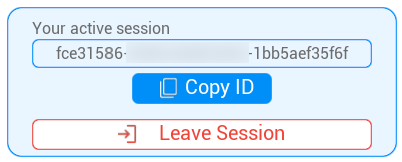
- Copy session ID and share it with participants
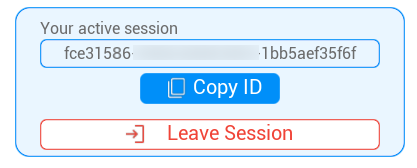 Note: a session lasts 6 hours. Session ID stays same for entire duration.
Join a Session
Joining works on Desktop and in VR egocentric and exocentric modes.
- Open Sessions tab
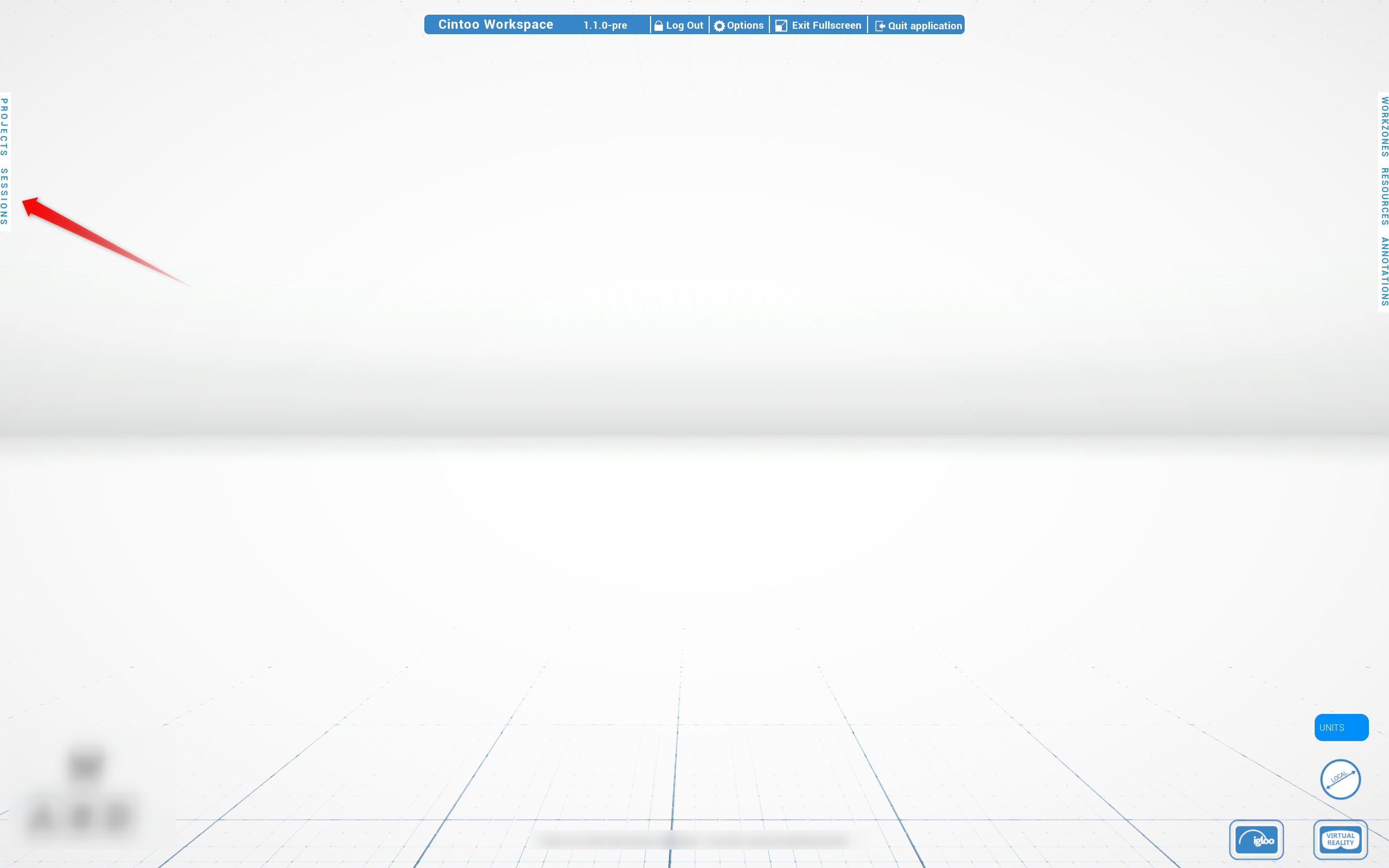
- Enter Username - obligatory step, saved between sessions
- Click Join Session
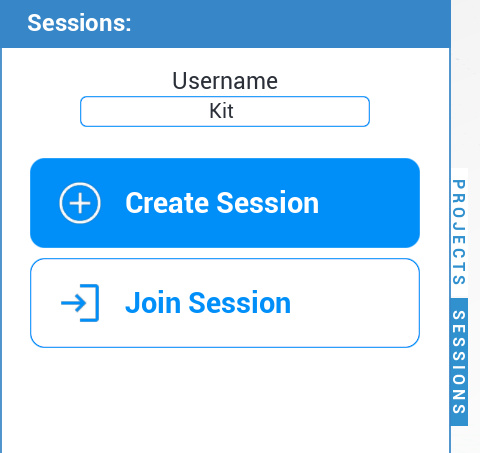
- Paste session ID shared by session creator and click Join
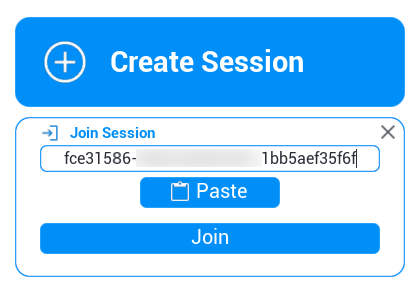 Note: a participant just invited to project used in session must log out of Cintoo Workspace and log back in before joining - project list is refreshed at login only.Note: wait until every participant's interface has fully loaded target project before relying on Gather - a request sent before this finishes loading may not arrive, or may be declined automatically.
Once connected, collaboration tools become available - avatars, text chat, voice chat and laser pointer.
Leave a Session
A session can be left in several ways:
- Click Leave Session in session interface
- Join another session - disconnection from a current one is automatic
- Log out of application
- Close application
Session stays active for other participants, and leaving does not interrupt them. Avatar is removed for everyone else.
Session Errors and Reconnection
- If a room ID is invalid or a session no longer exists, a message is displayed directly
- After a temporary disconnection, reconnection is handled automatically
- After rejoining, an old avatar is removed and a new one is created
Avatars and Presence
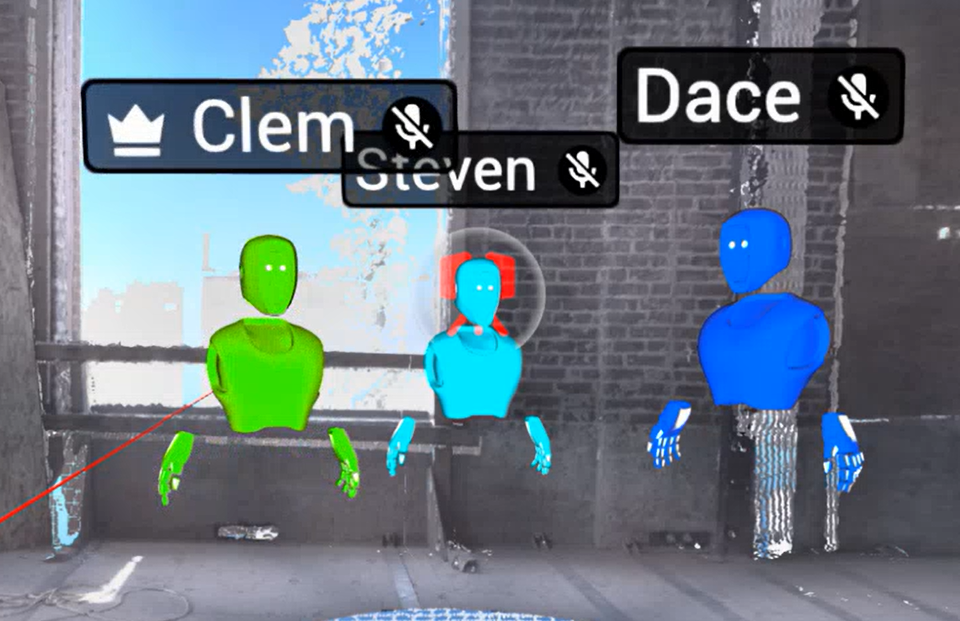
An avatar spawns automatically when a user joins a session.
- Avatar consists of a head, a torso and two hands
- User name is displayed above each avatar
- Avatar color differs per user, helping to tell participants apart in a scene
- Desktop and VR users see each other in the same session
- Avatars are removed automatically when a user leaves or disconnects
Head orientation, hand and controller motion, position, rotation and scale are synchronized across all participants, and stay visible through every navigation method - walk, fly, teleport, pan, orbit and scan to scan. A VR user's scale changes (Exo/Egocentric or Dynamic Scaling) are visible to others as their avatar changing size in real time.
Session Toolbar
It groups core session tools - text chat, voice chat and Members list - together with guided-collaboration actions like Gather, Opt in and Opt out, Take Lead and Demote - all in one place.

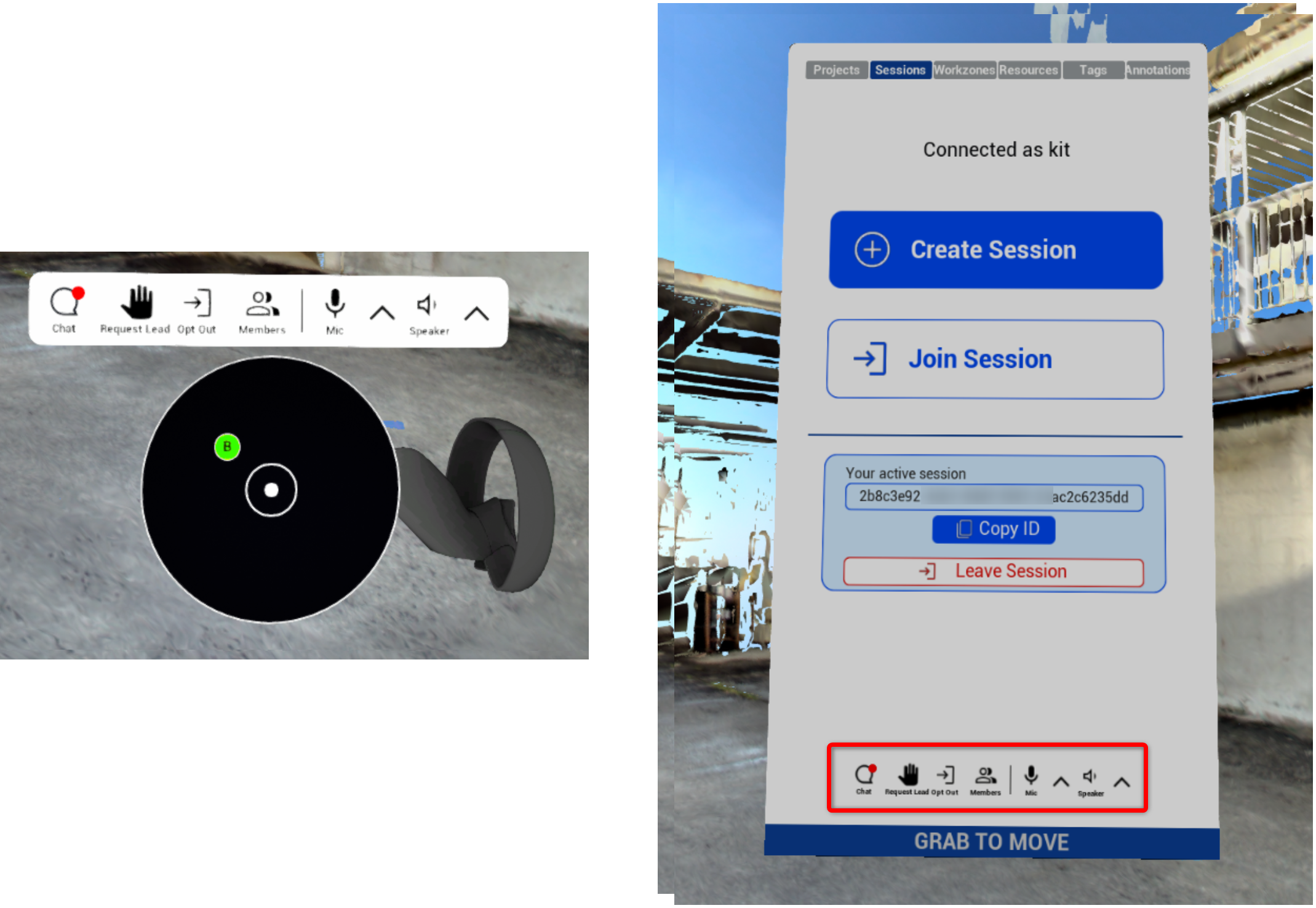
Text Chat
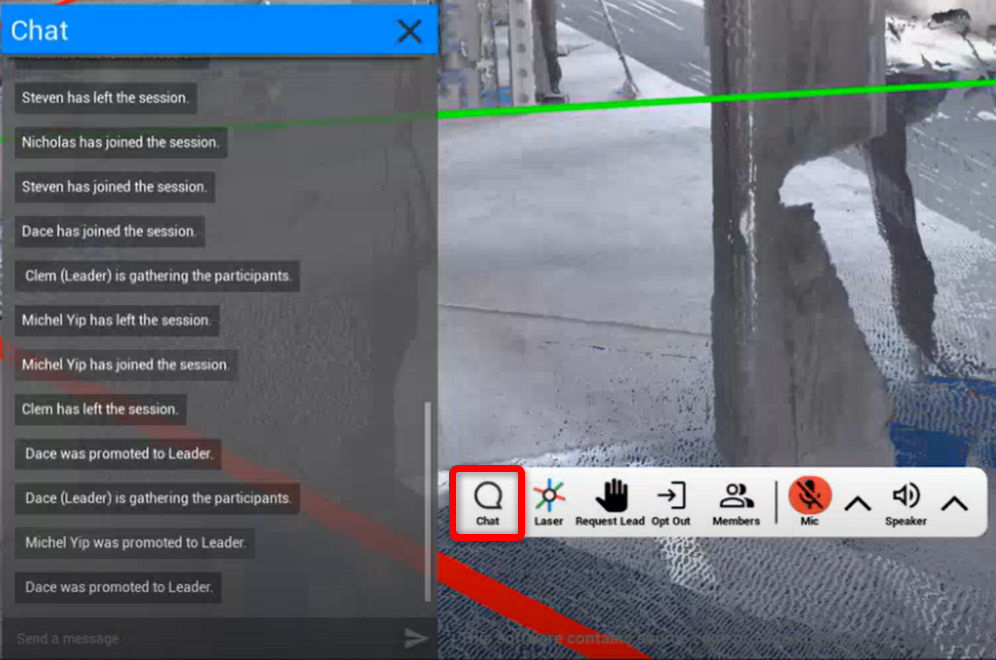
Available in a dedicated panel on Desktop and in VR.
On Desktop, activated from Session Toolbar by clicking on Chat.
In VR, activated from wrist menu or from Session Toolbar on Sessions tab.
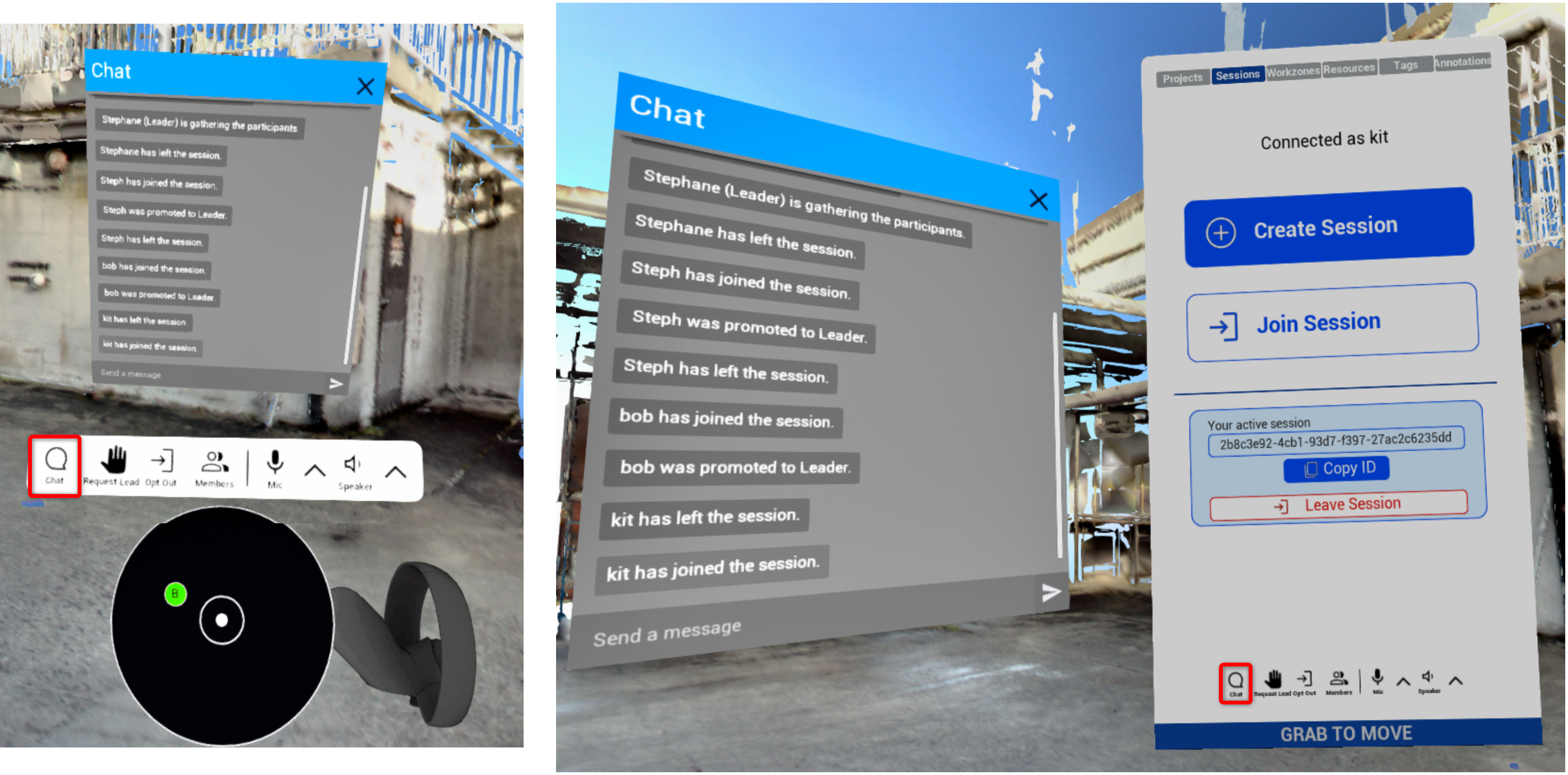
- Open and close panel at any time - message history is kept for a session
- Desktop users type with a keyboard, VR users use a virtual keyboard
- Movement stays available in VR while chat panel is open
- Chat doubles as session activity log - join and leave activity, Gather attempts and project-access-denied messages are all posted in chat stream
- When panel is closed, an indicator on Chat icon on Session Toolbar signals new activity
Voice Chat
Connects all participants of a session on Desktop and in VR.
- Select microphone input device
- Select audio output device
- Mute and unmute microphone
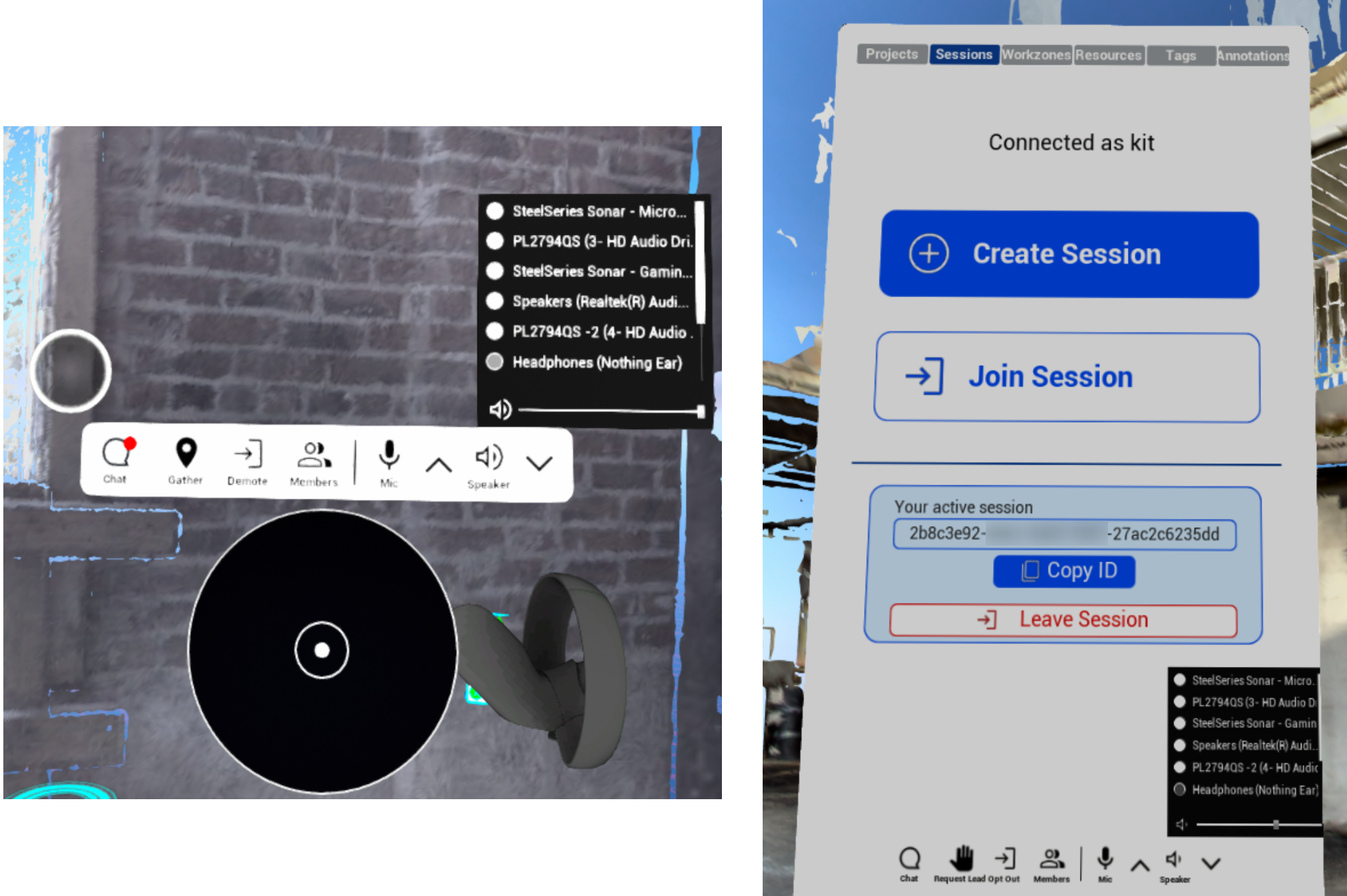
- Set dedicated Voice chat volume, separate from other application audio - set it to zero to mute voices without muting rest of application
Controlled from Session Toolbar button on Desktop.
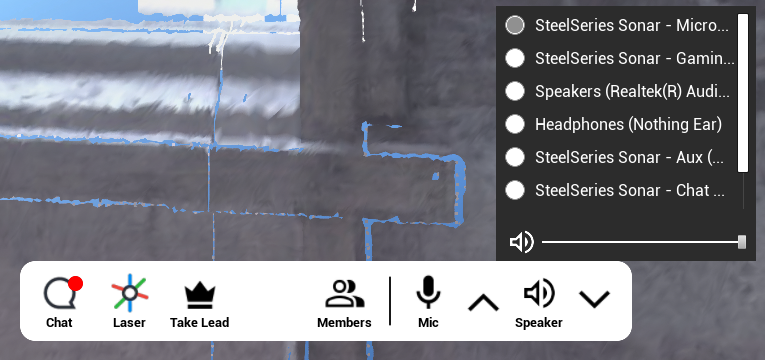
In VR, controlled from wrist menu or from Session Toolbar in Sessions tab.
Mute All
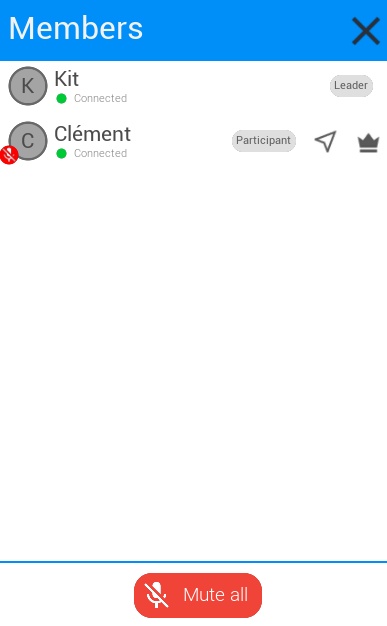
Leader can mute all other members of a session at once, on Desktop and in VR, with Mute all button at bottom of Members panel.
- Any member can unmute themselves at any time from Session Toolbar
- Members joining after Mute all was used are not muted
- A new Leader takes over Mute all, and previous Leader loses it
- Mute state stays as it is when Leader changes
Members
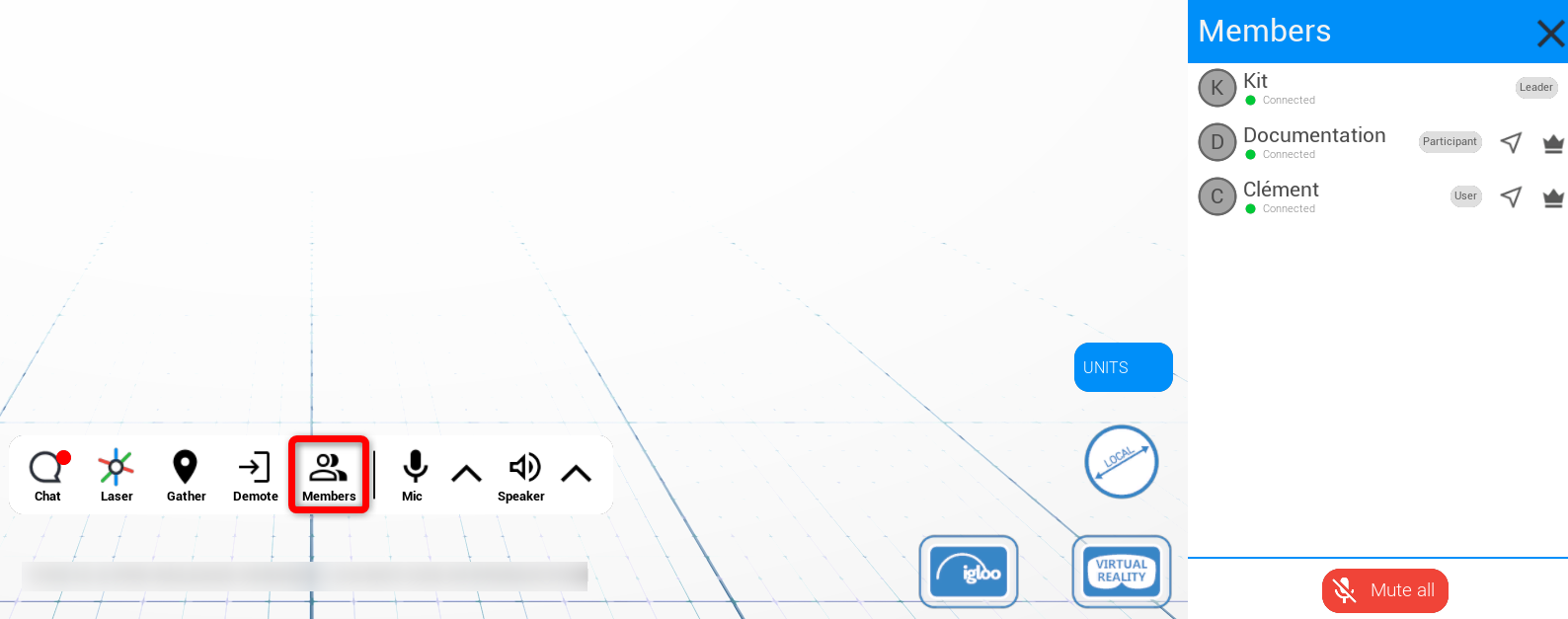
Main hub for understanding session roles. It displays connected users, their names and role badges.
On Desktop, activated from Session Toolbar by clicking on Members.
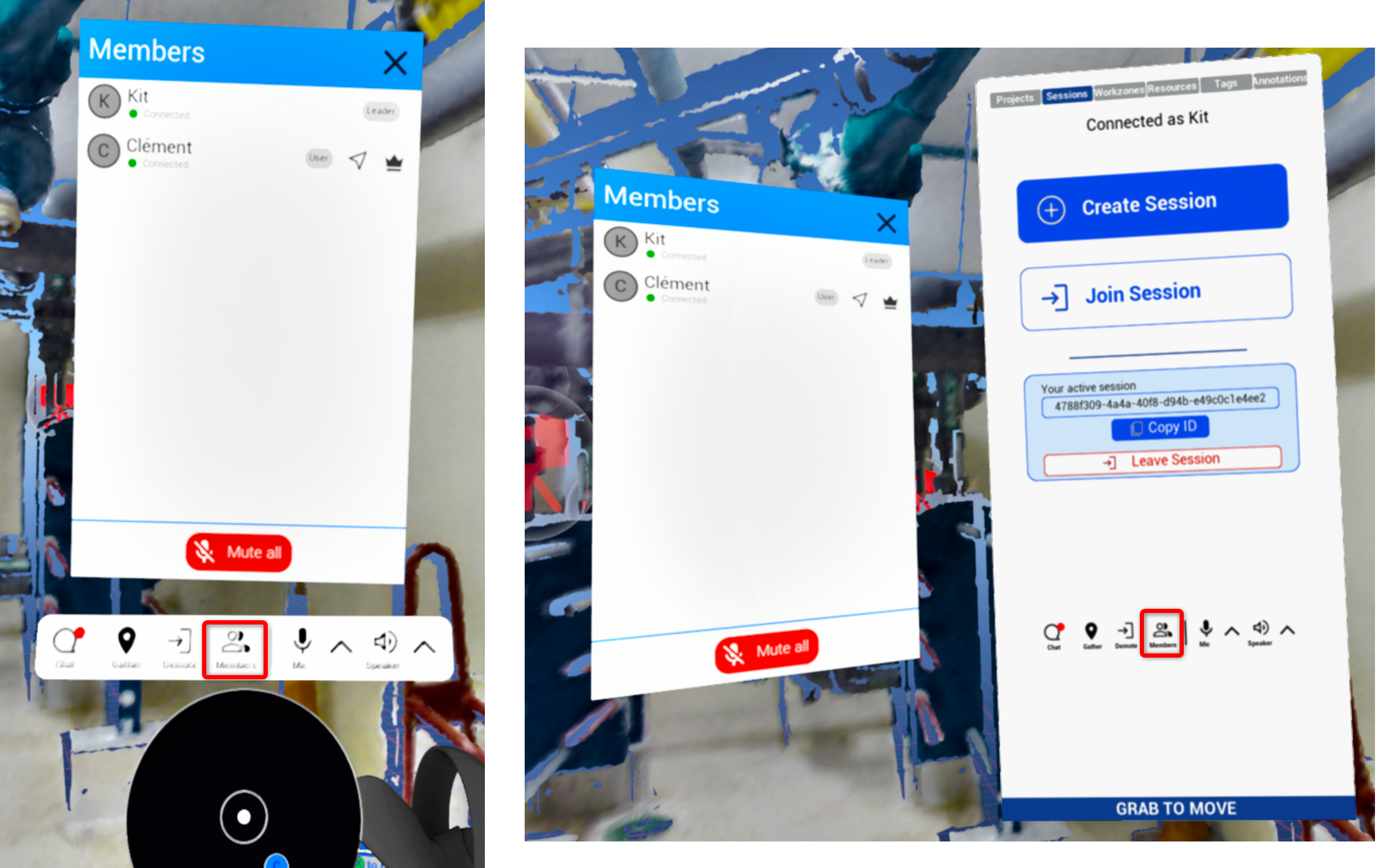
In VR, activated from wrist menu or from Session Toolbar in Sessions tab.
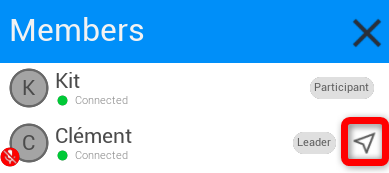
Go to Remote User Location
Members list allows to jump directly to position of another user, without waiting for a Gather. Position is aligned with a selected user, and orientation and scale are matched as well.
Useful to catch up with a teammate, to inspect a point someone is already reviewing, or to regroup informally without changing session leadership.
Assign Leader
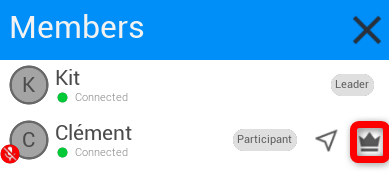
Leader can assign another user as Leader by clicking on Crown icon next to Username in Members list.
Actions by Role
Session Toolbar contains actions relevant to current role, and updates immediately after a role change.
| Role | Session Toolbar actions | Panel buttons |
|---|---|---|
| Leader | Trigger Gather Demote - renounce the lead |  |
| Participant | Request Lead Opt out to stop following Leader |  |
| User | Take Lead if Leader is absent Opt in to guided navigation |  |
Enforcing project is a Leader action, but is not done from Session Toolbar - see Project Enforcement.
Laser Pointer
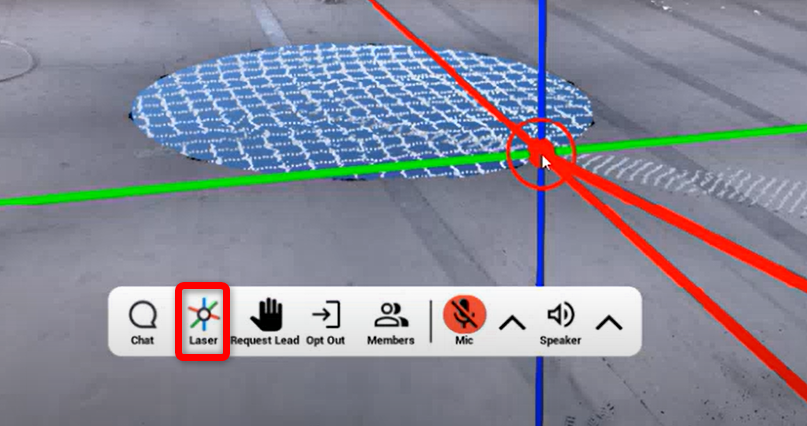
It draws attention to a location, an object or an area. It is visible to other participants, with a marker at its endpoint.
| Platform | Controls |
|---|---|
 Desktop Desktop | Press L or click Laser on Session Toolbar to toggle. Aim with mouse. Press J to elongate (or arrow up ⬆️). K to shrink (or arrow down ⬇️). |
 VR VR | Aim with controller. Hold Navigation controller grip to toggle, adjust length with joystick. |
Lead, Gather & Follow
Guided collaboration keeps a team coordinated without removing individual control.
Session Roles
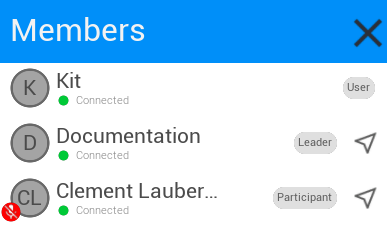
Indicated in Members list with badges.
Leader has a distinctive Crown icon next to Username in 3D environment.
| Role | Description | Actions |
|---|---|---|
| Leader | Guides a session. Identified in Members list, in 3D scene and on radar overlay. | Trigger Gather, renounce or assign the lead, enforce project, mute all |
| Participant | Opted in to guided navigation - follows Leader's project and can be gathered. | Accept or decline Gather, request Leader role |
| User | Opted out of guided navigation, navigates autonomously and stays in session. | Navigate freely, opt in later |
Opt in and Opt out
- Opt in makes a user a Participant - enables Gather notifications and prompts to follow a new Leader

- Opt out makes a user an autonomous User. Gather requests and follow prompts no longer interrupt navigation

Following does not move a Participant continuously - navigation stays free, and only an accepted Gather relocates them.
Structured walkthroughs and independent exploration can run in one session at same time.
Request and Take Lead
- A Participant can request Leader role - current Leader accepts or declines
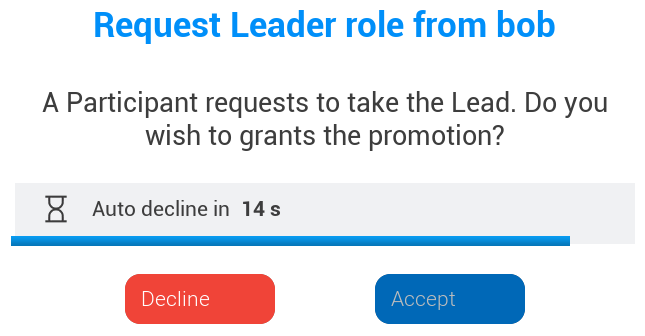
- Leader can renounce the lead with Demote on Session Toolbar

- If Leader leaves session, session continues without a leader - everyone becomes a User, and any participant can take Leader role with Take Lead button

Follow the Leader
Whenever a user becomes Leader - assigned by a previous Leader, after a request, or with Take Lead - every Participant is notified in chat and asked whether to follow a new Leader. Users are not asked.
- Accept - user stays a Participant
- Decline - user becomes an autonomous User
- No answer - prompt closes after 15 seconds and user becomes an autonomous User
Gather
Gather brings a group to Leader location, matching Leader's position, scale and orientation.
For a Leader:
- Move to a location to be reviewed
- Trigger Gather
- A request is sent to every Participant
For a Participant:
- A confirmation prompt is displayed
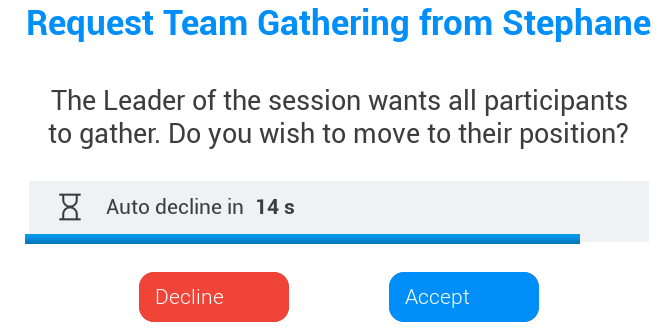
- Accept or decline relocation
- On accept, relocation to Leader area happens - users are placed around a Leader at Leader's scale. Participant also gets Leader's workzone and resource visibility.
- On decline, nothing changes - role stays the same and session is not leftWarning: Exocentric scale is VR only (see Exo/Egocentric Scale). If a Leader in Exocentric scale triggers Gather, Participants arrive in Exocentric scale as well and this cannot be matched for Desktop Participants, who cannot enter Exocentric view. Use scaling carefully during a guided session.
Spatial Awareness
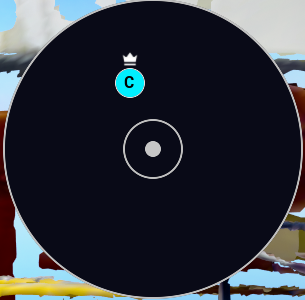
- Leader indicator - crown icon next to name in 3D environment and a small crown on radar overlay, shows who guides a session
- Nameplates and remote markers - identify users in a scene
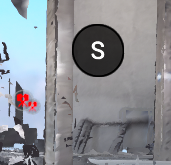
- Beacons - keep distant users readable when nametags become too small, showing user initials - first letter of each word of their name. Distance at which markers switch adapts to user scale.
- Radar overlay - shows relative positions with user initials and avatar colors alongside Members list
Project Enforcement
Leader can enforce a project, so everyone reviews same context. To do that - change project from Projects tab. Project enforcement applies to everyone in session - Leader, Participants and Users.
As long as session has a Leader, other members cannot change project - a notification explains that only Leader can do it. Without a Leader, anyone can change project.
- Enforcement is validated against platform access rights - a user without access to a project is not switched into it and is removed from session
- There is no in-app way to invite a user to a project - invite them from web app before starting a session
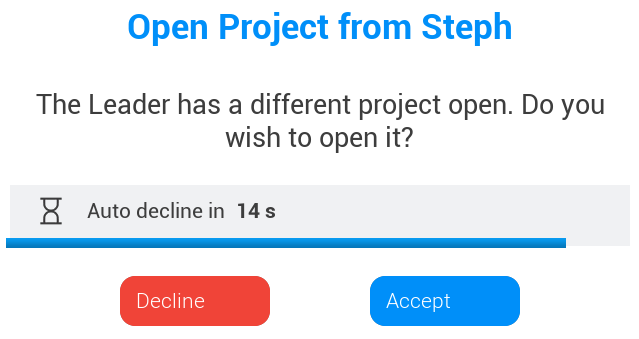
- Users joining a guided session get a prompt to switch to session project. Declining ends session participation
- Only a Leader is notified, in chat, when a member lacked access to enforced project
Annotations and Measurements in a Session
Annotations and measurements can be reviewed together, so everyone discusses same item.
Annotations - more details in Annotations in Cintoo Workspace:
- When Leader fetches annotations, annotation list of Participants is refreshed too
- When Leader opens an annotation - by clicking it in list or its bubble in 3D environment - its details open for Participants too. Descriptions of several opened annotations are stacked
- When a member creates and pushes an annotation, Leader gets a notification in session chat
Measurements - more details in Measurements in Cintoo Workspace:
- Any member can take measurements, and once validated, a measurement is visible to everyone in a session
- Only Leader can delete a measurement - deletion applies to everyone
- Measurement details panel is visible only to member who opened it
- Measurements are temporary - they are not saved to Cintoo project, and are gone after changing project or leaving session
Was this article helpful?
That’s Great!
Thank you for your feedback
Sorry! We couldn't be helpful
Thank you for your feedback
Feedback sent
We appreciate your effort and will try to fix the article