This article covers the steps to check for model updates in Cintoo and to replace the uploaded model file with the latest and current version from Autodesk BIM 360/Autodesk Forma.
Model Version
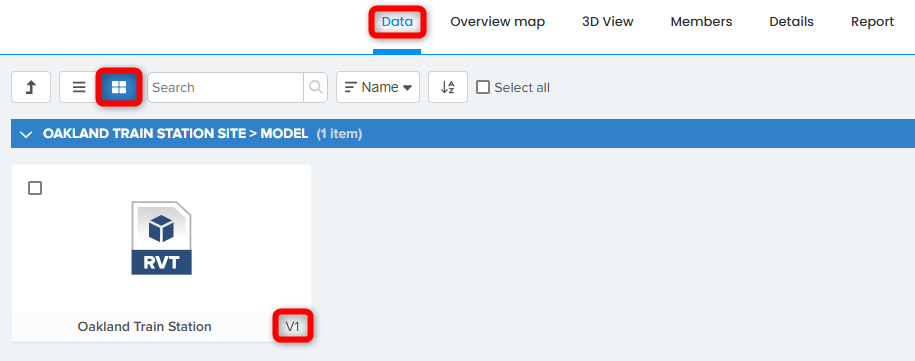
In Data tab for a given project, models uploaded from BIM 360/Autodesk Forma have a version number displayed.
List view

Tile view
Checking for Updates
Select a model and click Check for updates, this can be done for multiple models at the same time or individually.
Multiple selected models in List or Tile view

Individual model in List view

Individual model in Tile view

If there is no update available, the following message appears when clicking on Check for updates.

If there is a new version (set as ‘current’) for the model in BIM 360/Autodesk Forma, the following message appears.
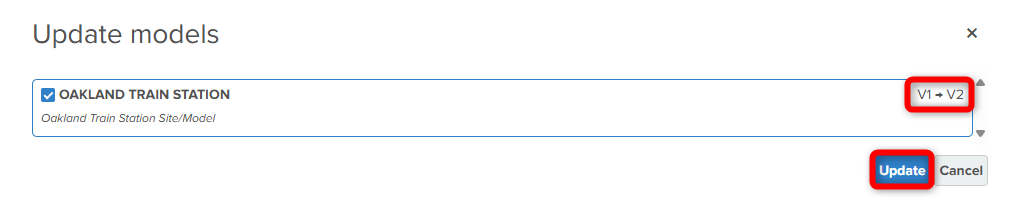
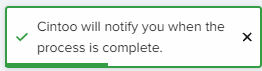
Clicking on Update will prompt the following message.
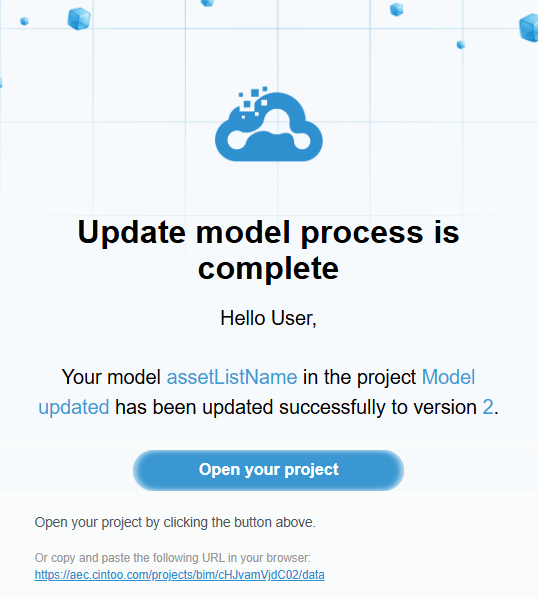
Email notification is sent when the updated file is ready to be viewed in Cintoo.
Refresh Data tab, new model version number will be listed for the file.

Was this article helpful?
That’s Great!
Thank you for your feedback
Sorry! We couldn't be helpful
Thank you for your feedback
Feedback sent
We appreciate your effort and will try to fix the article