Follow these steps to import 3D models from Autodesk BIM360 or Autodesk Forma into Cintoo projects.
If the file only contains 2D CAD lines (e.g. DWG CAD floor plan), see these articles for more information:
- Upload 2D CAD Files from Local Hard Disk
- Workaround for Uploading 2D CAD Files from Autodesk BIM 360/Autodesk Forma
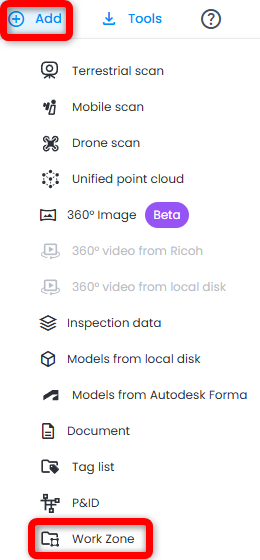
- Navigate to the desired work zone in Work Zone Explorer, or create a new work zone clicking Add then Work Zone on the top right
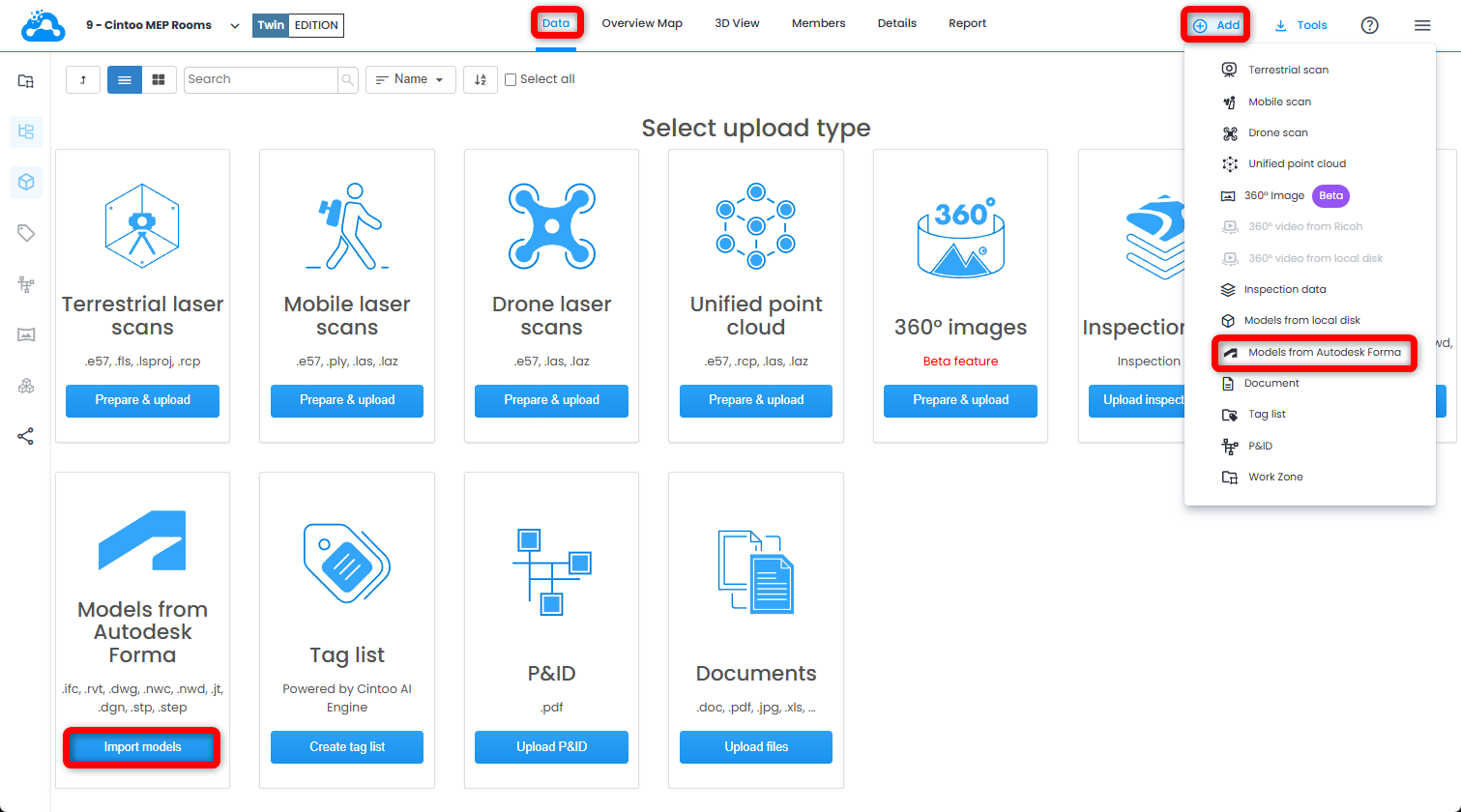
- Click Import models on Models from Autodesk Forma tile or select Models from Autodesk Forma from Add drop-down menu on the top right.
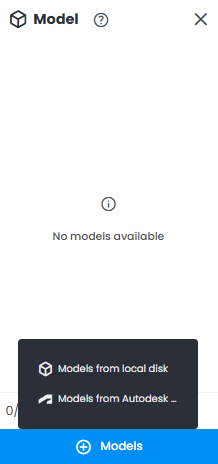
Or use Models button at the bottom of Model Explorer and select Models from Autodesk Forma.
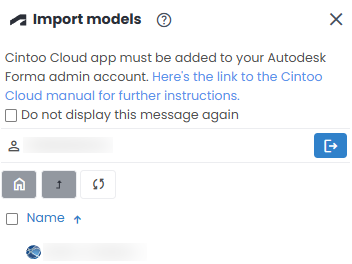
- Follow the login process and authorize Autodesk account to create a connection between BIM360/Autodesk Forma and Cintoo.
If the Cintoo application has not been added to Autodesk account, see the following pages for more information:

- Connected Autodesk account should now appear in Import models window. Username and available Hubs will be displayed. Click the Hub name and navigate through projects and folder structure to locate model file/s to import into Cintoo.
If nothing appears in the Import models window, refer back to step 3 in these instructions, or follow the steps in this article: Cintoo as a Custom Integration in Autodesk BIM 360/Autodesk Forma.
 Note: it's possible to import only models that are not currently treated by Autodesk Forma and not in the import process to Autodesk Forma themselves. Those models would be greyed out without an option to select for import into Cintoo.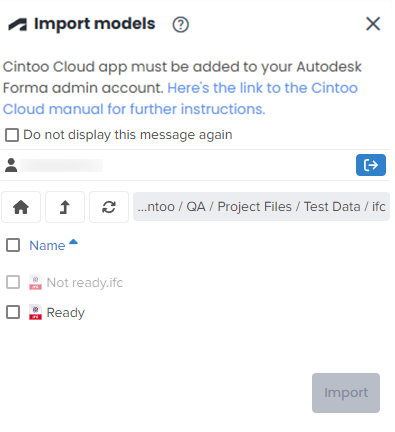
- Click on model file/s to import into Cintoo.
- When importing a Revit (.rvt) file, two options would be available to select from: Project origin or Survey point for positioning a model in Cintoo.
 Note: for RVT models only one 3D view is imported - first 3D view in alphabetical order in Revit Project Browser. Only elements visible in this view are imported. To import full model, make sure 3D view showing all required elements comes first in list (e.g. rename it) before saving file.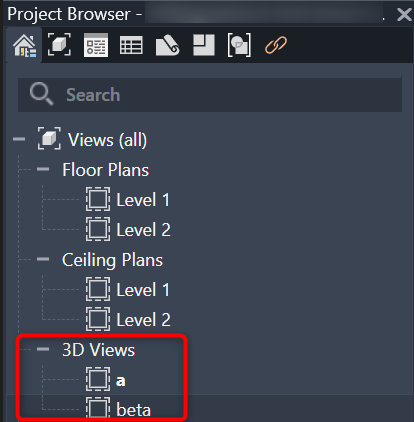
- When importing a Navisworks (.nwd/.nwc) file, a model will be positioned based on file reader settings used when files were appended in Navisworks project.
- When importing an IFC, JT, DWG, DGN, STP, or STEP file, a model will be positioned based on settings used when exporting or generating the file in model authoring software.
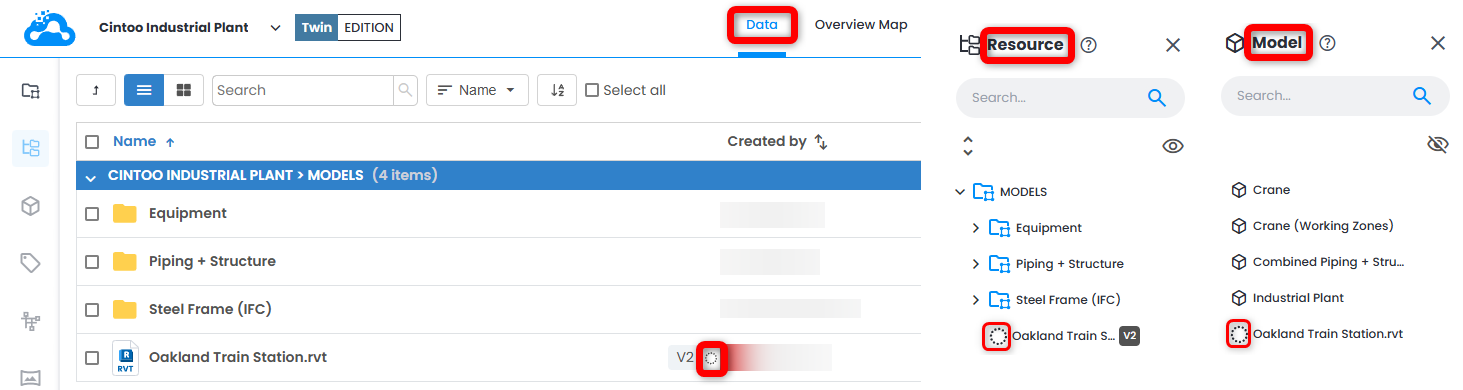
- Click Upload. Model instantly appears in Resource Explorer, Data tab and Model Explorer with pending status, recognizable by a loading icon. Once model is ready to be viewed in Cintoo, an email notification is sent.
 Warning: for NWD models only mesh data is imported, texture and colors for now are not supported.
Was this article helpful?
That’s Great!
Thank you for your feedback
Sorry! We couldn't be helpful
Thank you for your feedback
Feedback sent
We appreciate your effort and will try to fix the article