This article describes the functionality of P&ID Explorer that allows to manage project documentation in a form of P&IDs for your digital twin. View P&IDs, isometrics, PDFs, electrical diagrams, maintenance records, risk assessments and more in close link with Cintoo 3D mesh.
Contact us via sales@cintoo.com to know more about the upgrade.
Learn more about editions BIM and TWIN.
TABLE OF CONTENTS
- Interface
- Types of Items in P&ID Explorer
- Import P&ID
- P&ID Viewer Actions
- Information
- Edit P&ID Page Name
Interface
Select P&ID Explorer on the vertical Explorer Toolbar on the left-hand side.
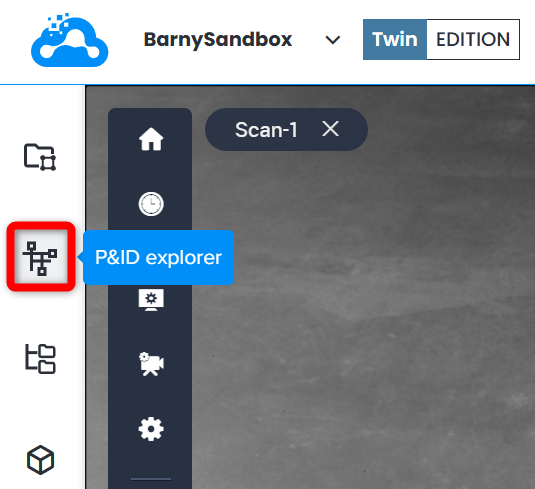
The interface of P&ID Explorer is similar to other explorers except a toggle to view P&ID Viewer on top.
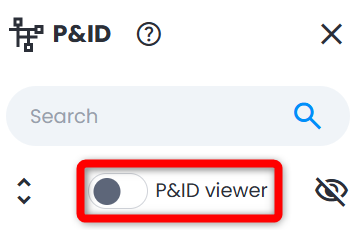
Toggling it on splits the screen between 3D View and P&ID Viewer which is a special way of viewing P&ID documentation inside Cintoo.
Types of Items in P&ID Explorer
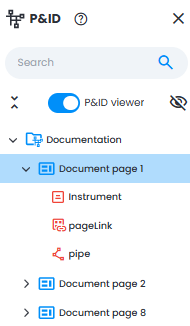
Structure of files:
- P&ID - collection of pages, compiling the documentation
- P&ID page - one page of a PDF format document
- Pipe - connection between P&ID elements (manual marking). Create a Pipe
- Instrumentation - P&ID elements (manual marking). Create an Instrument
- Page link - a hyperlink connecting two P&ID pages to ensure continuity. Create a Page link
Import P&ID
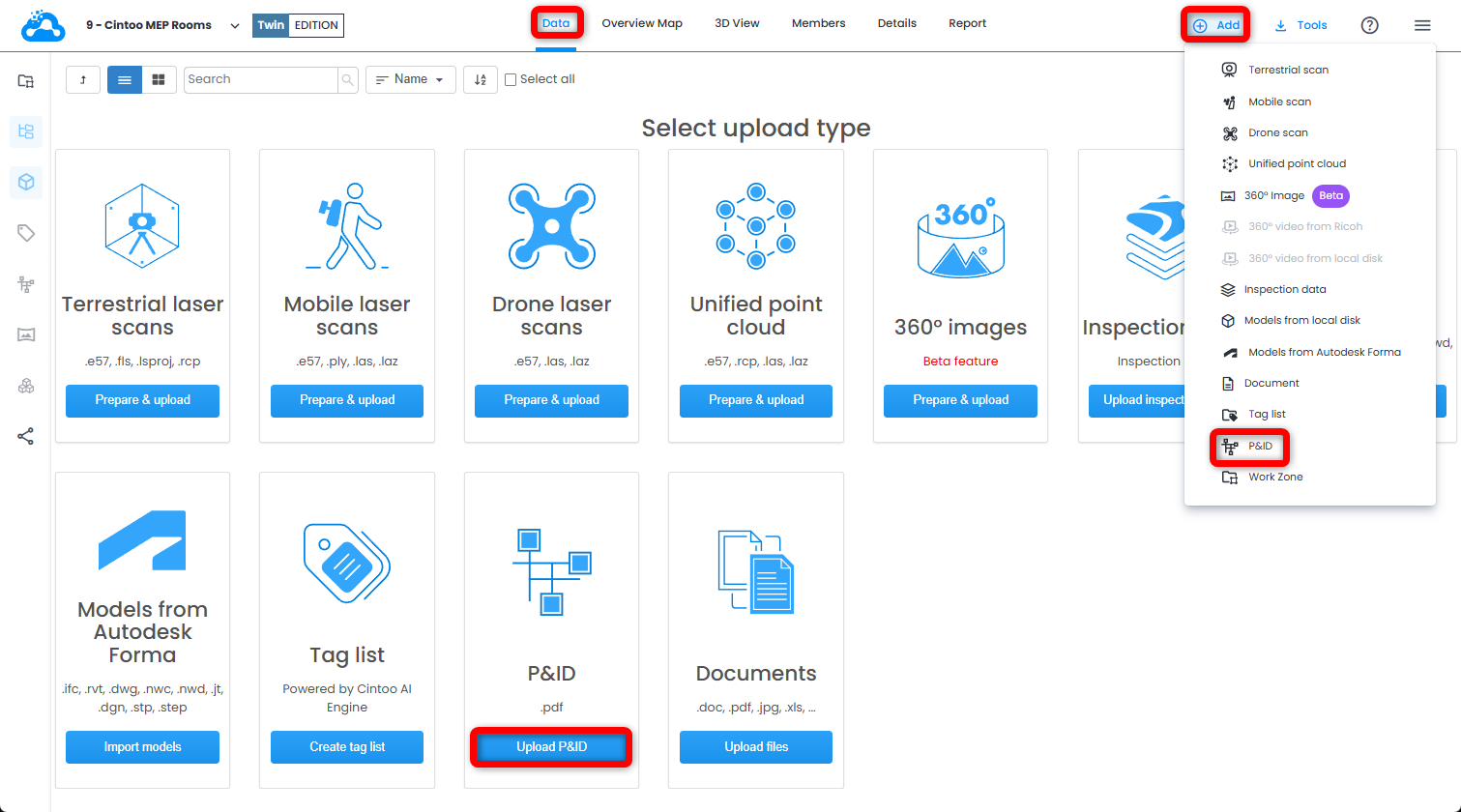
- Open Data tab and click Upload P&ID on P&ID tile or click P&ID from Add drop-down menu on the top right.
- In opened Create P&ID menu choose Name, Description if needed and add PDF format files as pages. Any page of a PDF file is treated like a separate P&ID page element.
Click on crosses to remove individual files in case of a mistake or click Remove all to start anew.
To import data click Create.
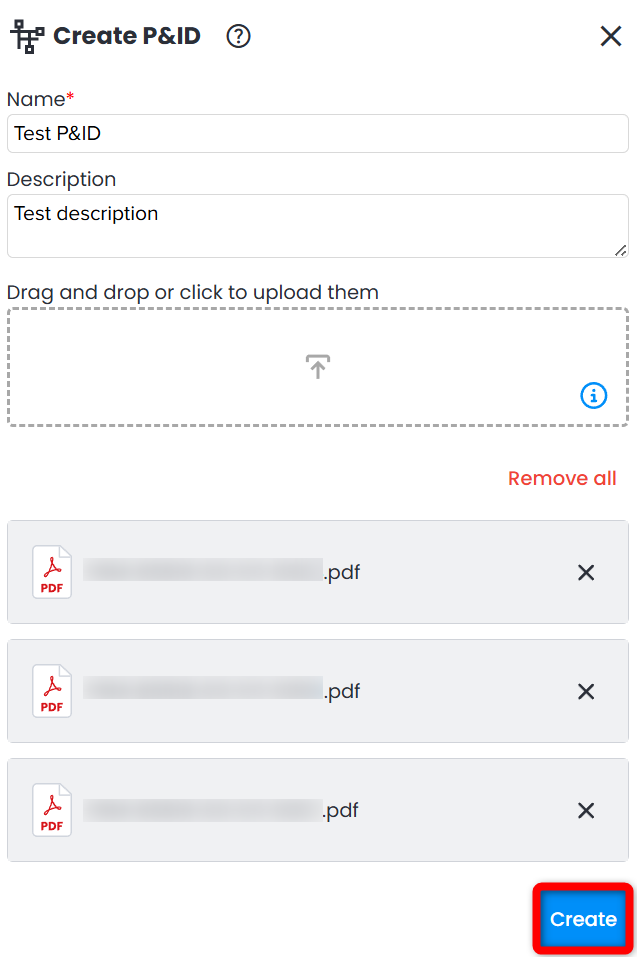 Warning: project can include up to 250 pages with overall size not exceeding 150 MB. One P&ID size cannot exceed 75MB.
P&ID Viewer Actions
More information about creation of Instruments and Pipes equipment, linking 2D and 3D tags and page could be found in P&ID Viewer.
Once created P&ID elements can be navigated to by double-clicking on them when P&ID Viewer is visible. It triggers the Focus action, which is the first action in the list.
Information
- Access Information menu for any object in P&ID Explorer from the bottom three dot menu by clicking Information.
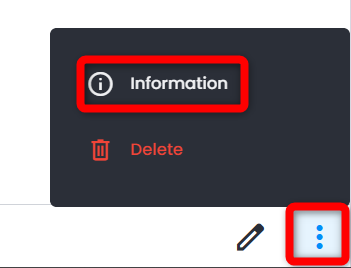
- For P&ID following information is located in Properties tab:
- Pages count
- Items count
- Description
- Imported documents
- For Pipes and Instrumentations following information is located in Properties tab:
- For all objects supplementary information in Details tab is available:
- Created at
- Created by
- Uuid (copyable)
Edit P&ID Page Name
- Click on the needed P&ID page in P&ID Explorer. Click Edit at the bottom.
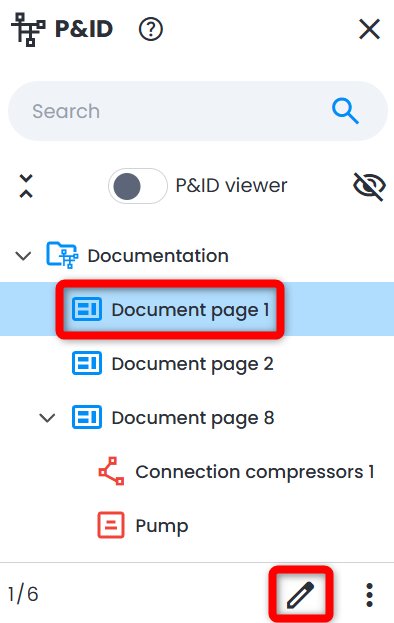
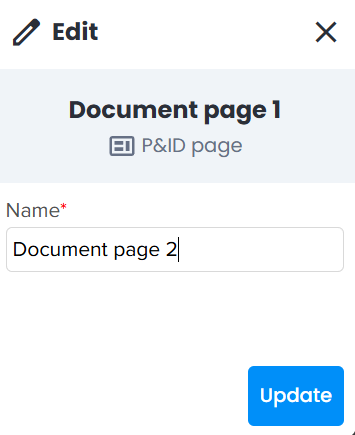
- In Edit menu change Name accordingly. Click Update to save any changes.
Was this article helpful?
That’s Great!
Thank you for your feedback
Sorry! We couldn't be helpful
Thank you for your feedback
Feedback sent
We appreciate your effort and will try to fix the article