This article describes planar surface measurement functionality in Cintoo.
TABLE OF CONTENTS
Requirements and Recommendations
Measurements can be performed in Cintoo in 3D View in either Scan&Teleport mode or 3D Navi mode.
Measurements cannot be performed in 2D Panoramic display mode. It must be one of 3D display modes (preferably Surface for more precision). Once a measurement has been created, it can be viewed in 2D Panoramic display mode as well.
Instead create a dedicated work zone with a clear name to store measurements in one place or save them to the same work zone where associated data is stored.
Create Planar Surface Measurement
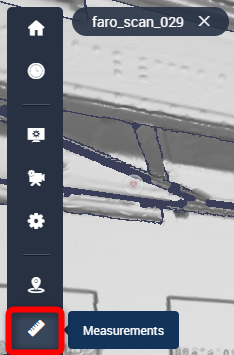
- Click on Measurements icon on the vertical tool bar on the left side of the screen.
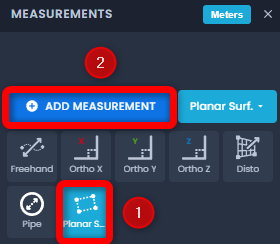
- Click the drop-down menu next to the Add Measurement button, select Planar Surface and click Add measurement.
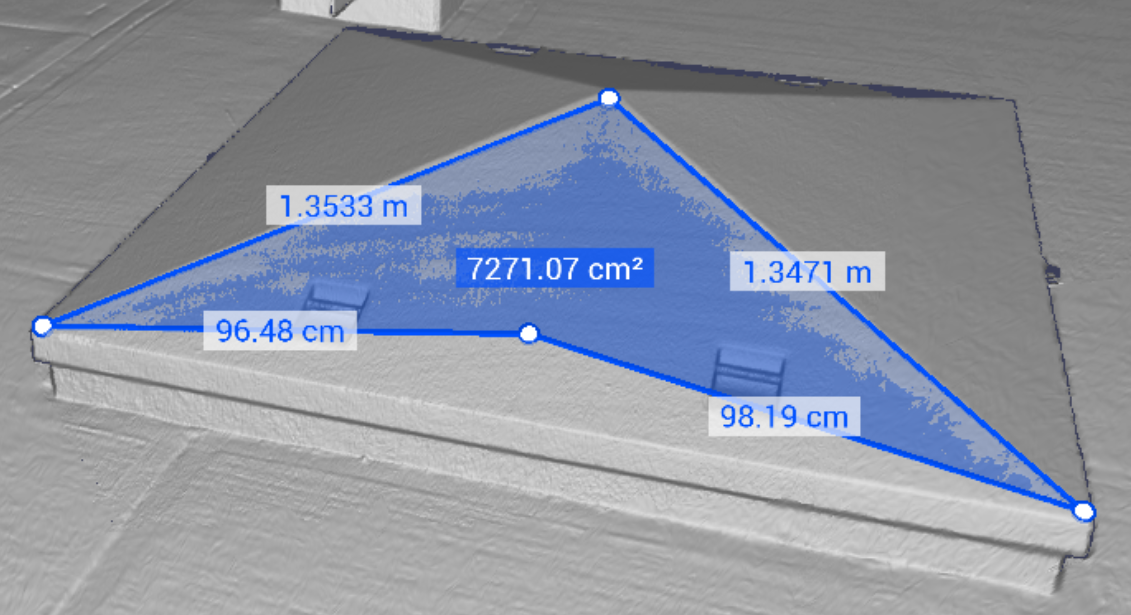
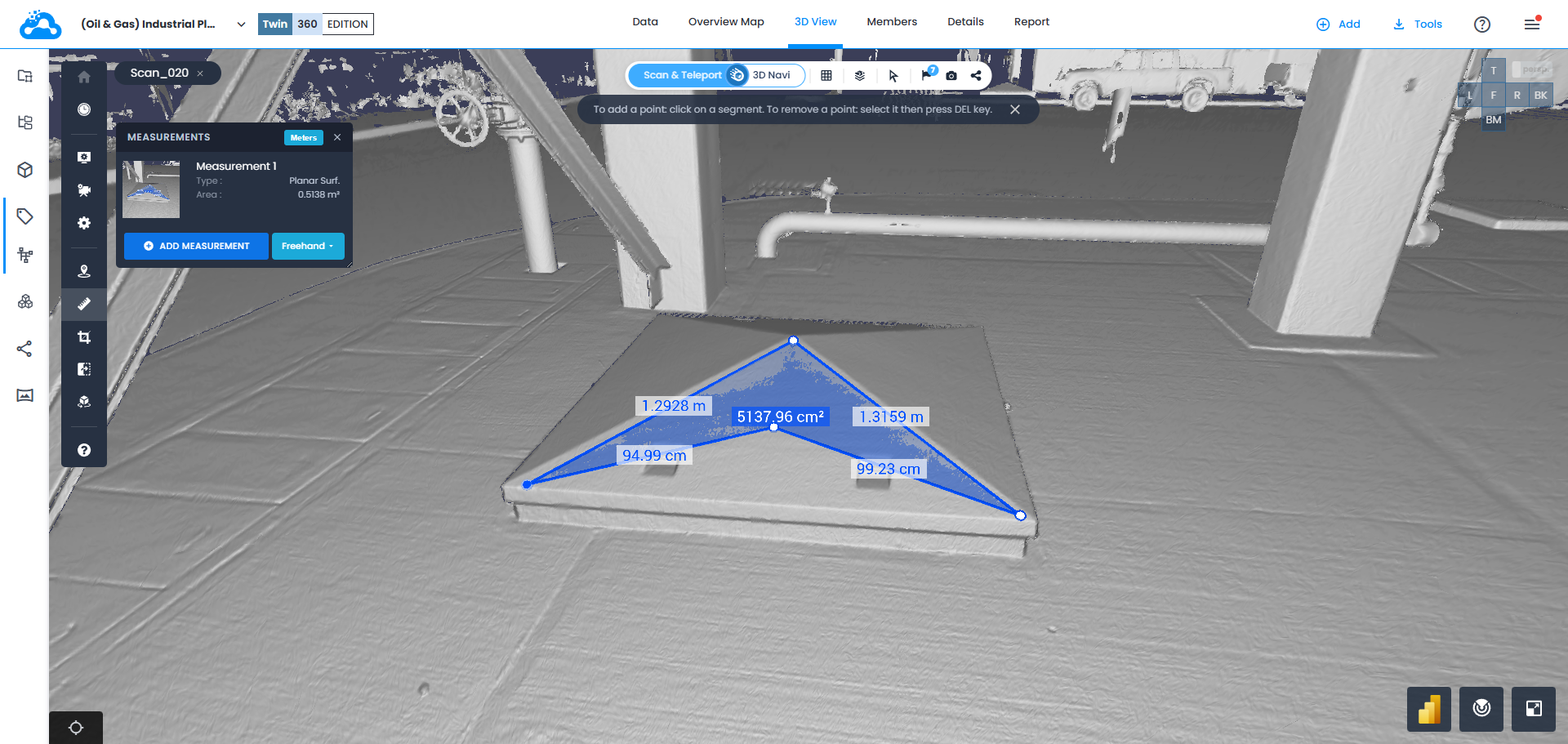
- Hover mouse cursor over any surface, click to start set points on the surface until 3 points are added. These 3 points define the plain, meaning that any further points added will be placed on the plain. After that add any number of additional points to better describe the surface.
To close the contour click on the first picked point.
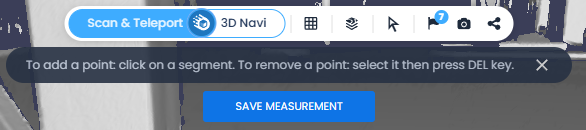
To add a point - click on a segment. To delete points - select a point and click Del on keyboard. A hint is shown under navigation bar in 3D View.
To undo the last action click Ctrl+Z on keyboard,

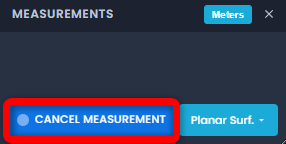
- Cancel measurement any time with a dedicated button in Measurements menu.
- Click Save measurement under navigation bar in 3D View to keep the measurement.
- Planar surface measurement is saved in Measurements tab in corresponding work zone.
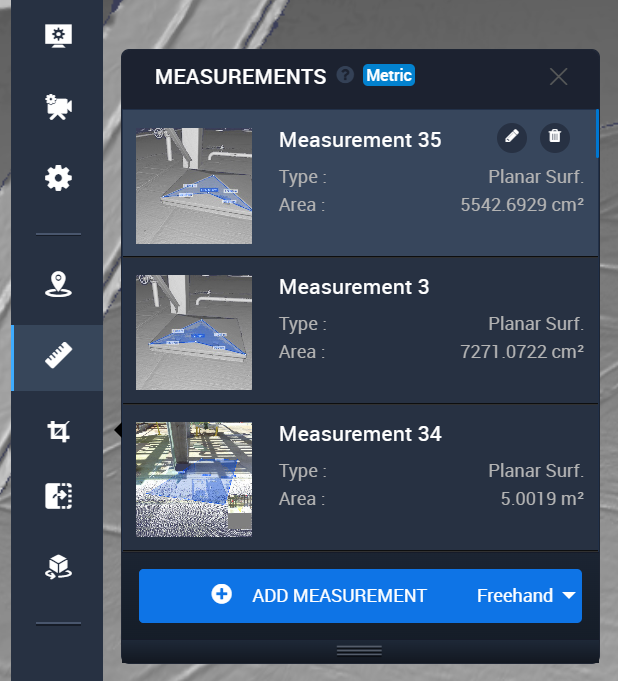
Actions
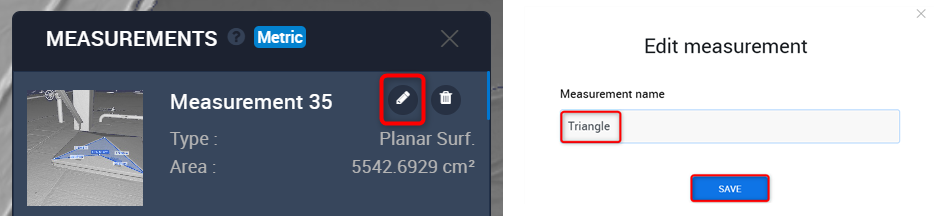
- Click Edit to change the Name of a measurement. In Edit measurement pop-up menu type Measurement Name and click Save.
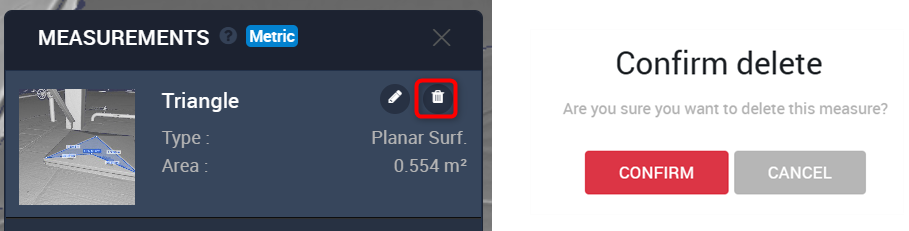
- Click Delete to remove a measurement from the project. In Confirm delete pop-up menu click Confirm to proceed.
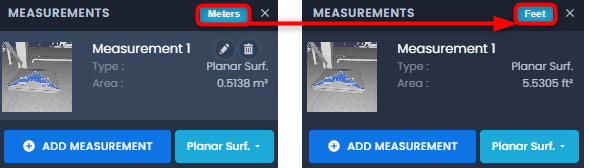
- Click on Meters to quickly change project units to Feet. Same action as doing it through Options.
- Drag and drop existing points to change the form of a Planar Surface measurement.

- Hover over a segment to add an additional point

- Click on a point and click Del on keyboard to remove the point from a measurement

- Any change to the form of measurement changes values of segments and surface on the go
Export
Measurements could be exported in a PDF report:
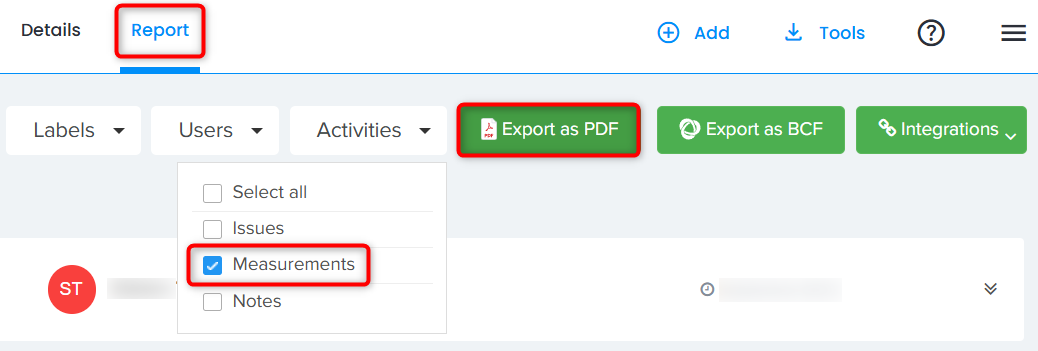
- Go to Report tab and in Activities select Measurements to be listed in the report. Generate a PDF by clicking Export PDF, which downloads the file locally.
- Each item title of the PDF report is clickable, displaying corresponding measurement in Cintoo.

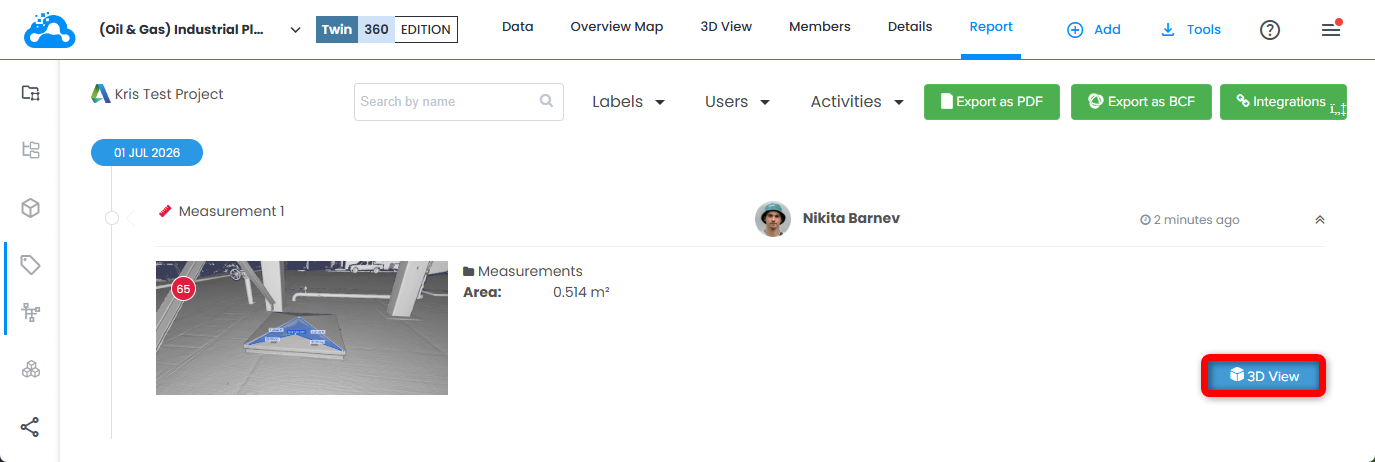
- Measurements could be accessed from Report tab by clicking on a measurement then on 3D View button to open a corresponding 3D View.
Was this article helpful?
That’s Great!
Thank you for your feedback
Sorry! We couldn't be helpful
Thank you for your feedback
Feedback sent
We appreciate your effort and will try to fix the article