This article describes polyline measurement functionality in Cintoo.
TABLE OF CONTENTS
Requirements and Recommendations
Measurements can be performed in Cintoo in 3D View in either Scan&Teleport mode or 3D Navi mode.
Measurements cannot be performed in 2D Panoramic display mode. It must be one of 3D display modes (preferably Surface for more precision).
Instead create a dedicated work zone with a clear name to store measurements in one place or save them to the same work zone where associated data is stored.
Create Polyline Measurement
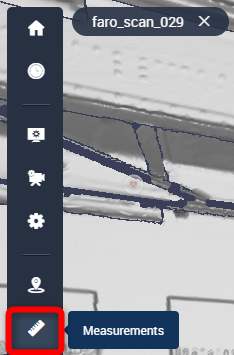
- Click on Measurements icon on vertical tool bar on left side of screen.
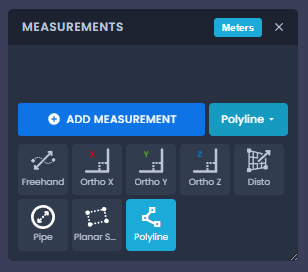
- Click drop-down menu next to Add Measurement button and select Polyline, listed as last option after Surface.
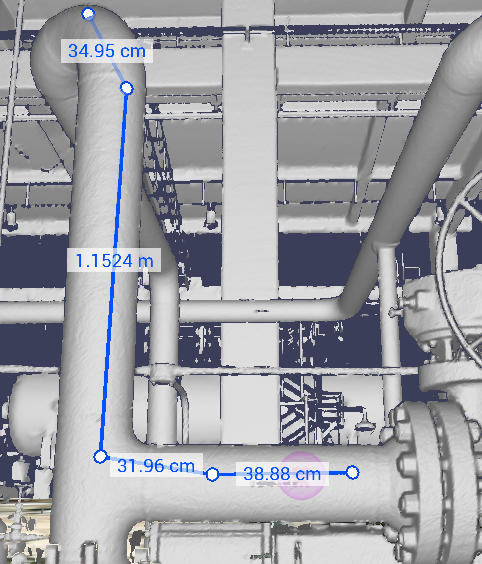
- Click sequentially on 3D surface to place each point along non-straight element being measured. Length of each segment displays along it in 3D View as points are placed. Total length updates live under top toolbar, next to guidance hint.Note: If a mistake was made the last point can always be removed by clicking CTRL+Z on keyboard.
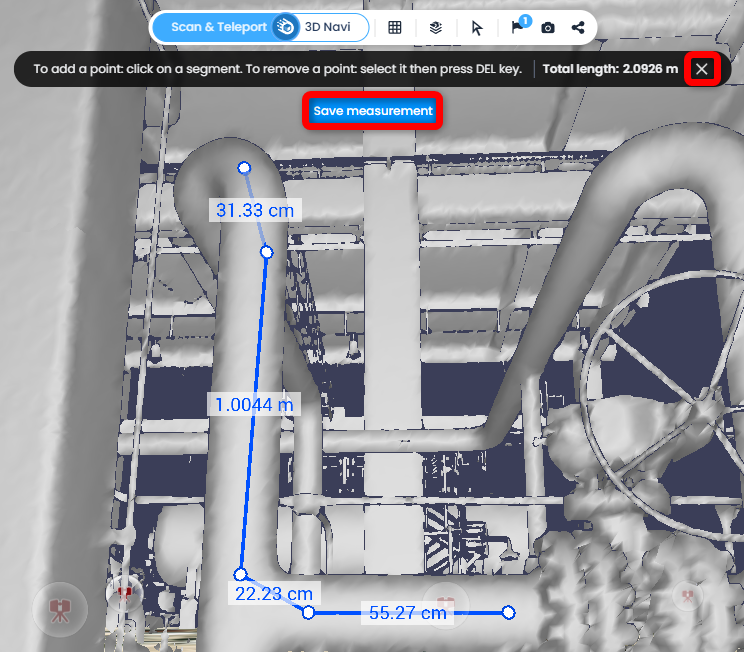
- Double-click on 3D surface to place final point and close polyline; 2 points minimum are required. Save Measurement button becomes visible.
Click on cross icon to remove all placed points and start over.
Click Save Measurement to save polyline to Measurements list.
- In Measurements list, saved polyline measurements display as type Polyline with total Length and number of segments shown.
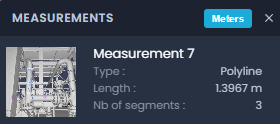
- Distances follow project unit system, same as other measurement types.Note: with Auto appropriate unit enabled in 3D View Options, a value too small or too large for selected unit is shown in another unit of same system, for example 0.35 cm as 3.5 mm.
Edit Polyline Measurement
- Click on saved polyline measurement in Measurements list to focus on it in 3D View.
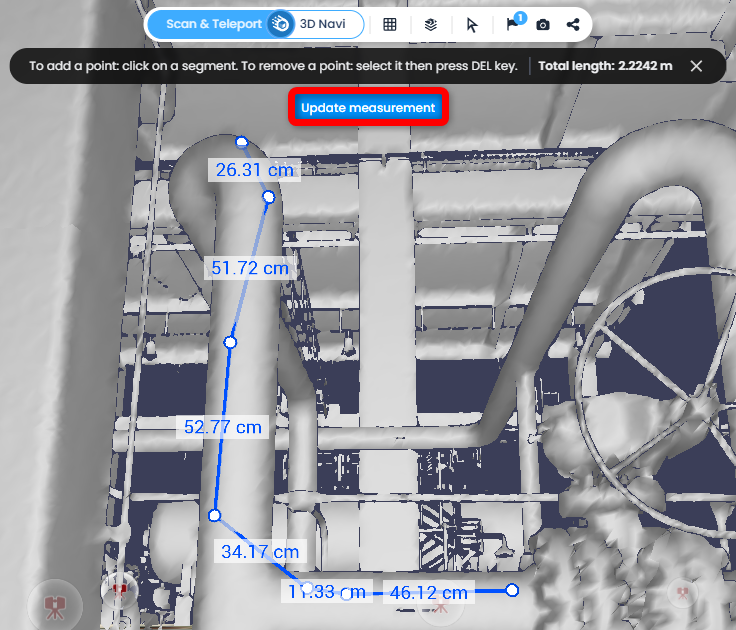
- Each point of polyline is manipulable in 3D space. Drag any point to reposition it, length of segment connected to it updates in real time, and total length under top toolbar updates live.
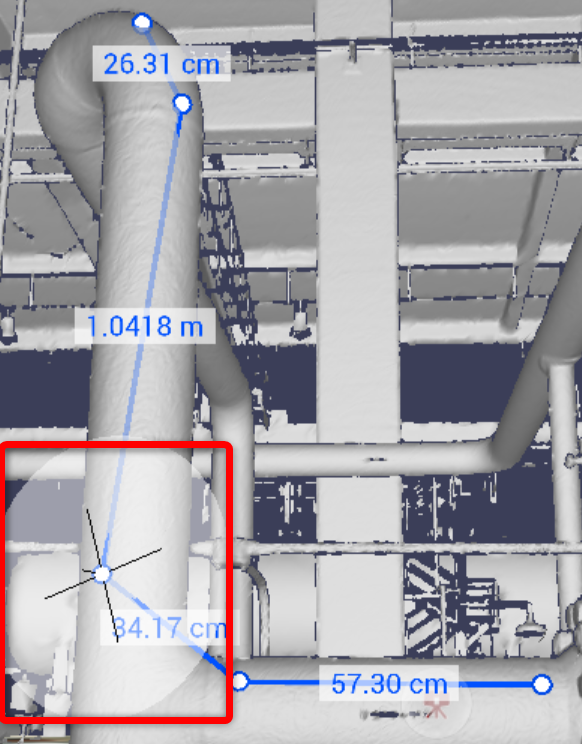
- Hover over any segment to see a projection of a future new point. Click on any segment of polyline to insert new control point at clicked position, splitting segment into two. Total length and segment count update accordingly.
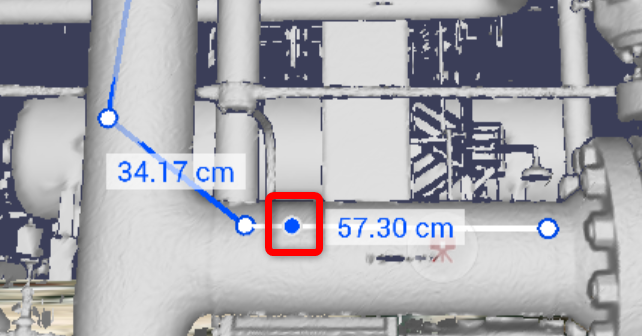
- Click on a point and click Del on keyboard to remove it from polyline. Total length and segment count update accordingly.
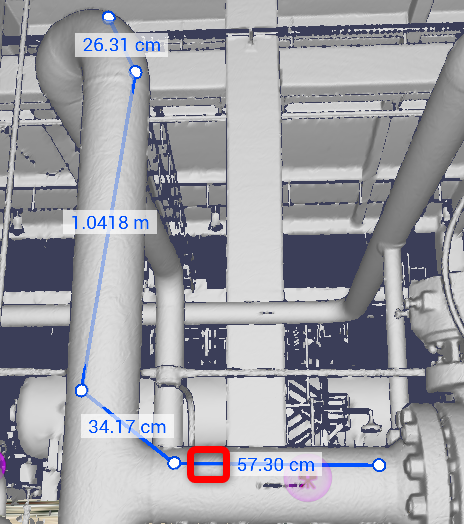
- Click Update Measurement to save changes.
Export
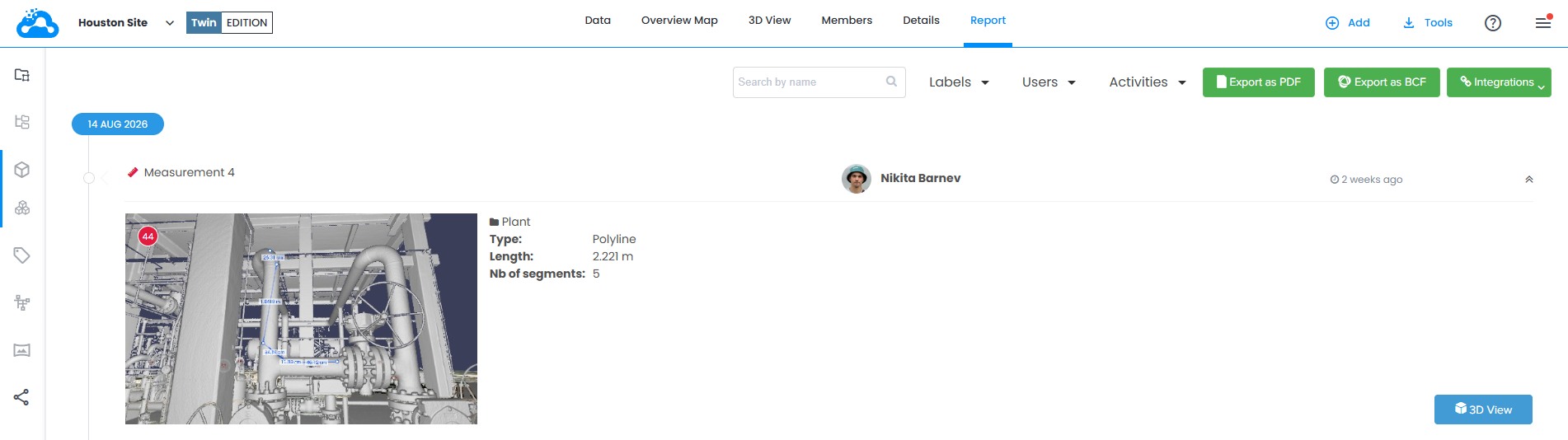
Polyline measurements are also available via Report tab, from which they can be exported in a PDF format.
More details: Export Measurements
Was this article helpful?
That’s Great!
Thank you for your feedback
Sorry! We couldn't be helpful
Thank you for your feedback
Feedback sent
We appreciate your effort and will try to fix the article