Cintoo scale markers are printed ArUco pattern sheets placed in the capture environment before recording. When visible in 360 video footage, they are detected automatically during import and used to calibrate real-world scale of the reconstructed path. This improves dimensional accuracy in the Gaussian Splat and reduces alignment error with 3D data - particularly useful in large environments or spaces with repetitive geometry.
Scale markers are optional. Videos captured without markers are processed normally; markers only add scale calibration on top of the standard workflow.
TABLE OF CONTENTS
Prerequisites
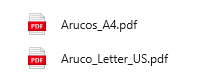
Please find marker PDF files to print in the attachment. Two versions are provided - one for A4 paper and one for US Letter.
Requirements:
- A printer capable of printing at actual size (no automatic scaling)
- A ruler or tape measure to verify print dimensions
- 4 to 6 sheets of paper per capture session
Step 1 - Print the Markers
- Select the correct file - choose the PDF matching the printer's paper size (A4 or US Letter).
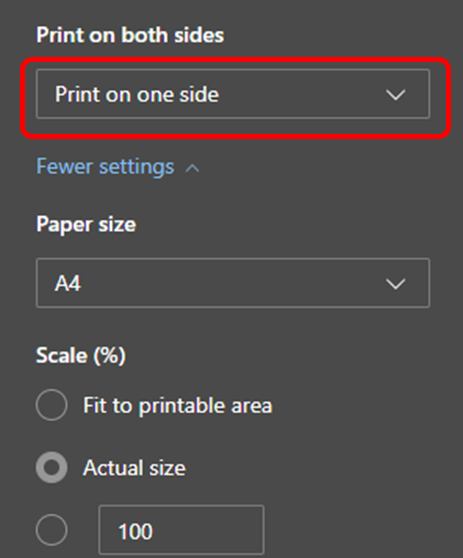
- Print single-sided - one marker per physical sheet.
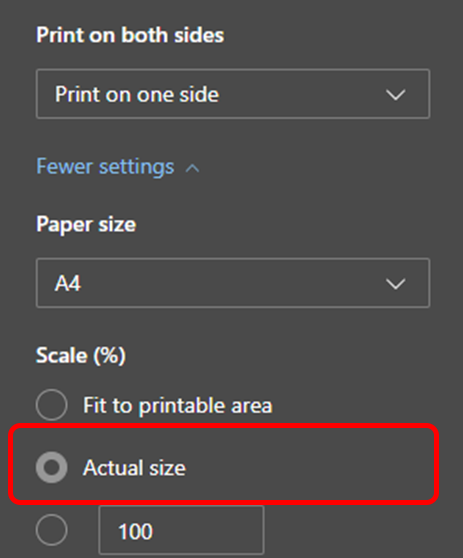
- Disable scaling - in the print dialog, set scale to Actual Size (100%). Turn off "Fit to Page", "Scale to Fit", and any automatic margin adaptation. Marker sheets must not be resized by printer software.
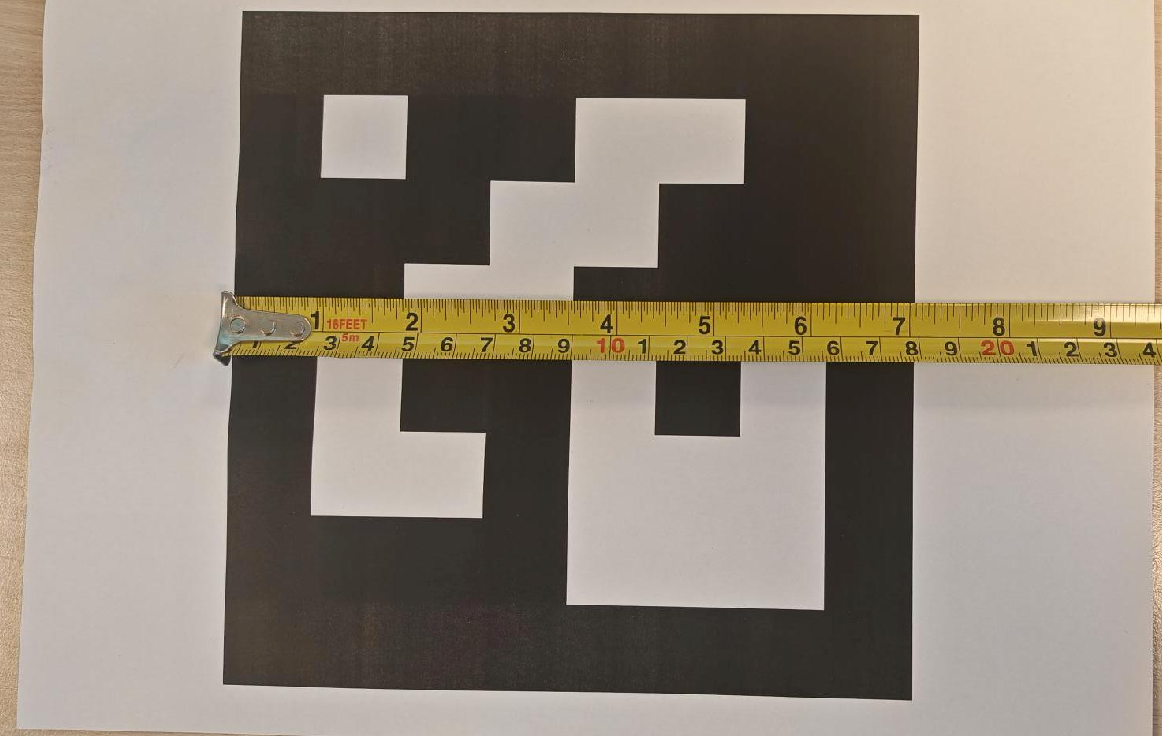
- Verify print size - use a ruler to measure the outer square of the printed marker. It must be exactly 18 cm (7.1 inches). If measurement is off, re-check scaling settings and reprint.
Step 2 - Place Markers on Site
Place markers before starting any recording. Markers must be physically present in the environment during filming.
- Mark the starting point - place the first marker at the exact location where filming will begin.
- Distribute across the site - place 4 to 6 markers across different rooms and regions to be covered. Attach each marker securely to a wall or flat vertical surface.
- Plan the route around markers - the camera must pass within 5 meters (16 feet) of each marker for it to be detected. Markers beyond 5 m from the camera will not be registered.
During Capture
Make sure the camera passes within 5 meters (16 feet) of each marker for it to be detected. Walk the planned route at normal capture pace. Markers are automatically detected when processing the video after import.
After Import
If markers were successfully detected, path scale is calibrated automatically - no action needed. Aligning the video still refines position and orientation within the 3D scene, but scale is already set.
Need Help?
For questions about scale markers or to request marker PDF files, contact the Customer Success Manager or reach out to support@cintoo.com / create a support ticket.
Was this article helpful?
That’s Great!
Thank you for your feedback
Sorry! We couldn't be helpful
Thank you for your feedback
Feedback sent
We appreciate your effort and will try to fix the article