This article describes how to export FARO Orbis and FARO Orbis Premium scan data from FARO SCENE and import it into Cintoo. FARO Orbis is supported in Cintoo Connect 2.18 and above.
More about FARO Orbis here: FARO Orbis
目次
- Understanding FARO Orbis scan types
- Step 1 - Export from FARO SCENE
- Step 2 - Import with Cintoo Connect
Understanding FARO Orbis scan types
FARO Orbis is a hybrid scanning device combining two capture technologies:
- Flash scan - a terrestrial mode that captures high-density static point clouds from fixed positions, using FARO's Flash technology (also referred to as SFC). Processed files with
Clean_SFCin their name are Flash scans. - Mobile scan - a continuous capture mode where the operator moves through the space while scanning. Processed files with
Clean_Colorin their name are Mobile scans.
These two scan types follow different export and import workflows and must be handled separately before bringing data into Cintoo.
Step 1 - Export from FARO SCENE
Organize scans in clusters
Before exporting, create two separate clusters inside FARO SCENE to organize data:
- One cluster for Flash scans (files containing
Clean_SFC) - One cluster for Mobile scans (files containing
Clean_Color)
Keeping these two groups separate ensures a clean, error-free export for each import type in Cintoo.
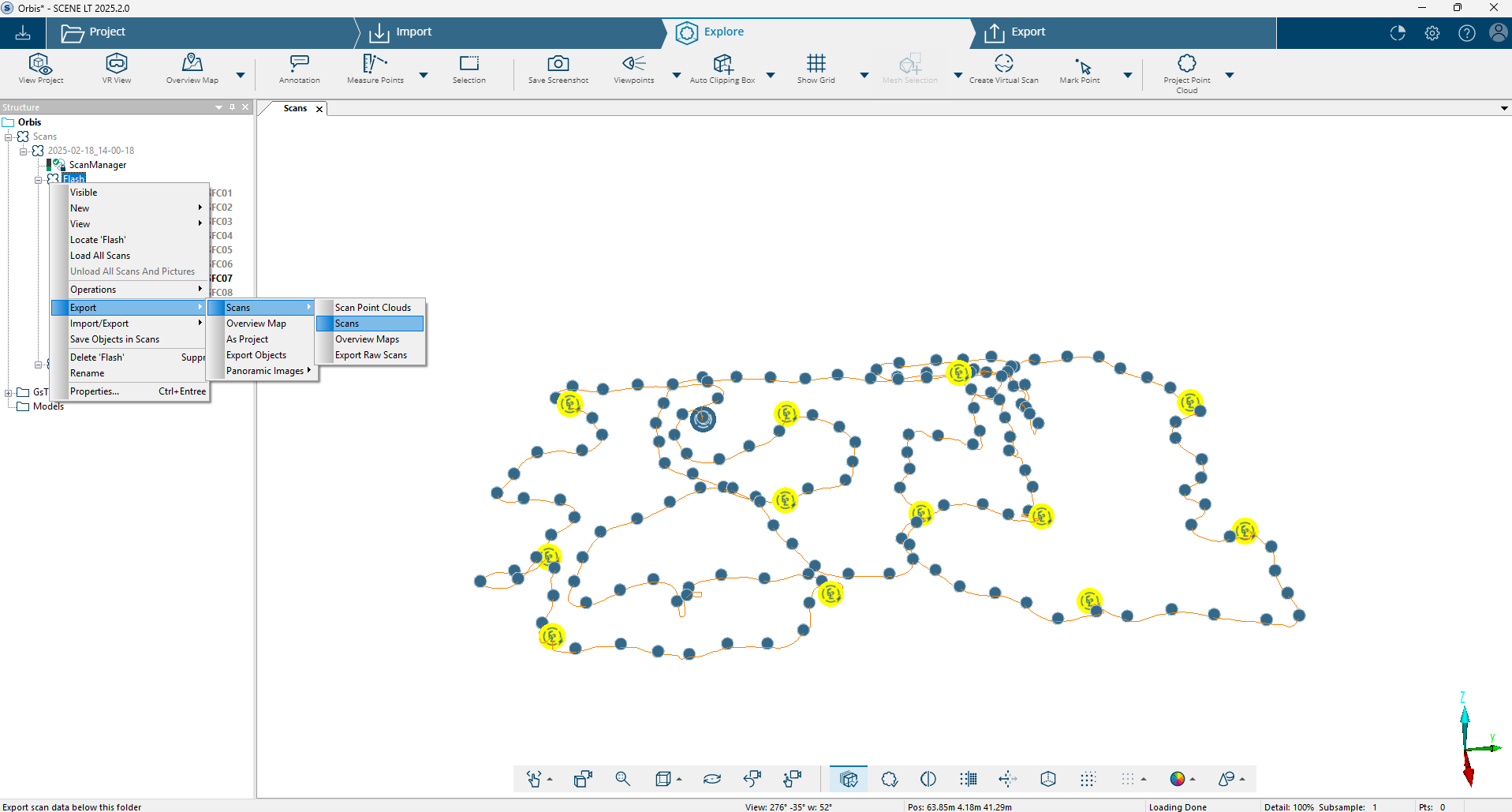
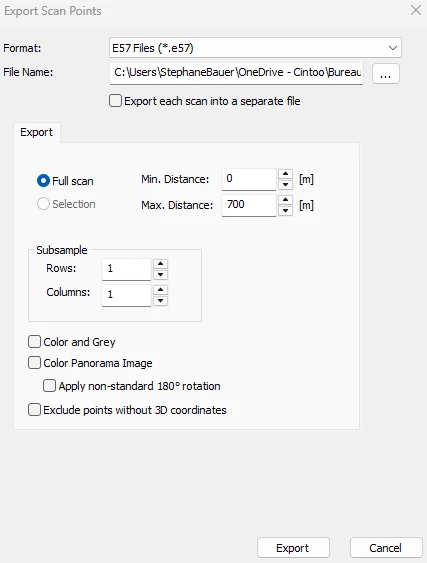
Export Flash scans
Flash scans must be exported from FARO SCENE as static scan files. In Cintoo, they are imported using the static scan import workflow.
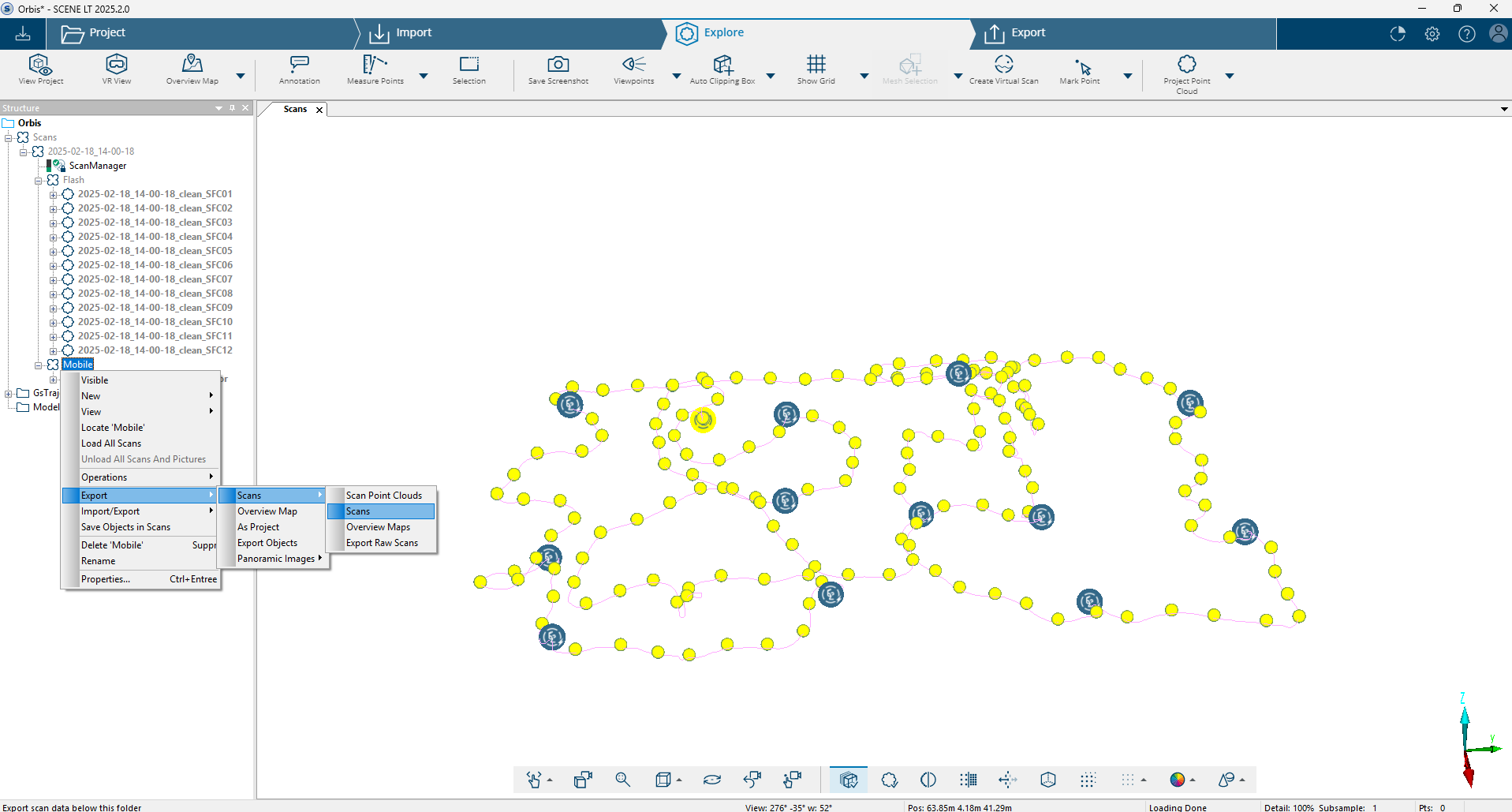
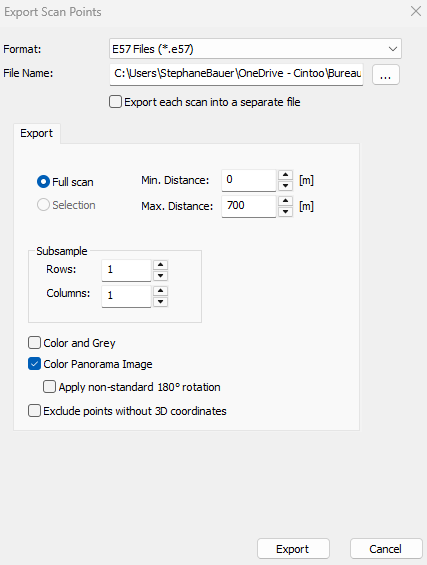
Export Mobile scans
Mobile scans do not store a scan path natively. To allow Cintoo to reconstruct the scan trajectory during import, panoramic images must be exported alongside mobile scan data. Cintoo Connect uses these images to automatically generate the scan path during the mobile import process.
Step 2 - Import with Cintoo Connect
- Open Data tab and click Prepare & upload on Mobile laser scans tile or click Mobile scan from Add drop-down menu on the top right. Cintoo Connectが起動します。
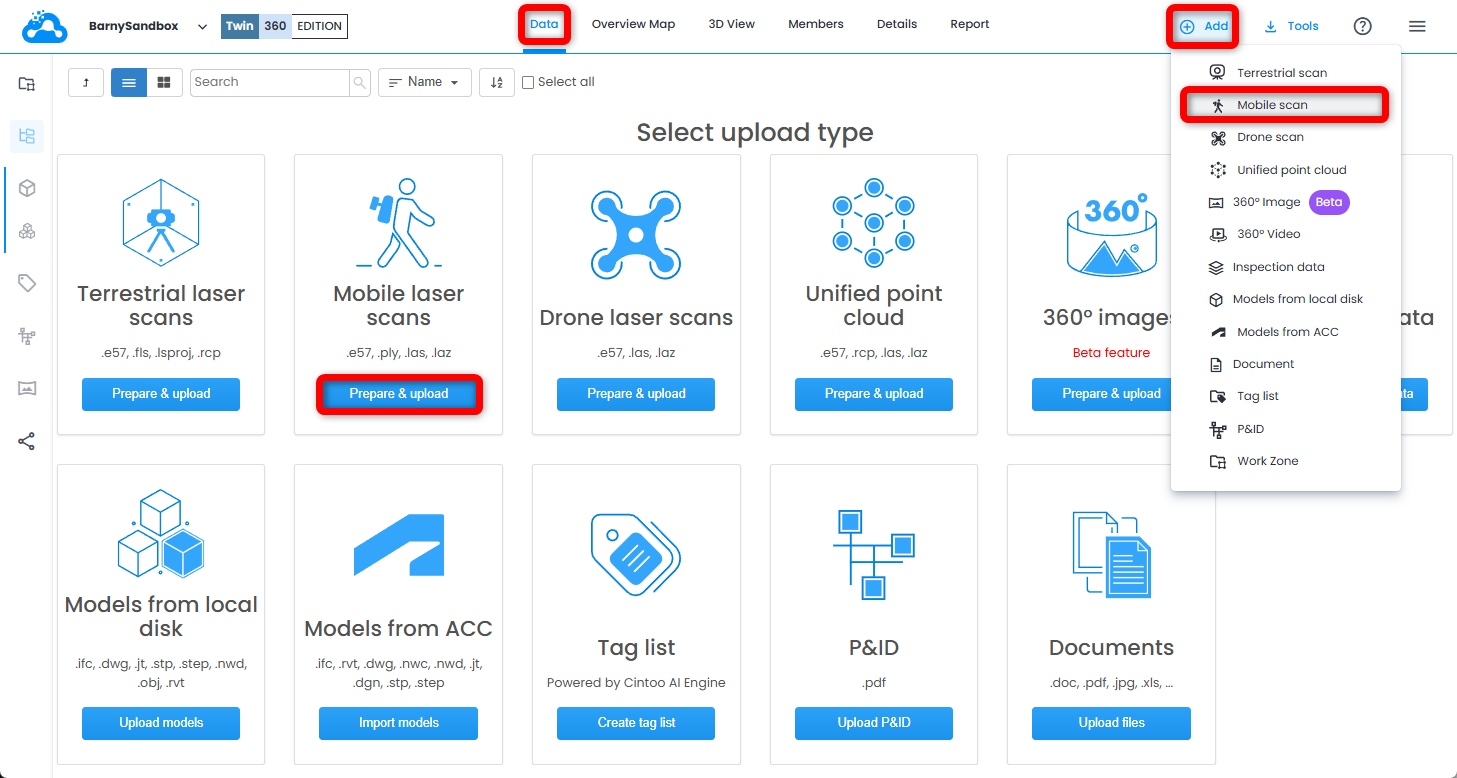
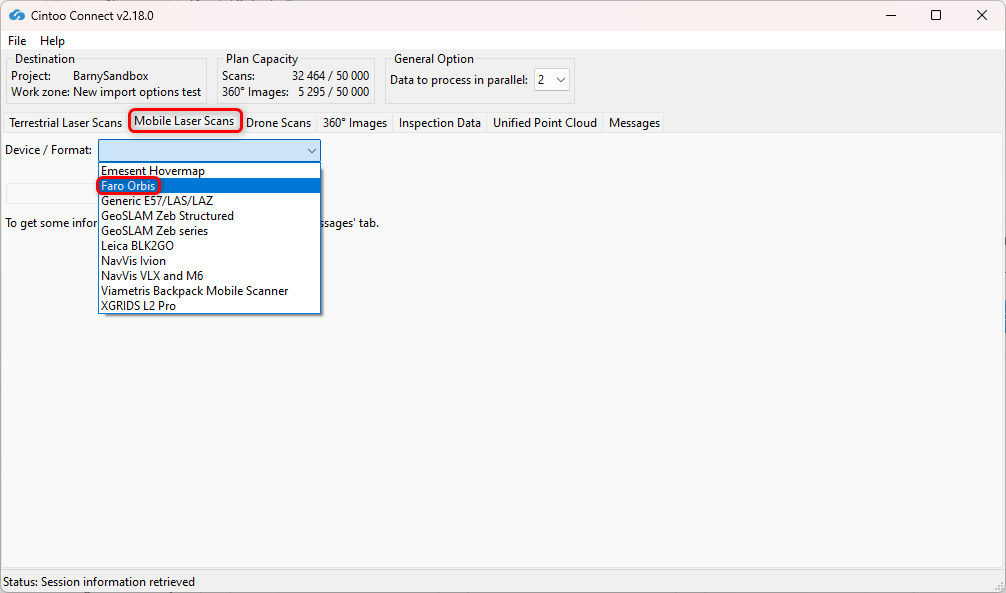
- In Mobile Laser Scans tab in Cintoo Connect, select Faro Orbis as source Device/Format.
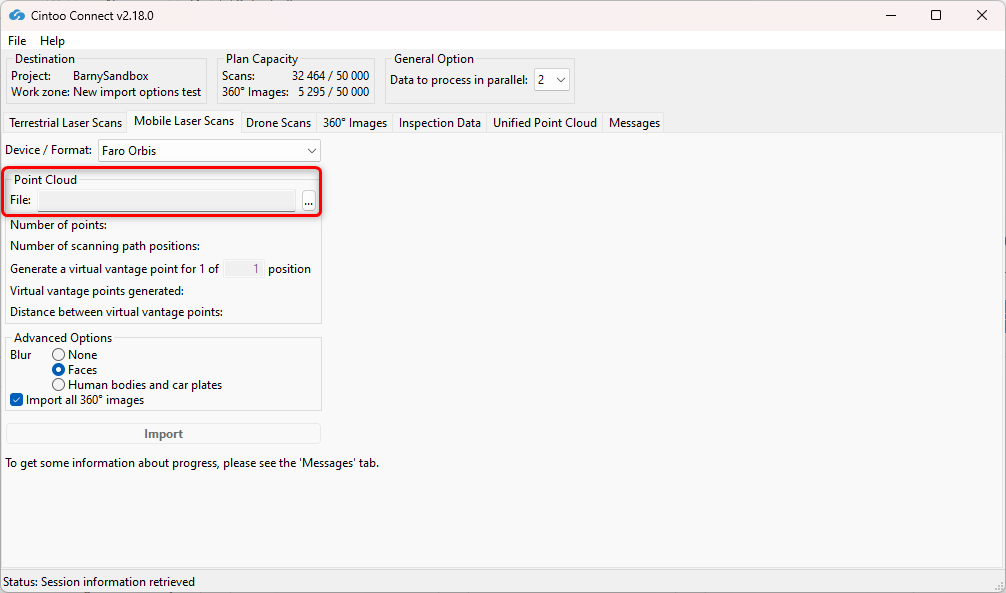
- Select the point cloud file exported from FARO SCENE as Point Cloud.
- Modify Positions sampling (decimation) as needed:
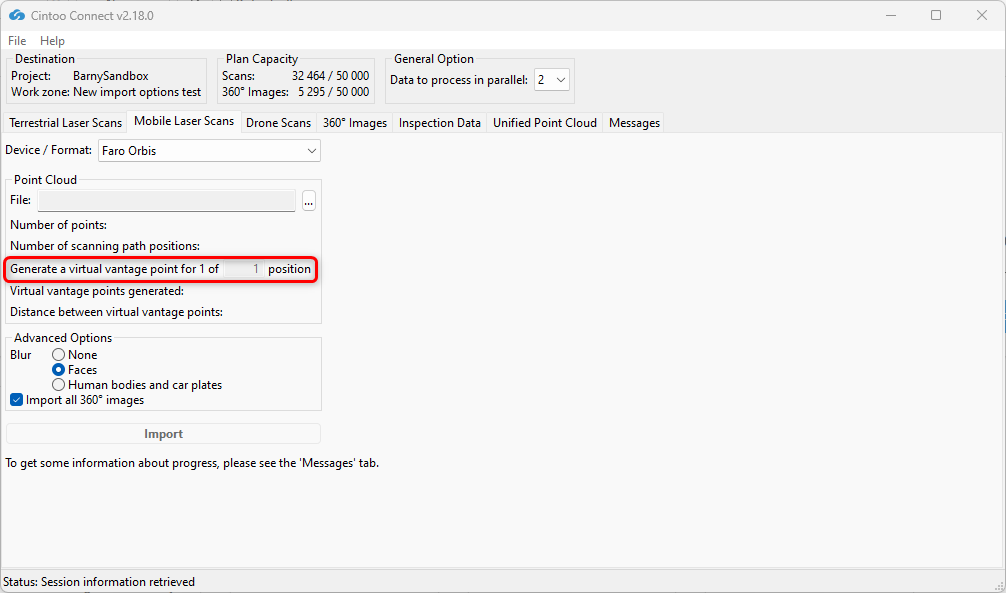
- 1 of 1 - all scan positions are imported (full density)
- 1 of 2 - every other position is imported, doubling effective spacing
- Higher values reduce VVP count further, with proportional reduction in detail
- Enable or disable Blur - Faces:
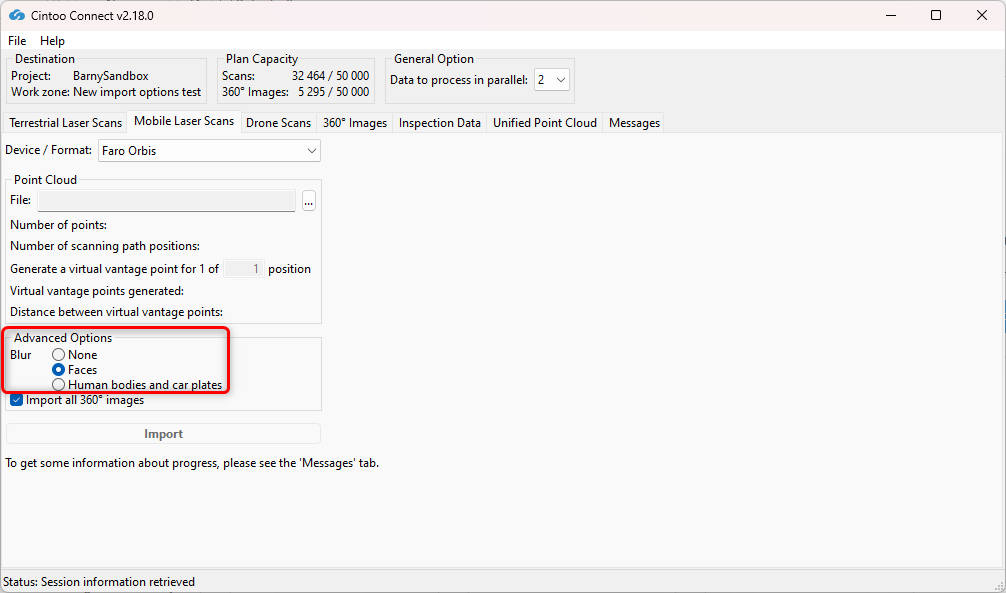
- This option is enabled by default, choose option None to not apply any blurring.
- This option automatically blurs faces captured in any panoramic images included in scans being uploaded to Cintoo.
- スキャンがアップロードされた後、Cintooでのぼかし処理は元に戻せません。
- Any files uploaded without Blur Faces option enabled must be deleted from Cintoo project and re-uploaded with option checked to apply automatic face blurring.
- Enable or disable Blur - Human bodies and car plates:
- This option is disabled by default, option Faces is chosen.
- Enable this option to automatically blur human bodies including faces and car plates captured on any panoramic images included in scans being uploaded to Cintoo.
- スキャンがアップロードされた後、Cintooでのぼかし処理は元に戻せません。
- Any files uploaded without Blur Human bodies and car plates option enabled must be deleted from Cintoo project and re-uploaded with option checked to apply automatic blurring.
- Enable or disable Import all 360 Images.
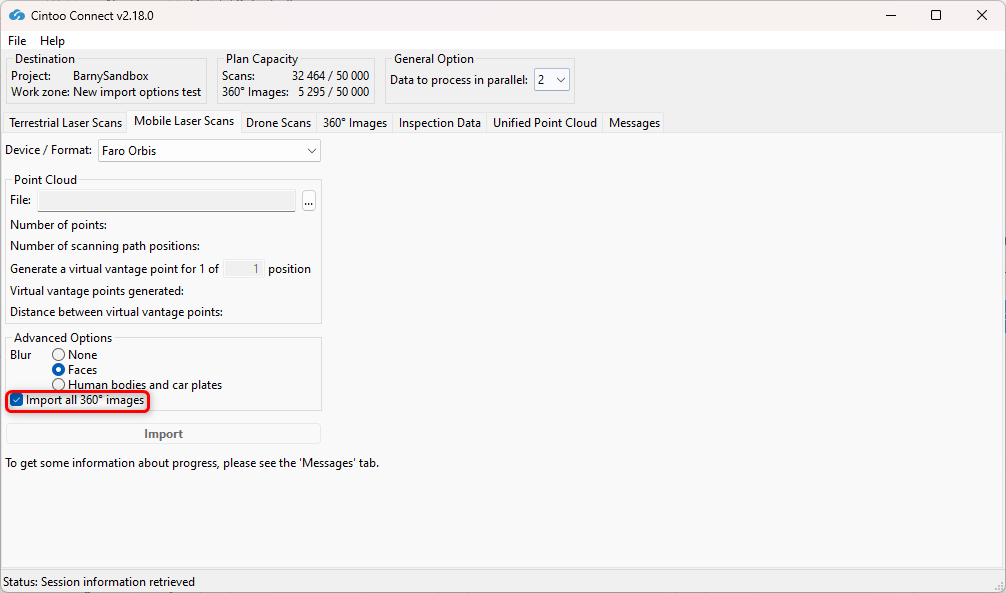
- This option is checked by default, enabling import of all 360 images included in scans, even if using a position sampling value other than 1 of 1 position.
- Uncheck this option to prevent automatic import of all 360 images included in scans.
- 360 images uploaded with this option will count in 360 Images capacity of Cintoo account, not Scan capacity.
- このオプションでアップロードされた360画像には、3Dデータが含まれません。 Only panoramic image will be displayed, so 3D display settings, Measurements, and Annotations cannot be used at these positions.
- This option is useful when broad visual coverage is needed while managing project size.
- Modify Data to process in parallel value as needed and according to available PC cores. With a multi-core PC it is possible to process more than 2 scans (default setting) in parallel.
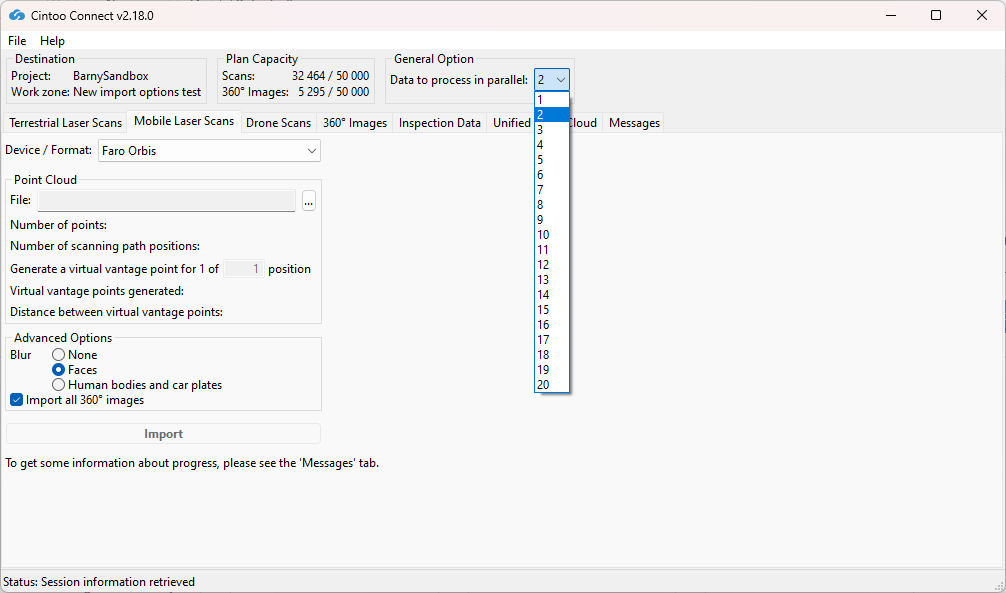 On average, at least 400 MB of RAM per 10 million pixels is needed to process. 例えば:
- 8GBのRAMでは、最大で一度に40百万ピクセルのスキャンを5つ並列処理することができます。
- 64GBのRAMは、160百万ピクセルのスキャンを5つ並列処理するのに必要です。
- Importをクリックします。
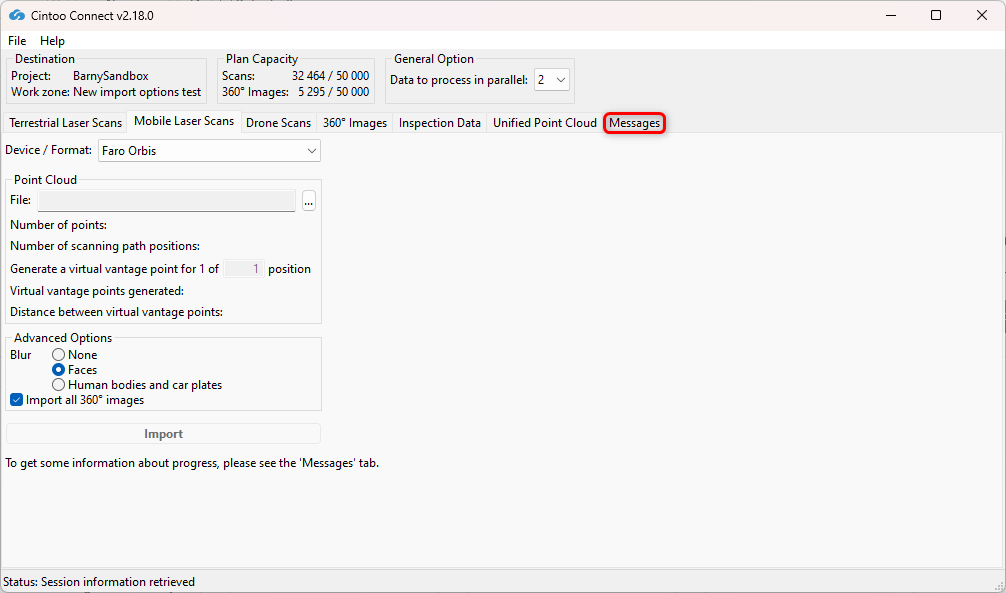
- Check Messages tab from time to time to see if the process is running smoothly.
- 新しい3DスキャンがCintooプロジェクトに1つずつ表示されます。
この記事は役に立ちましたか?
それは素晴らしい!
フィードバックありがとうございます
お役に立てず申し訳ございません!
フィードバックありがとうございます
フィードバックを送信しました
記事の改善におけるご協力ありがとうございます。