Follow these steps to import 360° video files into Cintoo projects from local hard drive, without passing through Ricoh Cloud.
TABLE OF CONTENTS
Prerequisites
| Criterion | Value | Checked before upload |
|---|---|---|
| Format | MP4 | Yes |
| Duration | 10s to 9min | Yes |
| Size | Up to 5GB | Yes |
| Projection | Equirectangular (2:1) | No - fails during processing |
| Codec | H.264 / H.265 | No - fails during processing |
| Resolution | 3840x1920 to 5760x2880 (5.7K) | No - fails during processing |
Import 360 Video from Local Disk
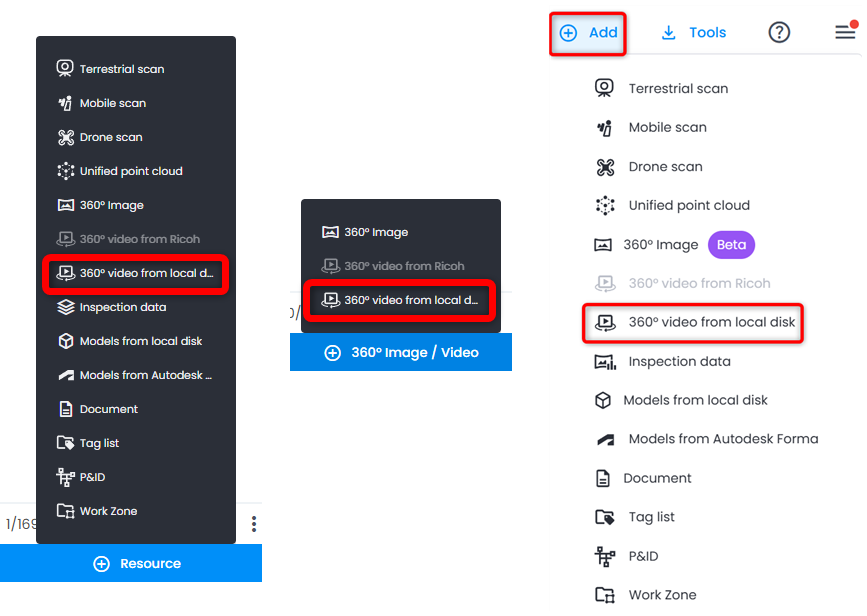
- Choose 360° video from local disk via Resource button in Resource Explorer, via 360° Image / Video button in 360° Edition Explorer or via Add menu on top right. Video is added to work zone selected in Work Zone Explorer.
- Right side panel opens displaying requirements for the video described in Prerequisites. Drag and drop video file onto it, or click to browse for file location.
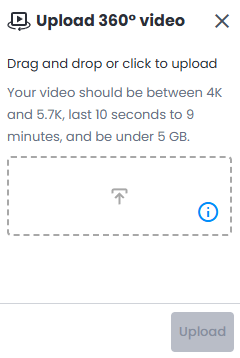 Note: only one file can be selected at a time.
 - Click Upload to begin import. Panel inputs stay disabled until upload ends. Panel can be closed meanwhile - upload continues in background while you keep working in Cintoo.
Track Import Progress
While uploading, notification "Uploading..." stays on screen until upload ends, with a reminder not to close browser tab - closing it interrupts upload and no import is created.
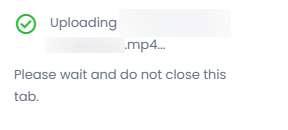
Once upload finishes, notification confirms whether import job started:
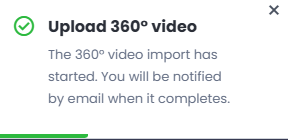
- "The 360° video import has started. You will be notified by email when it completes." - upload succeeded, processing begins in background.
- "The 360° video import failed. Please try again." - upload failed before reaching processing.
Processing then runs in background. Once processing completes, successfully or not, email notification is sent.
Once processing succeeds, video appears in Resource Explorer and 360° Edition Explorer. Importing same file twice creates two separate videos. Video belongs to project, not importing user, so it stays available if that user's access is removed.
Known Limitations
- Only one file can be imported at a time.
- 8K resolution isn't supported for now.
- Videos imported from local disk can't be told apart from videos imported from Ricoh.
Was this article helpful?
That’s Great!
Thank you for your feedback
Sorry! We couldn't be helpful
Thank you for your feedback
Feedback sent
We appreciate your effort and will try to fix the article